How to Find All Social Media Accounts by Username
TL;DR
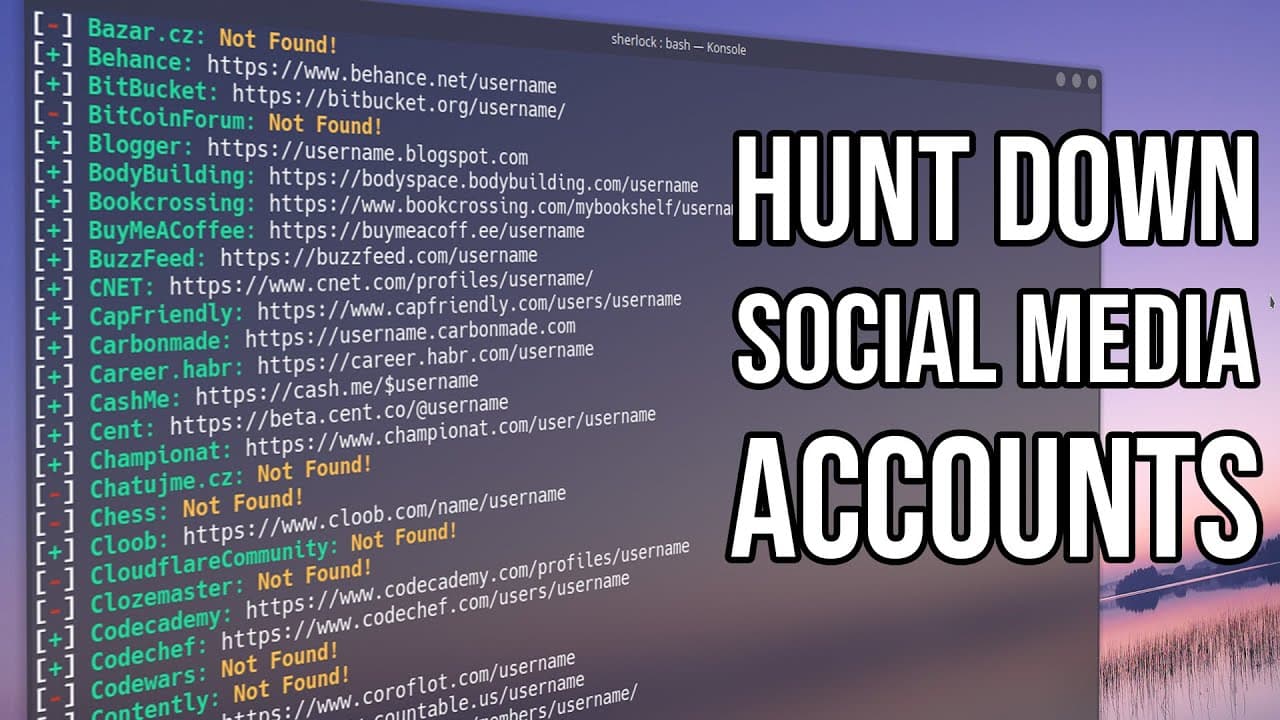
You can find all your social media accounts by using the Sherlock tool, which searches for accounts linked to a specific username across multiple platforms. To use it, install Python and Git, then run the Sherlock command in your terminal, input your username, and let it compile a list of associated accounts, with options to export the results for further review.
Transcript
hey guys what's going on it's Don here from Nova Spirit Tech and welcome back to the channel and today I got another Nova Tech tips for you guys we are going to be hunting down your social media accounts with just your username so let's get started today I'm going to be showing you a small little software that does a little bit of forensics for you... Read More
Key Insights
- 👤 Sherlock is an effective tool for online identity management, helping users track down different accounts they may have forgotten.
- 🫥 The installation process for Sherlock is straightforward, requiring basic command-line skills and understanding of package management in Linux.
- 👣 The utility's ability to scan multiple platforms makes it a versatile tool for digital footprint analysis.
- 👨🔬 Users can customize the search settings by filtering for specific sites or exporting results for offline review.
- 🈸 The application highlights the importance of monitoring and managing online accounts to prevent unwanted exposure or data leakage.
- 😒 Sherlock's functionality is beneficial not only for personal use but also for digital security professionals looking to assess potential vulnerabilities.
- 👤 The importance of keeping track of accounts on legacy social media platforms is emphasized, as many users forget their past engagements on these sites.
Install to Summarize YouTube Videos and Get Transcripts
Explore YouTube Video Summarizer or Get YouTube Transcript Extractor
Questions & Answers
Q: What is the purpose of the Sherlock tool introduced in the video?
Sherlock is a utility that helps users locate their social media accounts linked to a specific username. It scours hundreds of platforms to see if a username has been registered, making it useful for individuals who may have forgotten their online accounts across various sites.
Q: How do you install Sherlock on an Ubuntu system?
To install Sherlock, you need to have git, Python, and pip. Begin by entering commands in the terminal to install these dependencies. After that, you can clone the Sherlock repository from GitHub, run a command to install its requirements, and you're ready to use the tool.
Q: What command do you use to run Sherlock after installation?
Once Sherlock is installed, you need to navigate to its directory using the command 'cd Sherlock.' Then, you can run the tool by typing 'python3 Sherlock' followed by the username you want to investigate, allowing it to search for associated accounts on various platforms.
Q: Can Sherlock output search results to a file?
Yes, Sherlock provides options to export the search results to a file. Users can utilize specific output commands when running the software. This is especially helpful for saving the findings to review at a later time or for sharing with others.
Q: What platforms can Sherlock search for usernames?
Sherlock is programmed to search through a wide range of platforms, including legacy sites like MySpace and newer social media like 9gag. It scans numerous sites to find any associated accounts under the specified username.
Q: How does the searching process in Sherlock work?
The searching process in Sherlock involves inputting a username, after which the tool systematically checks all the predefined social media sites. It matches the username against existing accounts and outputs the results, usually displaying multiple matches where applicable.
Summary & Key Takeaways
-
The video introduces Sherlock, a software tool designed to perform online forensics by searching for social media accounts linked to a specific username.
-
Detailed installation instructions for Sherlock on Ubuntu 20.04 are provided, including the necessary commands to set up Python, pip, and git.
-
Users can run Sherlock to discover forgotten accounts across numerous platforms, with options to export the findings and filter results by specific sites.
Read in Other Languages (beta)
Share This Summary 📚
Summarize YouTube Videos and Get Video Transcripts with 1-Click
Try YouTube Summary with ChatGPT & Claude or YouTube Transcript Generator
Explore More Summaries from Novaspirit Tech 📚






Summarize YouTube Videos and Get Video Transcripts with 1-Click
Try YouTube Summary with ChatGPT & Claude or YouTube Transcript Generator