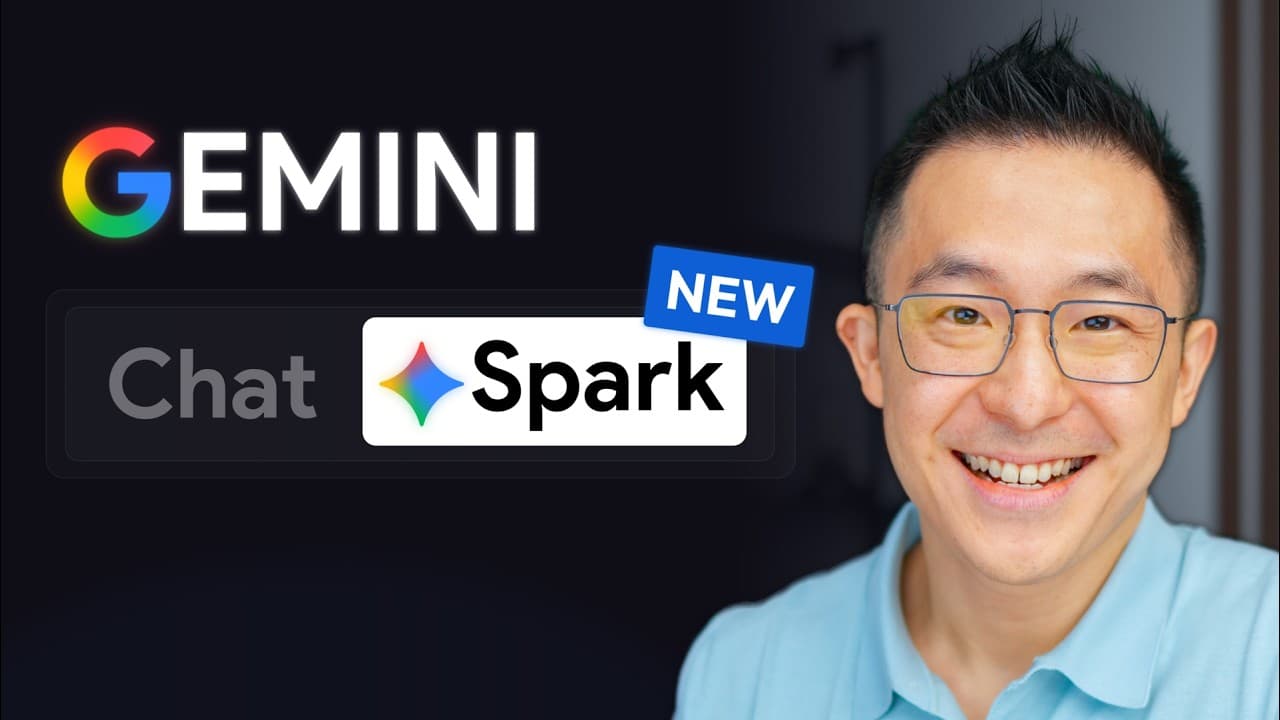
How to Automate Google Workspace with Gemini Spark
TL;DR
Gemini Spark can proactively complete Google Workspace tasks by combining context from Gmail, Calendar, Drive, and Google Search. Set it up by enabling memory or Workspace connections, then organize reusable templates, Skills, and scheduled tasks inside a Spark OS folder. This approach turns repeated instructions into consistent workflows that can run manually, on a timetable, or after an event.
Transcript
Lumni Spark is the most beginner-friendly AI agent out there. So, if you've heard of Cloud Co-Work, Codeex, or OpenClaw, but found those too intimidating, you are in the right place. In this video, we break down the four key capabilities of Gemini Spark, each with real world use cases, so that by the end, you'll know exactly how and when to use Gem... Read More
Key Insights
- Gemini Spark is a proactive agent that can perform work across Google services, while Gemini Chat is primarily reactive and responds when prompted. Spark can monitor incoming files, rename and relocate them, generate recurring reports, apply proposed email labels, and archive messages considered irrelevant.
- Personal Intelligence memory lets Gemini Spark remember preferences and learn how a person works. Personal Google accounts expose this setting, while enterprise users may only see Connected Apps and should ensure that the Google Workspace connection is enabled for Gmail, Calendar, and Drive access.
- Gemini Spark connects context from Google Drive, Calendar, Gmail, and Google Search through a single conversational interface. A request can combine public information, meeting transcripts, email details, calendar history, and document creation without requiring the user to open each underlying application separately.
- Detailed spoken prompts can provide more context than short typed instructions. The demonstrated voice-to-text workflow cleans up mistakes and formats dictated text, supporting the broader point that richer contextual input can improve an AI system's output when a task contains several requirements.
- Templates give recurring deliverables a stable structure. By storing a weekly report template in the Spark templates folder and pointing Spark to it, users can transform messy sales updates into leadership briefs without repeatedly describing the desired organization and formatting.
- A Gemini Spark Skill is a fixed set of instructions that converts changing input into a consistent type of output. Users can ask Spark to restate the goal and propose its steps before approval, then invoke the saved Skill from a new chat whenever needed.
- Gemini Spark Skills can be edited, downloaded, shared, and uploaded. The example modifies a weekly report Skill to display its bottom line in chat, while an inbox zero Skill demonstrates how imported workflows can preserve particular formatting and labeling preferences.
- Scheduled tasks run Skills without requiring manual invocation. A time-based task can generate a weekly report every Monday at 9:30 a.m., while event-based triggers can respond when something happens, such as the arrival of an automatically generated meeting transcript.
Install to Summarize YouTube Videos and Get Transcripts
Explore YouTube Video Summarizer or Get YouTube Transcript Extractor
Questions & Answers
Q: What is the difference between Gemini Chat and Gemini Spark?
Gemini Chat is primarily reactive: it finds information, summarizes files, drafts content, or prepares replies after receiving a request. Gemini Spark is proactive and action-oriented. It can monitor for new files, rename and move them, create reports on a recurring schedule, format email summaries consistently, propose labels, archive irrelevant messages, and coordinate tasks across connected Google services.
Q: How do you set up Gemini Spark for Google Workspace?
Open Gemini settings and, on a personal Google account, go to Personal Intelligence and turn on memory so Spark can retain preferences and learn how you work. Under Connected Apps, enable Google Workspace and Search Services. Enterprise users may only see Connected Apps, in which case they should enable the Google Workspace toggle to provide access to Gmail, Calendar, and Google Drive.
Q: How does Gemini Spark connect information across Google apps?
Gemini Spark can search across Gmail, Google Calendar, Google Drive, and Google Search, combine the relevant context, and take an action. For example, it can find a contact from an email thread, read the conversation, identify the time slot used for the previous meeting, and draft a new calendar invitation with an appropriate title and description for review.
Q: How can Gemini Spark create reports from a template?
Create a Spark OS folder in the root of My Drive, add a Spark templates folder, and store the desired report template there as a Google Doc. Attach or identify the document containing the raw updates, then ask Spark to turn those updates into a leadership brief that follows the stored template. Spark will distill the source material into the requested structure.
Q: What is a Skill in Gemini Spark?
A Skill is a saved, fixed set of instructions for turning the same kind of input into the same kind of output while allowing the underlying content to change. A weekly report Skill, for example, can locate the latest entry in an intake document, rewrite it using a stored template, and save the result in a designated temporary folder whenever the Skill is run.
Q: How do you create and modify a Gemini Spark Skill?
After completing a workflow in chat, ask Spark to convert it into a Skill. You can require Spark to restate the goal and show its proposed steps before you approve the Skill. Later, you can request a direct modification, such as displaying the report's bottom line in chat. The updated Skill remains available from the Skills tab for future use.
Q: How can Gemini Spark Skills be shared with teammates?
Open the Skill's three-dot menu and download it for sharing. A teammate can unzip the downloaded package to obtain the skill.md file, open the Skills section in Gemini Spark, choose the upload option, drag in that file, and confirm creation. The imported Skill can then be tailored to the teammate's workflow, formatting preferences, and labels.
Q: How do scheduled tasks work in Gemini Spark?
A scheduled task runs a Skill automatically instead of waiting for the user to invoke it. It can use a time-based trigger, such as running the weekly report Skill every Monday at 9:30 a.m., or an event-based trigger that reacts when something happens. Created tasks appear in the Schedules tab and can also be tested immediately with the Run command.
Summary & Key Takeaways
-
Gemini Spark differs from Gemini Chat because it can proactively act across connected Google services instead of merely responding to individual prompts. It can organize Drive files, generate recurring reports, triage email, and draft calendar invitations using context gathered from Gmail, Calendar, Drive, and Google Search, subject to user review where appropriate.
-
The recommended setup starts with enabling memory under Personal Intelligence for personal accounts and activating Google Workspace and Search Services connections. Enterprise users may only see Connected Apps. A Spark OS folder in the root of My Drive becomes the central location for templates, temporary outputs, and materials supporting repeatable automated workflows.
-
Templates define the format of recurring deliverables, while Skills preserve the complete instructions for producing them. Scheduled tasks go further by running Skills automatically at specified times or after events. Together, these features can convert messy sales updates into standardized leadership briefs and repeat the process every Monday at 9:30 a.m.
Read in Other Languages (beta)
Share This Summary 📚
Summarize YouTube Videos and Get Video Transcripts with 1-Click
Try YouTube Summary with ChatGPT & Claude or YouTube Transcript Generator
Explore More Summaries from Jeff Su 📚

Summarize YouTube Videos and Get Video Transcripts with 1-Click
Try YouTube Summary with ChatGPT & Claude or YouTube Transcript Generator