Embedding a YouTube video into a Powerpoint Presentation
TL;DR
Learn how to embed online videos into PowerPoint presentations for offline access and avoid copyright infringement.
Transcript
okay this is a very quick tutorial um the scenario is we have a PowerPoint presentation to give and we are going to a venue to present our presentation and we want to include within that presentation uh an online video such as one from a YouTube or another streaming website um the issue with this is you end up at the venue uh you click on the YouTu... Read More
Key Insights
- 🎮 It is common to face issues when attempting to play online videos in PowerPoint presentations without network connectivity.
- 🎮 Downloading online videos and embedding them as standalone files in PowerPoint presentations enables offline access to the videos.
- ©️ Users must obtain permissions and follow copyright laws when using copyrighted videos in their presentations.
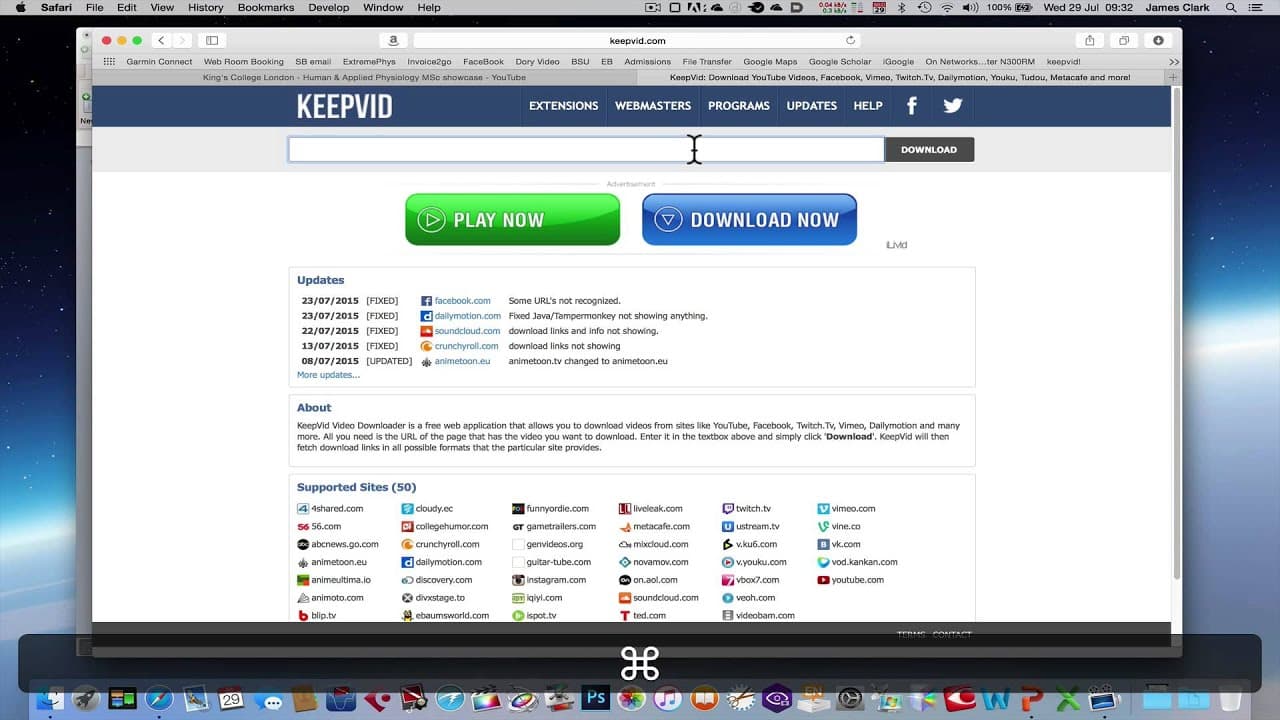
- 🥳 Third-party websites like keepvid.com can assist in downloading online videos, but precautions should be taken to ensure security.
- 🎁 Embedding videos in PowerPoint presentations makes it convenient to share and present content without relying on internet access.
- 💁 Choosing the appropriate resolution and format for the downloaded video ensures optimal quality and compatibility within the presentation.
- 🛀 Automatic playback settings can be adjusted to start the video when the slide is shown, providing a seamless presentation experience.
Install to Summarize YouTube Videos and Get Transcripts
Explore YouTube Video Summarizer or Get YouTube Transcript Extractor
Questions & Answers
Q: What is the issue with including online videos in PowerPoint presentations at venues with no network connectivity?
When there is no internet connection or restrictions on accessing websites, clicking on online video links in PowerPoint presentations will not play the videos, causing inconvenience during presentations.
Q: How can you overcome the network connectivity issue and still include online videos in PowerPoint?
By downloading the desired online video using third-party websites like keepvid.com and then embedding the video file as a standalone copy in the PowerPoint presentation, you can ensure offline access to the video during presentations.
Q: What are the copyright considerations when using someone else's video in PowerPoint presentations?
If the video is copyrighted, it is essential to seek permission from the copyright holder before using it in your presentation. In cases where the video is part of a creative commons agreement, proper credit should be given.
Q: Are there any risks associated with using third-party websites like keepvid.com to download videos?
While keepvid.com is considered safe, it is recommended to exercise caution when allowing third-party websites access to your computer. Ensure you have adequate security measures in place to protect your system and data.
Summary & Key Takeaways
-
Users often face issues with accessing online videos during PowerPoint presentations at venues with no internet connectivity or computer restrictions.
-
One solution is to download the video from online sources using third-party websites, such as keepvid.com, and then embed it as a file within the PowerPoint presentation.
-
Users should ensure that they have the necessary permissions to use copyrighted videos and take precautions when using third-party websites to download content.
Read in Other Languages (beta)
Share This Summary 📚
Summarize YouTube Videos and Get Video Transcripts with 1-Click
Try YouTube Summary with ChatGPT & Claude or YouTube Transcript Generator
Explore More Summaries from Dory Video 📚




Summarize YouTube Videos and Get Video Transcripts with 1-Click
Try YouTube Summary with ChatGPT & Claude or YouTube Transcript Generator