How to Record a Video Using Your Webcam on Windows and Mac
TL;DR
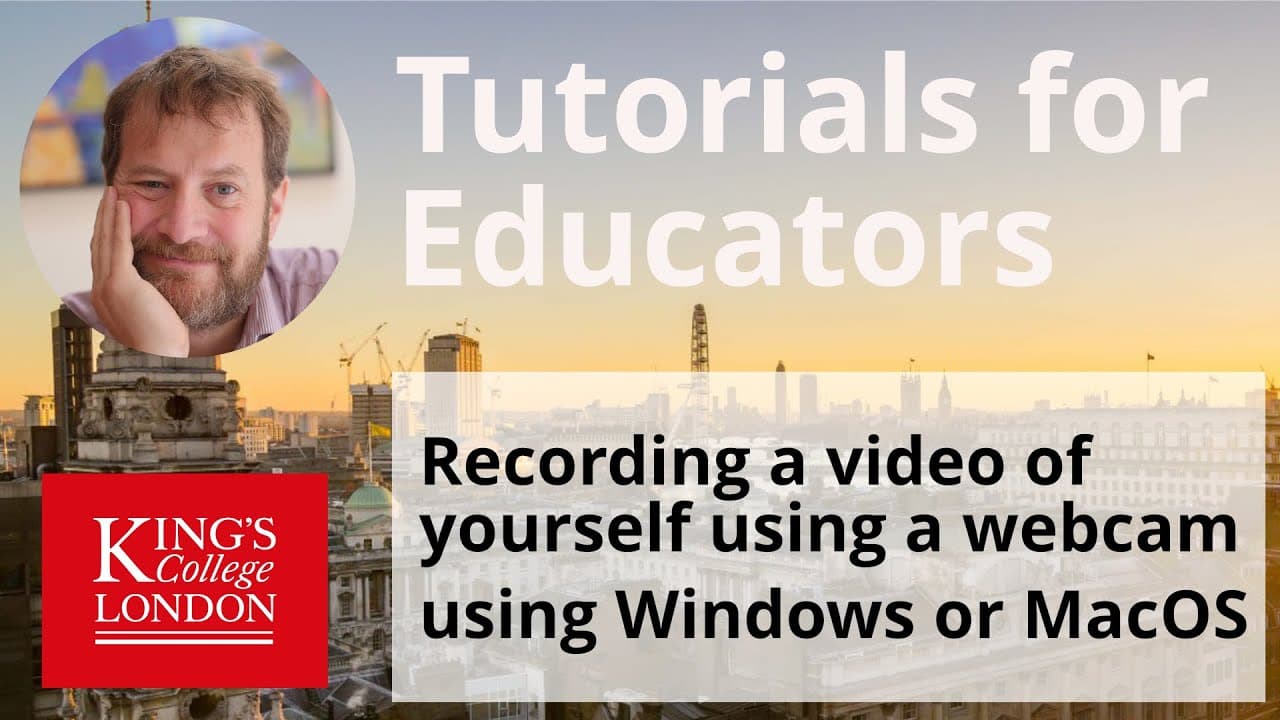
To record a video using your webcam on Windows, open the Camera app, switch to video mode, click 'Capture' to start recording, and press 'Stop' to save. On a Mac, use QuickTime Player, select 'New Movie Recording,' adjust settings as needed, click 'Record,' and press 'Stop' to save the video. Recorded videos can be edited and shared easily.
Transcript
if you want to record a video of yourself using your webcam in Windows you can use the camera app just click on the search for anything window and type in cam and you'll find the camera when the camera uploads by default there it is and there's my smiley face it is in photograph mode but if you switch it to video mode you'll see the video appear at... Read More
Key Insights
- 🎥 The camera app on Windows allows users to easily record videos using their webcams.
- 🎮 QuickTime Player is the default video recording software on Mac computers.
- 🎥 Users can customize video quality, audio settings, and camera choice while recording on both Windows and Mac.
- 🧘 Recorded videos can be edited, shared, and saved to desired locations.
- 🎮 Compression of video files can be done later to reduce their size.
- ✋ Recording at higher quality settings may result in larger file sizes.
- 👤 Both Windows and Mac provide user-friendly options for recording videos using webcams.
Install to Summarize YouTube Videos and Get Transcripts
Explore YouTube Video Summarizer or Get YouTube Transcript Extractor
Questions & Answers
Q: How can I record a video of myself using my webcam on Windows?
To record a video on Windows, open the camera app, switch to video mode, click on capture, and press stop to save the video. You can then edit, share, or save the video to a location of your choice.
Q: How do I record a video using my webcam on a Mac computer?
On a Mac computer, open QuickTime Player, choose new movie recording, customize quality and audio settings, click on record, and press stop to save the video. You can preview, edit, and save the video to your preferred location.
Q: Can I change the quality of the recorded video on Windows?
Yes, in the camera app on Windows, click on the drop-down button next to the record button to choose the quality of your video. You can select options like high or maximum resolution, depending on the capabilities of your webcam.
Q: How can I customize audio and video settings while recording on a Mac?
In QuickTime Player on Mac, click on the drop-down button next to the record button and adjust the settings for video quality, audio device, and camera choice. You can choose the desired options to ensure optimal recording quality.
Summary & Key Takeaways
-
To record a video on Windows, open the camera app, switch to video mode, click on capture to start recording, and press stop to save the video to your media library.
-
On Mac computers, open QuickTime Player, choose new movie recording, customize quality and audio settings, click on record to start recording, and press stop to save the video.
Read in Other Languages (beta)
Share This Summary 📚
Summarize YouTube Videos and Get Video Transcripts with 1-Click
Try YouTube Summary with ChatGPT & Claude or YouTube Transcript Generator
Explore More Summaries from Dory Video 📚



Summarize YouTube Videos and Get Video Transcripts with 1-Click
Try YouTube Summary with ChatGPT & Claude or YouTube Transcript Generator