How to Use Text to Columns in Excel to Split Data
TL;DR
To split data in one column into multiple columns in Excel, use the Text to Columns feature. Choose the delimiter—like spaces or commas—to separate the data, select the desired destination columns, and finish the process to see your data organized into distinct columns.
Transcript
in this tutorial we're gonna talk about how to use the text to column feature in Excel so sometimes let's say if you take a data from Microsoft Word copy and paste it and put it in Excel the data will typically be pasted on into one column that sometimes you want to take the information in that column and separate it into different columns now ther... Read More
Key Insights
- ❓ The Text to Column feature in Excel is useful for separating data in one column into multiple columns.
- 👾 It provides flexibility in choosing different delimiters, such as spaces, commas, or custom delimiters, to split the data.
- 👻 The feature allows users to select the destination for the separated data, specifying the columns where it will be pasted.
Install to Summarize YouTube Videos and Get Transcripts
Explore YouTube Video Summarizer or Get YouTube Transcript Extractor
Questions & Answers
Q: What is the purpose of the Text to Column feature in Excel?
The Text to Column feature is used in Excel to separate data in a single column into multiple columns based on a chosen delimiter, such as a space or a comma.
Q: Can you use the Text to Column feature with names separated by spaces?
Yes, you can. By selecting the delimited option and choosing the space as the delimiter, Excel will split the names into separate columns based on the spaces.
Q: How can you specify the destination for the separated data?
When using the Text to Column feature, you can select the desired columns where you want the separated data to be pasted. Excel will automatically place the separated data in the chosen columns.
Q: Does the Text to Column feature work for other delimiters besides spaces and commas?
Yes, it does. The Text to Column feature allows you to choose various delimiters, such as semicolons, tabs, or custom delimiters, to split data in a column into multiple columns.
Summary & Key Takeaways
-
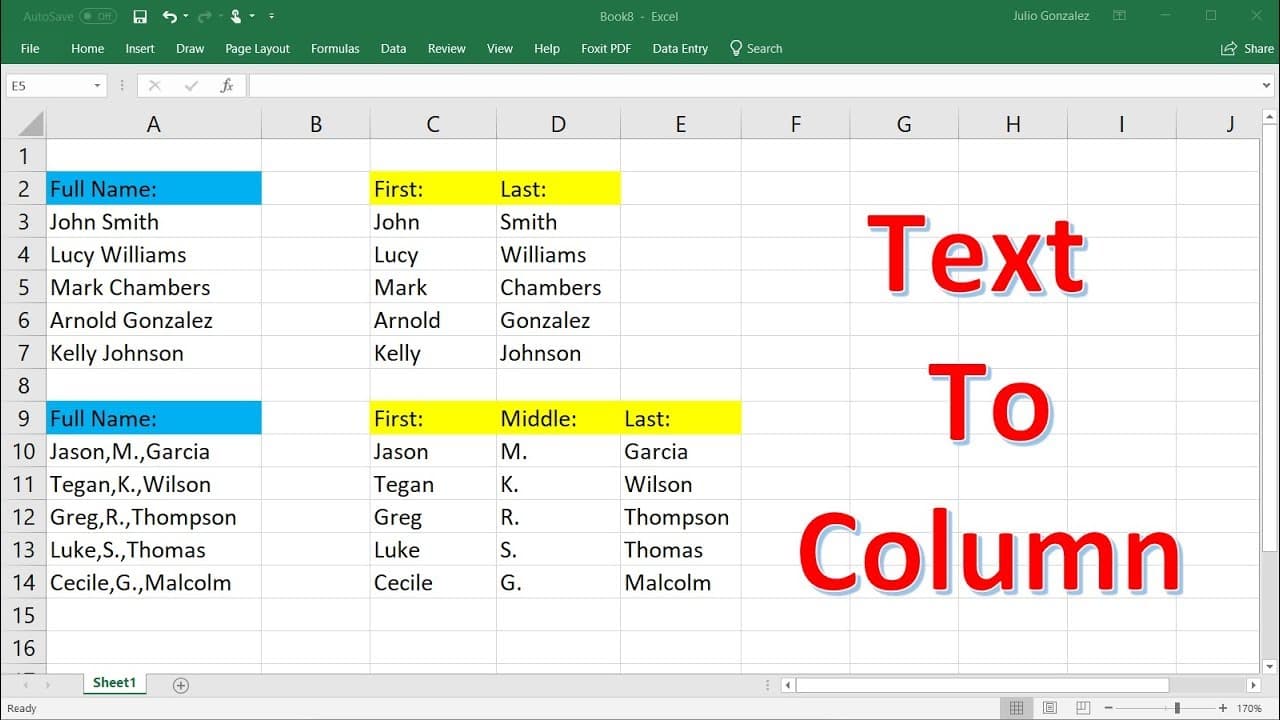
This tutorial explains how to use the Text to Column feature in Excel to separate data in a column into different columns.
-
It demonstrates the process using two examples, one with names separated by spaces and another with names separated by commas.
-
The tutorial highlights how to choose the delimiter, select the destination for the separated data, and finish the process.
Read in Other Languages (beta)
Share This Summary 📚
Summarize YouTube Videos and Get Video Transcripts with 1-Click
Try YouTube Summary with ChatGPT & Claude or YouTube Transcript Generator
Explore More Summaries from The Organic Chemistry Tutor 📚





Summarize YouTube Videos and Get Video Transcripts with 1-Click
Try YouTube Summary with ChatGPT & Claude or YouTube Transcript Generator