How to Save and Highlight AI Chat Answers from ChatGPT, Claude, and Gemini

Oct 09, 2026
6 min read
29 views

You ask ChatGPT or Claude a question and get a genuinely useful answer. Three weeks later, it is buried in a thread you cannot find. Scrolling through old chats is not a memory system, especially when you only need one clear explanation, example, or prompt from a long conversation.
Glasp is a free browser extension that lets you highlight web pages, including AI chat answers, and keeps those highlights searchable in one place. Our most active readers highlight AI answers more than any other kind of page: in the past year, about 46% of them highlighted on ChatGPT, about 23% on Gemini, and about 15% on Claude. Here is how to turn the passages worth keeping into a collection you can find and use again.
Step 1: Install the extension and sign in
Install Glasp in your browser and sign in to your account.
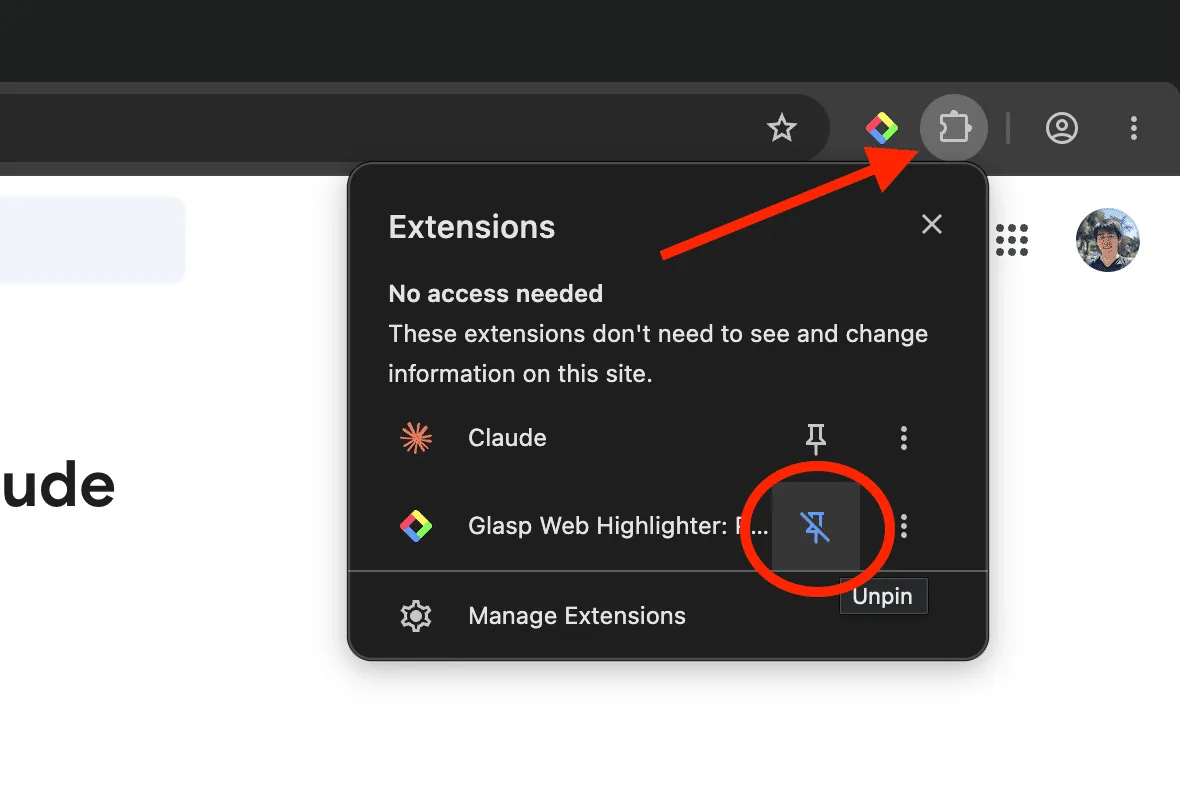
The browser extension works on Chrome, Brave, Microsoft Edge, Safari, and Firefox. If you use Chrome, Brave, or Microsoft Edge, you can get it from the Chrome Web Store.
For more help, follow the guide to installing the Glasp browser extension and making your first highlight.
Step 2: Open the chat you want to keep
Open the AI chat thread that contains the answer you want to save.
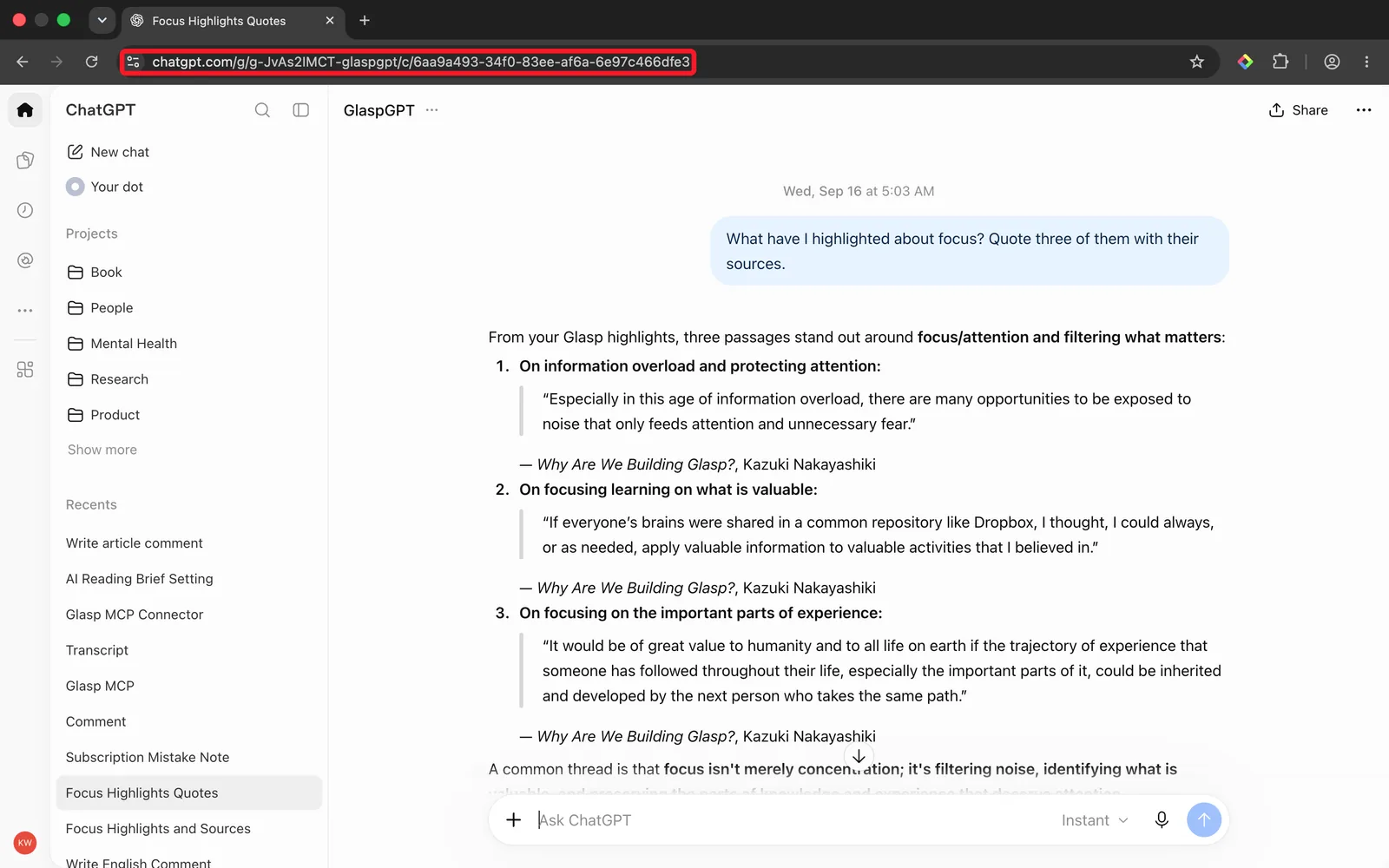
You can use this workflow with a chat site in your browser. The important part is that the thread needs its own URL, because your highlight needs somewhere to point back to later.
Go to the specific conversation before you begin. You do not need to save everything in it. Decide which part would still be useful if you returned in a month: perhaps a definition, a useful sequence of steps, a comparison, or the wording of a prompt that produced a strong answer.
Step 3: Highlight the answer
Select the sentence or paragraph in the answer that you want to keep.
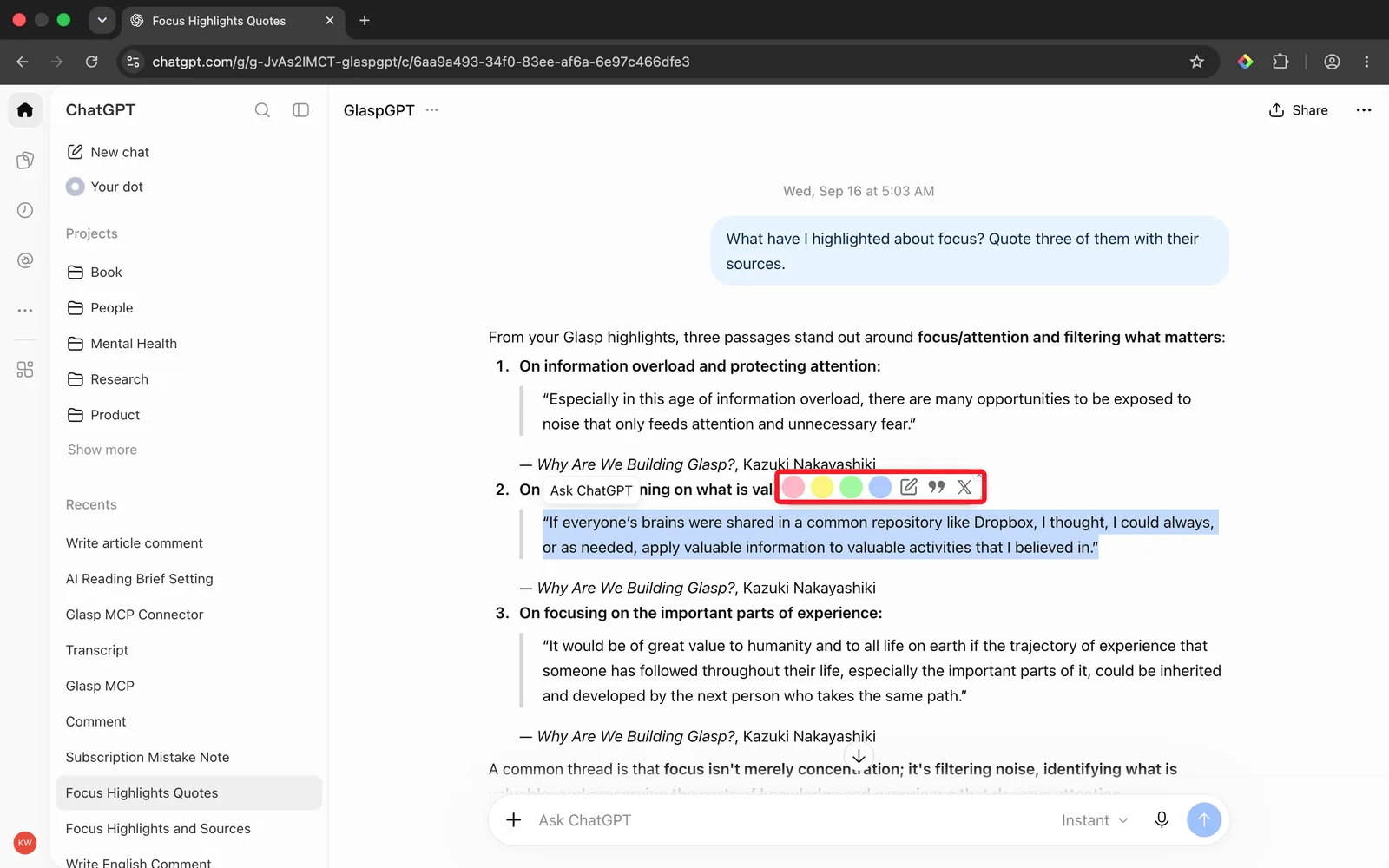
When the color palette appears, click a color. The passage is now a highlight. To review what you have saved from the current page, click the Glasp icon on the browser toolbar. The sidebar opens and lists the highlights on that page.
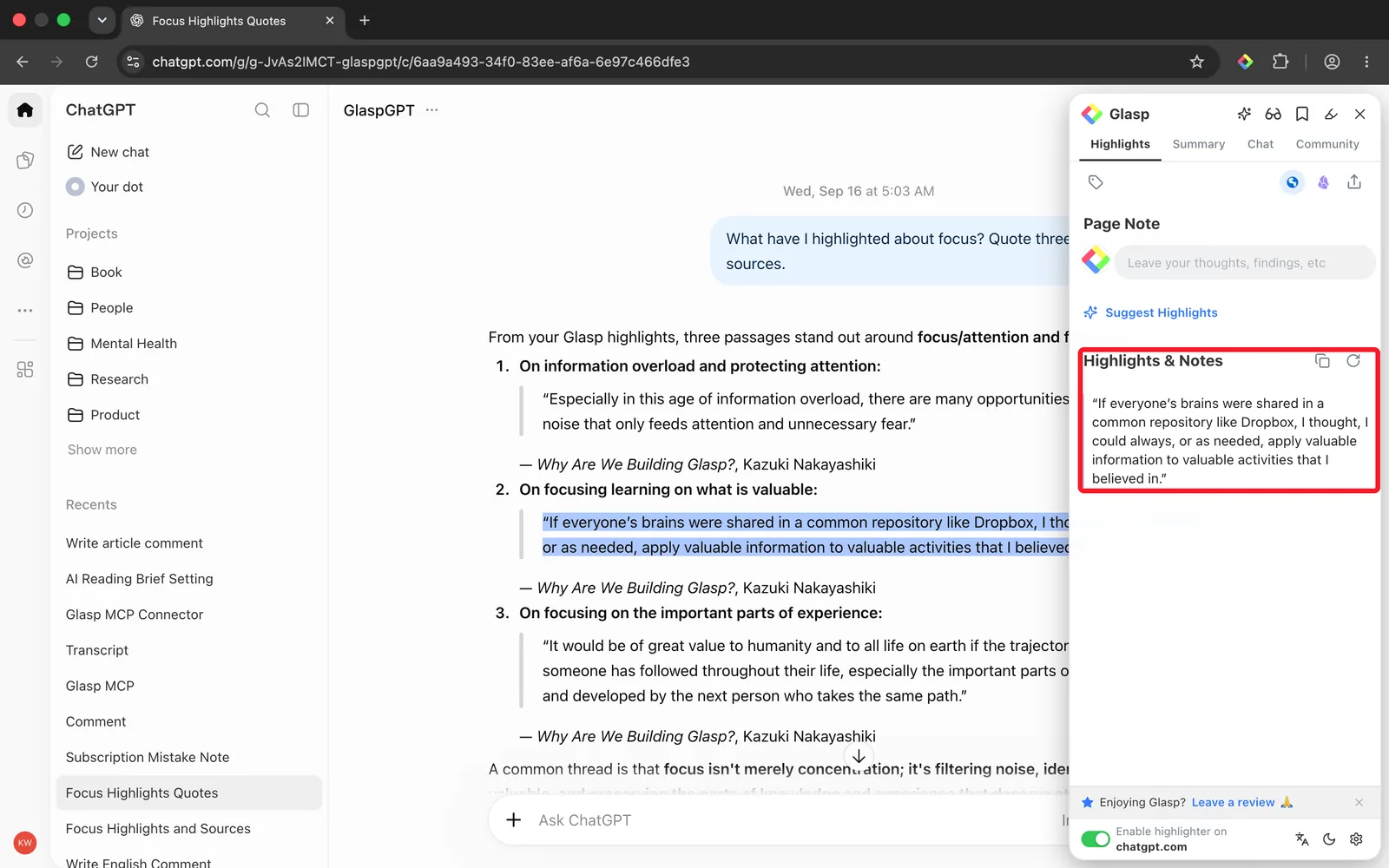
Try to highlight the smallest passage that will still make sense when you see it outside the full conversation. A focused highlight is easier to scan, search, and reuse than a long block of text.
You can also give colors different purposes. For example, use one color for answers you want to reuse and another for prompts that worked. A simple color habit helps you understand why you saved something before you reread it.
Tip: Highlight the prompt as well as the answer, because the prompt is usually the part worth reusing.
Step 4: Add a note or a tag
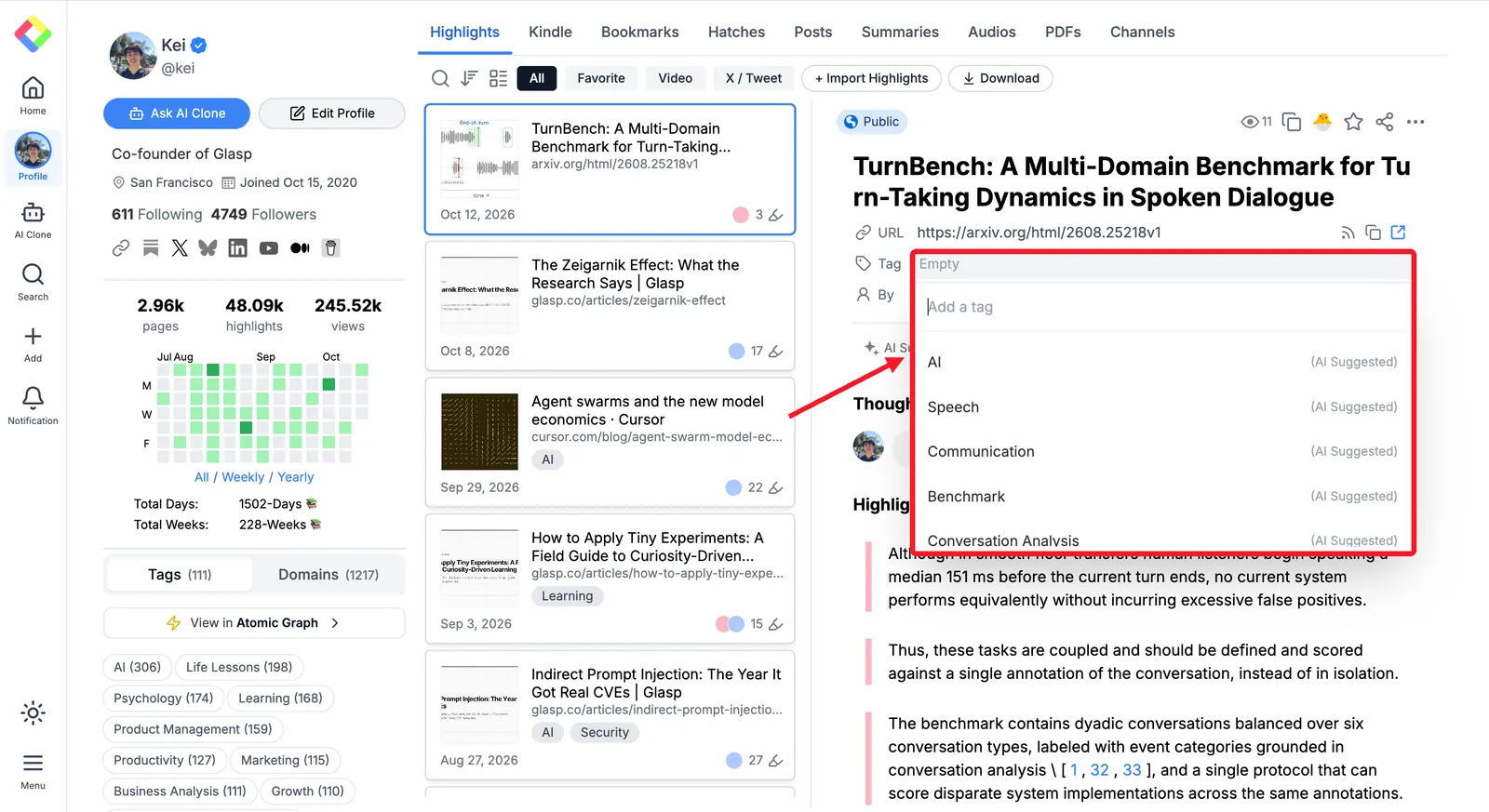
Add a short note about why the passage mattered, then use the Tag field to give it a topic.
On your Glasp profile page, open the page you highlighted and click the Tag field. Type a topic, or pick one of the tags Glasp suggests for that page.
Your note is shown right under the highlight, so the reason you saved it stays next to the passage.
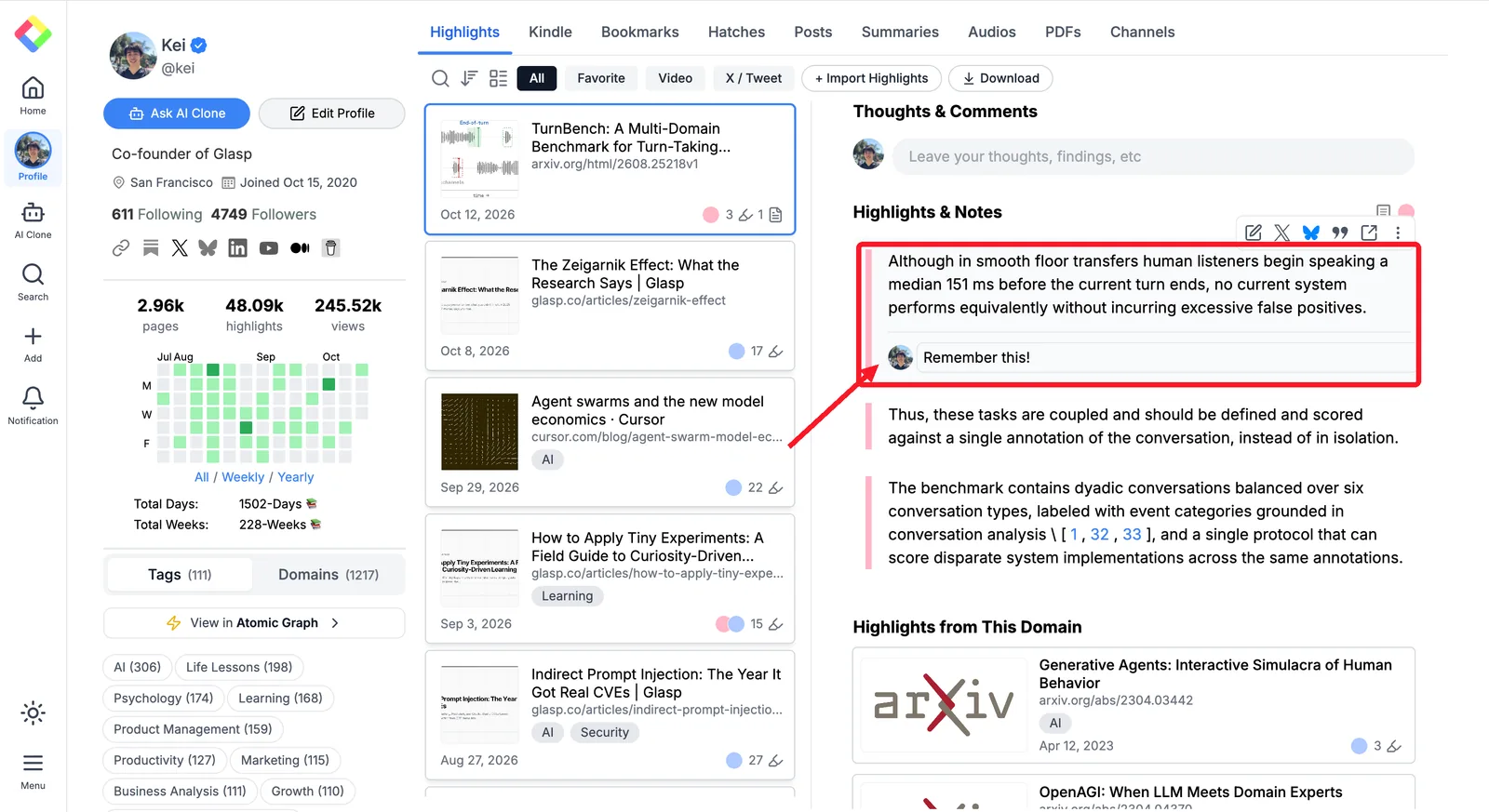
A note should capture why you kept the answer. Record the project it belongs to, what you want to test, or how it changes your next step. That context can be more useful later than a summary.
Use tags for subjects that appear across different conversations, such as a course, research topic, writing project, or recurring task. Consistent tags bring related ideas together even when the answers came from different chat threads.
Step 5: Find it again
Your profile page lists every highlight, with a Search Highlight box at the top for finding saved passages.
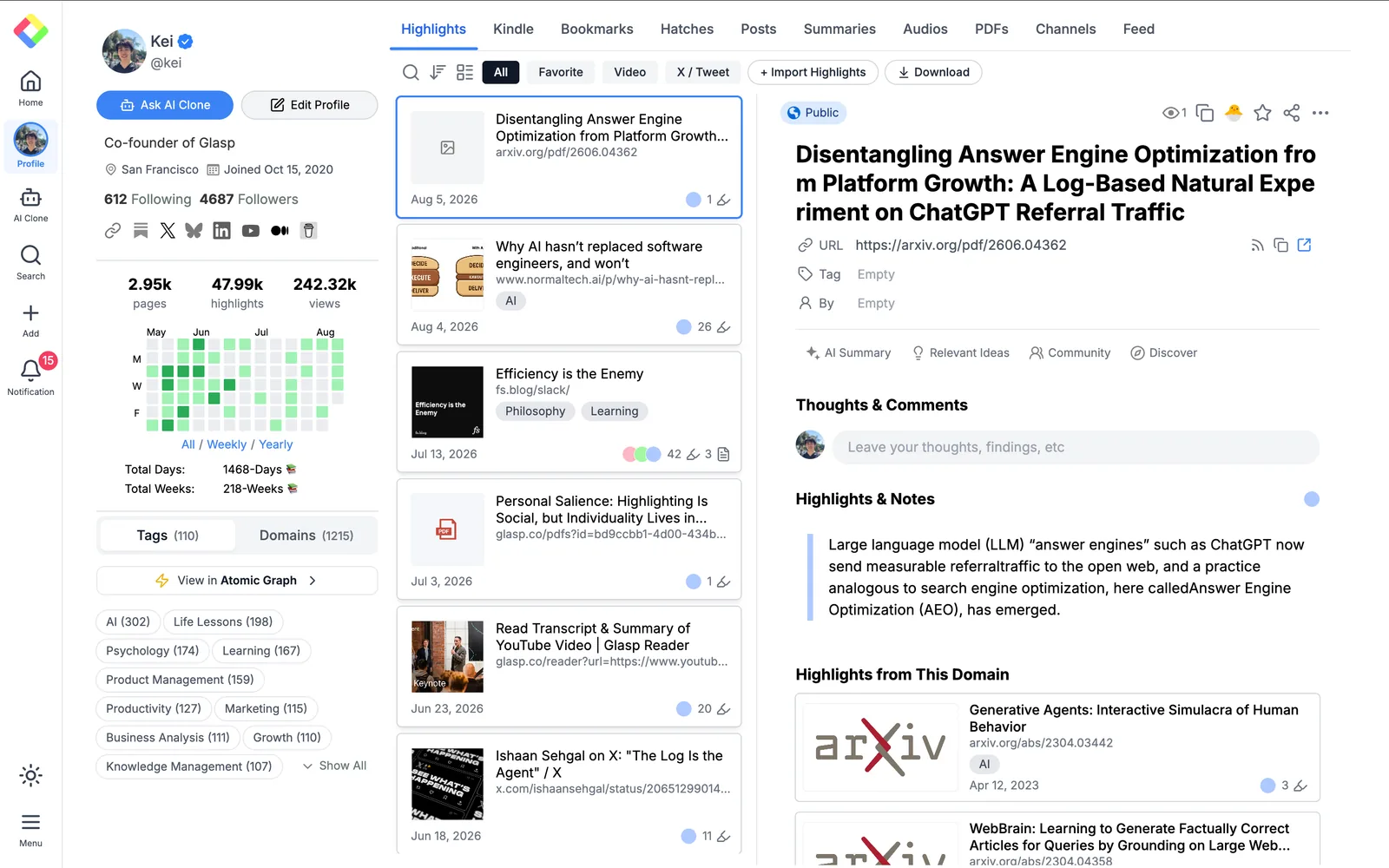
Search for a memorable word or phrase from the answer. You can also narrow your collection by tag, which is useful when you remember the project but not the wording of the original conversation.
When you need the full context, select Open Link on the highlight to reopen the original page with your highlights still shown.
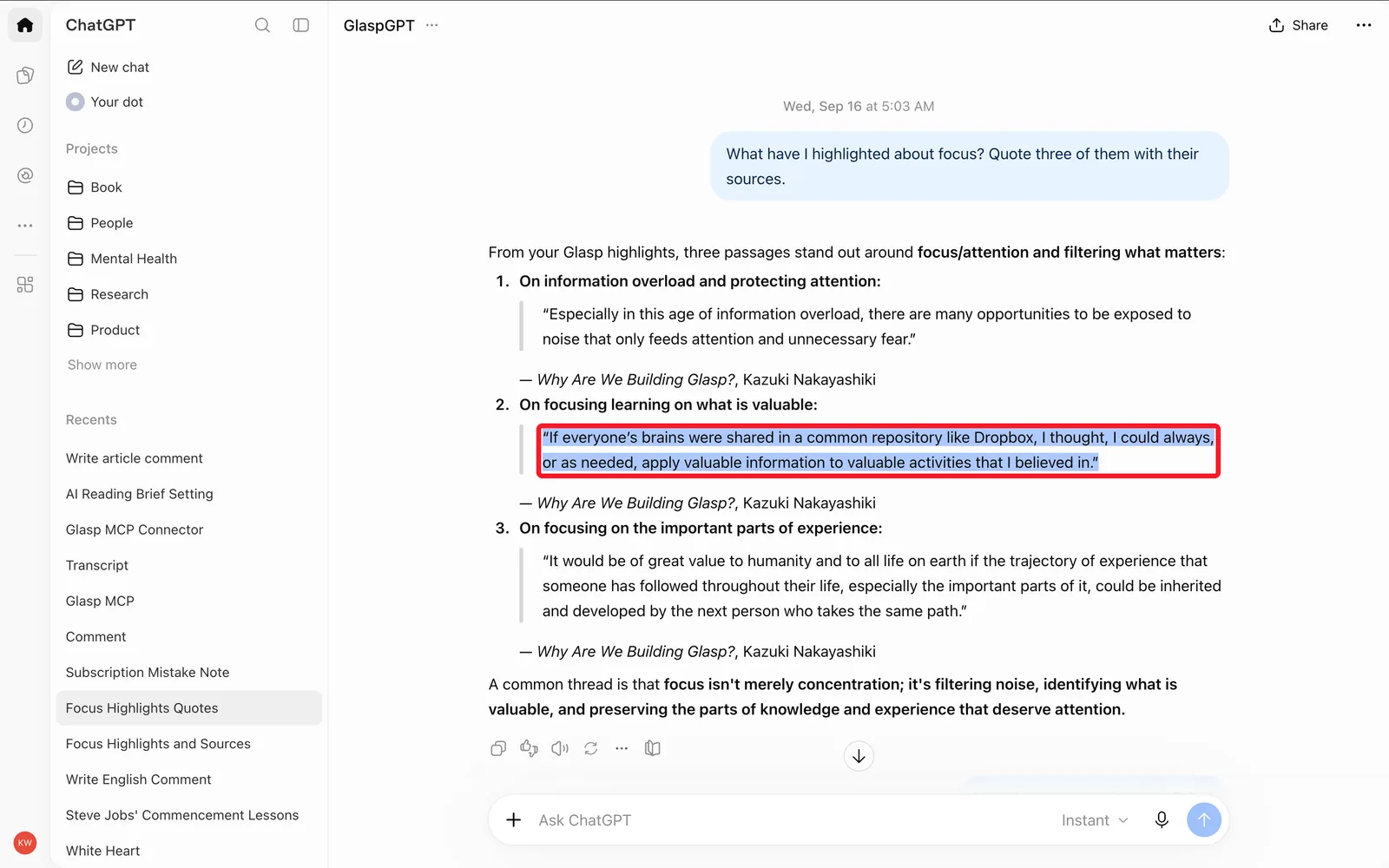
This gives you two useful ways back to an answer. Search and tags help you locate the saved passage, while Open Link takes you back to the thread where the prompt and surrounding discussion live.
Step 6: Put the highlights to work
You can move useful passages into your notes or let an AI assistant search the collection for you.
Export to your notes app
Export your highlights to Notion, Obsidian, or Markdown when you want them alongside your other notes and project material. Glasp can also export to Readwise, Logseq, Roam Research, Tana, and Workflowy.
This works well when a chat answer supports something you are already building. Instead of copying the whole conversation, you can carry over only the passages you chose.
Ask your AI about them
Use the Glasp MCP Connector when you want Claude or ChatGPT to search your own highlights in natural language. The server URL is https://glasp.co/api/mcp.
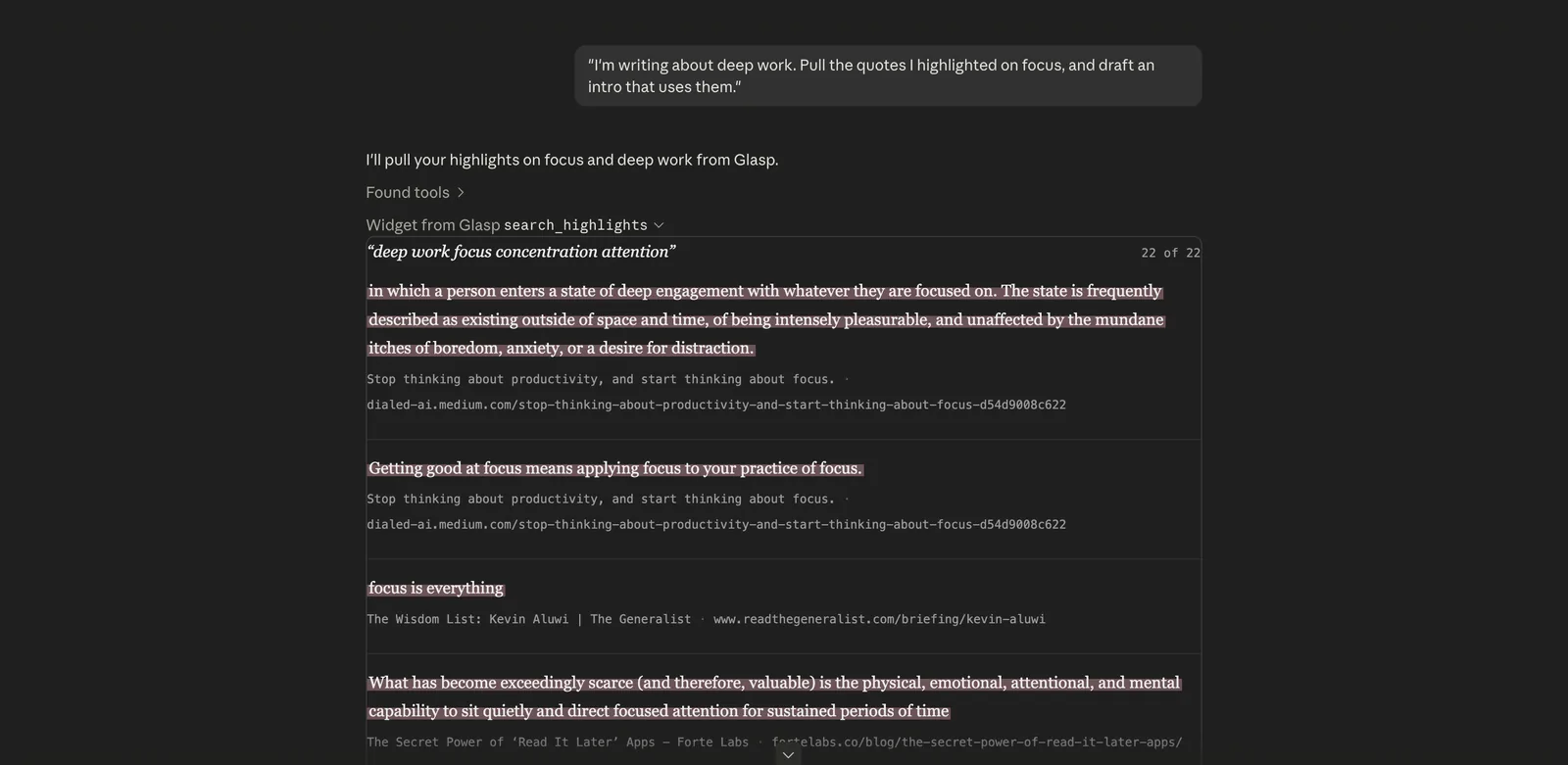
The connector is read-only and private to you. It can search what you saved, but it can never post, edit, or delete anything. This makes it useful for questions such as asking what you previously highlighted about a topic or finding passages connected to a current project.
Keeping it private
Your chat threads themselves stay where they are. Glasp saves the passage you highlighted and a link back to the thread.
Highlights you make on AI chat sites such as ChatGPT, Claude, Gemini, and Perplexity are saved as private automatically, on every plan including Free, so they never appear on your public profile. This applies to highlights made since August 5, 2026. Older AI chat highlights keep the visibility they were created with, so check them on your profile page: you can delete any you do not want public, or switch them to private with the Pro plan.
Pro is only needed to make other sites private: choose your own private domains, or set Default Visibility to Private in Settings so every new highlight starts that way.
FAQs
Which AI chat sites can I highlight on?
Use the same workflow on an AI chat site in your browser: open a thread with its own URL, select the text you want, and pick a color. The steps do not depend on a site-specific chat control.
Do I need a paid plan?
No. Highlighting is free, and highlights on AI chat sites are private on every plan. Pro is only needed if you want other sites, or all your highlights by default, to be private.
Does it save the whole conversation?
No. Glasp saves the passages you choose and a link back to the thread. It does not automatically capture the whole conversation.
Can I highlight the prompt as well as the answer?
Yes. Select the prompt and pick a color in the same way. Saving both can preserve the question that led to a useful answer.
How do I find a highlight months later?
Go to your profile page and use Search Highlight, or narrow the collection by tag. Use Open Link when you want to return to the original thread.
Can I get the highlights into Obsidian or Notion?
Yes. You can export highlights to both apps. See the guide to exporting highlights and notes to Notion for a step-by-step example.
Can my AI assistant read my own highlights back to me?
Yes. The MCP Connector lets Claude and ChatGPT search your highlights in natural language. It is read-only, private to you, and cannot post, edit, or delete.
Want to do more?
👉 How To Save and Search for Chat History with ChatGPT
👉 How to Connect Glasp to Claude, ChatGPT, and Claude Code (MCP Connector)
👉 How to Export Highlights & Notes to Notion
👉 How to Highlight Privately on Glasp
Before you leave
Thank you for reading. We hope this helps you turn useful AI answers into a searchable collection you can return to whenever you need it.
👉 FAQs
👉 X
See you next time,
Glasp team