How To Save and Search for Chat History with ChatGPT

Sep 21, 2025
4 min read
673 views

Finding a useful answer in an old ChatGPT conversation can be frustrating. The chat is in your history somewhere, but the one paragraph you needed is buried in a long thread, and you end up asking the same question again. If you have ever wondered "How can I save and search my ChatGPT chat history?", this tutorial is for you.
With Glasp, a free web highlighter, you can save the parts of your ChatGPT conversations that matter, organize them with tags, and search them anytime. Instead of losing track of a useful prompt or answer, you build a personal knowledge base directly from your ChatGPT sessions.
In this tutorial, we will show you step by step how to save, organize, and find your ChatGPT chat history with Glasp.
If you haven't signed up for Glasp or installed the Glasp browser extension yet, you can follow this tutorial.
Step 1: Install the Glasp browser extension
Glasp is a browser extension, so please install it first. It works on Chrome, Safari, Microsoft Edge, Firefox, Brave, and Opera.
👉 Glasp on the Chrome Web Store (Chrome, Brave, Microsoft Edge)
After you install the extension, pin it to the toolbar. That makes it easier to open the Glasp sidebar.
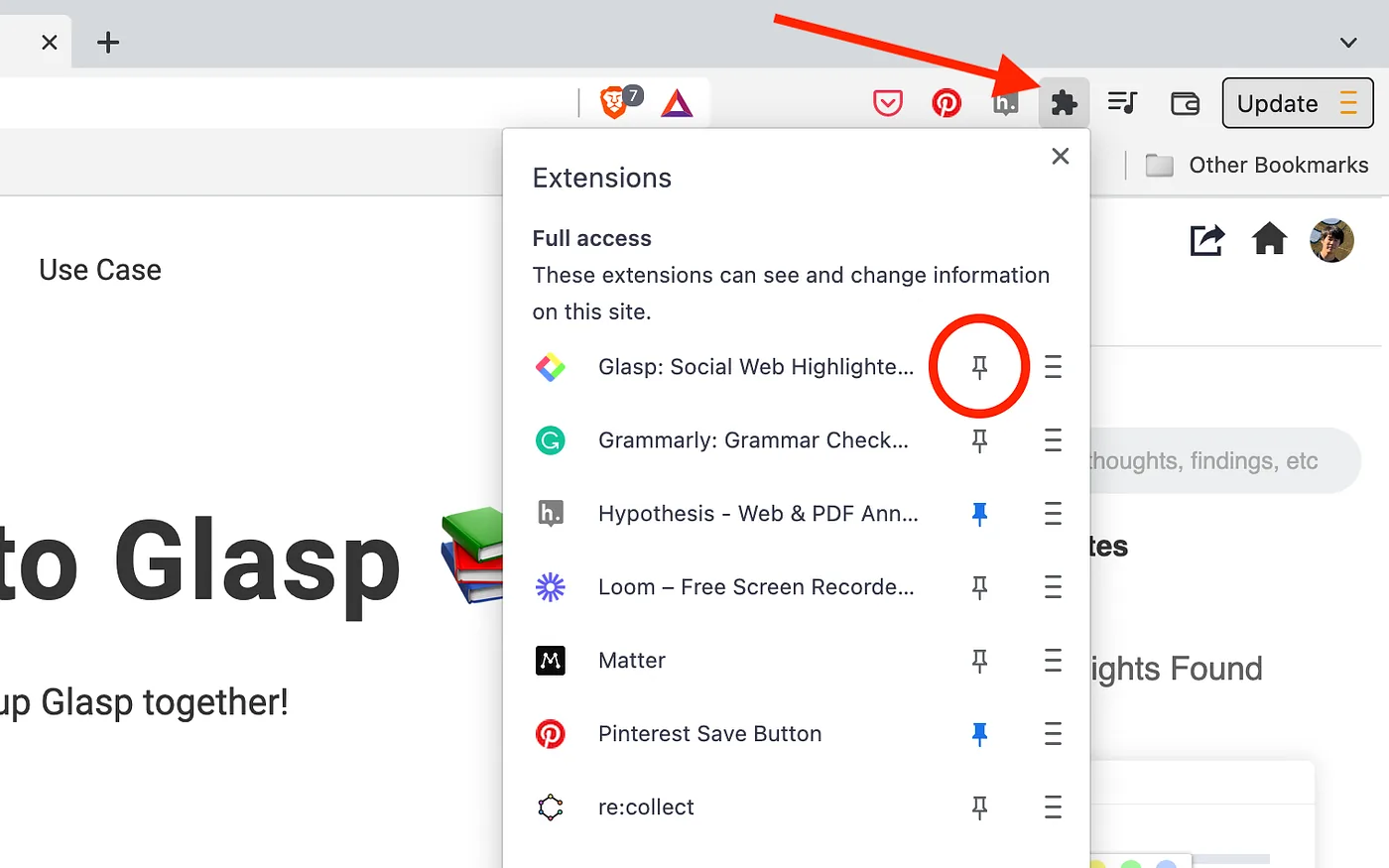
Step 2: Sign up for Glasp
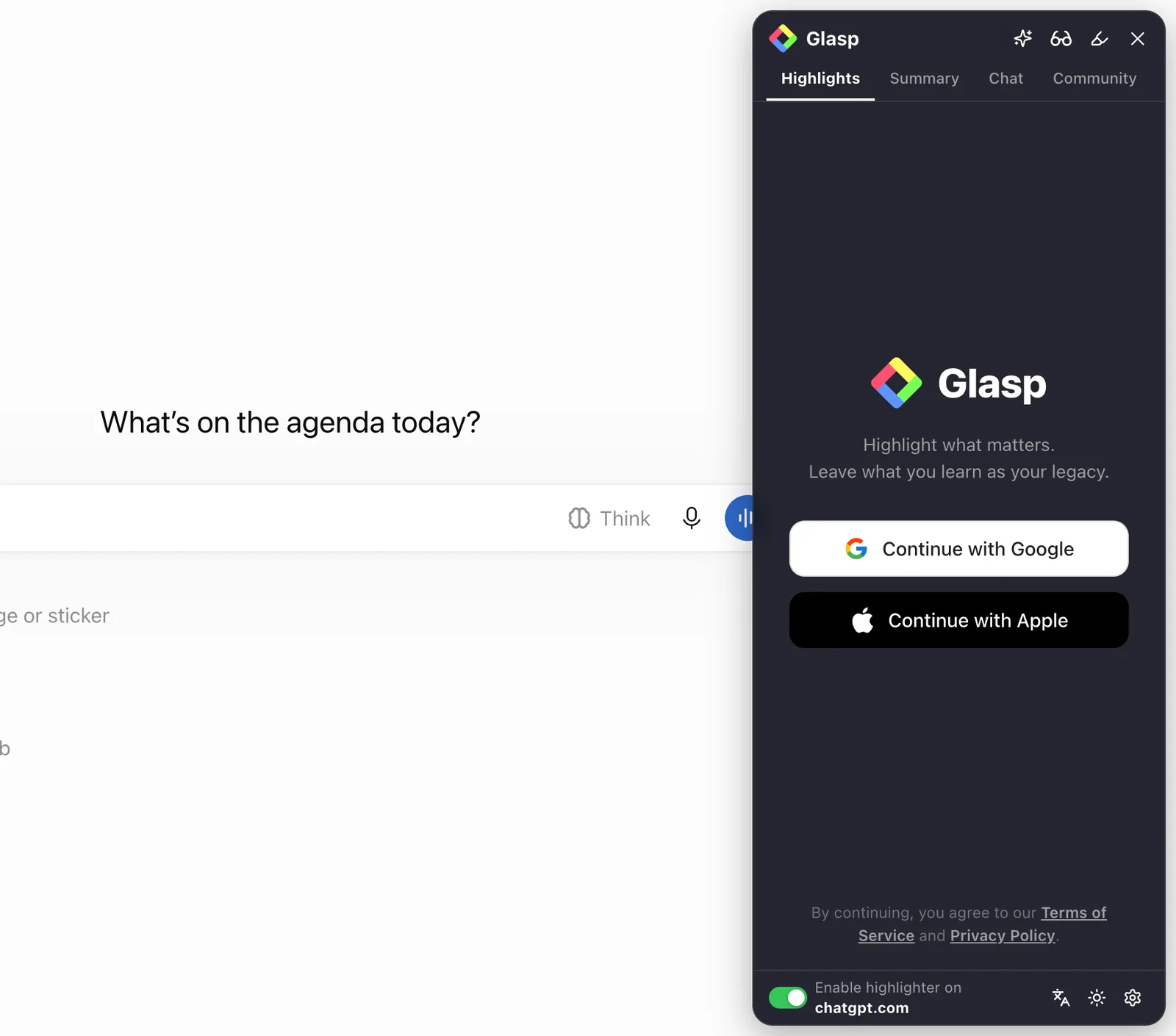
Your saved highlights live on your Glasp profile page, so you need an account. Click the Glasp icon on the toolbar to open the sidebar. If you are not signed in, the sidebar shows the sign-in options right away: click Continue with Google or Continue with Apple.
Step 3: Open ChatGPT
Go to chatgpt.com and start a conversation, or open one from the chat list in the sidebar on the left.
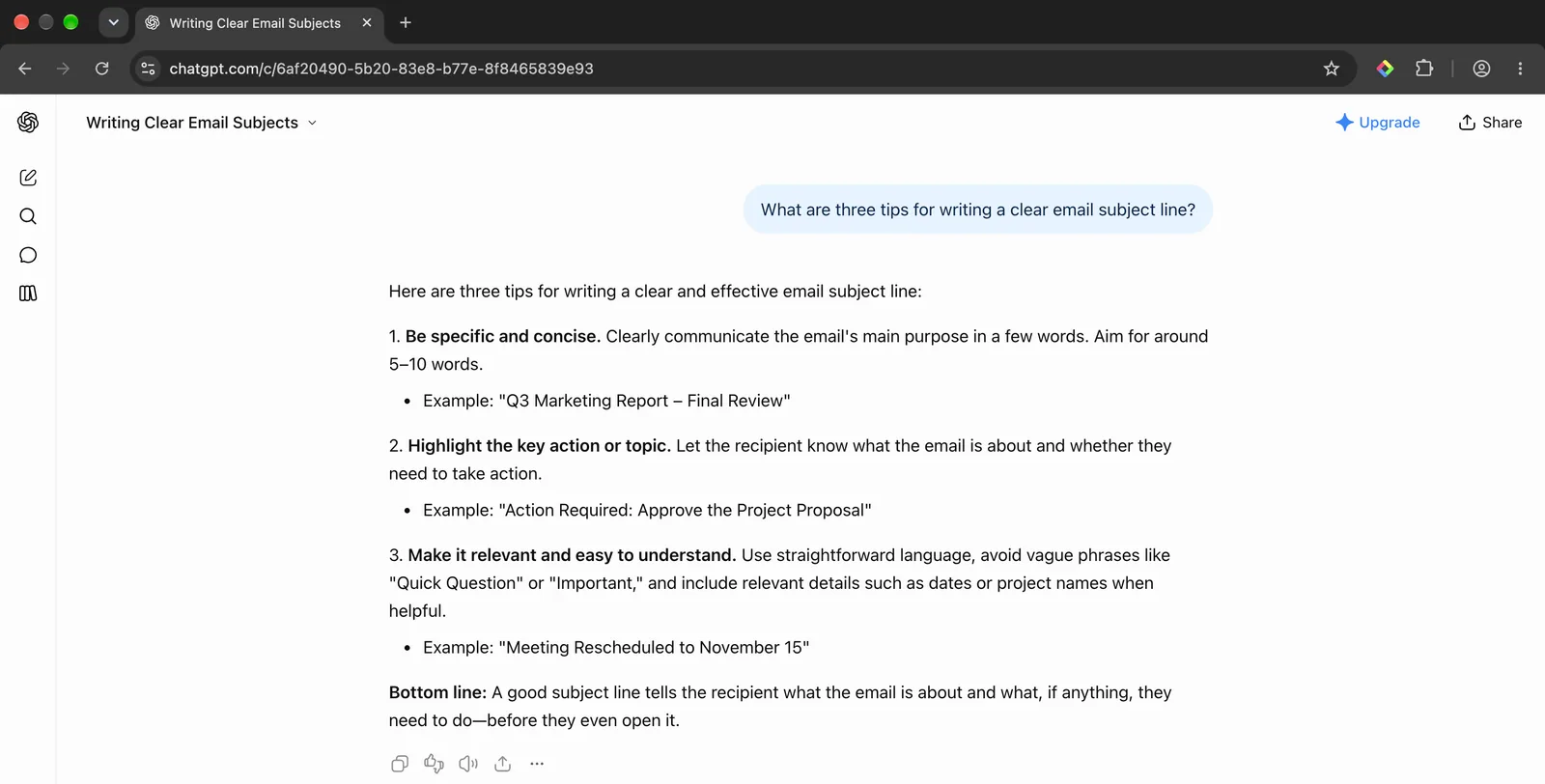
Make sure the conversation has its own URL in the address bar (it looks like chatgpt.com/c/...). Your highlights are saved to that URL, which is how Glasp can take you back to the same chat later.
Step 4: Highlight your chat history with Glasp
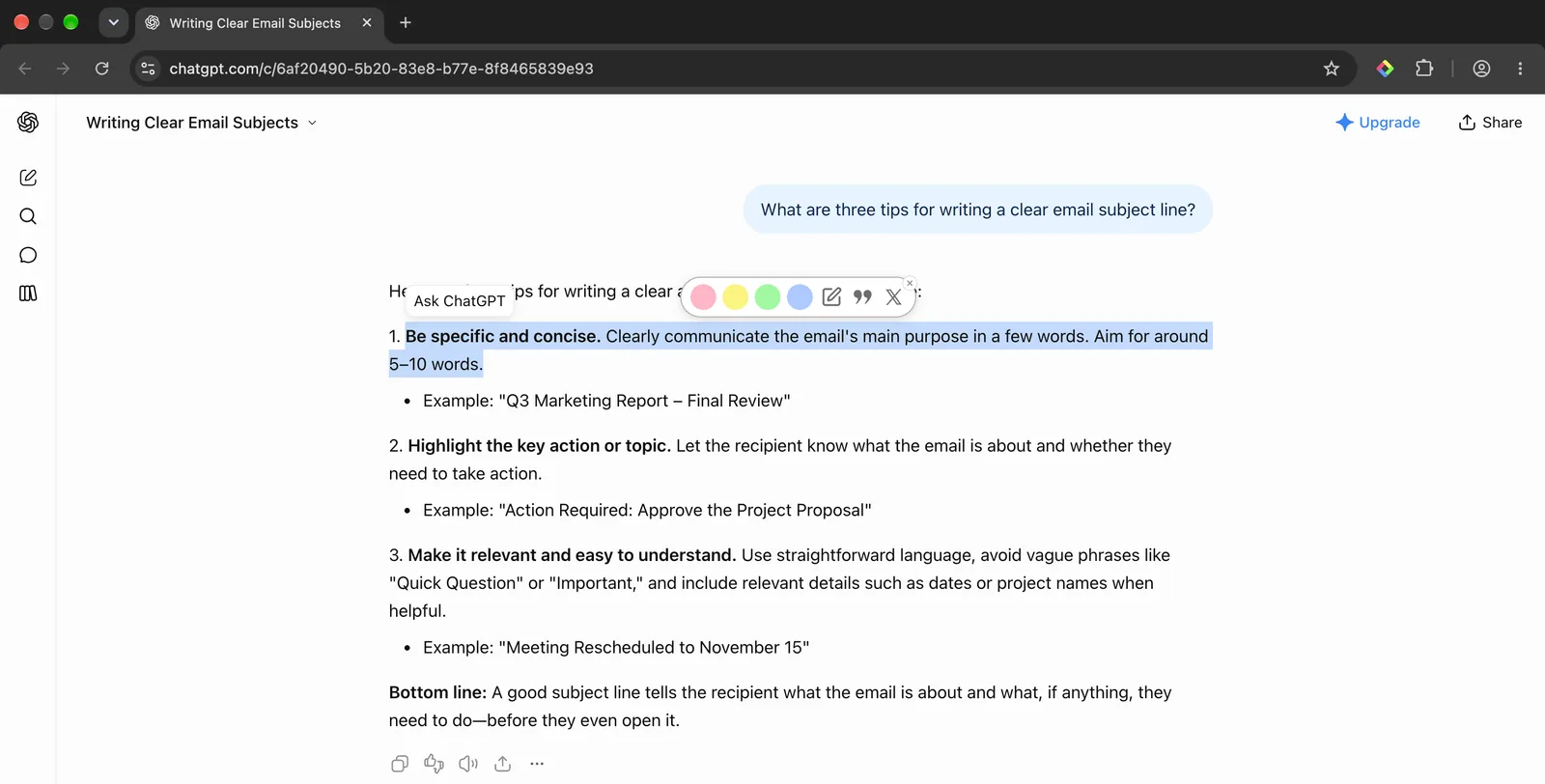
Select any sentence in ChatGPT's answer, or in your own prompt. A color palette appears; click any color to save the passage as a highlight.
Click the Glasp icon on the toolbar to open the sidebar. You can see the highlights you made on this conversation.
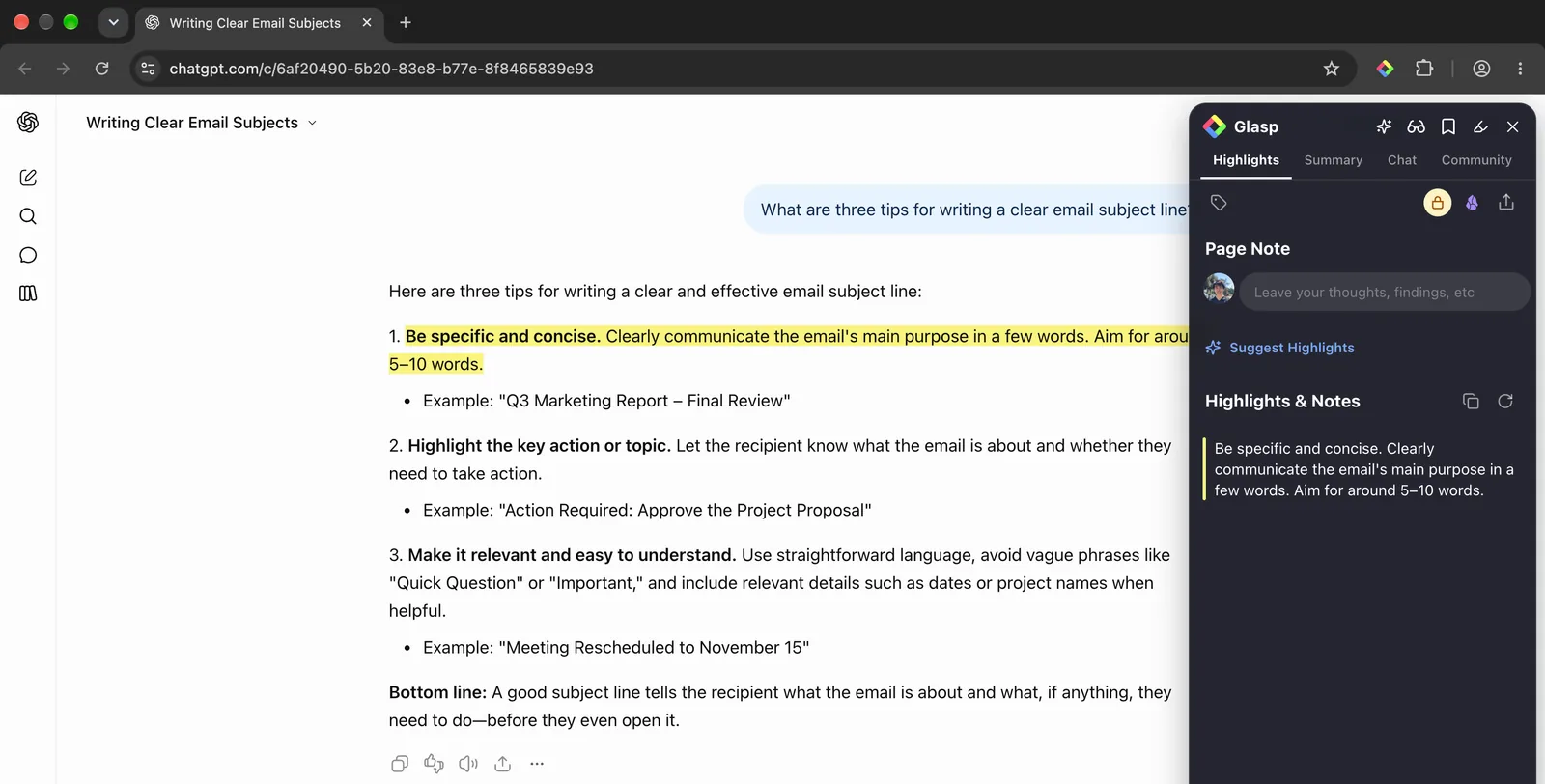
Tip: Highlight the prompt as well as the answer. A prompt that worked is often the part most worth reusing.
Step 5: Go to your profile page
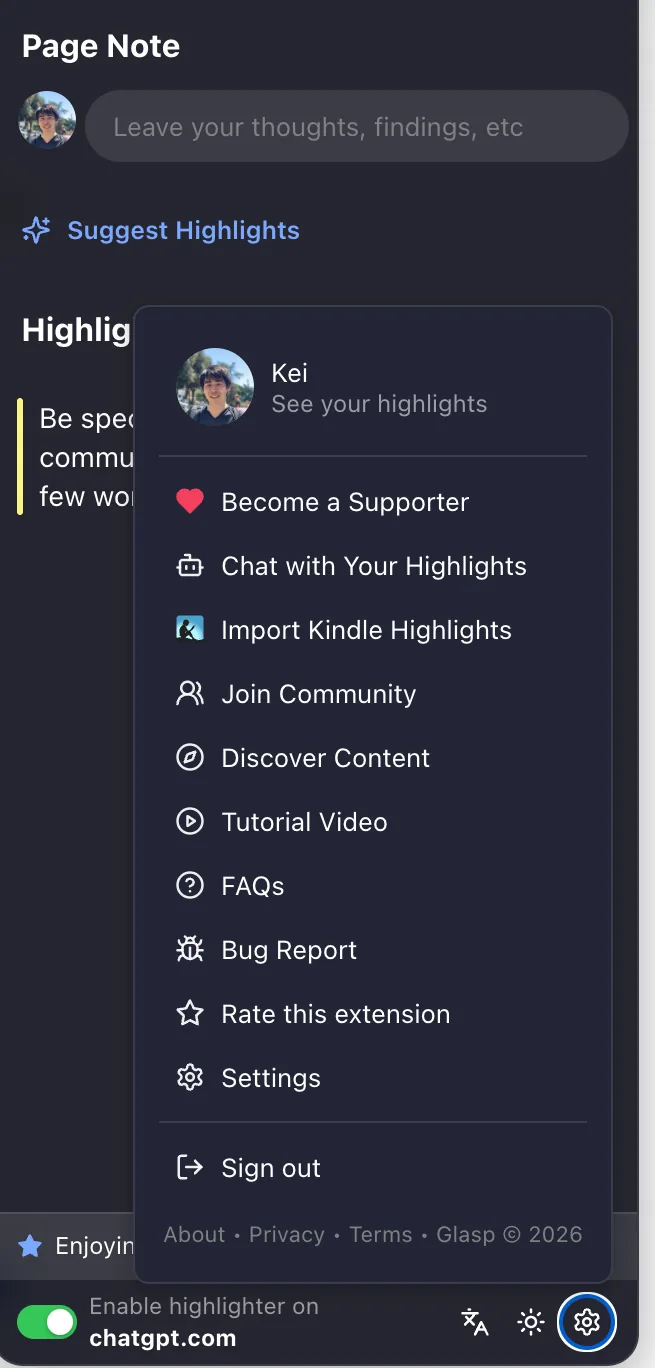
Click the gear icon at the bottom right of the sidebar, then click See your highlights at the top of the list. It takes you to your profile page.
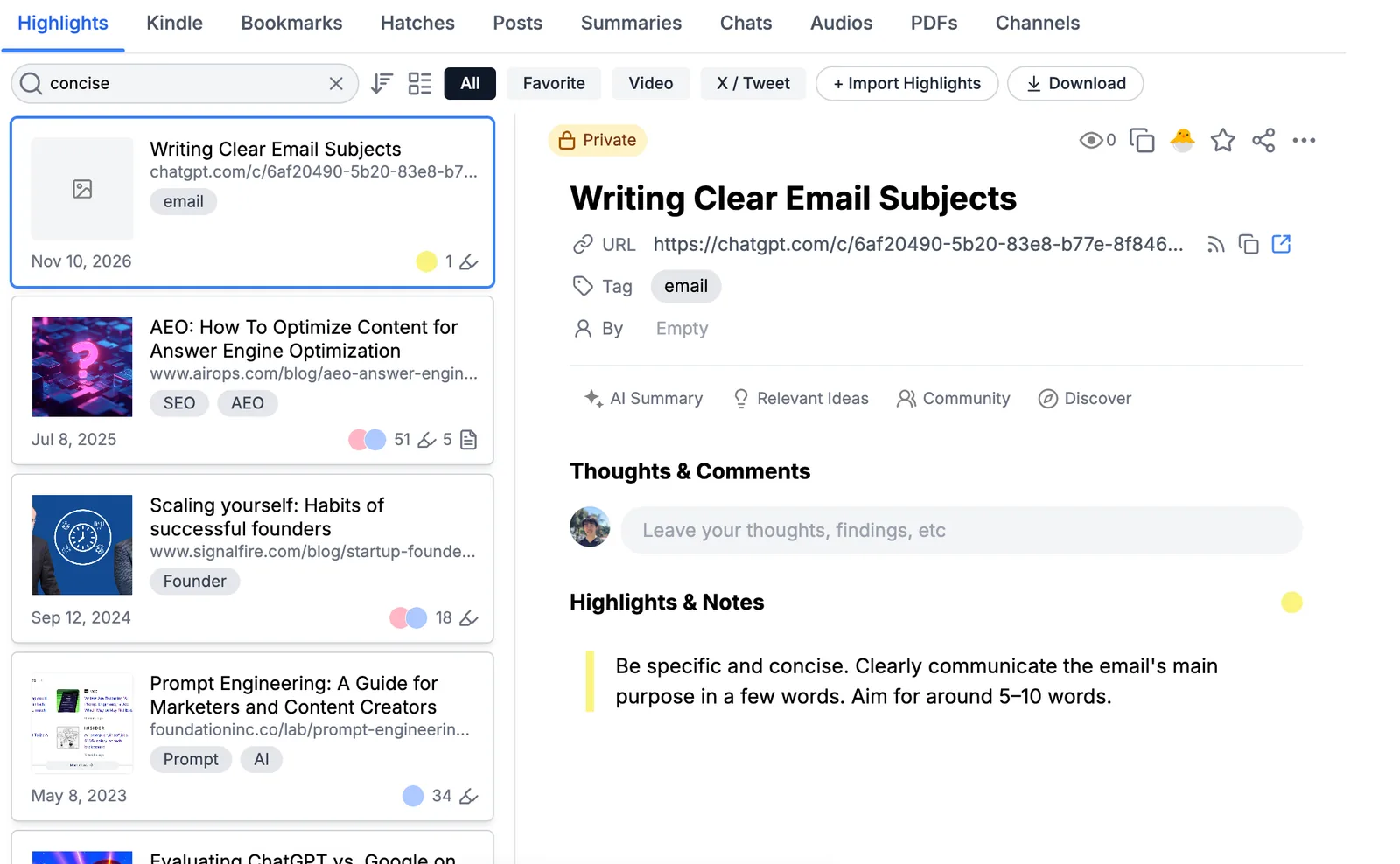
You can see all your past highlights on this page. To organize them by topic, type a term in the Tag section of a highlight.
To search your past chat history, click the magnifying glass at the top of the Highlights tab and type a word or phrase.
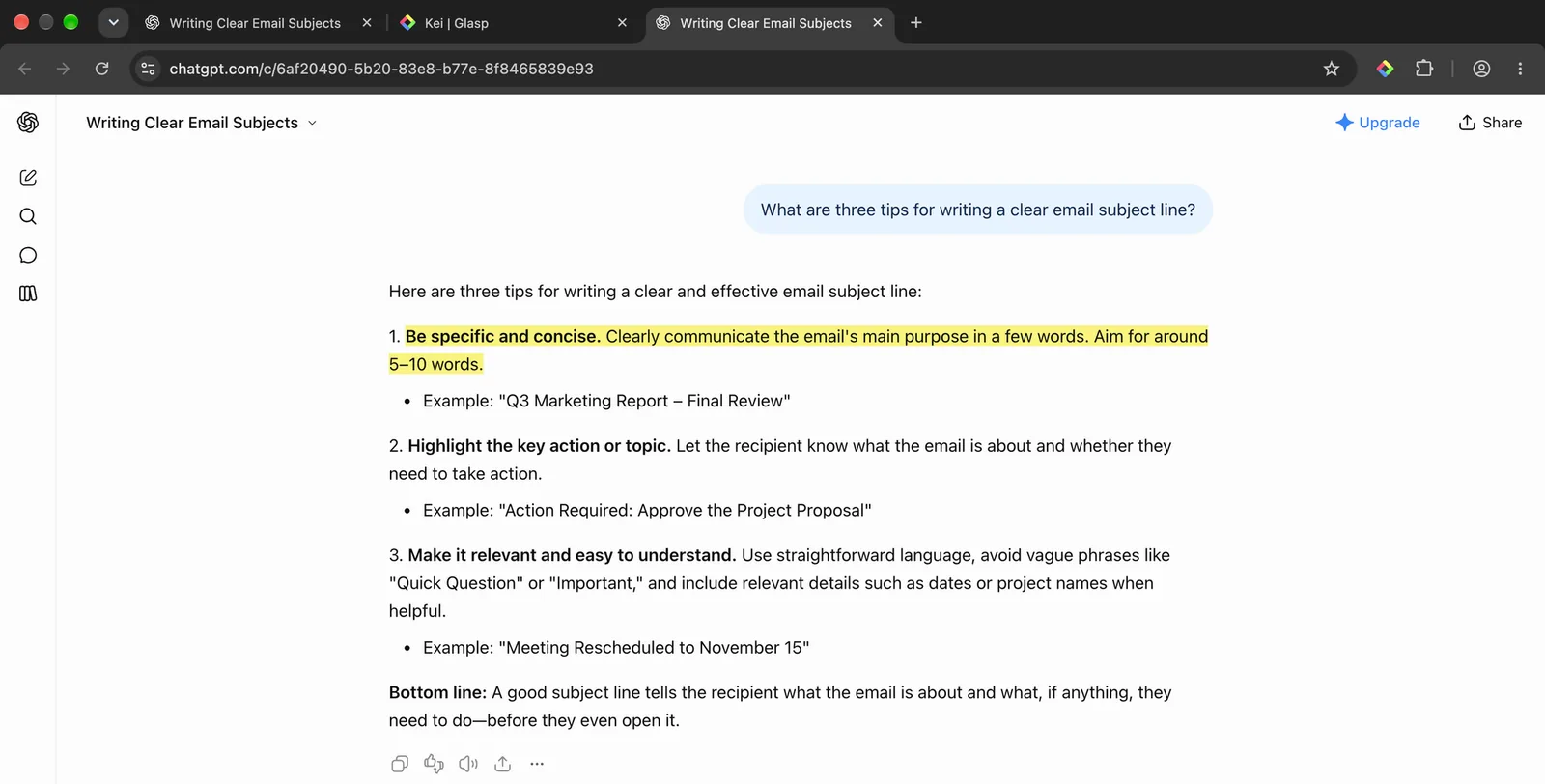
Click the open-link icon next to the highlight's URL to reopen that conversation on ChatGPT. Your highlights are still shown on the page, so you land right on the part you saved.
ChatGPT can search the titles and contents of your chats (the magnifying glass in its left sidebar), but a long conversation still leaves you scrolling for the one answer you wanted. With Glasp, you keep exactly the passages you chose, grouped by your own tags, and searchable alongside everything else you have highlighted on the web.
FAQs
Q. Can I save ChatGPT conversations automatically with Glasp?
No. You highlight the parts you want to save with the Glasp extension. This keeps you in control of what is worth keeping.
Q. Is there a way to search across all my past ChatGPT conversations?
Yes. Once you save highlights with Glasp, they are searchable on your profile page, so you can find any past answer by keyword.
Q. Can I organize my ChatGPT highlights by topic?
Yes. You can add tags to each highlight to group prompts and answers by subject (for example, productivity, coding, or marketing).
Q. Are my saved ChatGPT highlights public or private?
They are private on every plan, including Free. Since August 5, 2026, Glasp saves highlights made on ChatGPT and other AI chat sites as private automatically, so no one else can see them. Highlights made before that date keep the visibility they were created with.
Q. Can I open the original ChatGPT chat from my Glasp highlights?
Yes. Each highlight links back to the original ChatGPT conversation, so you can revisit the full context anytime.
Q. Can Claude or ChatGPT read my Glasp highlights?
Yes. With the Glasp MCP Connector, AI assistants such as Claude, ChatGPT, and Claude Code can search and read your own highlights, notes, Kindle highlights, and AI summaries, including your YouTube summaries. The connection is private to you and read-only, apart from one permission you can approve: saving a page to your Glasp bookmarks, which are public on your profile. See How to Connect Glasp to Claude, ChatGPT, and Claude Code (MCP Connector).
Before you leave
If you have any questions, please check the FAQ or contact us.
👉 FAQs
👉 X
See you next time,
Glasp team