How to Highlight Privately on Glasp

Sep 21, 2025
3 min read
172 views

By default, Glasp highlights are public, reflecting our mission to democratize access to knowledge and learning. This openness allows others to discover, learn from, and connect through your insights.
However, we also understand that not all highlights should be shared. Whether it’s confidential work documents, personal notes, or sensitive reading material, you may want your highlights to remain private.
That’s why Glasp now offers a Private Highlight feature (available to Pro users). In this tutorial, we’ll show you how to switch your highlights to private and set private highlighting as your default.
If you haven't signed up for Glasp or installed the Glasp browser extension, please do so. You can refer to this tutorial.
Step 1: Go to your profile page
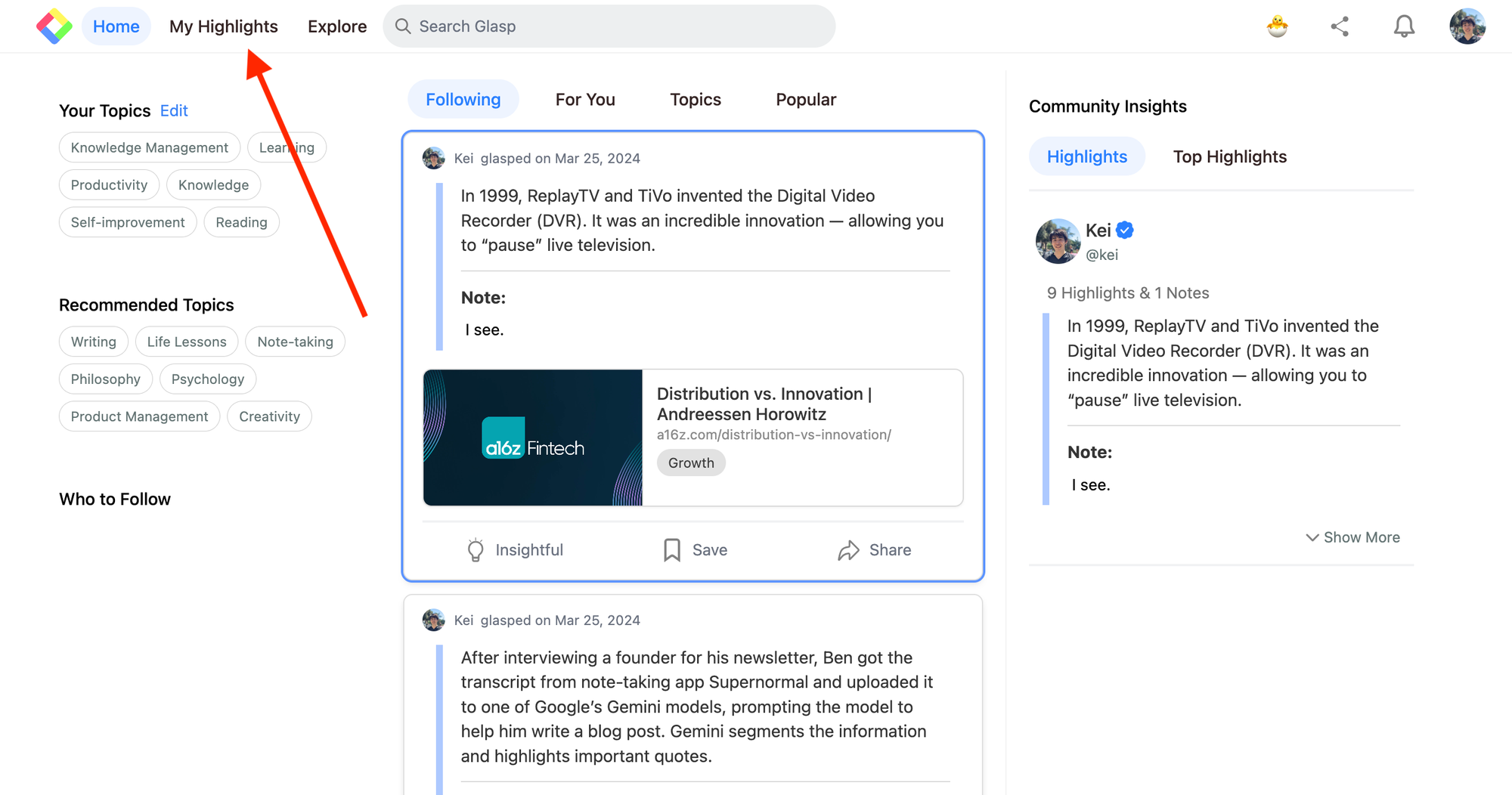
If you're on Glasp, please click My Highlight at the top left. It takes you to your profile page.
Then, you can find the Public icon at the top of your profile page.
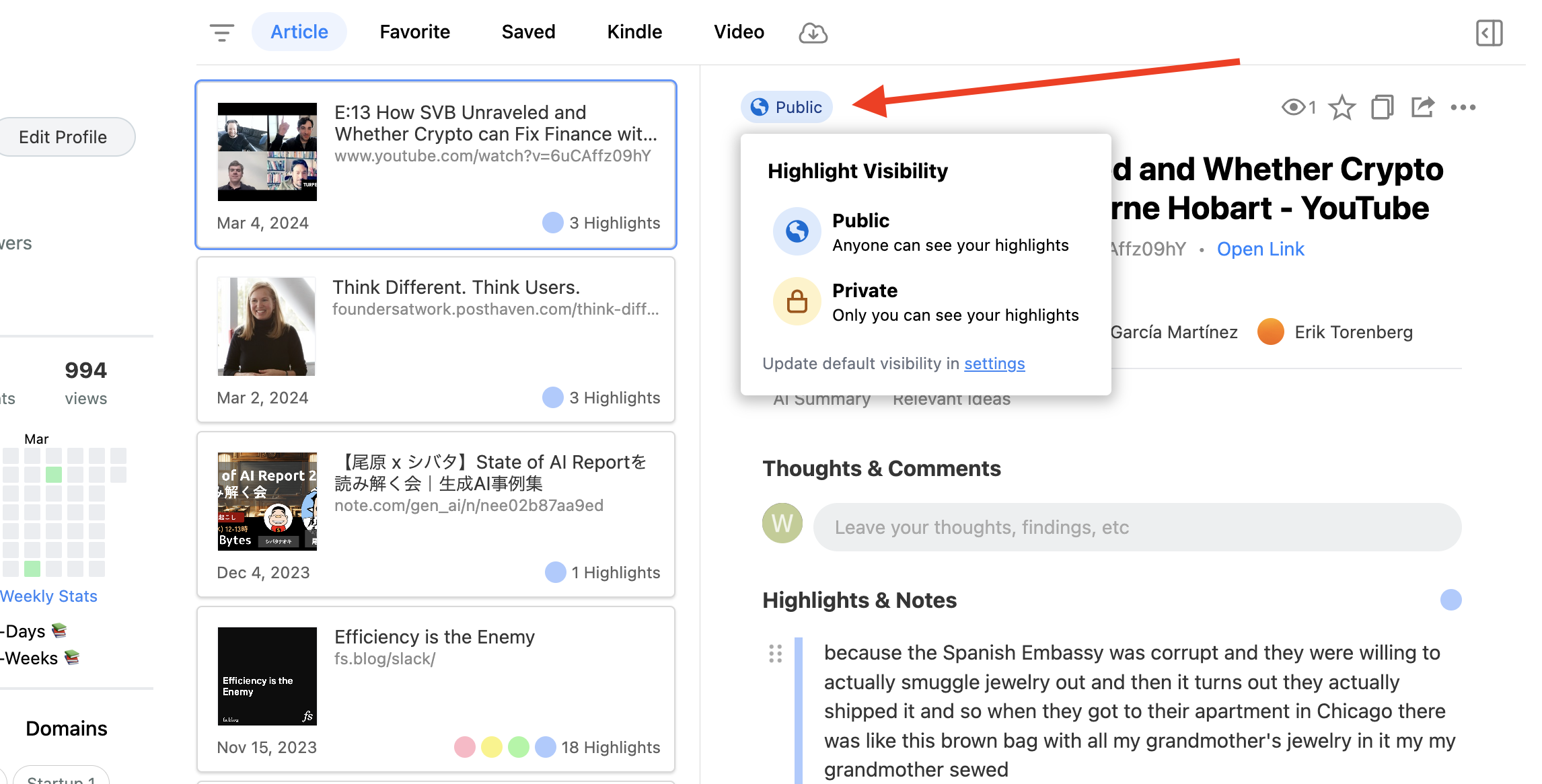
Click Private on the modal. If you're subscribing to a Pro plan, you can change the settings to Private. In this status, the highlights, articles, comments, and notes are not visible to anyone except yourself.
If you're not currently subscribed to a Pro plan, please consider upgrading to access the private highlight feature, which is now exclusively available to subscribers.
(Optional) Step 2: Update the default setting
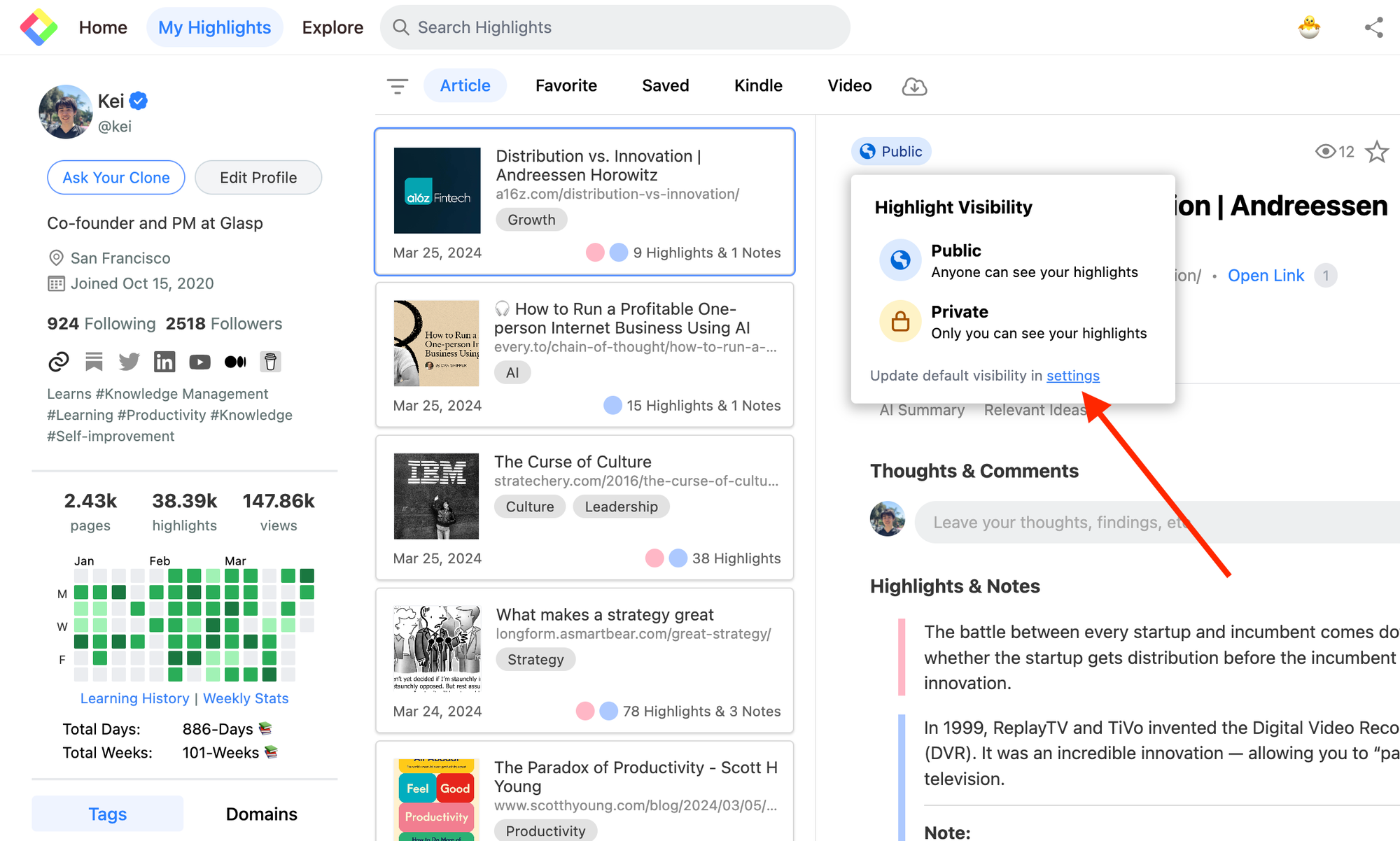
If you'd like to highlight web content always privately, please update the default setting. To do that, please click the Public/Private icon on your profile page. Then, click the text button written settings on the modal. It opens the Setting page.
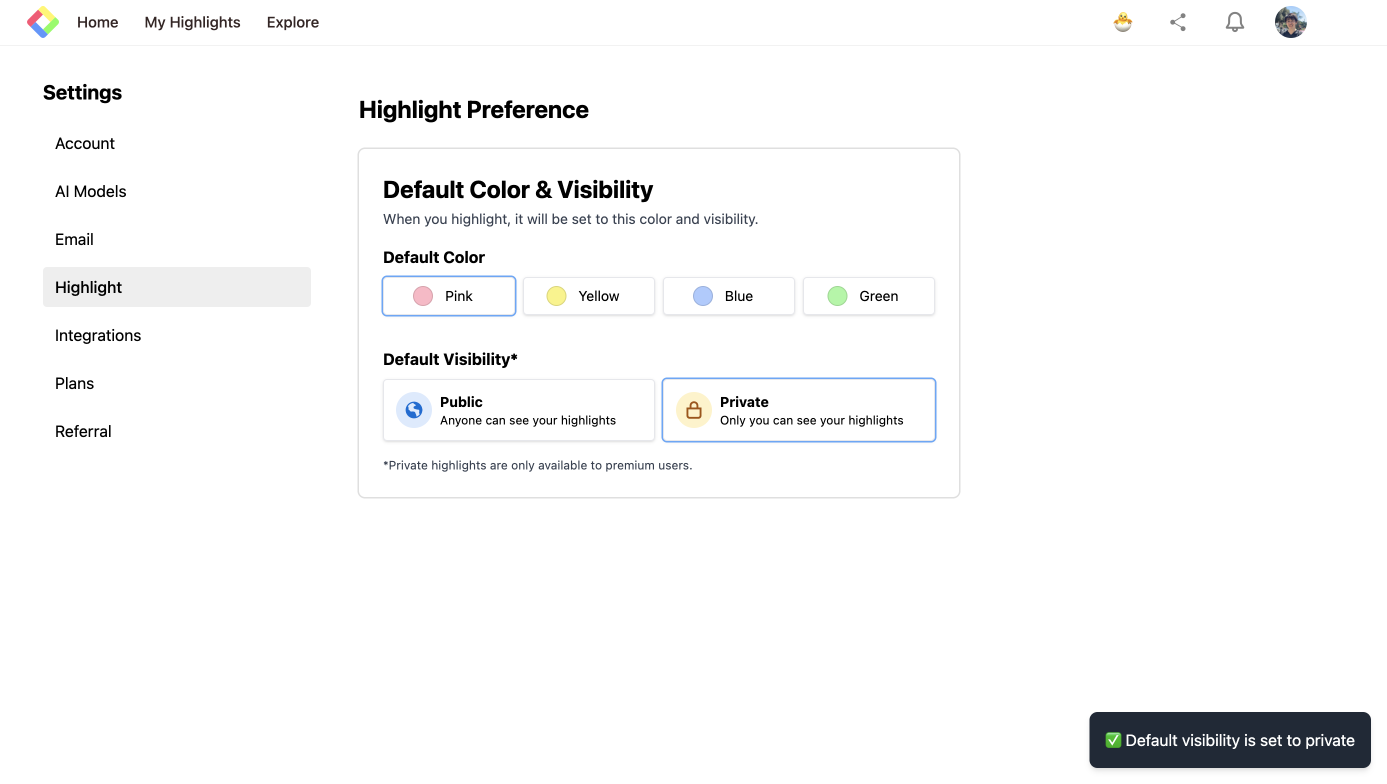
On the Setting screen, you can see Default Visibility. So, click Private to change it. If you can see "Default visibility is set to private" at the top right, you can successfully update the setting.
FAQs
Q. Are private highlights visible to anyone else?
No. When set to Private, your highlights, notes, comments, and articles are only visible to you.
Q. Do I need a Pro plan to highlight privately?
Yes. Private highlighting is a Pro feature. Free users can only create public highlights.
Q. Can I change the visibility of existing highlights?
Yes. You can toggle between Public and Private visibility for previously saved highlights on your profile page.
Q. Can I set all future highlights to be private by default?
Yes. In Settings > Default Visibility, you can switch to Private so every new highlight you create will be private automatically.
Q. If I downgrade from Pro to Free, what happens to my private highlights?
Your existing private highlights remain in your account but may become inaccessible or locked until you re-upgrade to Pro.
Q. Do private highlights still sync with integrations (Notion, Obsidian, etc.)?
Yes. Private highlights can still be exported or synced to your connected note-taking apps. They just won’t appear on your public Glasp profile.
Q. Can I share private highlights later?
Yes. You can always switch visibility back to Public if you decide to share.
Q. Can Claude or ChatGPT read my Glasp highlights?
Yes. With the Glasp MCP Connector, AI assistants such as Claude, ChatGPT, and Claude Code can search and read your own highlights, notes, Kindle highlights, and AI summaries, including your YouTube summaries. The connection is read-only and private to you. See How to Connect Glasp to Claude, ChatGPT, and Claude Code (MCP Connector).
Q. Can I use Glasp on my phone?
Yes. Glasp has native apps for iPhone, iPad, and Android, and the Glasp Safari extension for iPhone and iPad comes with the iOS app. Your highlights sync between the apps, the web, and the desktop extension. See How to Use the Glasp Mobile App on iOS, iPad, and Android.
Before you leave
If you have any questions, please refer to the FAQ or contact us.
See you next time,
Glasp team