How to Export Highlights & Notes to Notion

Jan 29, 2026
3 min read
222 views
Want to organize all your reading notes in one place? With Glasp, you can easily export highlights and notes from web articles, PDFs, Kindle, and even YouTube transcripts directly into Notion. This makes it easy to build a personal knowledge base, connect ideas, and keep your notes searchable.
In this tutorial, we’ll walk you through how to copy and paste highlights into Notion, and how to use the Notion API integration for automatic syncing.
If you haven't signed up for Glasp or installed the Glasp browser extension, please do so. You can refer to this tutorial.
YouTube Tutorial
👉 How to Export Highlights and Notes to Notion and Obsidian
Step 1. Go to your profile page by clicking “Profile” in the left sidebar
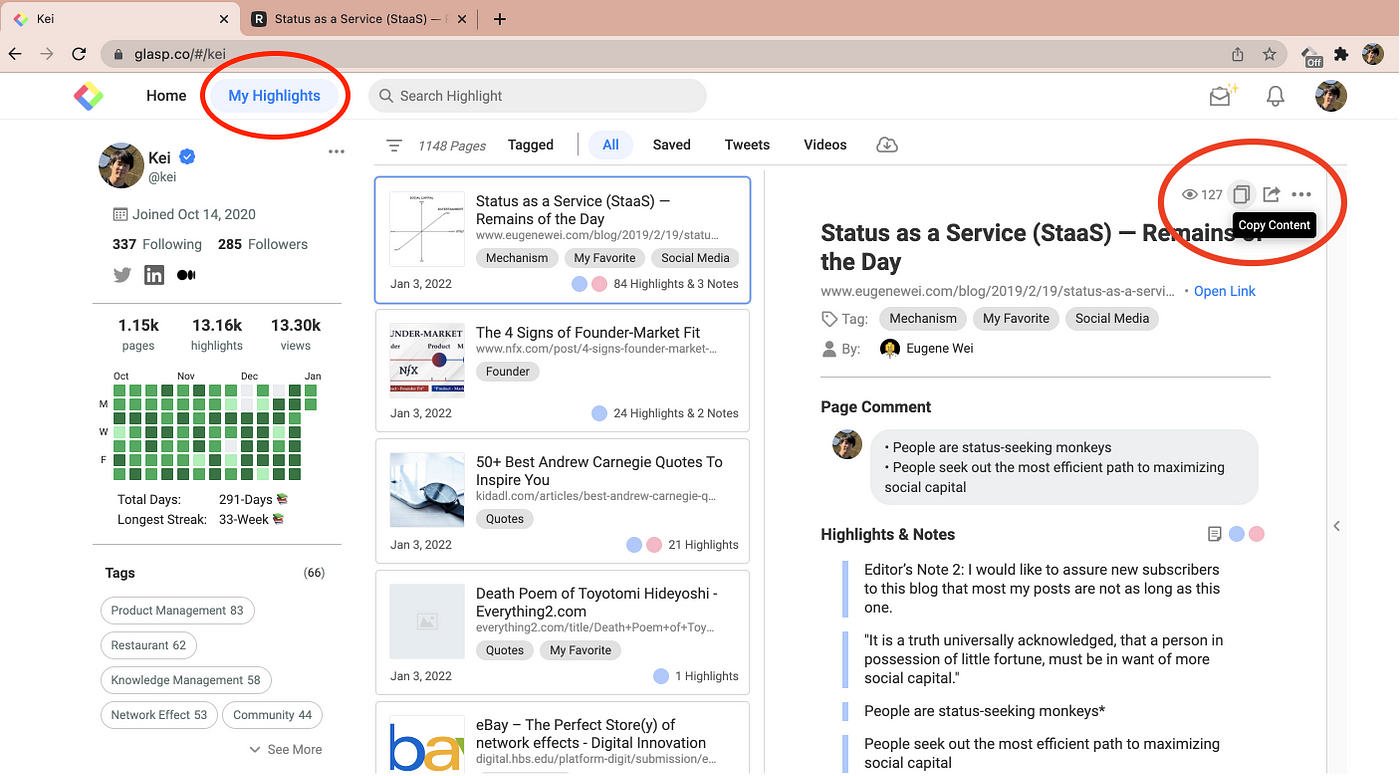
Select an article you want to export, then click “Copy Highlights” at the top right.
If you click another article, you can export that article’s highlighted sentences.
Step 2. Paste sentences on Notion

Open a new page on Notion and paste highlighted sentences by
Command+Vfor Mac andCtrl+Vfor Windows.Yay, you got everything copied and pasted from the web article 🎉
You can edit the sentence or style as you want 🙂
Bonus
If you want to export highlights and notes to Notion with API, please see the tutorial below:
FAQs
Q. Do I need the Glasp extension to export highlights to Notion?
Yes. You’ll need the Glasp browser extension to collect highlights from the web, YouTube, or PDFs. Once saved, you can export them into Notion.
Q. Can I export multiple articles at once?
Currently, you can export highlights one article at a time by using the Copy Highlights button. For bulk exports, use the Notion API integration.
Q. How does the Notion API integration work?
By connecting your Notion account to Glasp, highlights are automatically sent to your chosen Notion database without manual copy-paste.
Q. Can I edit the highlights after exporting to Notion?
Yes. Once in Notion, you can freely edit, reorganize, or style your highlights however you like.
Q. Does exporting to Notion cost extra?
No. Both manual export (copy-paste) and the Notion API integration are available for free Glasp users.
Q. Can I also export Glasp highlights to other apps?
Yes. Glasp supports exporting highlights and notes to Obsidian, Logseq, Roam Research, and even as text, CSV, HTML, MD, or JSON files.
Q. Can Claude or ChatGPT read my Glasp highlights?
Yes. With the Glasp MCP Connector, AI assistants such as Claude, ChatGPT, and Claude Code can search and read your own highlights, notes, Kindle highlights, and AI summaries, including your YouTube summaries. The connection is read-only and private to you. See How to Connect Glasp to Claude, ChatGPT, and Claude Code (MCP Connector).
Q. Can I use Glasp on my phone?
Yes. Glasp has native apps for iPhone, iPad, and Android, and the Glasp Safari extension for iPhone and iPad comes with the iOS app. Your highlights sync between the apps, the web, and the desktop extension. See How to Use the Glasp Mobile App on iOS, iPad, and Android.
Before you leave
Thanks for reading. We hope this guide helps you export your highlights and notes to Notion more smoothly.
See you next time,
Glasp team
–