How to Integrate with Notion

Aug 18, 2025
3 min read
506 views

We added a new feature to export Glasp highlights into Notion with the Notion API. In this article, we introduce you to how to set up the Notion API and start exporting highlights.
If you haven't signed up for Glasp or installed the Glasp browser extension, please do so.
Also, you can sign up for Glasp and install the Glasp browser extension below.
How to Integrate with Notion and Send Highlights from Glasp to Notion
Step 1: Go to the Settings page
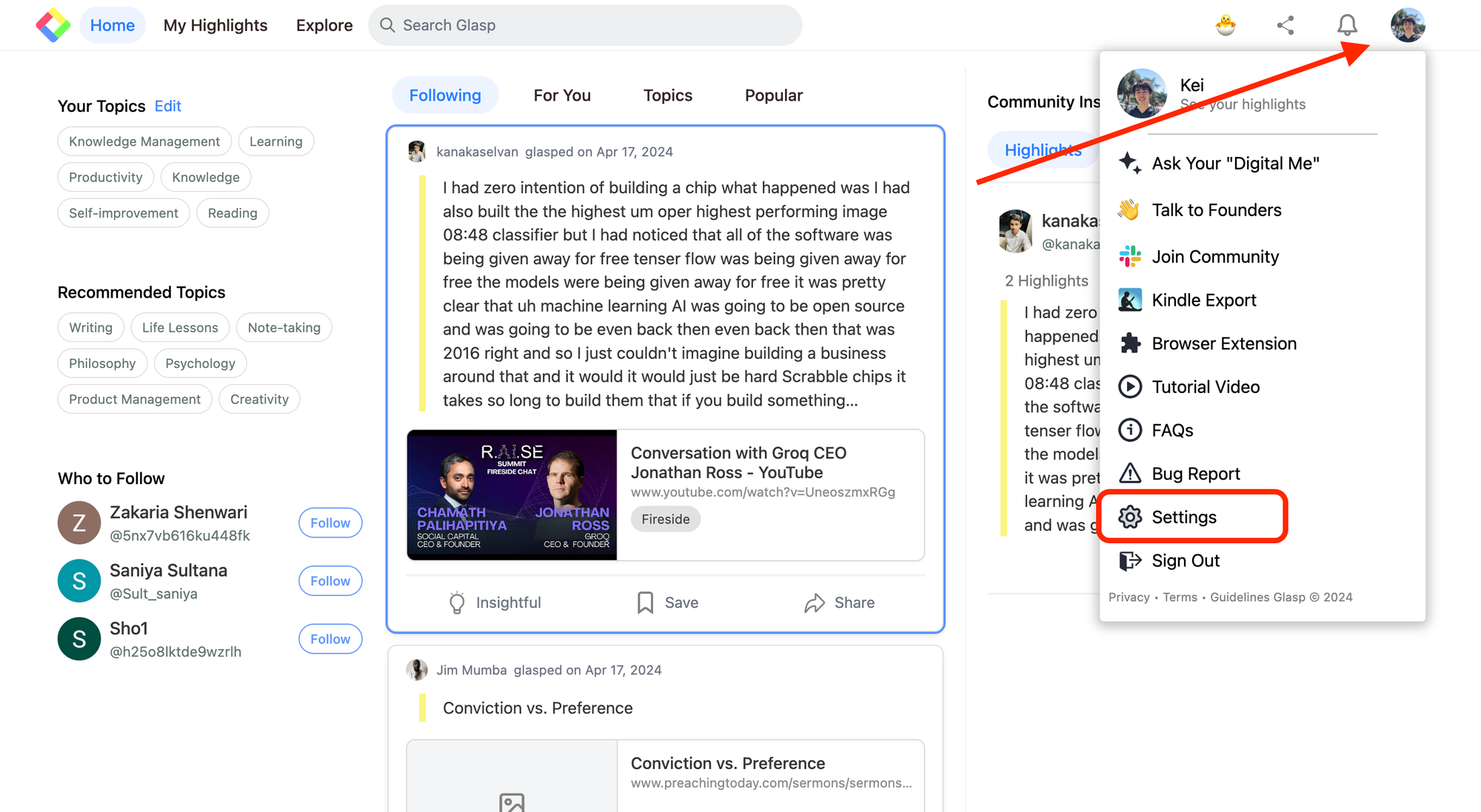
Click your profile icon at the top of the Home, then click Settings. It takes you to the Setting page.
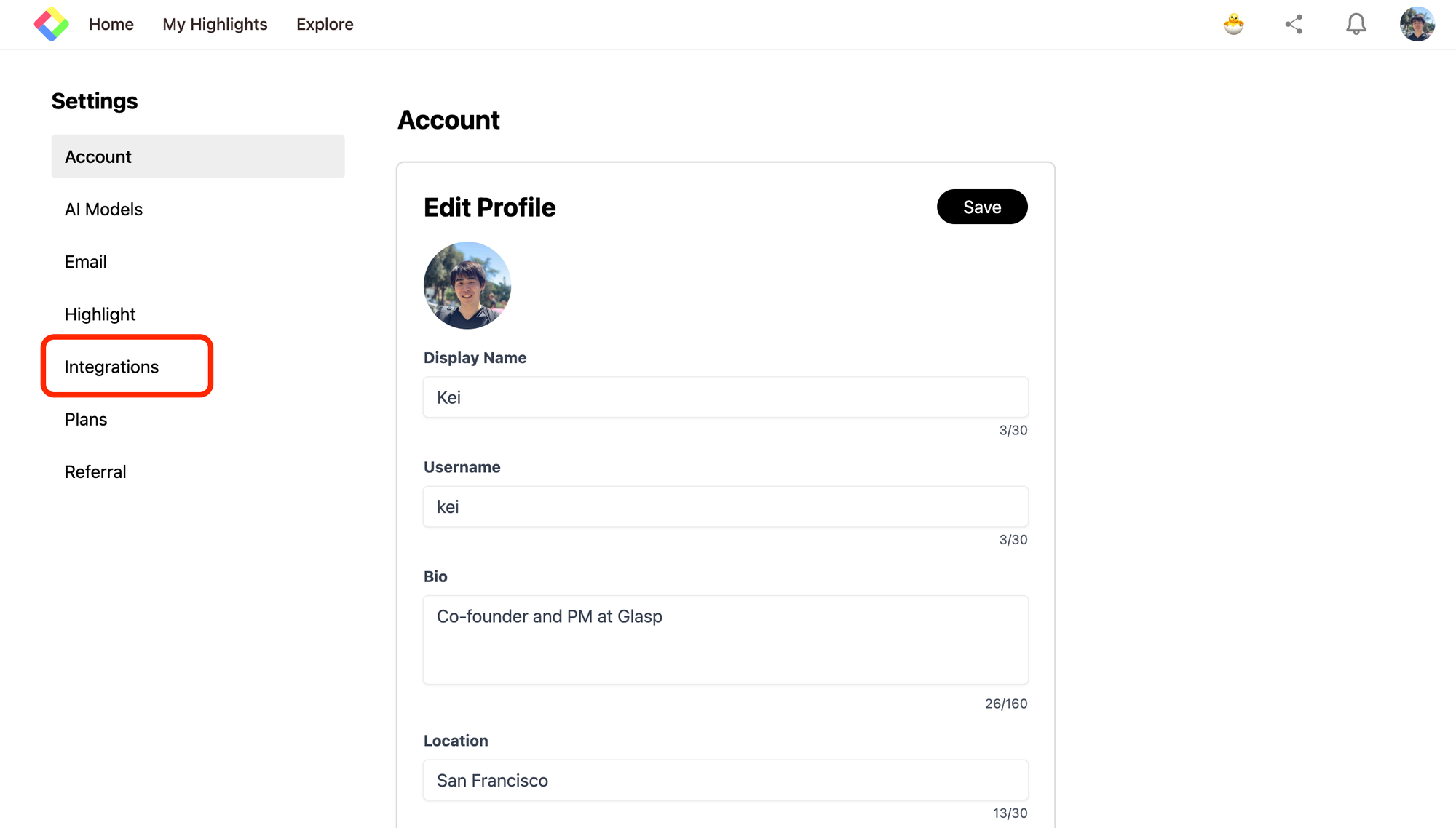
On the Setting page, click Integrations on the left. It opens the Integration page.
Step 2: Integrate with Notion
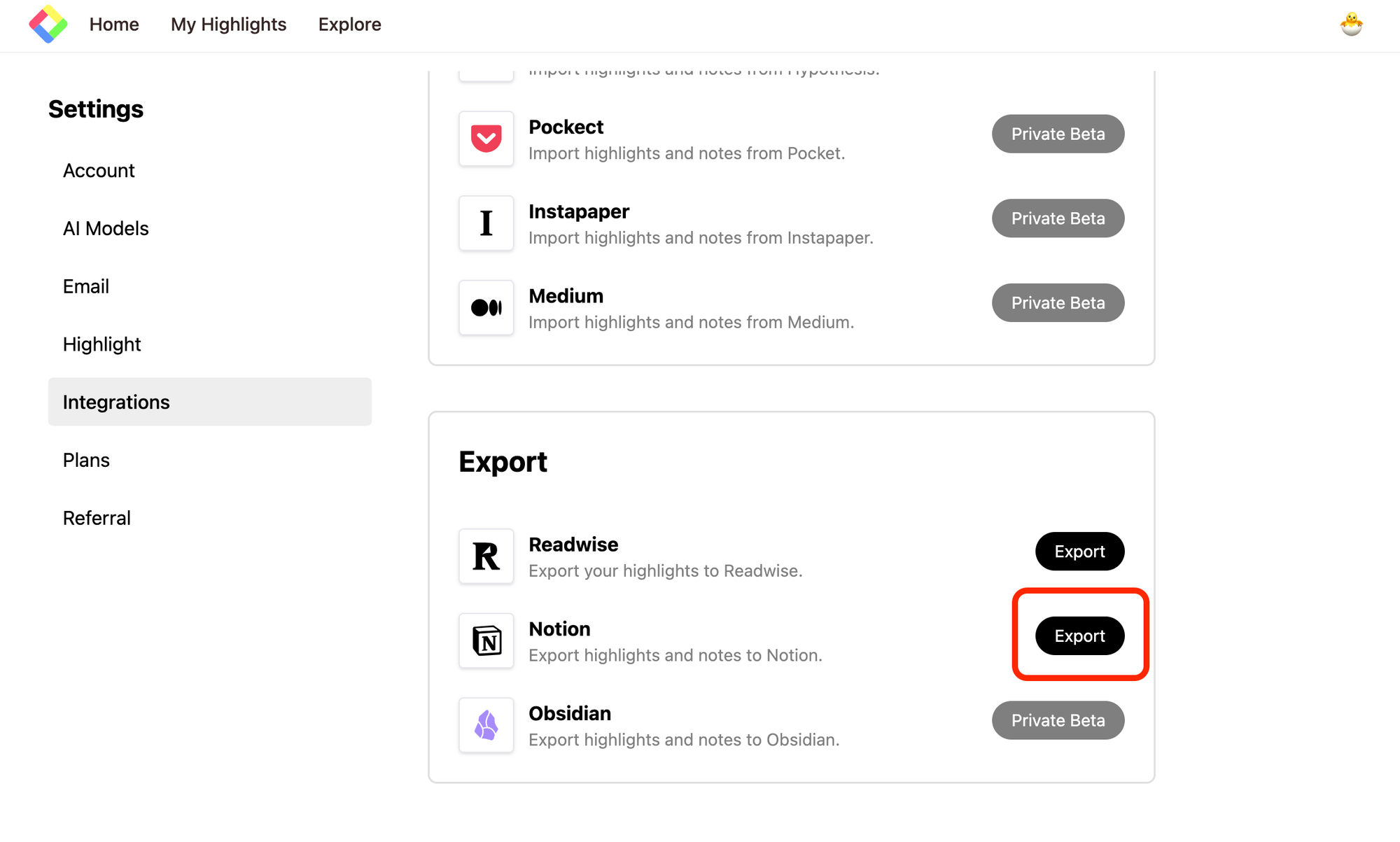
In the Export section on the Integration page, you can see the Export button for Notion. So, please click it.
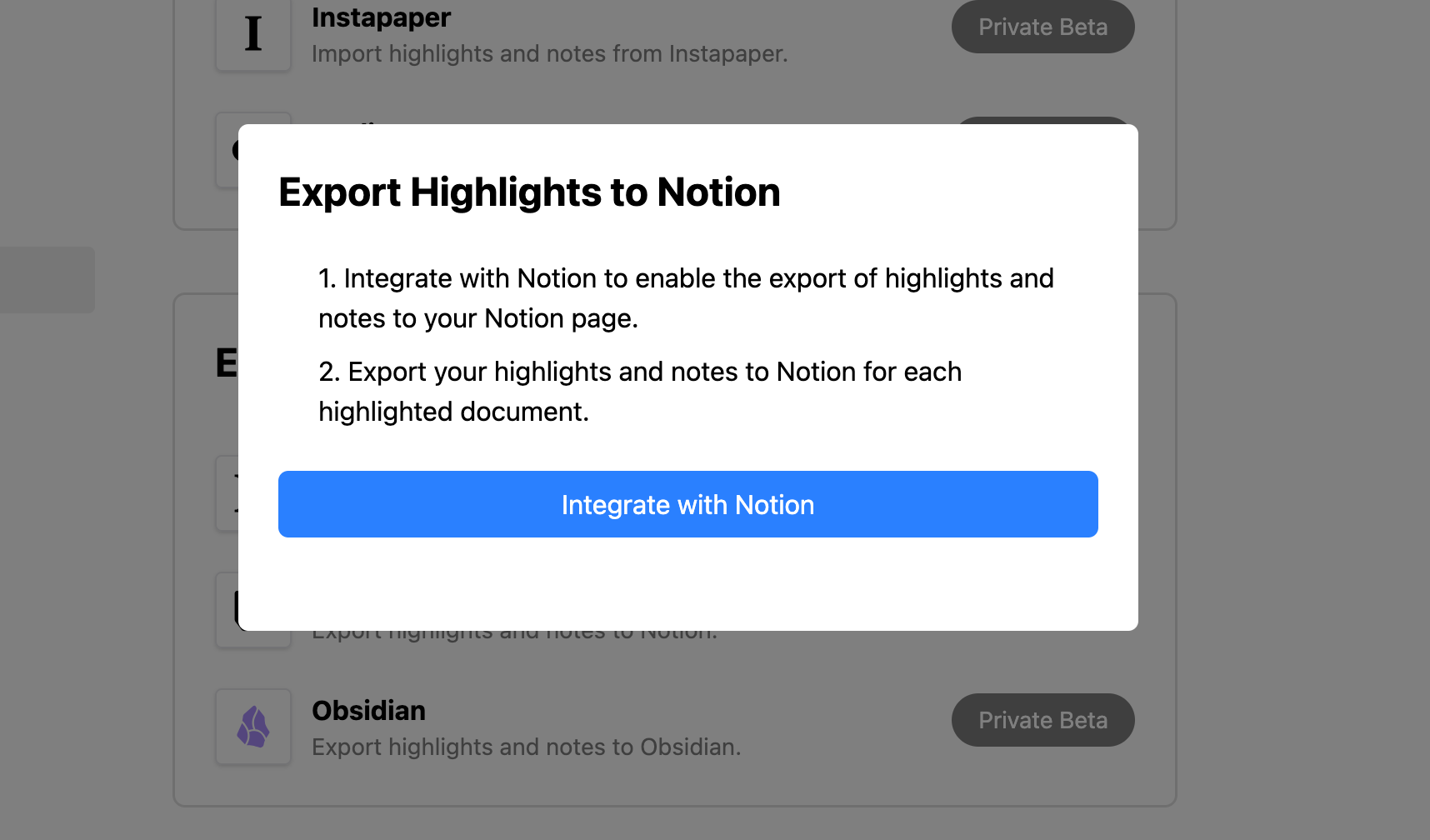
It shows a modal saying Integrate with Notion, please click it to start integrating with Notion.
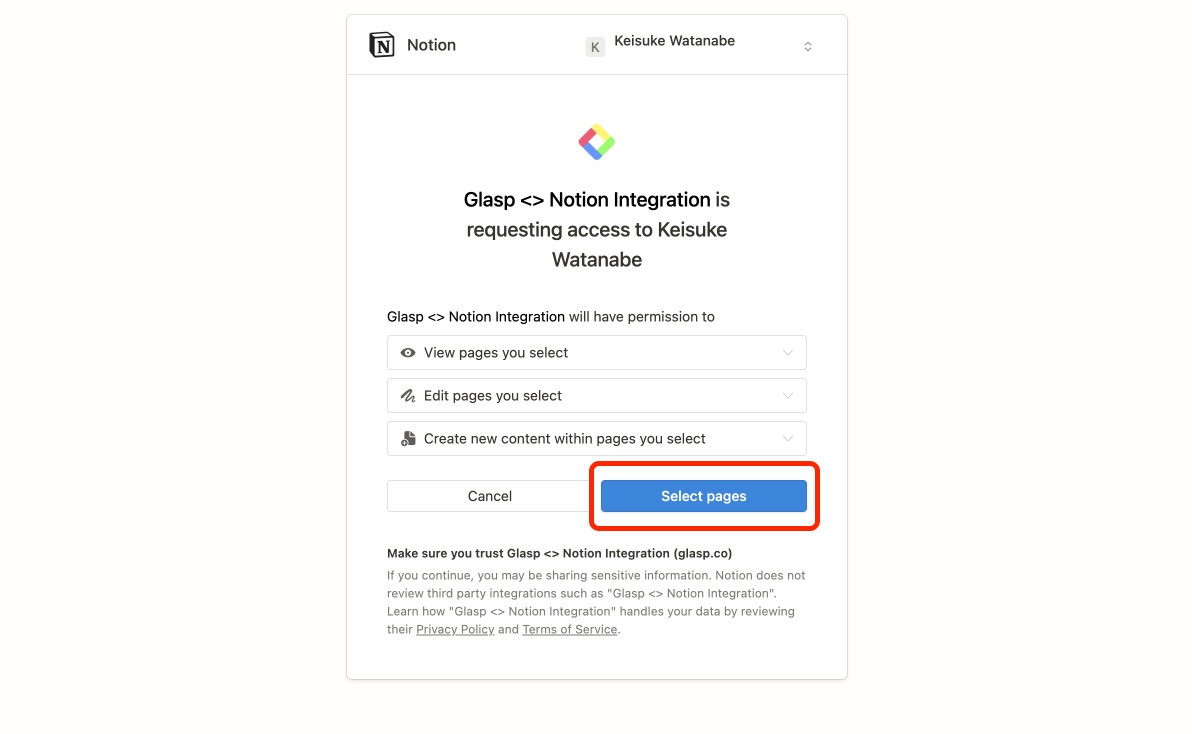
Then, you can see a Notion web page to select which Notion space you will use. So, make sure you choose the right space at the top. Next, click Select Pages in the blue button.
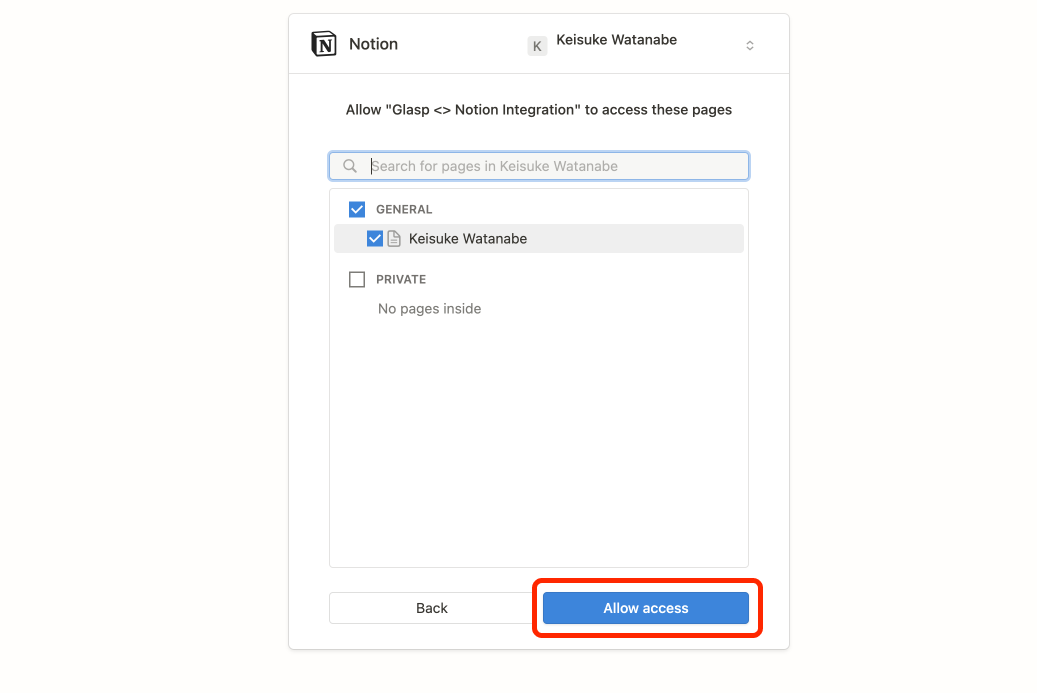
Next, give Glasp access to the space on Notion.
Step 3: Export highlights into Notion
After you successfully integrate with Notion, go to your profile page. At the top right, you can see the Share icon button, so please click it and open the modal.
On the modal, you can see Export to Notion it at the bottom. By clicking it, it starts exporting the page's highlights into Notion with a new page.
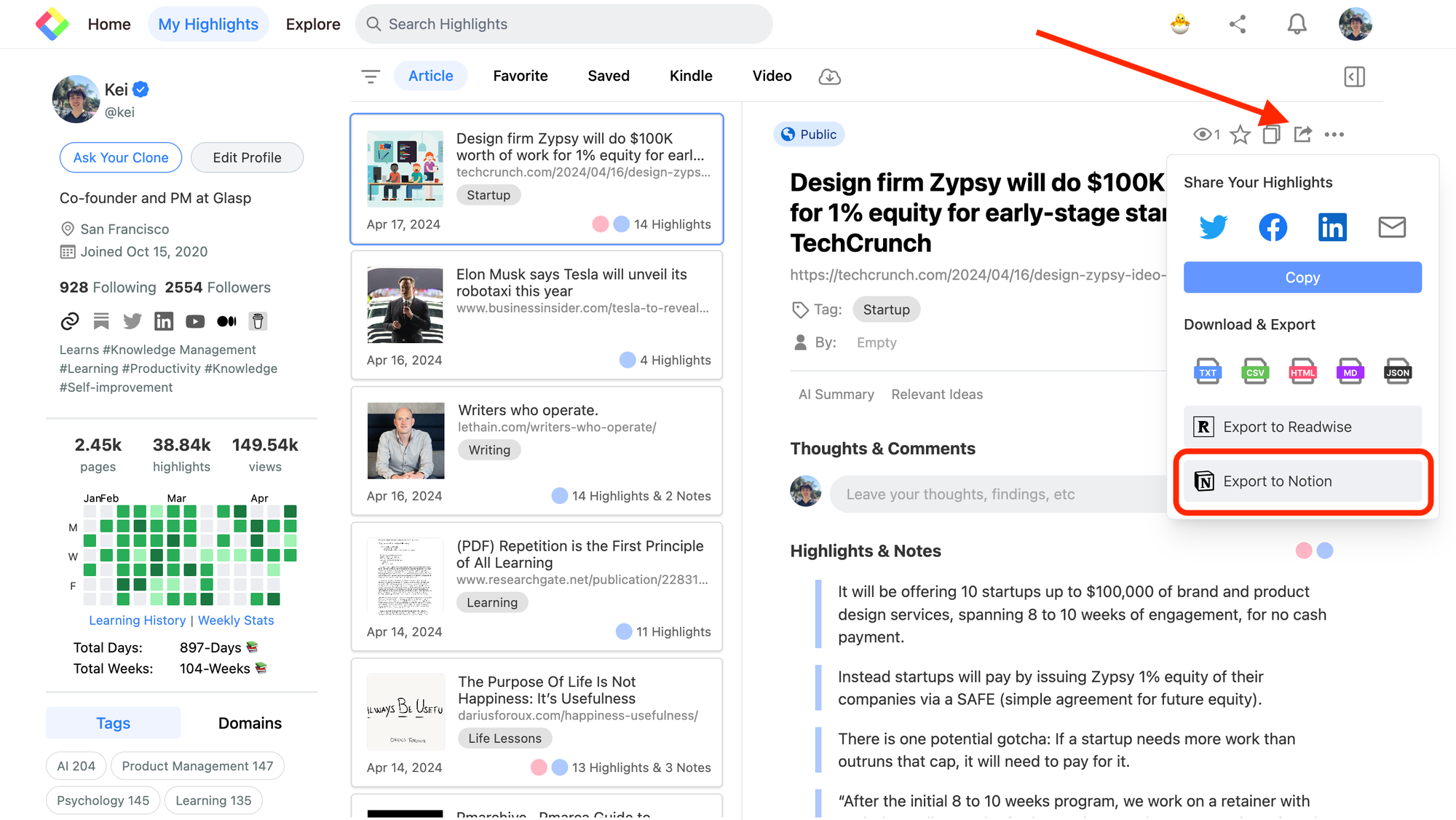
When exporting into Notion has finished, you can see a text saying "Exported! View on Notion." To see the exported highlights, please click the Notion" text button.
Step 4: See the exported highlights on Notion
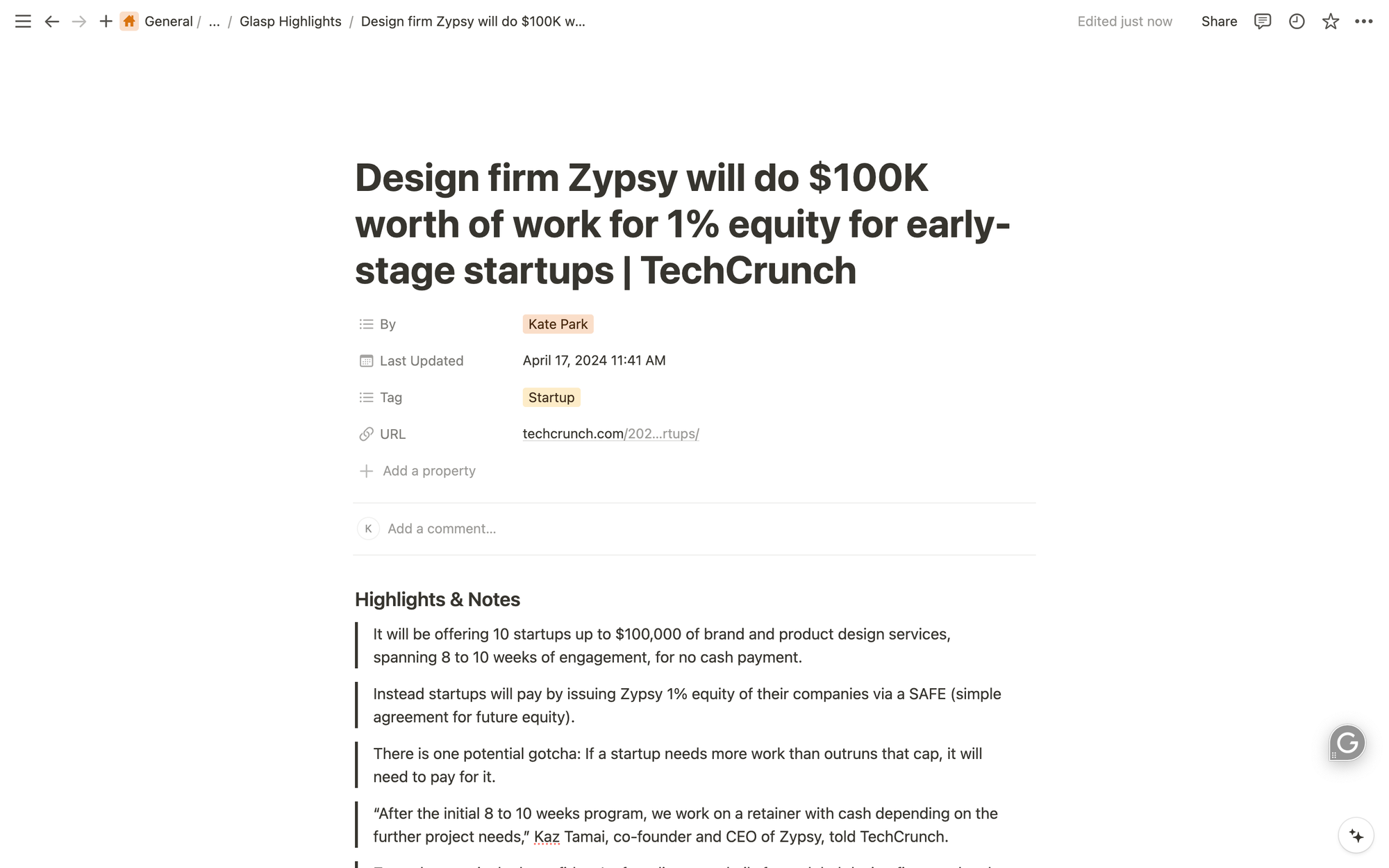
On the Notion page you chose, you can see the exported highlights. As you can see in the example below, it exports not only highlights but also the title of the article, the tag, and the URL to the original article.
It's easy and simple, right? Glasp is going to add more advanced features to Notion exports, so please stay tuned!
FAQs
Q. Do I need a paid Notion account to use this integration?
No. The integration works with both free and paid Notion plans. However, if you hit Notion’s free plan limits (like block limits), you may need to upgrade.
Q. Can I export multiple articles at once to Notion?
Currently, you can export highlights page by page from your Glasp profile. Bulk exporting is on our roadmap.
Q. What information is exported into Notion?
Glasp exports:
Highlights and notes
Article title
Original article URL
Tags (if any)
This makes it easy to track both the content and its source.
Q. Can I choose where the highlights are stored in Notion?
Yes. When setting up the integration, you’ll be asked to select a Notion workspace and pages. All exports will be sent there by default.
Q. Can I disconnect Notion later?
Yes. You can remove the integration anytime from Glasp’s Settings → Integrations page. After disconnecting, you can no longer export highlights until you reconnect.
Q. Can Claude or ChatGPT read my Glasp highlights?
Yes. With the Glasp MCP Connector, AI assistants such as Claude, ChatGPT, and Claude Code can search and read your own highlights, notes, Kindle highlights, and AI summaries, including your YouTube summaries. The connection is read-only and private to you. See How to Connect Glasp to Claude, ChatGPT, and Claude Code (MCP Connector).
Q. Can I use Glasp on my phone?
Yes. Glasp has native apps for iPhone, iPad, and Android, and the Glasp Safari extension for iPhone and iPad comes with the iOS app. Your highlights sync between the apps, the web, and the desktop extension. See How to Use the Glasp Mobile App on iOS, iPad, and Android.
Before you leave
If you have any questions, please refer to the FAQ or contact us.
See you next time,
Glasp team
—