How to Keep Track of Research Papers You've Read (and Remember Why They Mattered)

Oct 28, 2026
4 min read
0 views

You know you read it. You remember the figure, maybe the journal, maybe roughly when. You do not remember enough to search for it, and when you do find the paper, you cannot remember why you saved it. One MD/PhD student put the problem well: "remembering why I flagged an article as "Super Important!!!" months after I read it" (Edge for Scholars).
A reference manager keeps the citation. What gets lost is the sentence that mattered and the reason it mattered to you. This guide shows a small habit with Glasp that keeps both, so a paper you read in March is still findable, and still makes sense, in October.
What you need: the free Glasp extension for Chrome, Safari, Firefox, Edge, Brave, or Opera (how to install it).
Step 1: Highlight the sentence, not the paper
Saving a paper tells future you that it mattered. Highlighting a sentence tells you what mattered. While you read, highlight only what you would want to find again: the result with its number, the method choice that limits it, the limitation the authors state.
This works on full-text pages (PubMed Central, arXiv, publishers' sites) and in Glasp's PDF viewer. The details are in How to Highlight and Take Notes on Research Papers Online.
Step 2: Add one line on why it matters to you
This is the step most people skip, and the one that saves the most time later. On your most important highlight, add a note that answers one question: why did I mark this?
"Contradicts the dosing in the 2019 guideline."
"Use for the methods section of chapter 2."
"Same cohort as the Smith paper; check overlap."
"Ask about this at journal club."
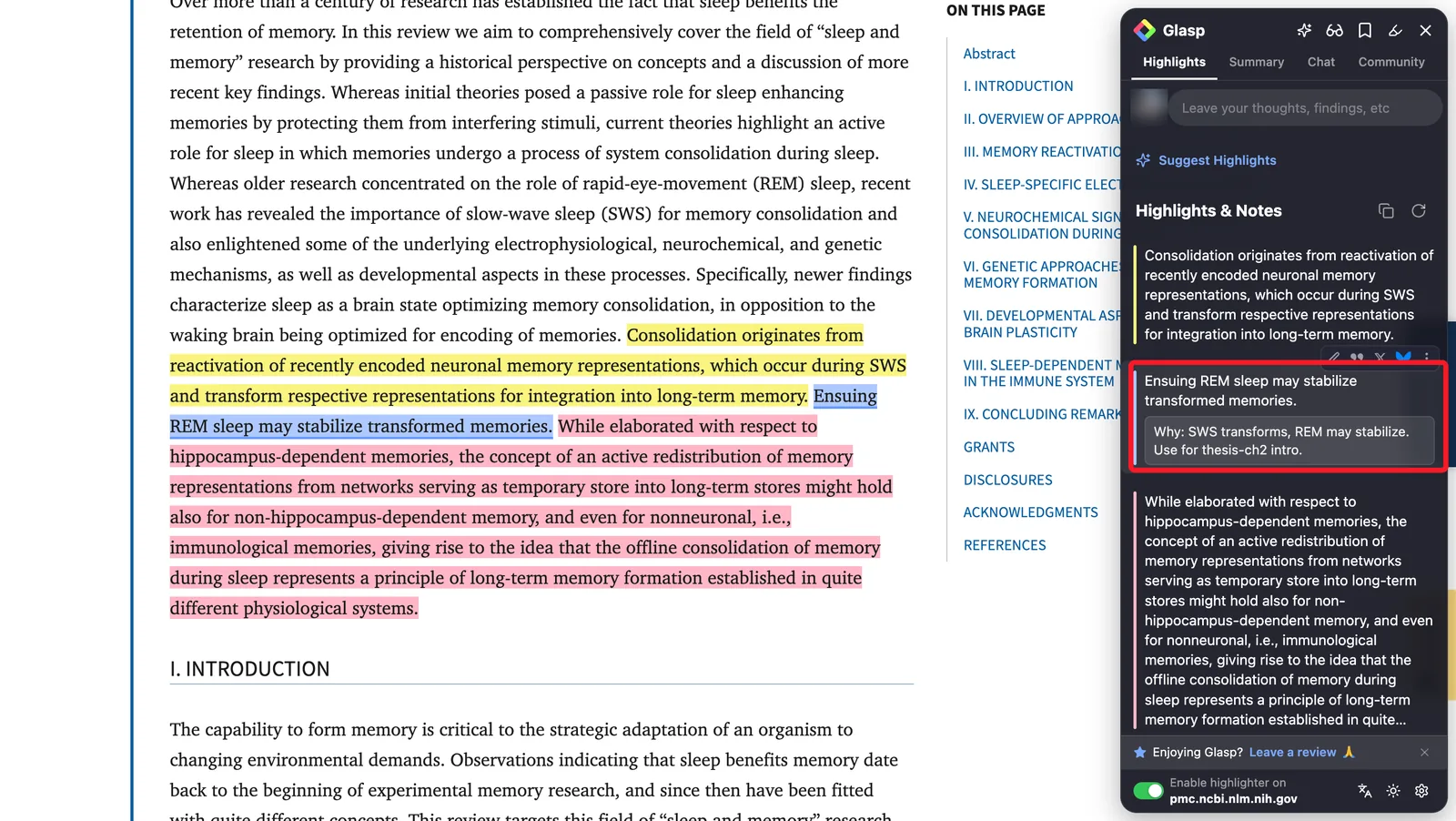
One line is enough. The note is for the person who finds this highlight in six months and has forgotten the context, which will be you.
Step 3: Tag by what you are working on
Tag each paper by the project or question it serves, not by journal or field: thesis-ch2, sepsis-qi, grant-aim1, journal-club-nov. One paper can carry several tags.
When you open a tag, you see every paper you read for that project, each with your highlights and notes, and a link back to the source.
Step 4: Find it again by what you remember
Every page you highlight is listed on your Glasp profile with its highlights and notes. Open the Highlights tab on your profile and type the phrase you half-remember into the search box. A word from the sentence you marked often finds a paper faster than its title would, and the page opens with your highlights and your "why" note next to them.
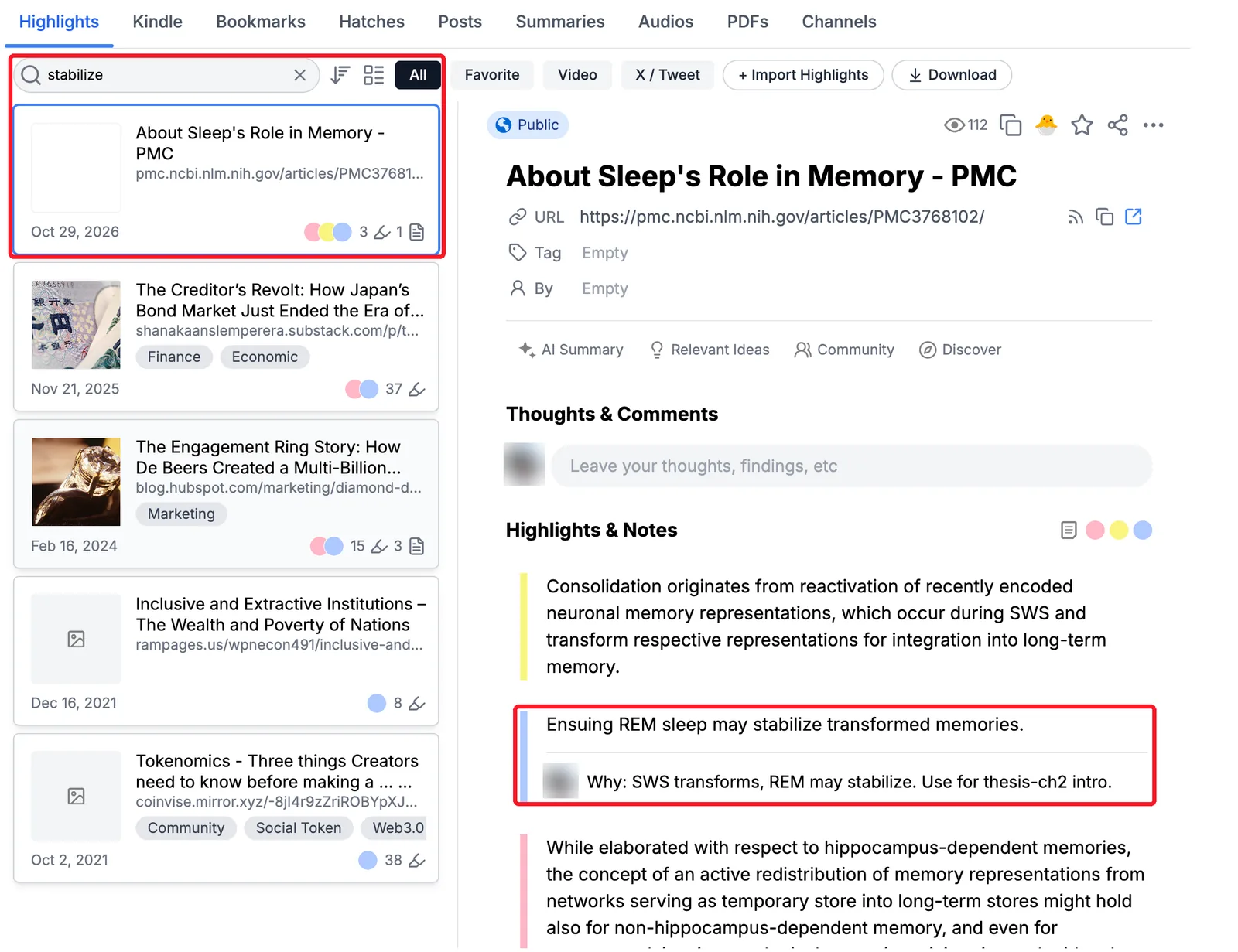
When you cannot remember the words, ask an AI assistant. With the Glasp MCP Connector, Claude or ChatGPT can search your highlights for you:
"Where did I read that a lower dose worked as well in older patients? Quote my highlight and give the link."
"List the papers I tagged thesis-ch2, with my note on each."
The answer points to a highlight you made and the page it came from. Open it and check the passage before you rely on it.
Step 5: Keep a copy where you write
If you write in Obsidian, Notion, or Roam, you can export your highlights and notes there, or to Markdown. Your reading log then lives next to your drafts, and you are not dependent on one app to find it. See how to export highlights to Obsidian and to Notion.
A ten-second template
If you only adopt one thing from this post, make it this note on each paper you keep:
Why: (one line)
Use for: (project or tag)
Check: (anything you doubt)
FAQs
Does this replace my reference manager?
No. Keep using Zotero, EndNote, or Mendeley for citations and bibliographies. Glasp keeps the sentences you marked and your reasons, which a citation record does not.
Does it work on PDFs?
Yes. PDFs open in Glasp's PDF viewer, where you can highlight and add notes. You can also upload PDFs; uploaded PDFs are always private.
Are my highlights on papers public?
Highlights on web pages are public on your Glasp profile by default. Private highlighting needs a Pro or Unlimited plan.
Is it free?
Highlighting, notes, and tags are free.
Before you leave
If you have any questions, please refer to the FAQ or contact us.
👉 X
See you next time,
Glasp team