How to Export Highlights and Notes to Obsidian

Sep 01, 2025
5 min read
295 views

If you’re an Obsidian user, you know how important it is to keep your knowledge organized in one place. With Glasp, you can save highlights and notes from web articles, YouTube transcripts, PDFs, and Kindle — then easily export them into Obsidian.
Things Needed
Glasp
Obsidian
Desktop & browser (Chrome, Brave, Edge, Safari, or Firefox)
If you haven't signed up for Glasp or installed the Glasp browser extension, please do so. You can refer to this tutorial.
There are three ways to export Glasp's highlights & notes into Obsidian.
Option 1: Use the Glasp Obsidian Plugin
Option 2: Copy-n-paste
Option 3: Download files from Glasp and Upload to Obsidian
Option 1: Use the Glasp Obsidian Plugin
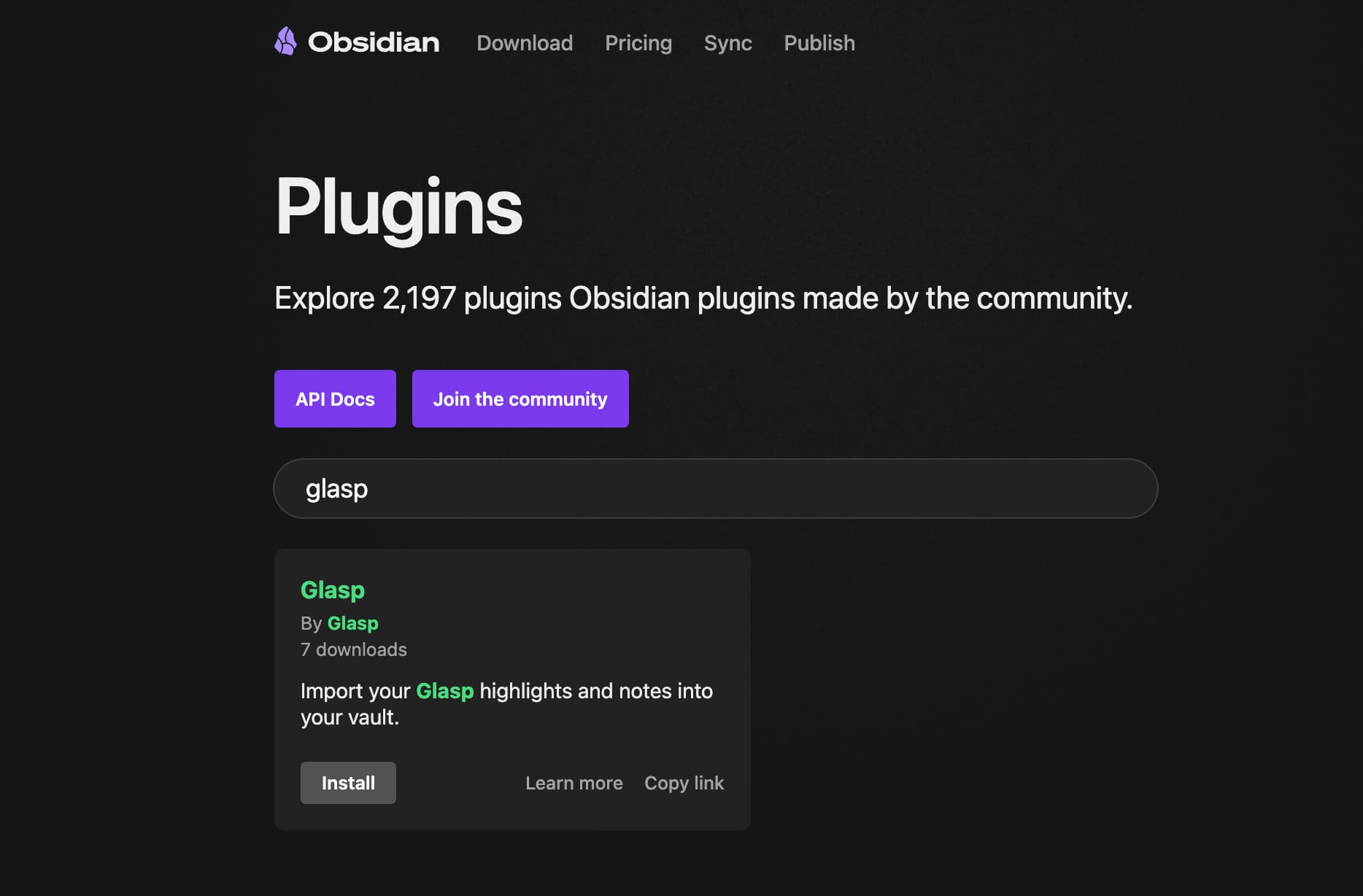
1. Install the Glasp Obsidian Plugin
Download the Glasp Obsidian Plugin directly from the plugin page.
Or open Obsidian, go to Settings > Community Plugins, and search for Glasp. Install and enable the plugin.
2. Get Your Glasp Access Token
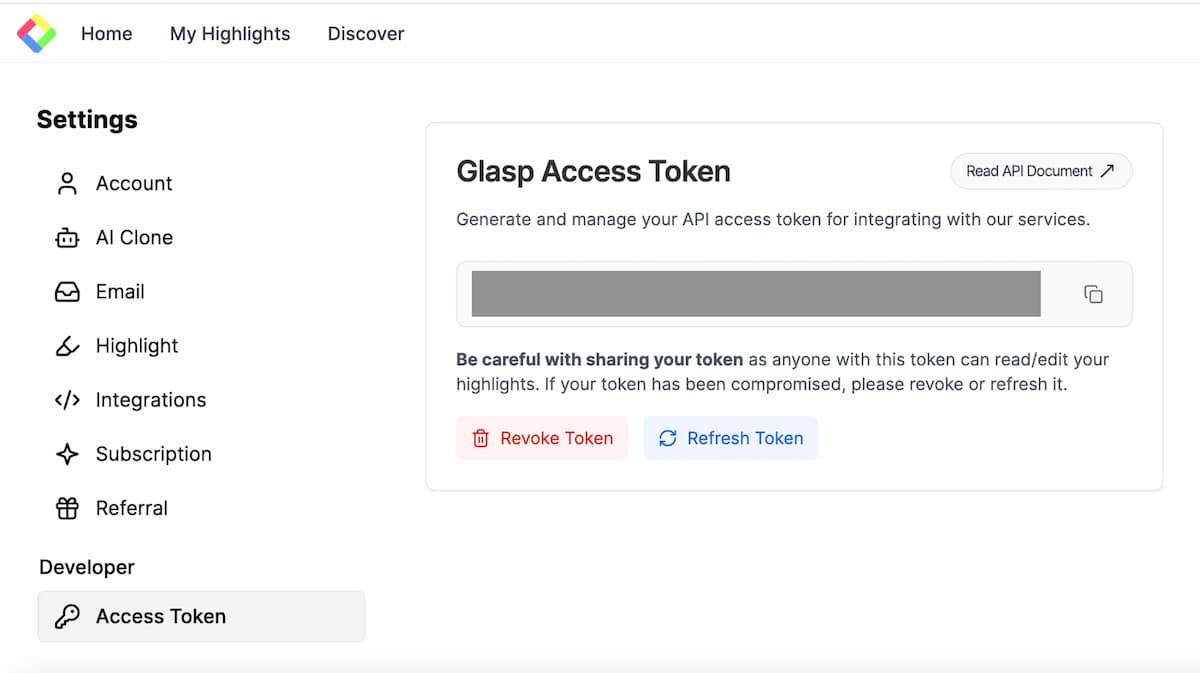
In Glasp, navigate to your Account Settings > Access Token and copy your access token.
3. Set Up the Plugin
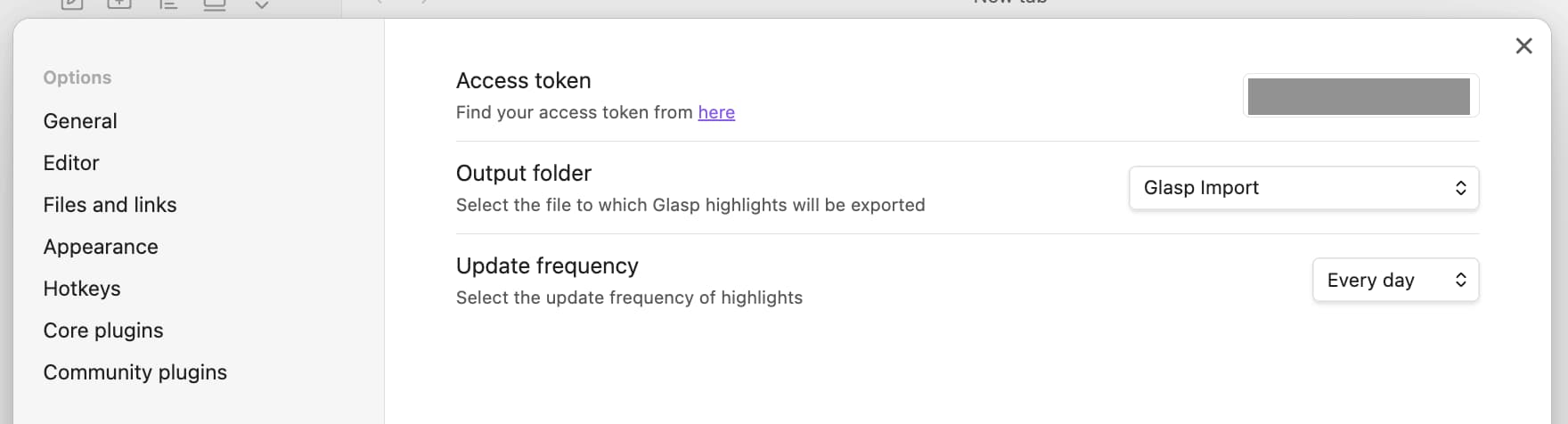
Open the plugin settings in Obsidian and paste your Glasp access token.
Access Token: paste your Glasp access token in the provided field.
Output Folder: Select the folder where you want to store your imported highlights.
Update Frequency: Choose how often the plugin should sync your Glasp highlights to your selected folder.
4. Import Your Highlights
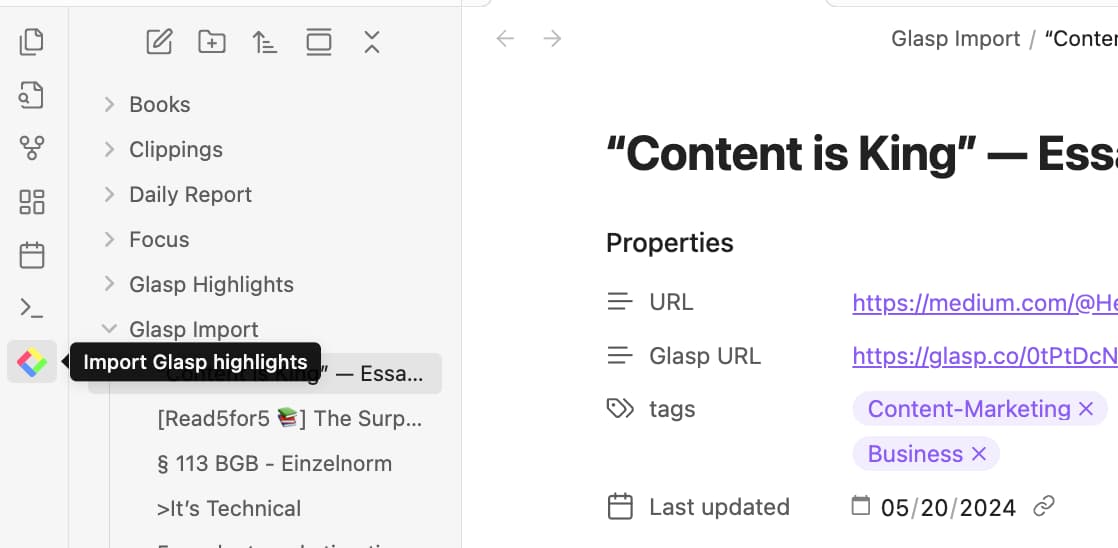
Click "Import Glasp Highlights" in the Obsidian sidebar. Your highlights will be fetched and added to your Obsidian vault.
Option 2. Copy-n-paste
Step 1. Go to your profile page by clicking “Profile” in the left sidebar
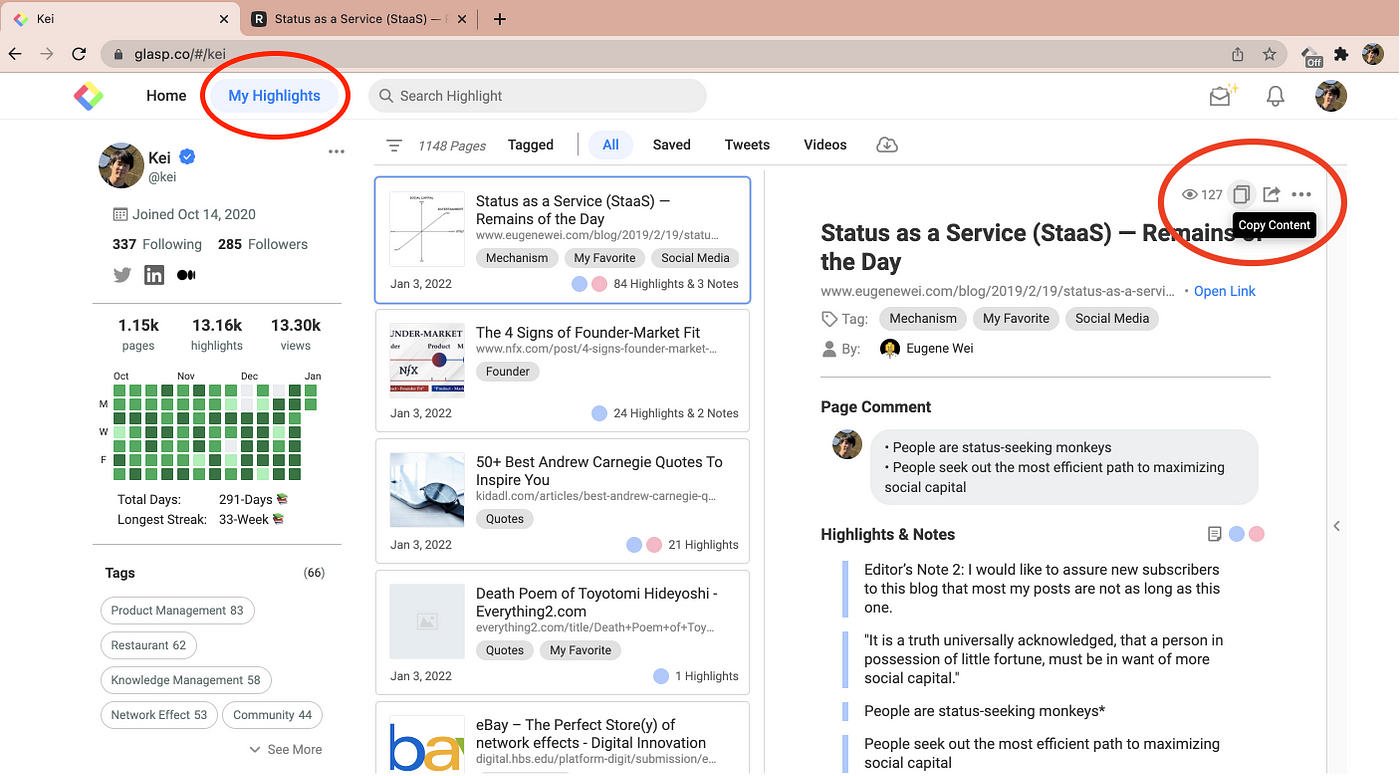
Select an article you want to export, then click “Copy Highlights” at the top right.
If you click another article, you can export that article’s highlighted sentences.
Step 2. Paste sentences on Obsidian

Open a New note on Obsidian and paste highlighted sentences by
Command+Vfor Mac orCtrl+Vfor Windows.Yay, you got everything copied and pasted from the web article 🎉
You can edit the sentence or style as you want 🙂
Option 3. Download files from Glasp and Upload to Obsidian
In this option, there are three choices you can choose.
One by one (Only one page or article)
All at once (All pages or articles)
By Tag (Tags of pages or articles)
1. One by one (Only one page or article)
On Glasp, go to your profile page, select ONE highlighted page that you like and click the “Share Your Highlights” button.
Download the file as an “MD file” (Markdown file) type, and from then save the file on the folder or vault you created on Obsidian.

Voila! Check Obsidian and you will automatically see your exported highlights and notes from Glasp.

2. All at once (All pages or articles)
This export type is best to use particularly if you want to compile your highlights on different pages all at once from Glasp into Obsidian!
On your profile page, click the “Download As” button on the upper portion of the page, download your contents as an “MD file,” then save the file under your created folder or vault in Obsidian.
That’s it, all your highlights and notes in Glasp are exported into one place!
3. By Tag (Tags of pages or articles)
If you want to export your highlights only for a specific topic or tagged articles, with Obsidian in Glasp, you may do so!
Your tags are visible on the left portion of your profile page, simply choose a specific tag you would want to export consisting of your highlighted pages and contents under that topic.
For instance, in this case, we chose the tag “Mindset.” As presented, it showed the highlighted pages that have a ‘Mindset’ tag on them.
Similarly to Export 2, click the “Download As” button on the upper portion of the page and set your download as “MD file” then save the file in your chosen folder or Obsidian vault.
Afterwards, you will then see in Obsidian the articles you’ve exported mainly with similar tags on them.
After you download the files, open Obsidian and check if the highlighted sentences in articles and other contents; such as notes, highlights, comments, tags, etc. you’ve exported from Glasp are complete and compiled on the correct folder or vault.
Here’s an example of how your Obsidian would look like after you’ve exported contents from Glasp.
FAQs
Q. What’s the easiest way to sync Glasp highlights with Obsidian?
The easiest option is using the Glasp Obsidian Plugin. Once you install it and connect your Glasp Access Token, your highlights will automatically sync to your Obsidian vault.
Q. Do I need the Glasp browser extension to export highlights to Obsidian?
Yes. You need the extension to collect highlights from web articles, YouTube, or PDFs. Once saved, you can export them into Obsidian via plugin, copy-paste, or markdown files.
Q. Can I export highlights from multiple articles at once?
Yes. On your profile page, you can download all highlights at once as a Markdown file and import them into Obsidian.
Q. Can I filter exports by topic or tags?
Yes. You can export highlights by specific tags from Glasp. For example, exporting only pages tagged with “Productivity” or “Mindset” into Obsidian.
Q. What file formats does Glasp support for Obsidian export?
Glasp exports highlights in Markdown (.md) format, which is fully compatible with Obsidian.
Q. Can I edit or reorganize highlights after importing into Obsidian?
Yes. Once inside Obsidian, highlights are regular notes. You can edit, restructure, or link them just like any other note.
Q. Can Claude or ChatGPT read my Glasp highlights?
Yes. With the Glasp MCP Connector, AI assistants such as Claude, ChatGPT, and Claude Code can search and read your own highlights, notes, Kindle highlights, and AI summaries, including your YouTube summaries. The connection is read-only and private to you. See How to Connect Glasp to Claude, ChatGPT, and Claude Code (MCP Connector).
Q. Can I use Glasp on my phone?
Yes. Glasp has native apps for iPhone, iPad, and Android, and the Glasp Safari extension for iPhone and iPad comes with the iOS app. Your highlights sync between the apps, the web, and the desktop extension. See How to Use the Glasp Mobile App on iOS, iPad, and Android.
Before you leave
If you have any questions, please refer to the FAQ or contact us.
See you next time,
Glasp team