How to Highlight and Take Notes on Research Papers Online (PubMed Central, ScienceDirect, arXiv)

Oct 22, 2026
4 min read
1 views

Most papers you read today open as a web page, not a PDF: PubMed Central, ScienceDirect, Nature, Springer, Wiley, MDPI, and arXiv's HTML versions all show the full text in your browser. That is convenient for reading, and a problem for remembering. A week later the sentence you needed is somewhere in one of forty open tabs, and the page has no place to keep your notes.
This guide shows how to highlight and annotate research papers directly on those pages, keep each highlight linked to its paper, and find what you marked across all of them later.
What you need: the free Glasp browser extension for Chrome, Safari, Firefox, Edge, Brave, or Opera (how to install it). Highlighting, notes, and tags are free.
Step 1: Open the paper's full-text page
Open the article on the publisher's site or on PubMed Central, or open the HTML version on arXiv. Glasp works on any page that opens in your browser, including pages you reach through your university library's login.
For papers that only come as PDFs, see How to Annotate a PDF. The steps are the same, and both kinds end up in the same library.
Step 2: Highlight the sentences that carry the paper
Select a sentence and pick a color in the Glasp palette.
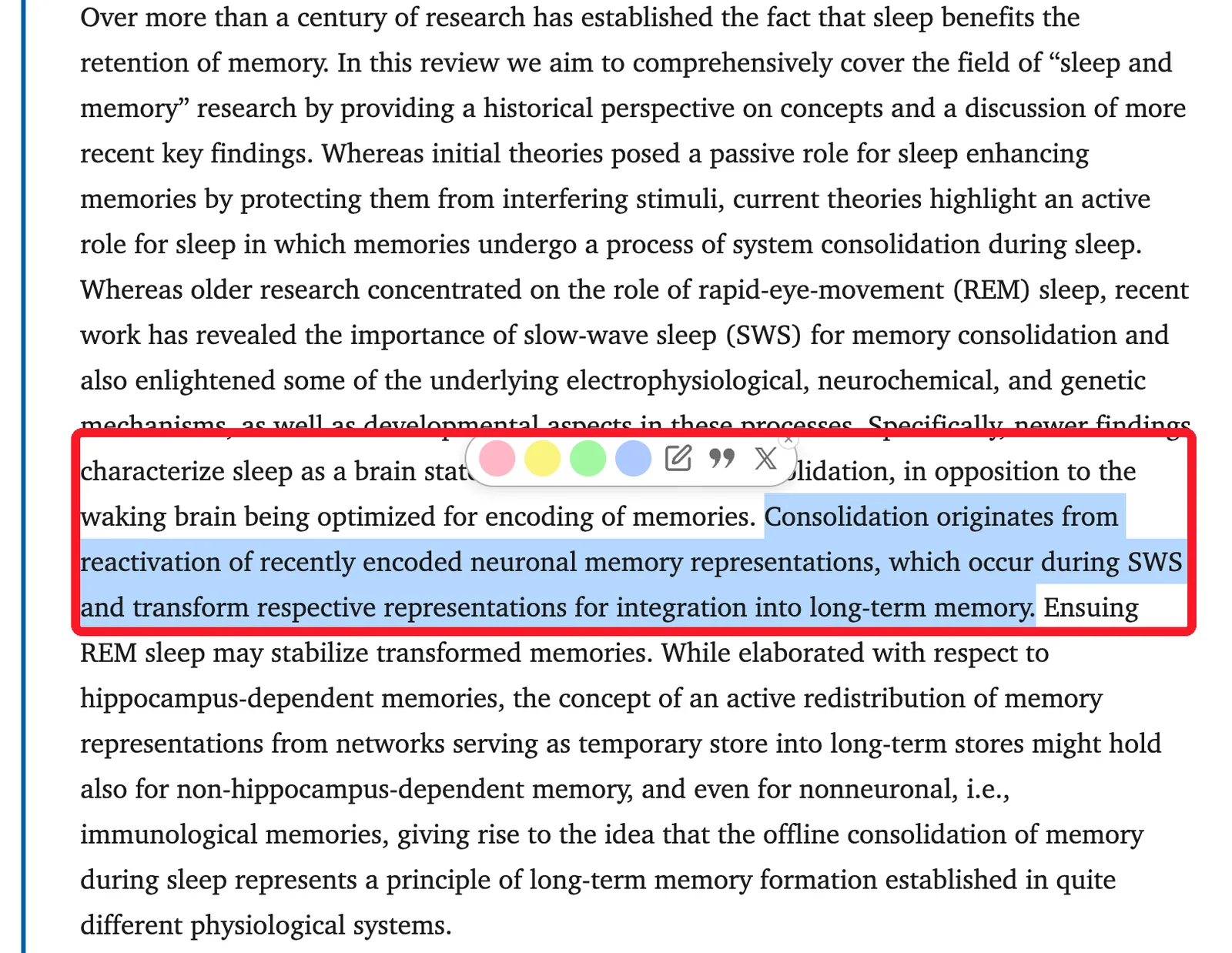
Most papers can be reduced to a handful of sentences. A useful set to highlight:
The question: the sentence in the introduction that says what the paper sets out to answer.
The method that matters: sample, design, or the one choice that limits how far the result goes.
The main result: with its number, not the authors' summary of it.
The limitation: usually near the end of the discussion.
Give each its own color, for example yellow for results, blue for methods, pink for limitations. A quick scan of a paper you highlighted then tells you what it found and how much to trust it.
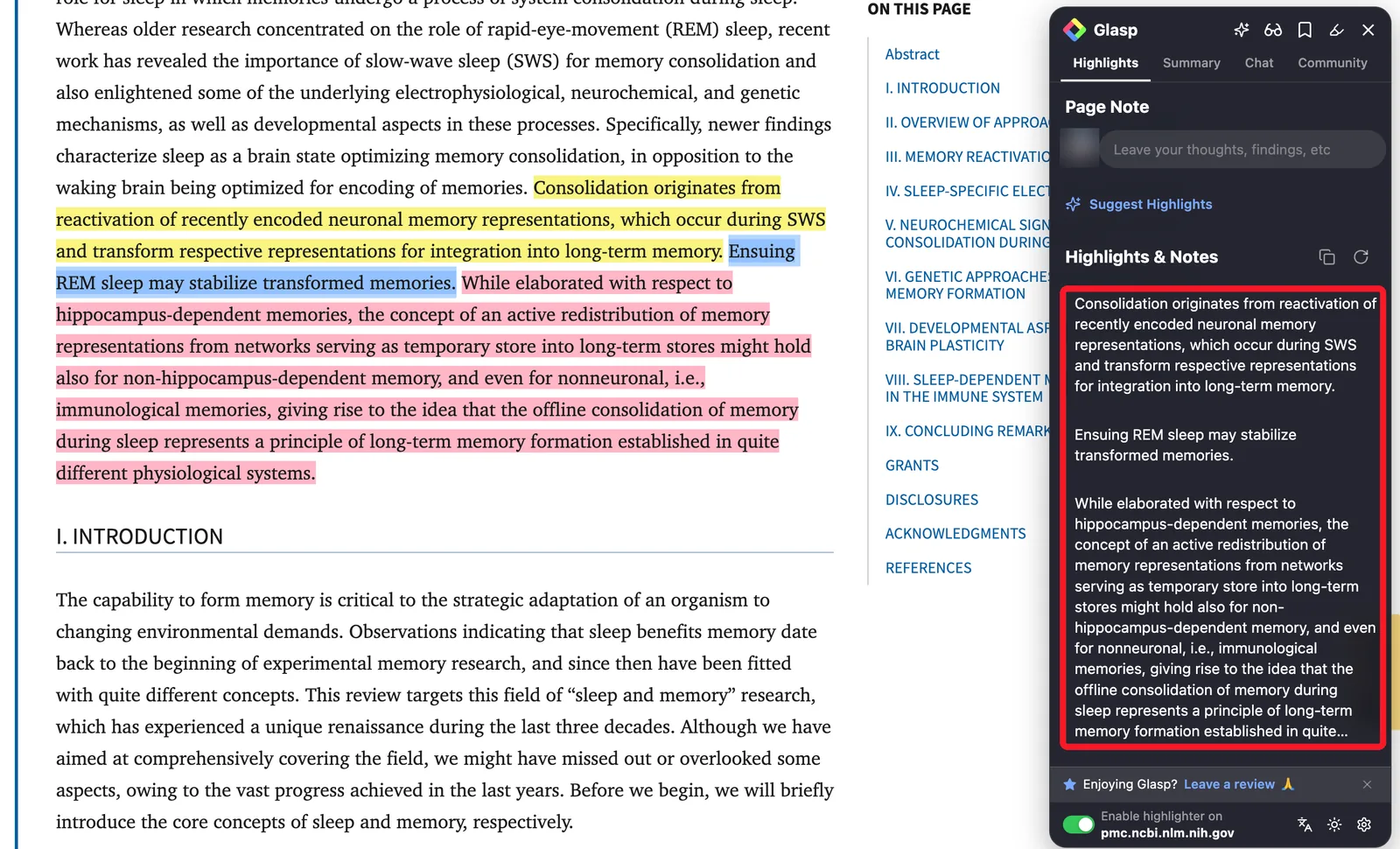
Step 3: Add a note in your own words
A highlight shows what the paper says. A note shows why it matters to you. Write one line next to the highlights that count: "contradicts Smith 2021," "use for the methods section," "check whether this replicated."
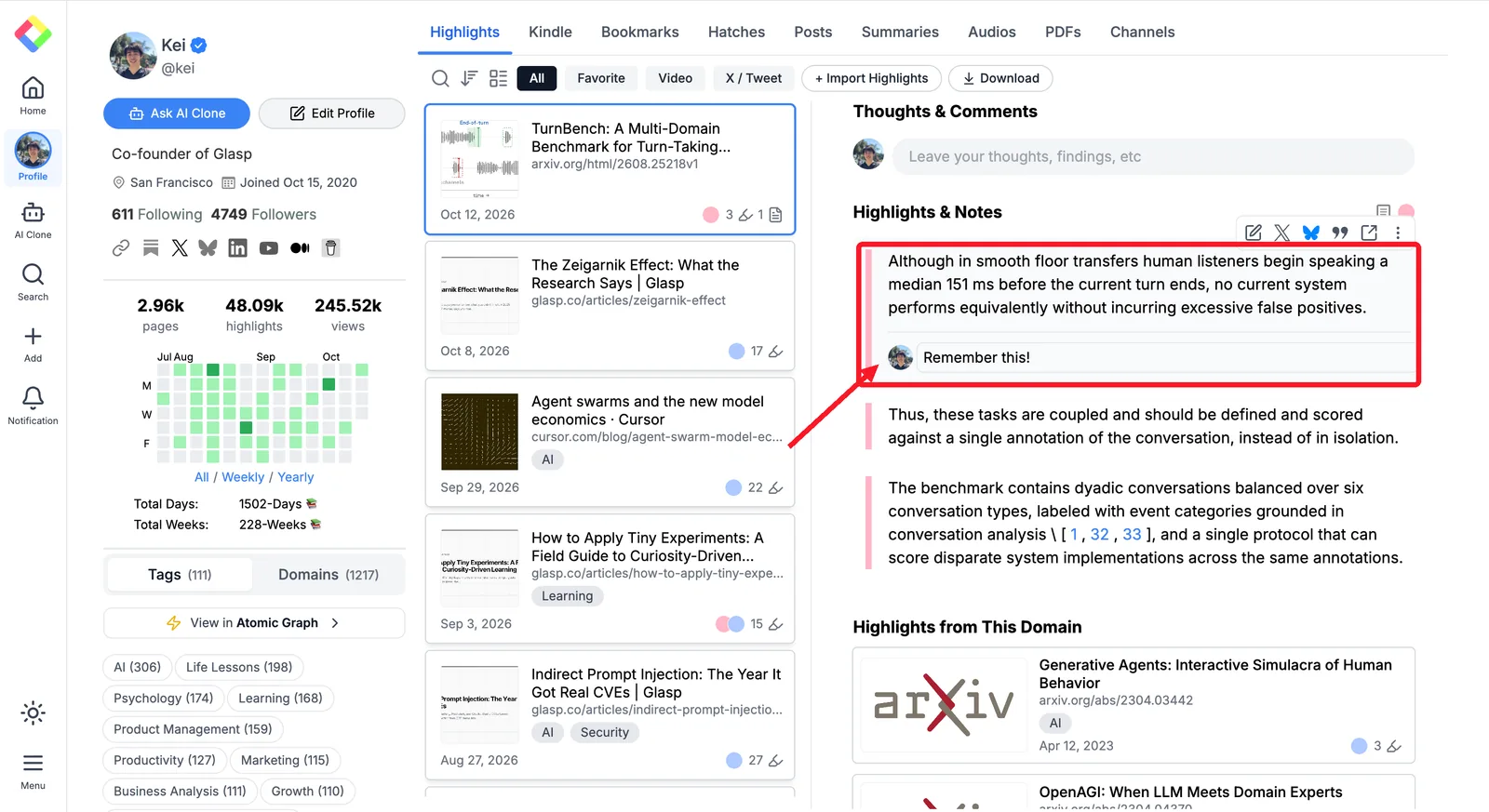
Step 4: Tag papers by project, not by journal
Open the paper on your Glasp profile and add tags. Glasp also suggests tags for the page.
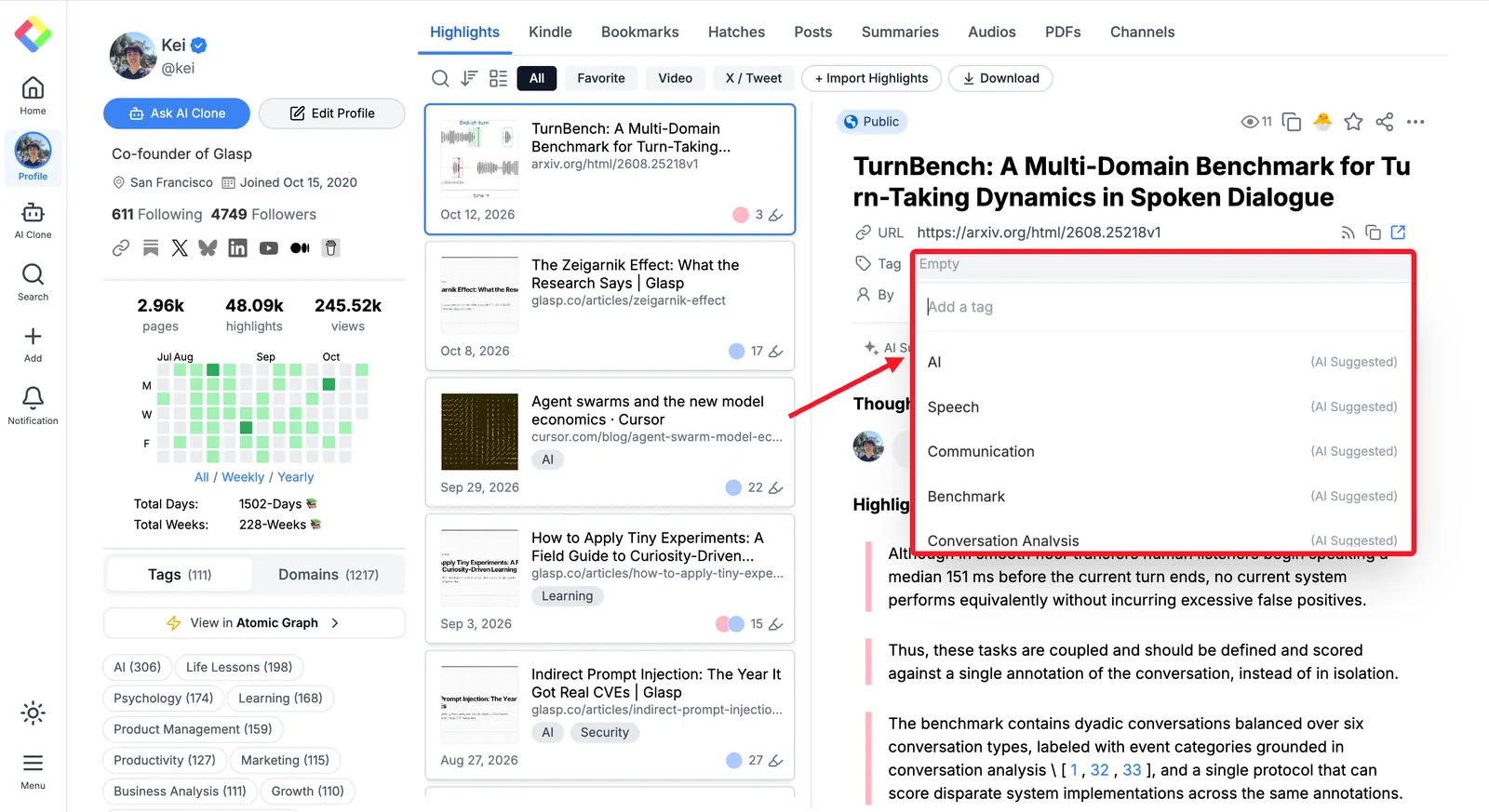
Tag by what you are working on: thesis-ch2, sleep-memory, methods-ideas. A tag page then shows every passage on that topic from every paper you read, side by side, which is the view you need when you start writing.
Step 5: Find it again
Every paper you highlight is listed on your Glasp profile with its highlights, notes, and a link back to the paper. Search your highlights for a phrase you remember, or open a tag.
You can also ask an AI assistant to search them for you. With the Glasp MCP Connector, Claude or ChatGPT can find the passages you marked and link each one back to its paper:
"Find everything I highlighted about sample size in papers on sleep and memory. Group it by paper and include the links."
"Which of the papers I highlighted this month report a limitation about self-reported data?"
AI answers can be wrong. Treat them as a way to find your own highlights, then check the passage on the paper itself before you cite it.
Going further
Reviewing many papers at once: How to Do a Literature Review from Your Highlights
PDFs you download or upload: How to Annotate a PDF
Turning highlights into flashcards: How to Turn Your Glasp Highlights into Anki Flashcards
FAQs
Does Glasp work on paywalled papers?
Glasp works on pages you can open in your browser. If your library gives you access to a paper, you can highlight it. Glasp does not give access to papers you cannot already open.
Are my highlights on papers public?
Highlights on web pages are public on your Glasp profile by default. Private highlighting needs a Pro or Unlimited plan. PDFs you upload are always private.
Can I export my highlights to a reference manager?
You can download your highlights as Markdown or CSV, or send them to Notion or Obsidian, and keep the paper's link with each one.
Does it work on arXiv?
Yes, on both the HTML version and the PDF. Open the HTML version for the cleanest highlighting.
Is it free?
Yes. Highlighting, notes, tags, and search are free.
Before you leave
If you have any questions, please refer to the FAQ or contact us.
👉 X
See you next time,
Glasp team