How to Annotate a PDF: What PDF Annotations Are and Free Ways to Add Them

Aug 28, 2025
5 min read
261 views
A PDF annotation is a note or mark you add on top of a PDF without changing the document itself: a highlight, an underline, a comment, a text box, or a drawing. The original text stays as it was, and your annotations sit in a layer above it, so you can share, hide, print, or delete them separately.
This guide explains the common types of PDF annotations, the free ways to add them, and how to annotate PDFs in your browser so your highlights and notes stay searchable across every document you read.
Types of PDF annotations
Highlight: colors selected text. Typical use: mark key sentences, definitions, results.
Underline / strikethrough: lines under or through text. Typical use: edits and corrections.
Comment (sticky note): a note attached to a spot on the page. Typical use: questions, feedback, reminders.
Text box: typed text placed on the page. Typical use: filling gaps, labeling figures.
Drawing (ink): freehand lines and shapes. Typical use: circling, arrows, handwriting on a tablet.
Stamp: a label such as "Approved" or "Draft". Typical use: review and sign-off.
An annotated PDF is simply a PDF that carries these marks. When you open it in most PDF readers, you see the highlights and comments in place, and many readers also list them in a side panel.
Free ways to annotate a PDF
Adobe Acrobat Reader (free, Windows and Mac): open the PDF, choose the comment or highlight tool, and save. The annotations are stored inside the file.
Preview (built into Mac): open the PDF and use the Markup toolbar to highlight, underline, add notes, or draw.
Tablet note apps (iPad and Android): apps such as GoodNotes and Noteful let you write on PDFs with a stylus.
In your browser with Glasp (free, Chrome, Safari, Firefox, Edge, Brave, Opera): highlight and add notes on PDFs you open online and on PDFs you upload, without installing a PDF app. Your annotations are saved to your Glasp library, where you can search them across all your documents.
The first three keep annotations inside one file on one device. Glasp is useful when you read many PDFs and want to find what you marked later, for example across a stack of research papers.
How to annotate a PDF in your browser with Glasp
Step 1: Install the Glasp extension
Install the free Glasp extension for your browser and sign in. (How to install Glasp)
Step 2: Open the PDF
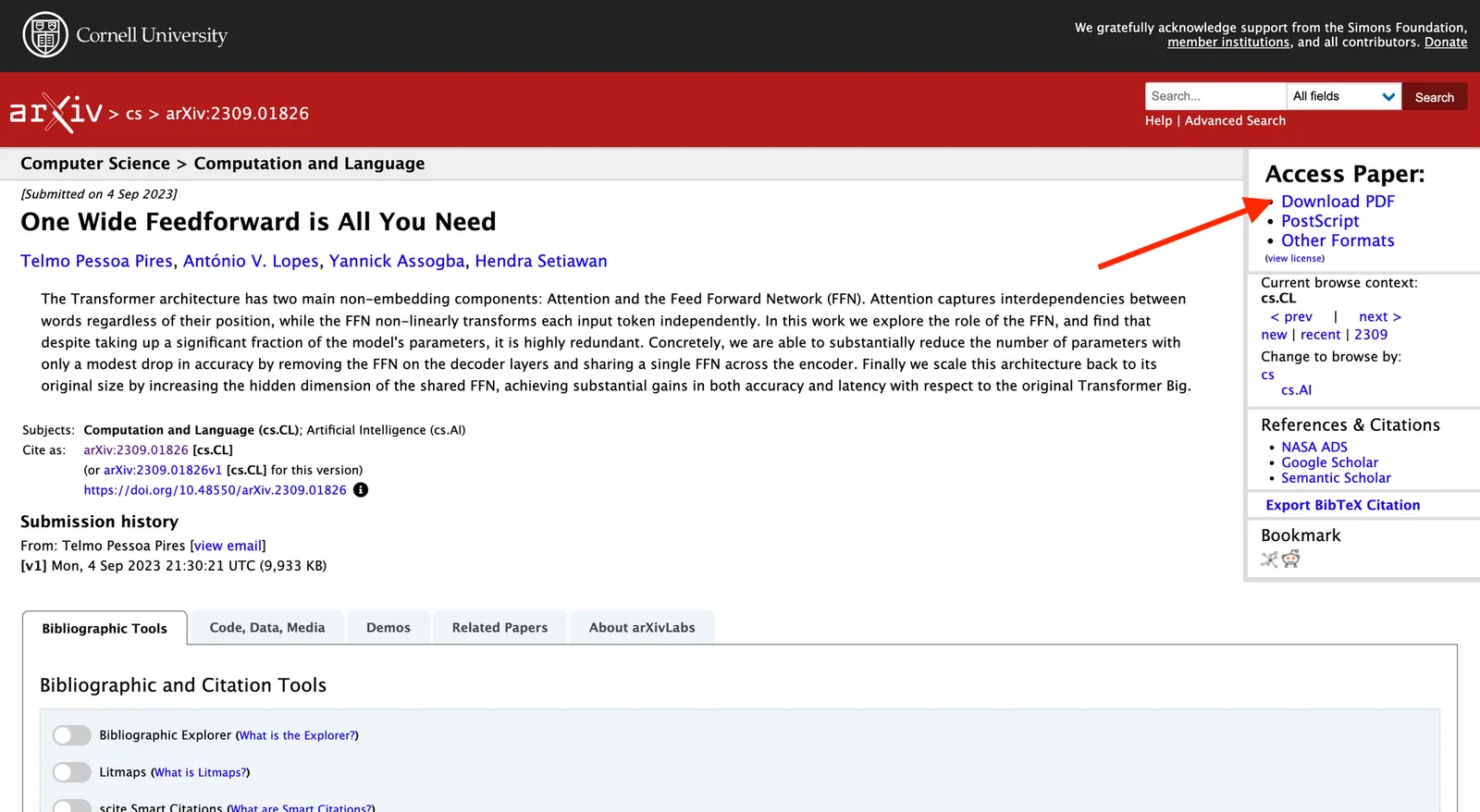
A PDF online: open it in your browser, for example a paper on arXiv. Glasp opens it in its own viewer, where you can select the text. (How to highlight a PDF on Chrome)
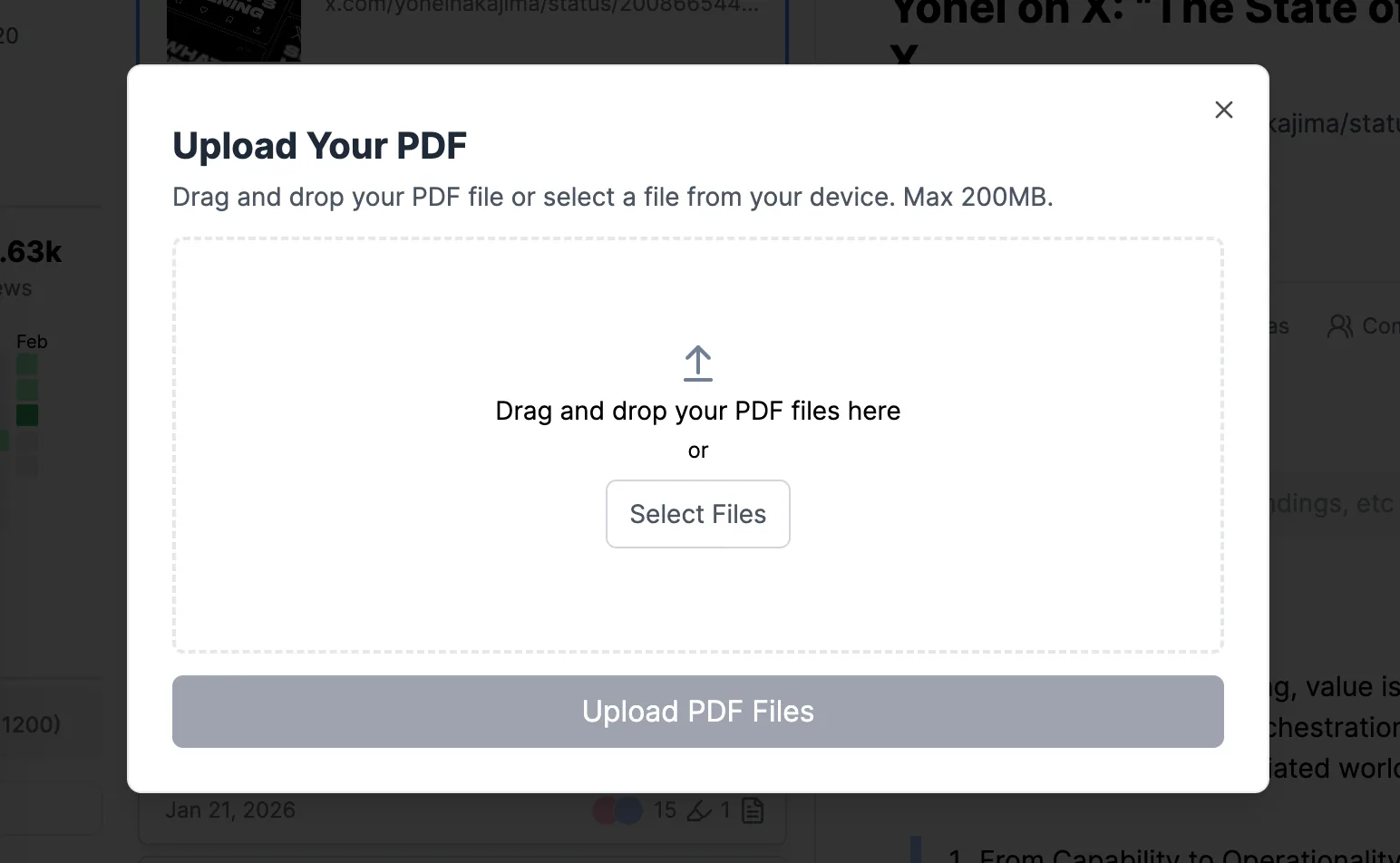
A PDF on your computer: upload it to Glasp. Uploaded PDFs are always private. (How to upload and highlight PDFs)
Step 3: Highlight and add notes
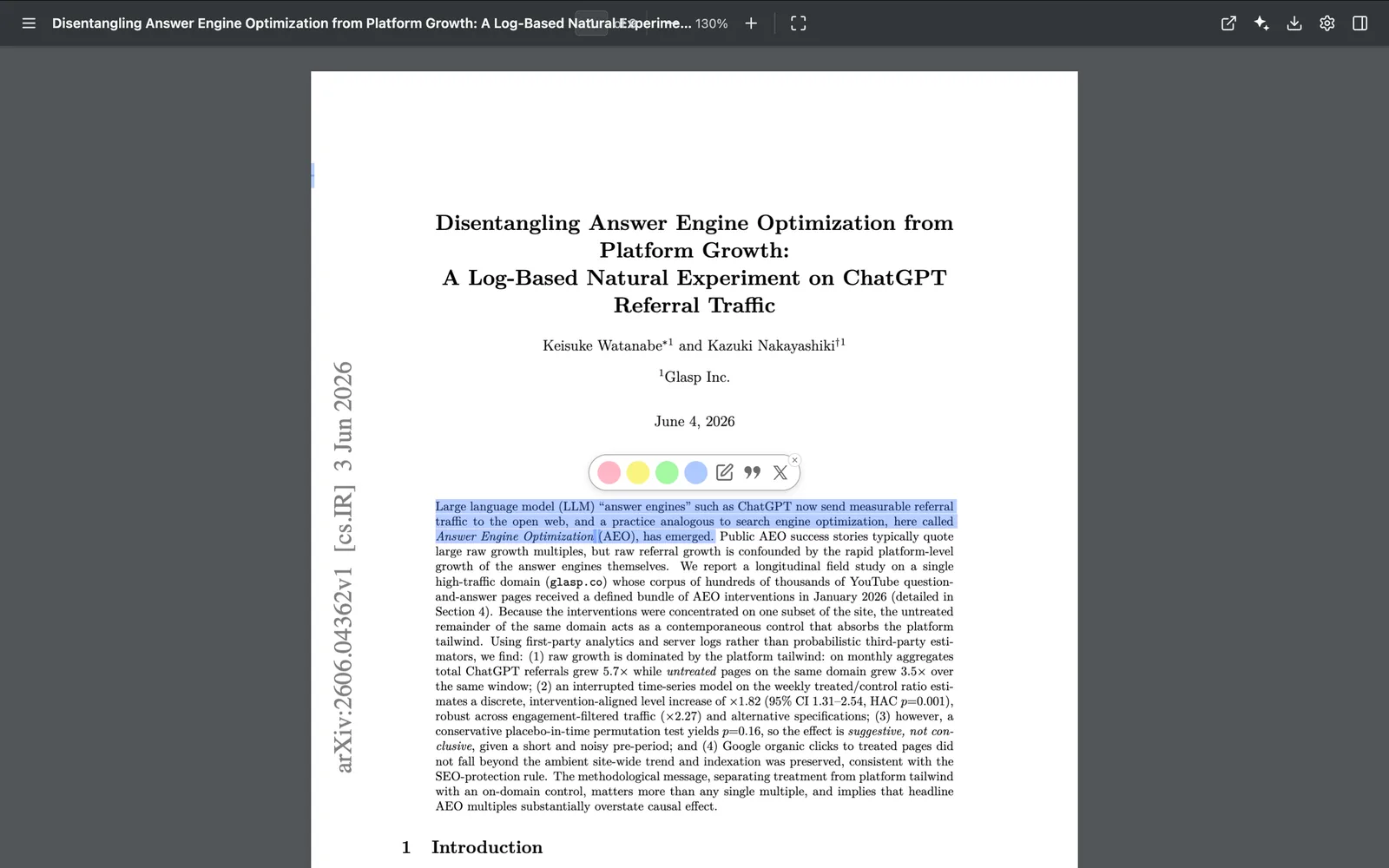
Select a sentence. A palette appears: pick a color to highlight it, or click the pencil icon to highlight it and add a note.
Your highlights and notes appear in the sidebar next to the document.
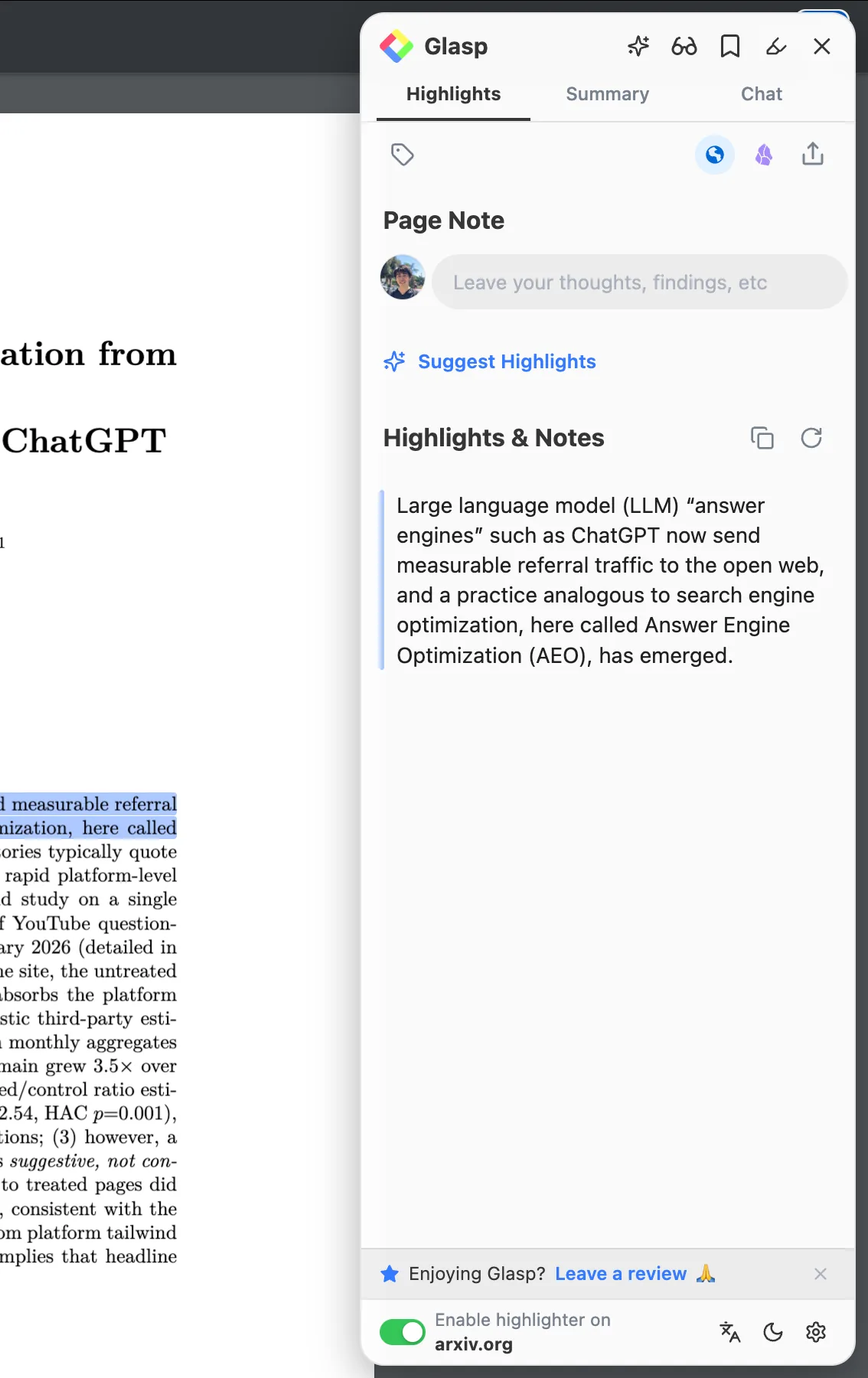
Use colors for a reason. Glasp gives you four colors and leaves their meaning to you. For example: yellow for key points, blue for evidence, pink for questions.
Step 4: Find your annotations later
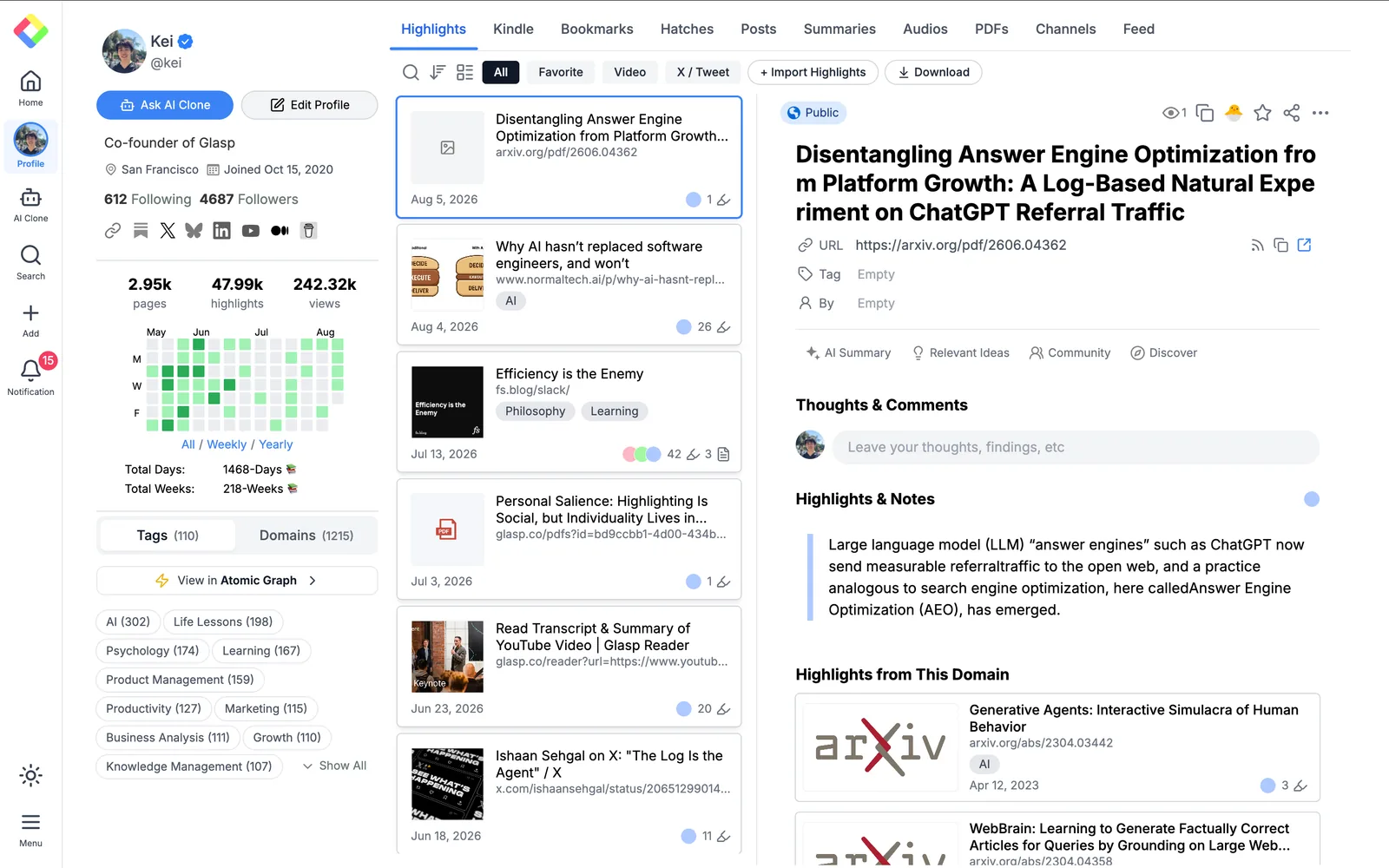
Every PDF you annotate is listed on your Glasp profile, with its highlights and notes. Add tags to group documents by project or course, and search across all of them.
Step 5: Download or export
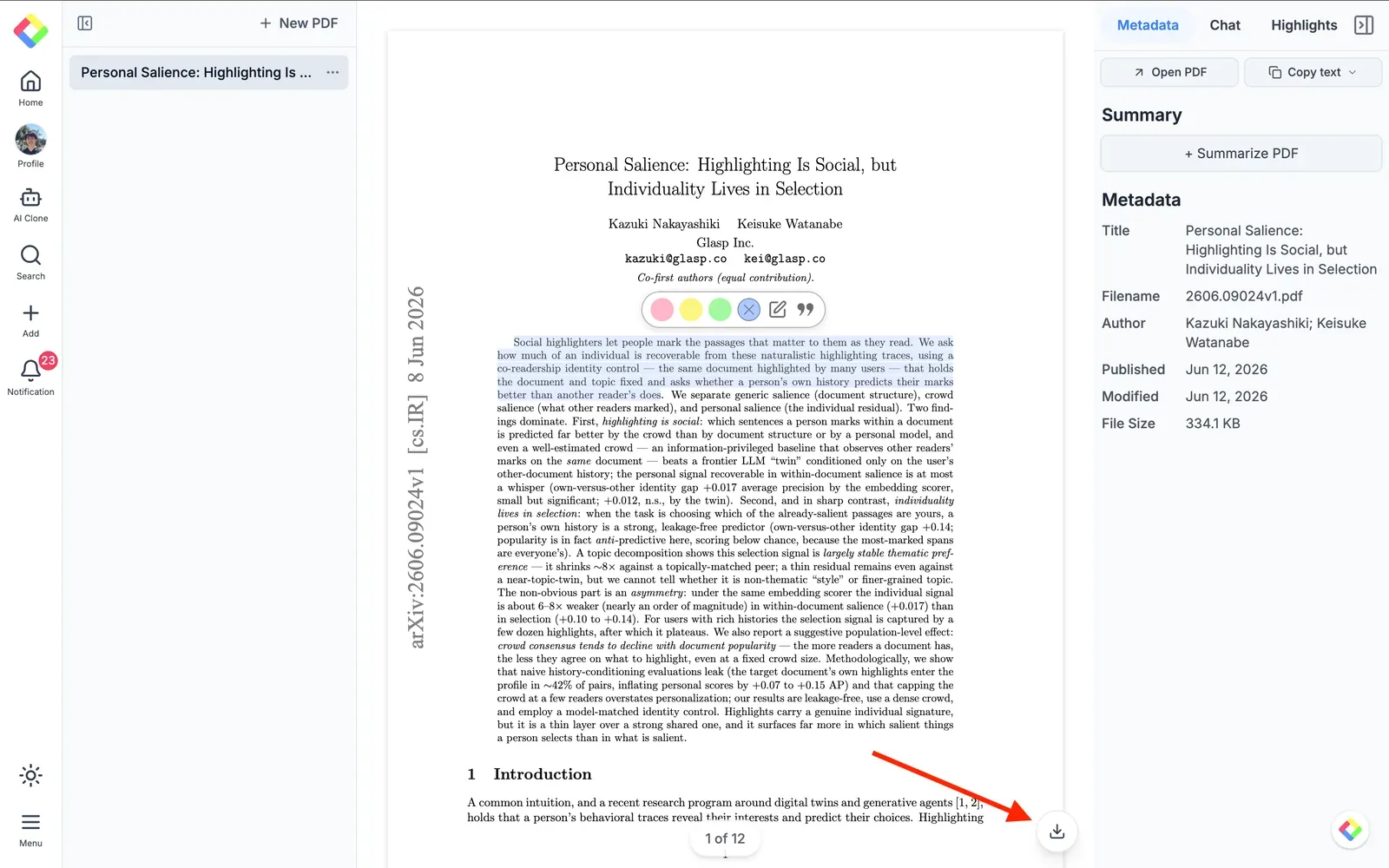
For an uploaded PDF, click the download icon to save a copy of the PDF with your highlights in it.
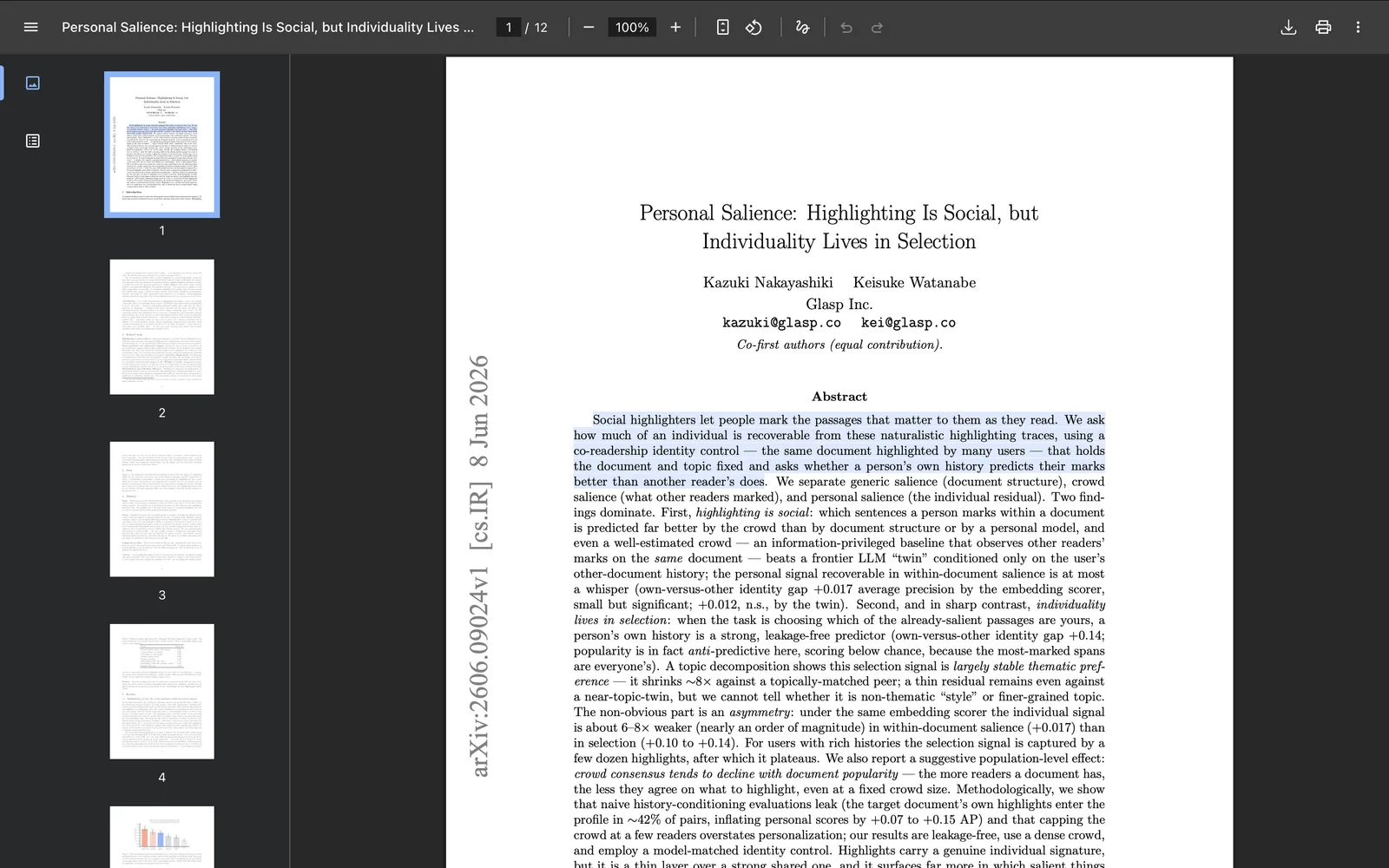
The downloaded file opens in any PDF reader with the highlights in place.
You can also export your highlights and notes to Notion, Obsidian, Logseq, or Roam Research, or as TXT, Markdown, HTML, CSV, or JSON.
Annotating research papers
Research papers are where annotation pays off most, because you read many of them and need to come back to a single result months later.
Highlight claims, methods, and limitations in different colors, so a quick scan shows what a paper found and how far to trust it.
Write a one-line note on each key highlight saying how it relates to your own question.
Tag by project, so every passage on one topic sits on one page across all your papers.
Ask an AI assistant to search your own highlights. With the Glasp MCP Connector, Claude or ChatGPT can find the passages you marked and link each one back to its source.
For a full workflow, see How to Do a Literature Review from Your Highlights.
FAQs
What does "print PDF annotations" mean?
It means printing the PDF with your highlights, comments, and other marks visible on the page. In Adobe Acrobat Reader, choose "Documents and Markups" in the print dialog to print them in place, or "Summarize Comments" to print a list of all comments.
How do I see the annotations in a PDF?
Open the PDF in a reader such as Adobe Acrobat Reader or Preview. Highlights and drawings show on the page, and the comments or annotations panel lists every comment. In Glasp, your highlights and notes appear in the sidebar and on your profile.
What is an example of an annotated PDF?
A research paper with the main finding highlighted in yellow, a note next to the method saying "small sample, check replication," and a question in the margin is an annotated PDF.
Can I annotate a PDF for free?
Yes. Adobe Acrobat Reader, Preview on Mac, and Glasp all let you highlight and add notes for free. On Glasp's free plan you can upload up to 30 PDFs.
Are my PDF annotations public on Glasp?
Annotations on uploaded PDFs are always private. Highlights on PDFs you open online are public on your Glasp profile by default, like other web highlights; private highlighting needs a Pro or Unlimited plan.
What is the best way to annotate a PDF?
For one document on one device, a PDF reader such as Acrobat Reader or Preview is enough. If you read many PDFs and want to search everything you marked, annotate in your browser with Glasp, so your highlights and notes from every document stay in one place.
Can I summarize a PDF I annotated?
Yes. Glasp can create an AI summary of a PDF, so you can check what a document covers before you read it closely.
Before you leave
If you have any questions, please refer to the FAQ or contact us.
👉 X
See you next time,
Glasp team