How to Upload and Highlight Local PDFs on Glasp

Aug 28, 2025
5 min read
1486 views

Looking for an easy way to highlight and annotate PDF files online?
With Glasp’s free PDF highlighter, you can upload local PDFs from your computer and highlight them directly in your browser—just like web articles. No extra software or PDF reader required.
This feature is ideal for students, researchers, and professionals who want to highlight important sections, add notes, and organize PDF insights for long-term learning.
In this tutorial, you’ll learn how to upload local PDFs to Glasp, highlight key passages, download the PDF with your highlights, and manage your notes in one place.
How to Highlight & Summarize Local PDF Files Privately with Glasp
Step 1: Go to your Glasp profile
Once you’ve installed the Glasp extension and signed in, click the Profile icon in the sidebar to open your profile page.

This will take you to your profile page. From there, click the + button in the left sidebar.

Step 2: Upload a PDF to Glasp
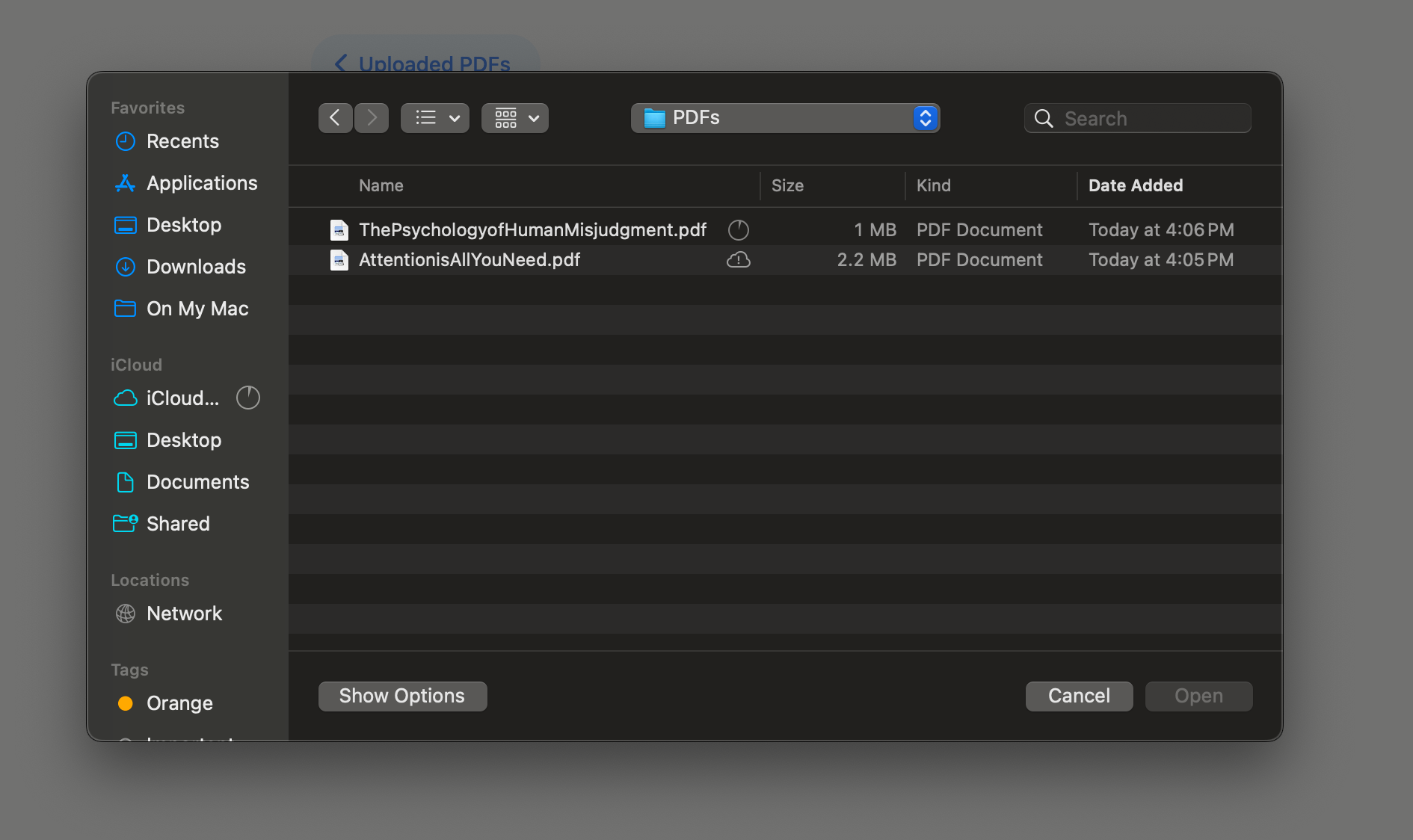
When the upload modal opens, drag and drop your PDF file into the area, or click Select Files to upload it from your device.

Select a PDF file from your computer to upload.
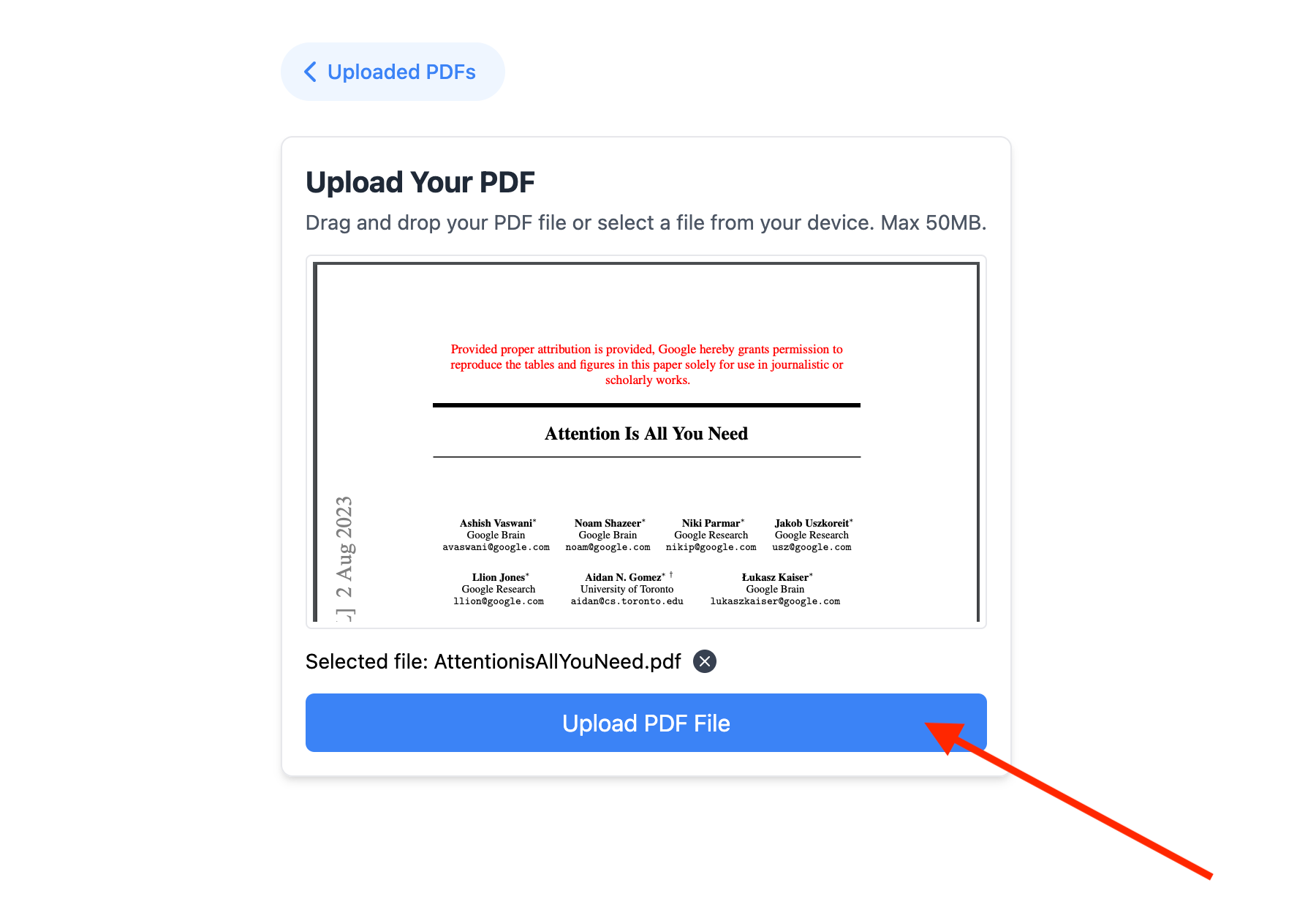
After selecting a PDF file, click Upload PDF Files in the modal. Your PDF will begin uploading to Glasp.
Step 3: Highlight the PDF
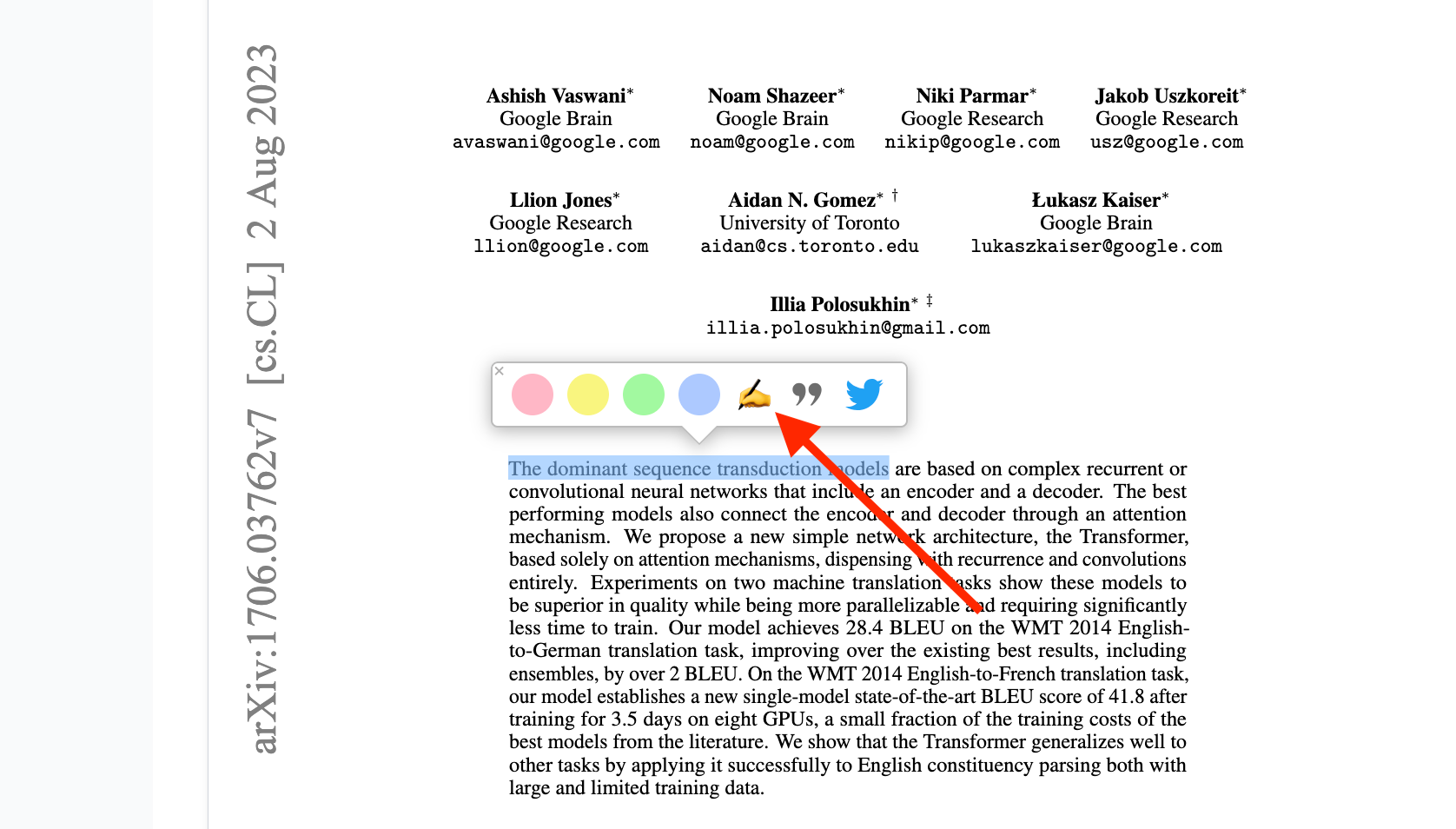
Once your PDF is uploaded, you’ll be taken to the page showing your uploaded PDFs. To highlight text, select any sentence in the PDF. A popup with a four-color palette will appear—click the color you’d like to use.

To view all your highlights, click Highlights in the top-right corner.

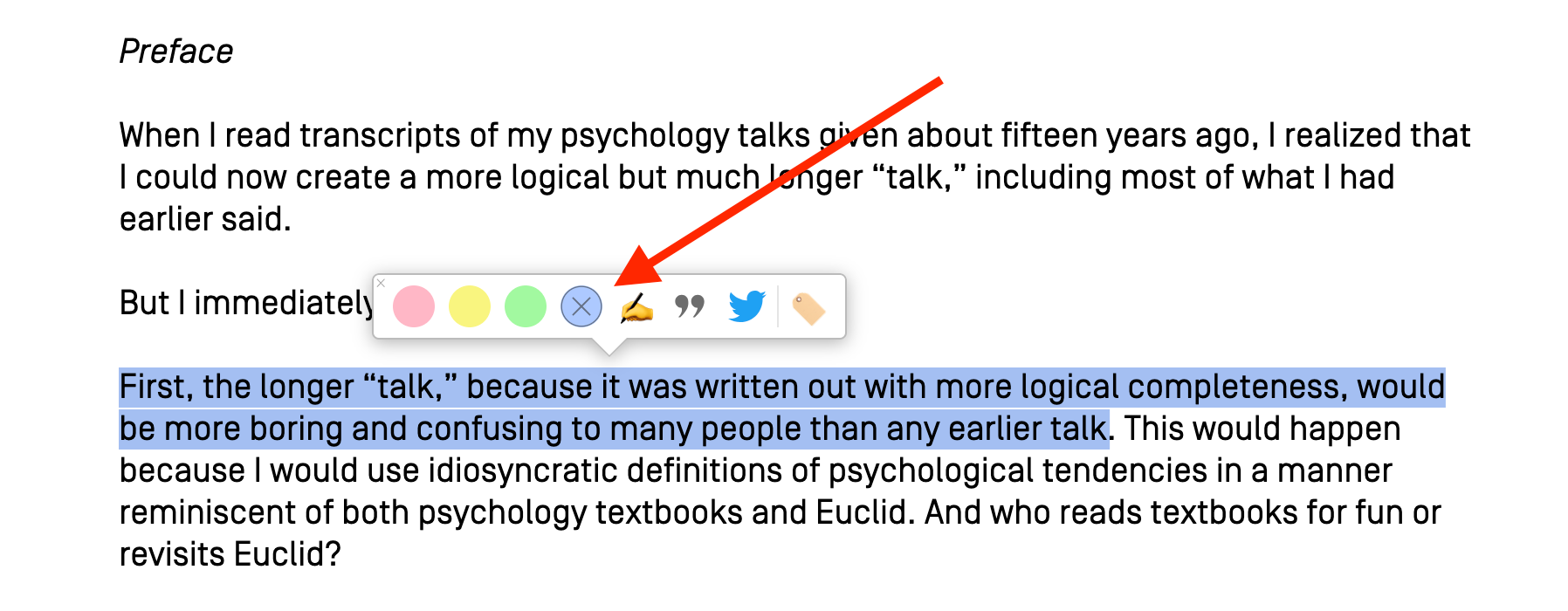
You can also add notes to each highlight. Click the pencil icon in the popup to write your note.
Glasp is built around sharing knowledge publicly, so highlights from web content are usually visible to others. However, PDFs you upload and highlight in Glasp are saved privately and are not visible to anyone else.
We're limiting the number of uploadable PDF files per account to 30. If you'd like to upload more PDF files, please update to the Pro plan.
Step 4: Download the PDF with highlights
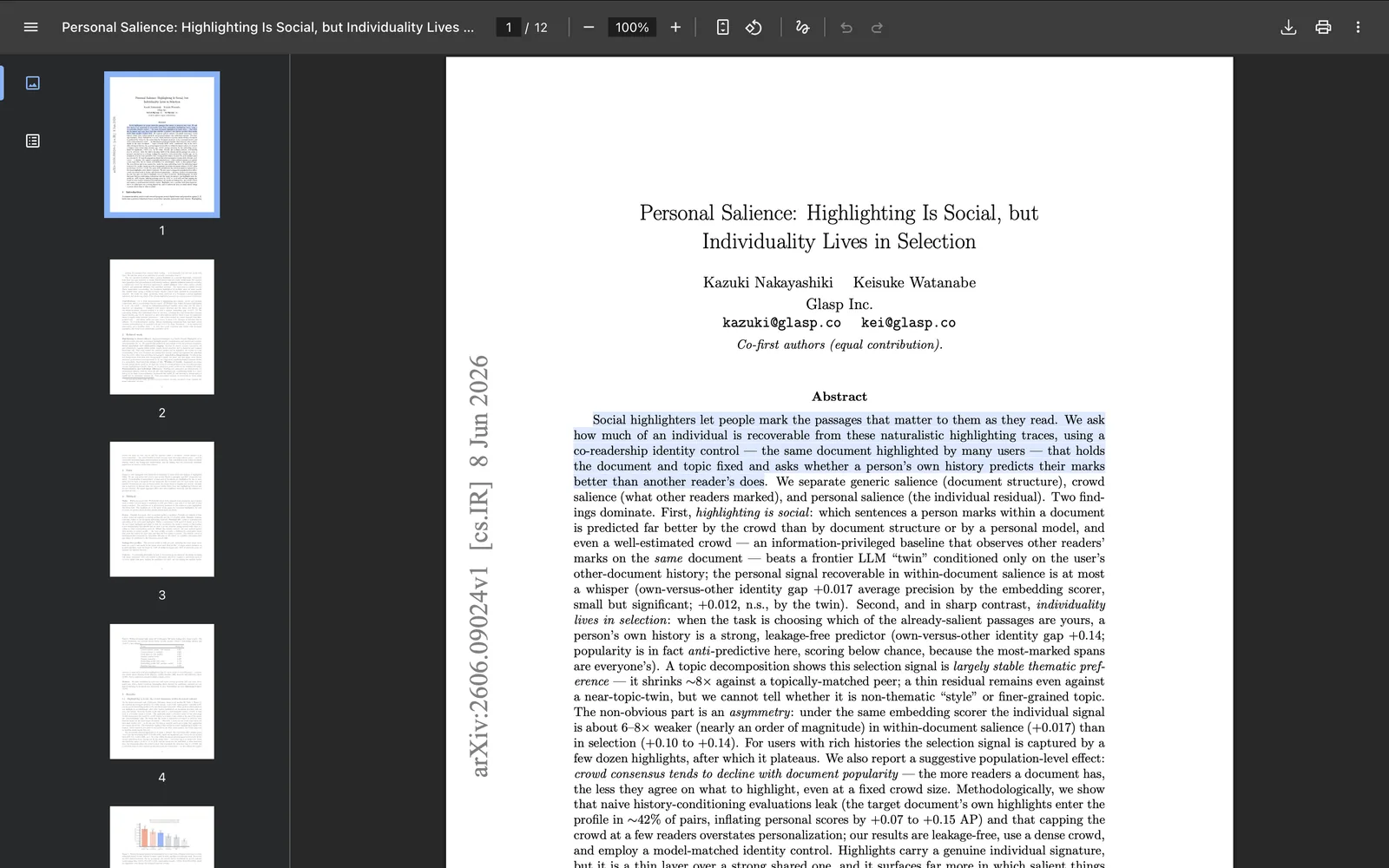
You can also download your PDF with all your highlights embedded.
Open the uploaded PDF and click the download button in the toolbar at the top-right corner of the PDF viewer.
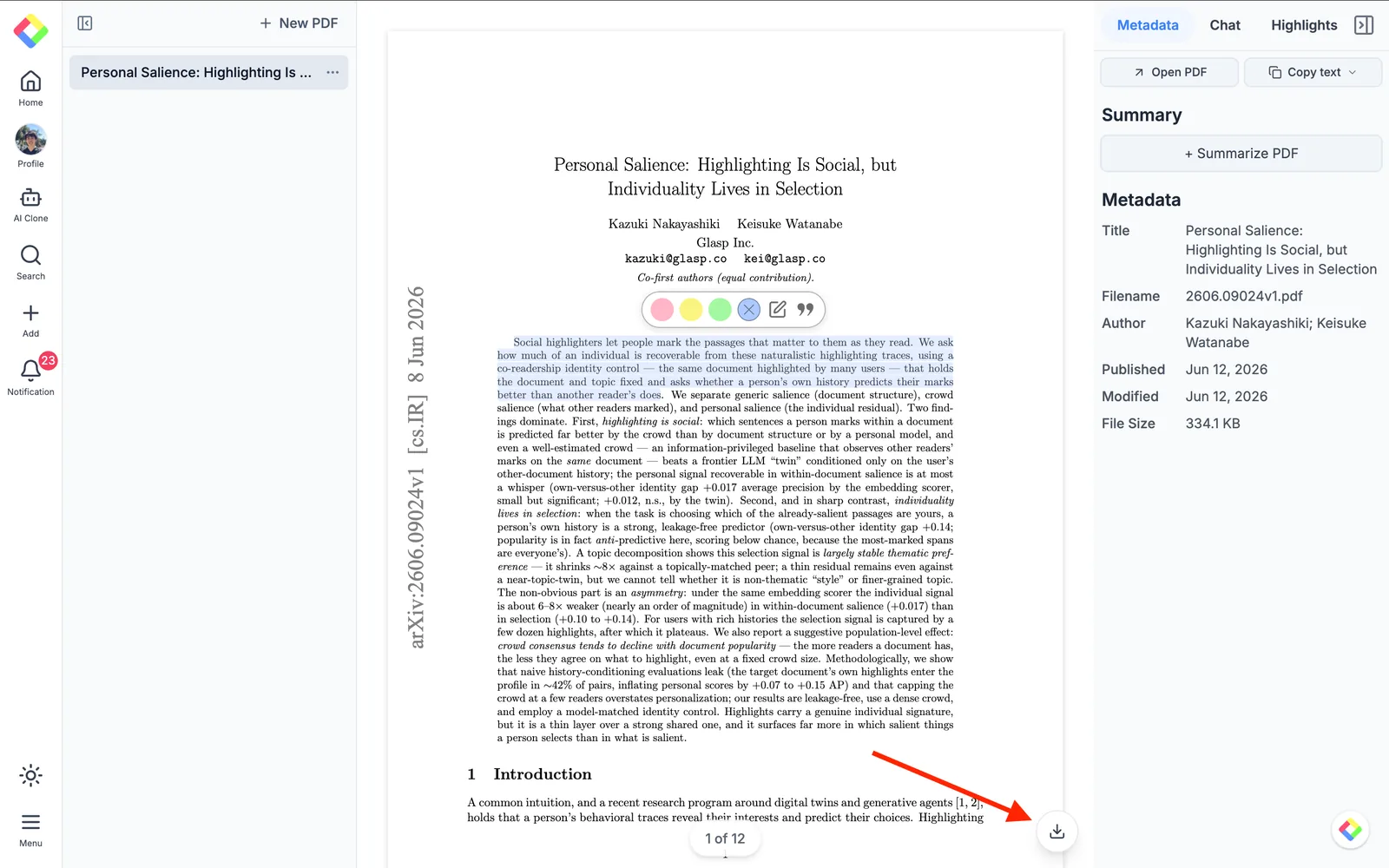
The PDF file will be saved to your device with your highlights preserved, so you can keep an annotated copy locally, print it, or share it with others.
When you open the downloaded file in any PDF viewer, you’ll see your highlights right where you made them.
(Optional) Step 5: Delete highlights or PDF
To delete a highlight, click the highlighted text in the PDF. A popup will appear—click the X icon in the color palette to remove the highlight.
To delete an uploaded PDF, go to the page showing all your uploaded PDFs. Select the PDF, click the three-dot menu in the top-right corner, and choose Delete.

To delete highlights from your Glasp profile, go to your profile page and select the PDF. Click the three-dot menu in the top-right corner, then choose Delete to remove the highlights.

FAQs
Q. Can I upload any type of PDF to Glasp?
Yes. You can upload any standard PDF file (e.g., books, research papers, lecture slides) up to the current limit of 30 PDFs per free account.
Q. Are my uploaded PDFs private by default?
Yes. Unlike web highlights, your uploaded PDFs are always private, and only you can see them.
Q. Can I add notes to PDF highlights?
Yes. After highlighting a sentence, click the pencil icon in the popup to attach a note to that highlight.
Q. Can I delete a PDF or its highlights later?
Yes. You can remove individual highlights, or delete the entire PDF from your uploaded files or profile page at any time.
Q. Is there a limit to how many PDFs I can upload?
Free accounts can upload up to 30 local PDFs. If you need to upload more, you can upgrade to the Pro plan.
Q. Can I download my PDF with the highlights on it?
Yes. Open the uploaded PDF and click the download button in the toolbar at the top-right corner of the PDF viewer. The downloaded file keeps all your highlights, so you can store, print, or share the annotated PDF.
Q. Can I export my PDF highlights to Notion, Obsidian, or Logseq?
Yes. Just like web highlights, you can export your PDF highlights into note-taking apps such as Notion, Obsidian, Logseq, or Roam Research.
Q. Does Glasp work as a PDF reader replacement?
Glasp isn’t a full PDF reader, but it’s designed to help you highlight, annotate, and organize your PDFs with ease. For reading, you can still use your preferred PDF viewer alongside Glasp.
Q. Can Claude or ChatGPT read my Glasp highlights?
Yes. With the Glasp MCP Connector, AI assistants such as Claude, ChatGPT, and Claude Code can search and read your own highlights, notes, Kindle highlights, and AI summaries, including your YouTube summaries. The connection is read-only and private to you. See How to Connect Glasp to Claude, ChatGPT, and Claude Code (MCP Connector).
Q. Can I use Glasp on my phone?
Yes. Glasp has native apps for iPhone, iPad, and Android, and the Glasp Safari extension for iPhone and iPad comes with the iOS app. Your highlights sync between the apps, the web, and the desktop extension. See How to Use the Glasp Mobile App on iOS, iPad, and Android.
Before you leave
If you have any questions, please refer to the FAQ or contact us.
See you next time,
Glasp team