How to Bulk Download YouTube Transcripts from Your Channel

Aug 20, 2026
5 min read
54 views
Creators spend hours scripting, recording, and editing videos. Once a video is published, however, its transcript often stays locked inside the video instead of becoming reusable text for notes, research, or future content.
Glasp can sync every public video on your YouTube channel and let you export the available transcripts in one go. You choose which videos to include and download the transcripts in the file format that fits your workflow.
Use this workflow for your own content. Always follow YouTube's terms of service and the copyright law where you live when downloading, storing, or reusing transcripts.
Step 1: Add your YouTube channel
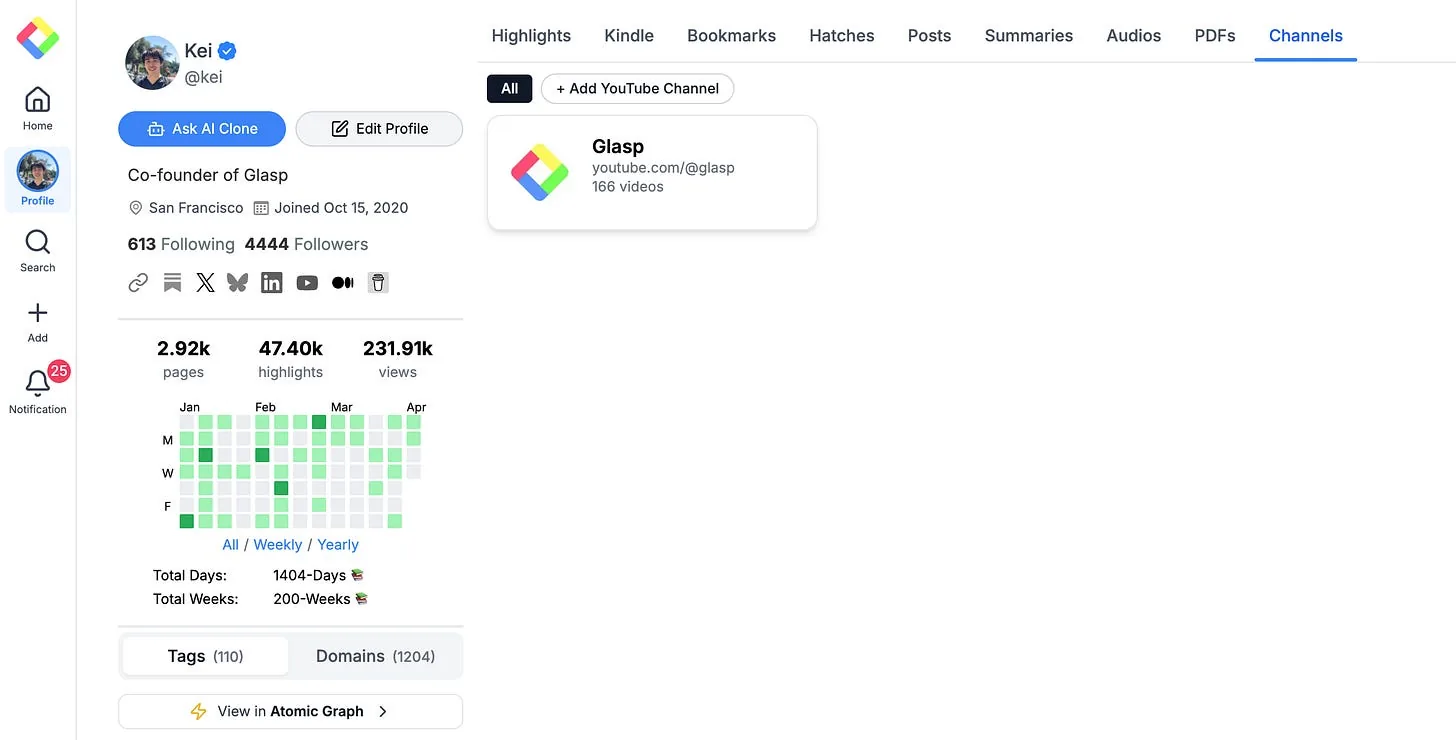
Open your Glasp profile and select the Channels tab. This is where you can connect and manage a YouTube channel.
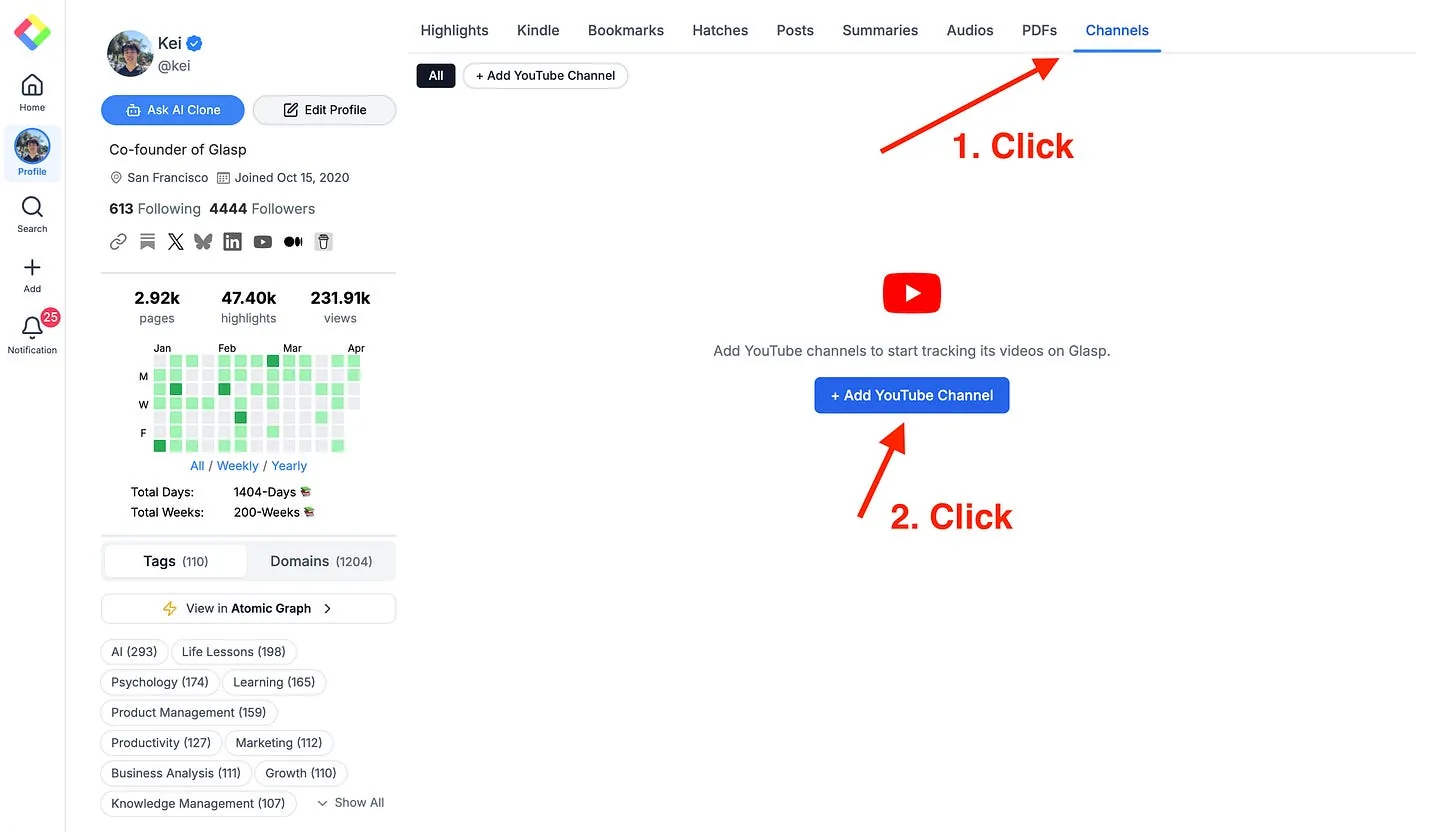
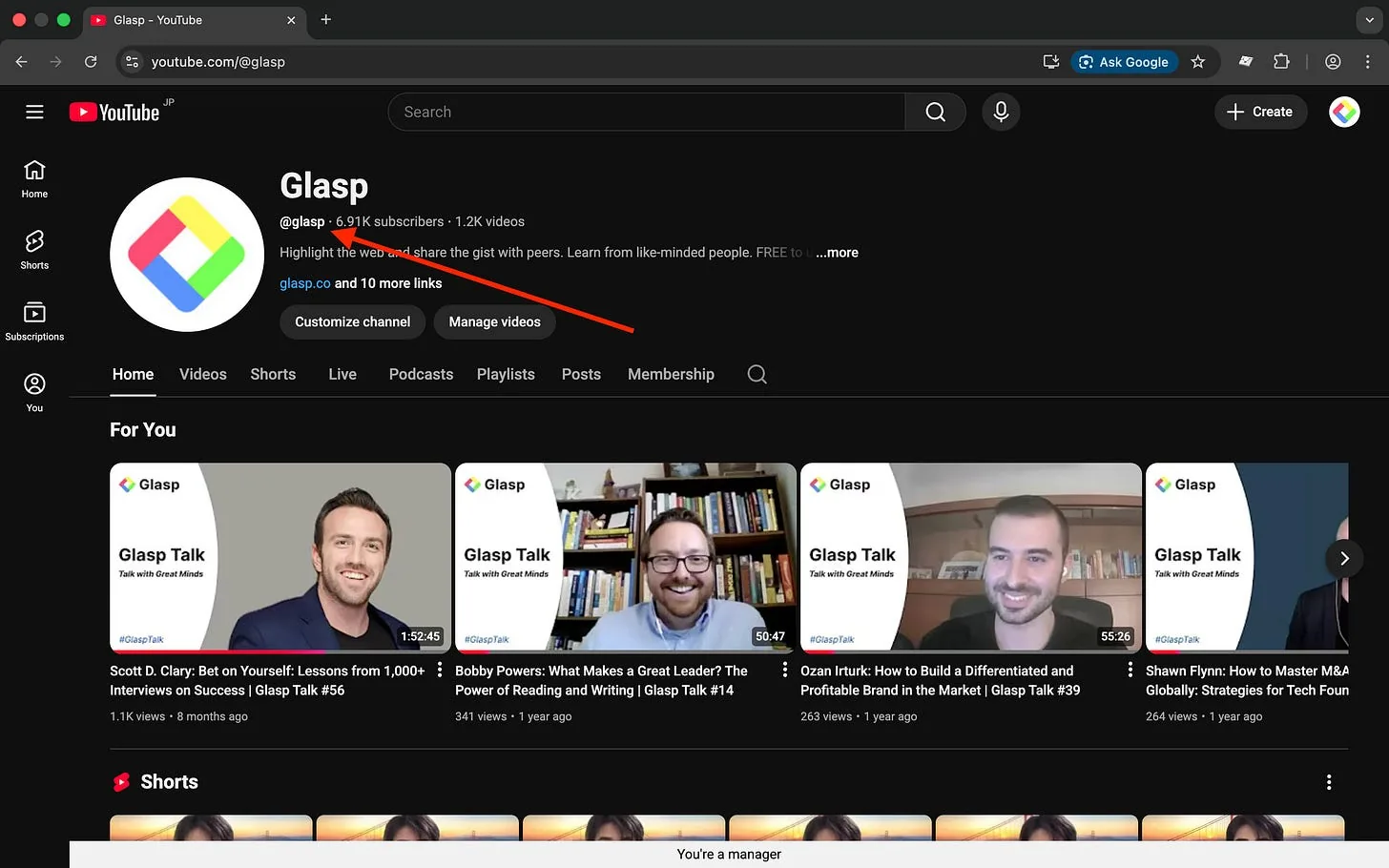
Click + Add YouTube Channel. On your YouTube channel page, look directly below the channel name to find the handle. It starts with an @ symbol.
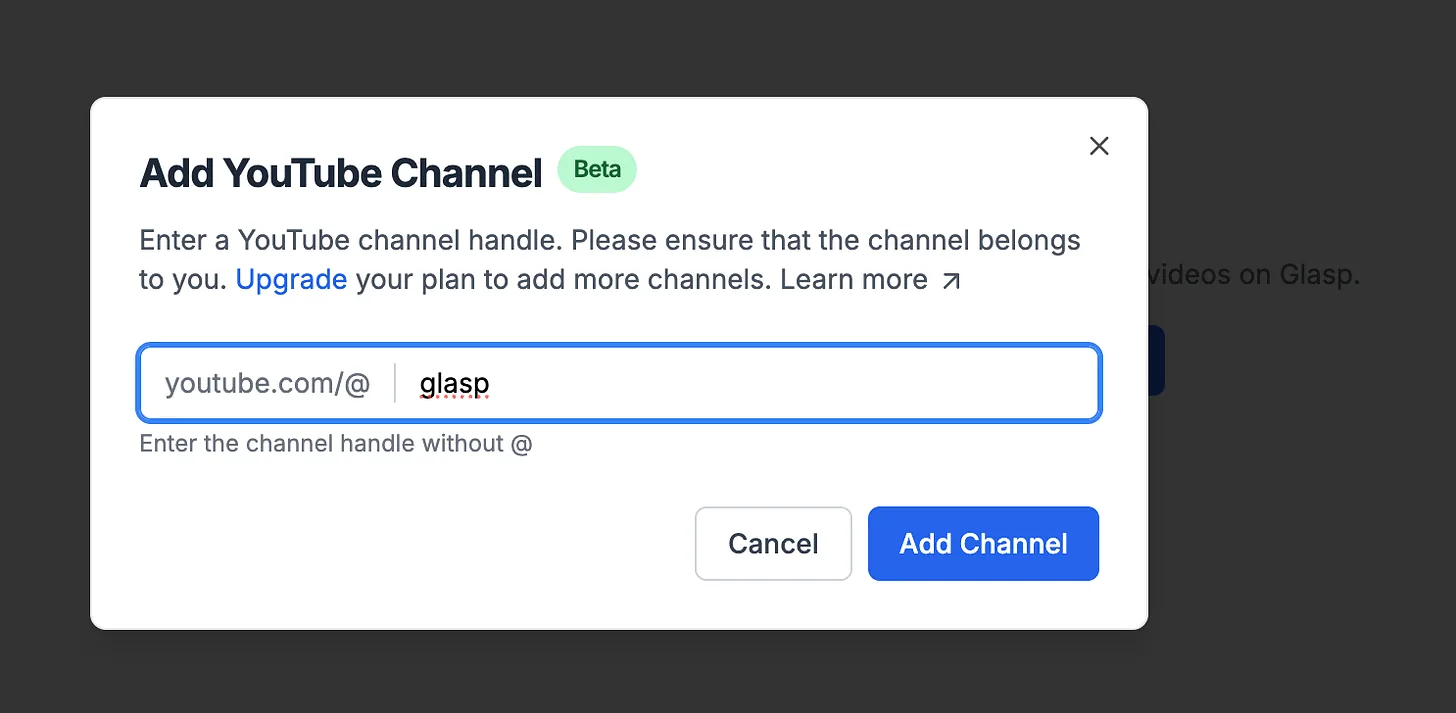
Type the handle into Glasp without the "@", then click Add Channel. Glasp will sync the public videos from that channel.
👉 For the full setup walkthrough, see How to Track and Export Your YouTube Channel Videos
Step 2: Open your channel
After the sync, return to the Channels tab. Find your channel in the channel list and open it.
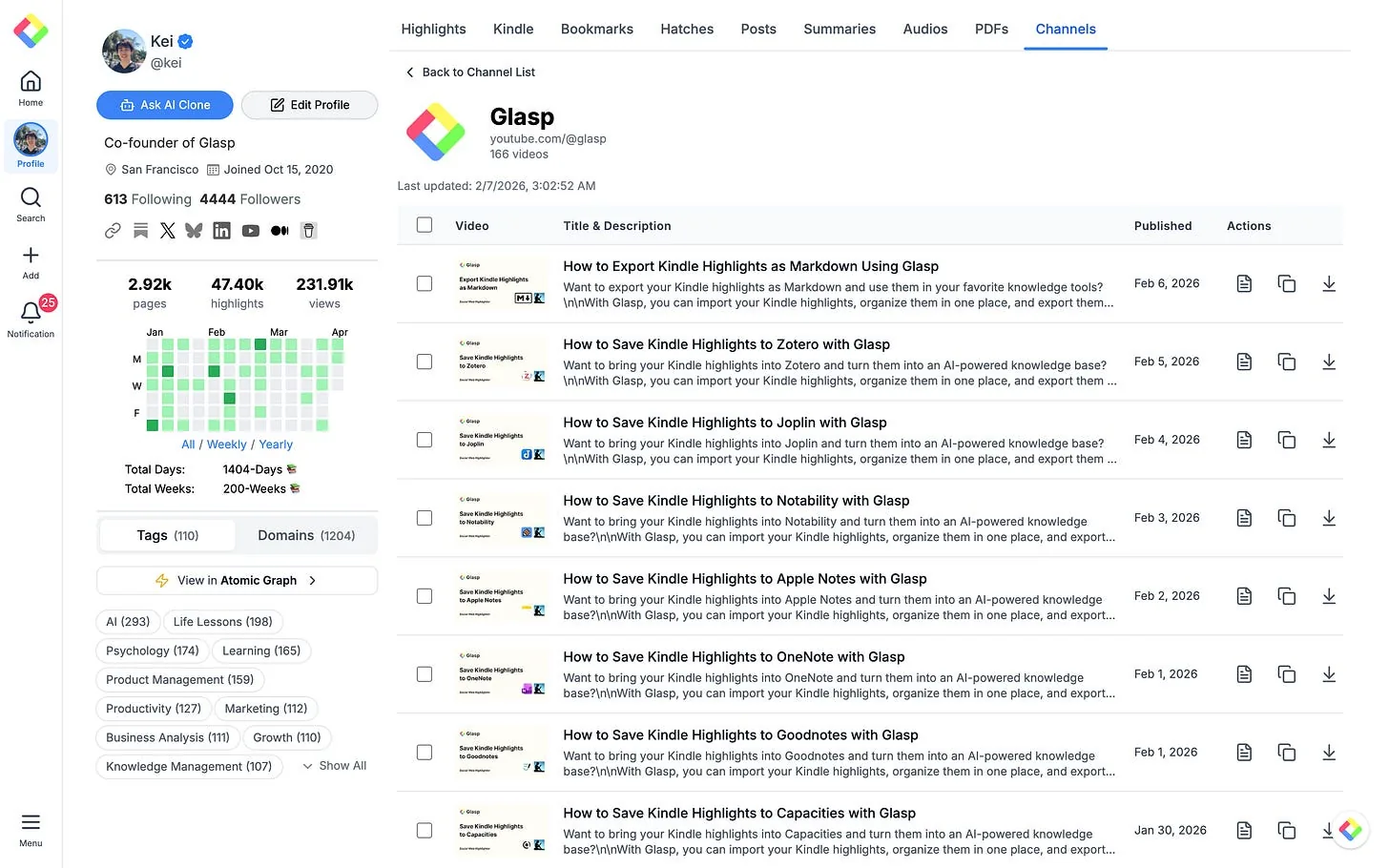
The channel page shows its public videos in chronological order by publish date. Each entry includes the video title and description.
Step 3: Select the videos you want
Use the checkbox at the top of the list to select everything that is currently listed. You can also select individual videos if you only need transcripts from part of the channel.
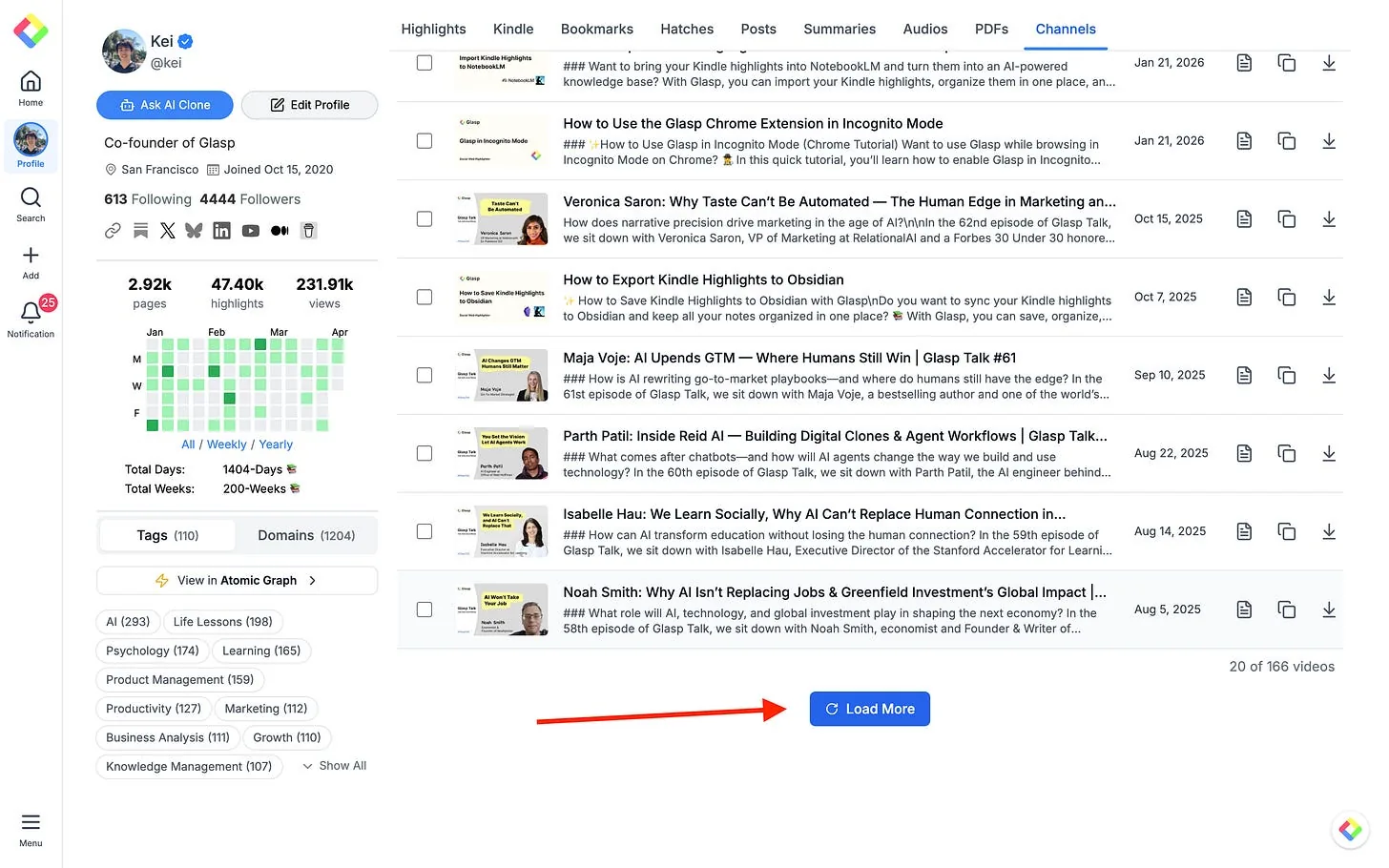
The page loads 20 videos at a time. If your channel has more than 20 videos, scroll to the bottom and click Load More. When the next group appears, tick the checkbox at the top again so the newly loaded videos are included. Repeat this process until all the videos you want are visible and selected.
Step 4: Download them all at once
With the videos selected, click Download All at the top right. Choose the format that matches what you plan to do with the transcripts.
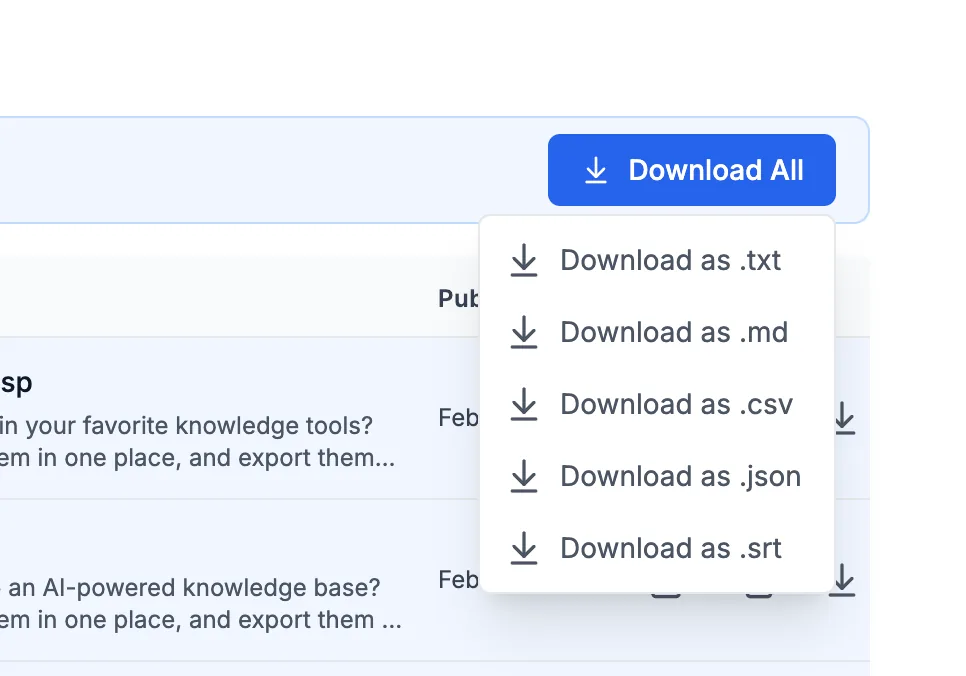
.txt: Best for plain text that can be opened almost anywhere..md: Useful for note-taking apps and Markdown-based writing workflows..csv: Helpful when organizing transcripts for spreadsheet analysis..json: Suitable for structured analysis, scripts, or data-processing tools..srt: Designed for subtitle editing, review, and video caption workflows.
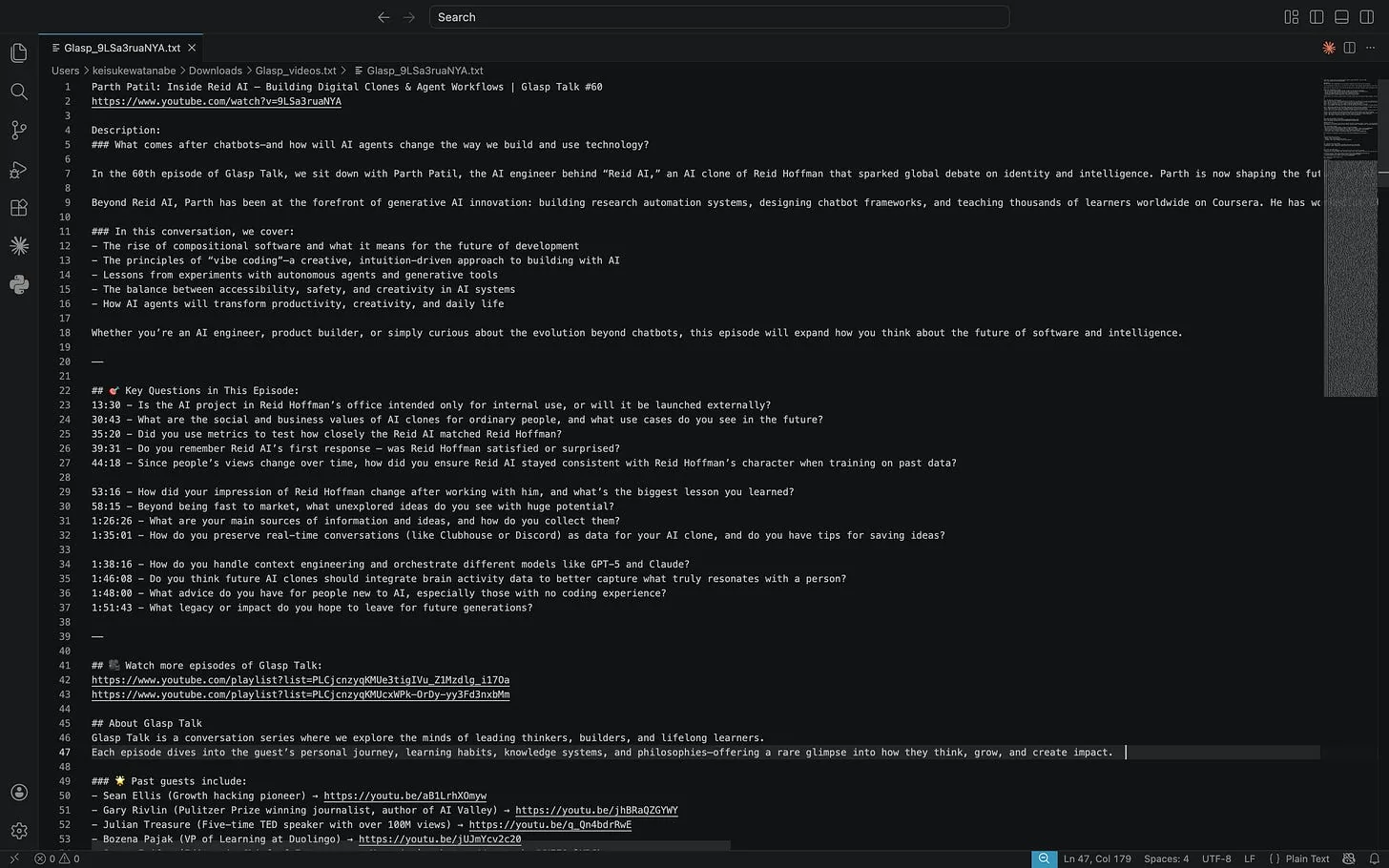
After you choose a format, Glasp packages the selected transcripts into a zip file. Open your downloads folder, find the zip file, and unzip it to access the individual transcript files.
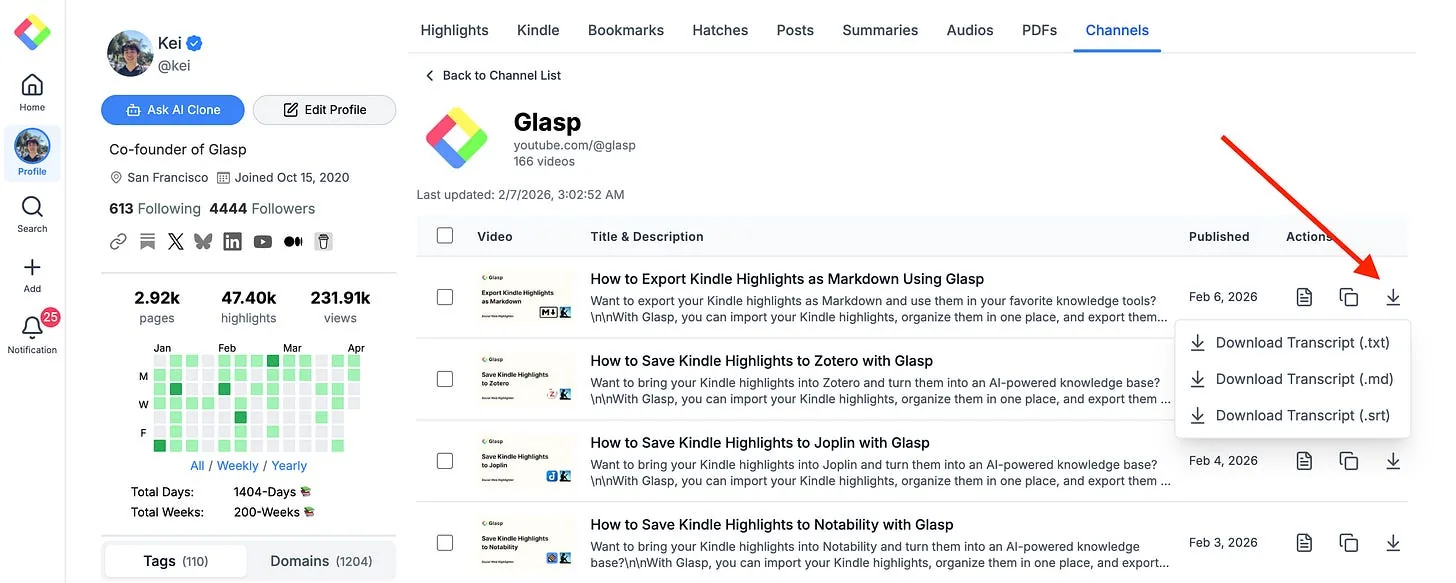
Download or copy a single transcript
You do not need to create a bulk export when you only want one transcript. Click the download icon next to a video to export just that video's transcript.
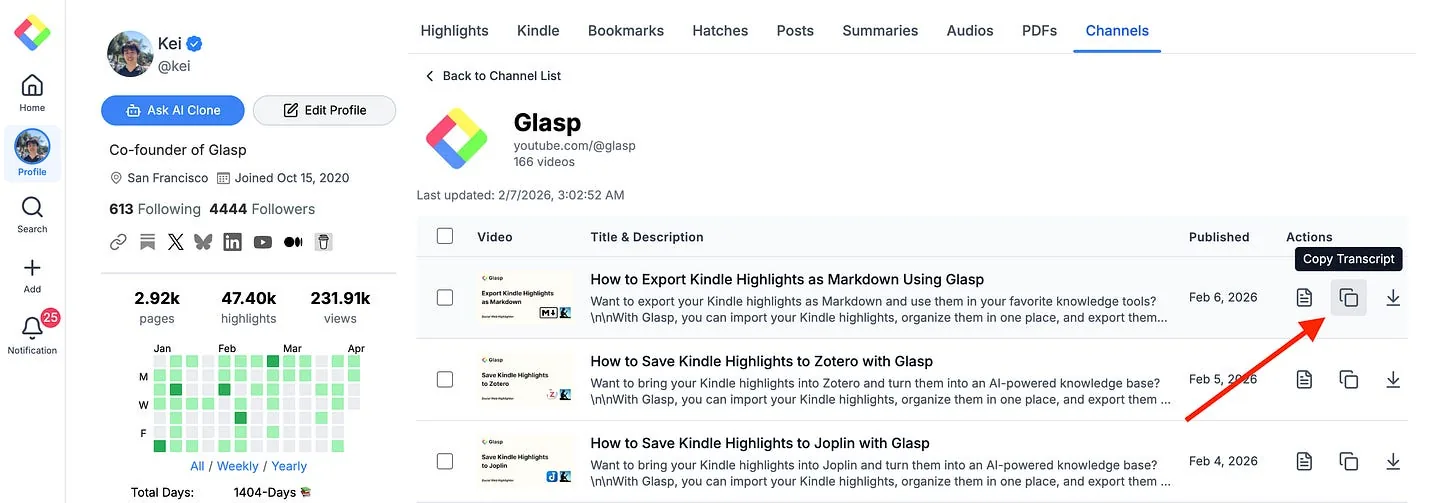
To use the text immediately without saving a file, click the copy icon. Glasp puts the transcript on your clipboard so you can paste it into a document, note, or editor.
FAQs
Which transcript formats can I download?
Glasp offers .txt, .md, .csv, .json, and .srt. Choose based on whether you need readable text, structured data, Markdown notes, or subtitles.
How many videos can I download at once?
You can select all videos currently loaded. Since the list loads 20 at a time, use Load More and select the added videos before downloading.
Do I need to own the channel?
This tutorial is intended for exporting transcripts from your own YouTube channel. For other content, respect the creator's rights, YouTube's terms, and applicable copyright law.
Does it work for videos without subtitles?
Glasp can only export a transcript that YouTube has for the video. If YouTube does not provide a transcript, Glasp cannot include one in the export.
Where do the downloaded files go?
The zip file goes to your browser's configured download location, usually the Downloads folder.
Can I get a transcript for only one video?
Yes. Use the download icon beside that video, or use the copy icon to place its transcript on your clipboard.
Can I use the transcripts in Notion or Obsidian?
Yes. Markdown works well in Obsidian, while plain text or copied content can be pasted into Notion.
Is it free?
Feature availability can change over time. Check the options shown in your Glasp account for the current availability of channel syncing and transcript downloads.
Can Claude or ChatGPT read my Glasp highlights?
Yes. With the Glasp MCP Connector, AI assistants such as Claude, ChatGPT, and Claude Code can search and read your own highlights, notes, Kindle highlights, and AI summaries, including your YouTube summaries. The connection is read-only and private to you. See How to Connect Glasp to Claude, ChatGPT, and Claude Code (MCP Connector).
Can I use Glasp on my phone?
Yes. Glasp has native apps for iPhone, iPad, and Android, and the Glasp Safari extension for iPhone and iPad comes with the iOS app. Your highlights sync between the apps, the web, and the desktop extension. See How to Use the Glasp Mobile App on iOS, iPad, and Android.
Want to do more with your videos?
👉 How to Track and Export Your YouTube Channel Videos
👉 How to Import YouTube Transcripts into NotebookLM with Glasp
👉 How to Highlight YouTube Transcript
Before you leave
Thank you for reading. We hope this guide helps you make your own video transcripts easier to reuse and organize.
👉 Open your Glasp profile, select Channels, and prepare your first transcript export.
See you next time,
Glasp team