How to Track and Export Your YouTube Channel Videos

Aug 15, 2026
4 min read
118 views

With YouTube Channel Tracking on Glasp, you can connect your YouTube channel and automatically track all of its videos, along with titles, descriptions, and transcripts. It makes it easier to learn from videos, share insights, and turn your channel into an organized knowledge base.
With YouTube Channel Tracking, you can:
Collect all videos from your channel in one organized dashboard
Search and browse videos by title, description, or publish date
Download transcripts for summaries, research, or content creation
Export your channel's data in multiple formats (
.txt,.md,.csv,.json,.srt)
Here is how to set it up in a few steps.
Step 1: Go to the Channels tab
From your Glasp profile, click the Channels tab at the top of the page. You'll see an option that says + Add YouTube Channel.
Step 2: Add your YouTube channel handle
Click + Add YouTube Channel.
Then, enter your channel handle without the "@". For example, if your channel is youtube.com/@glasp, simply type glasp.
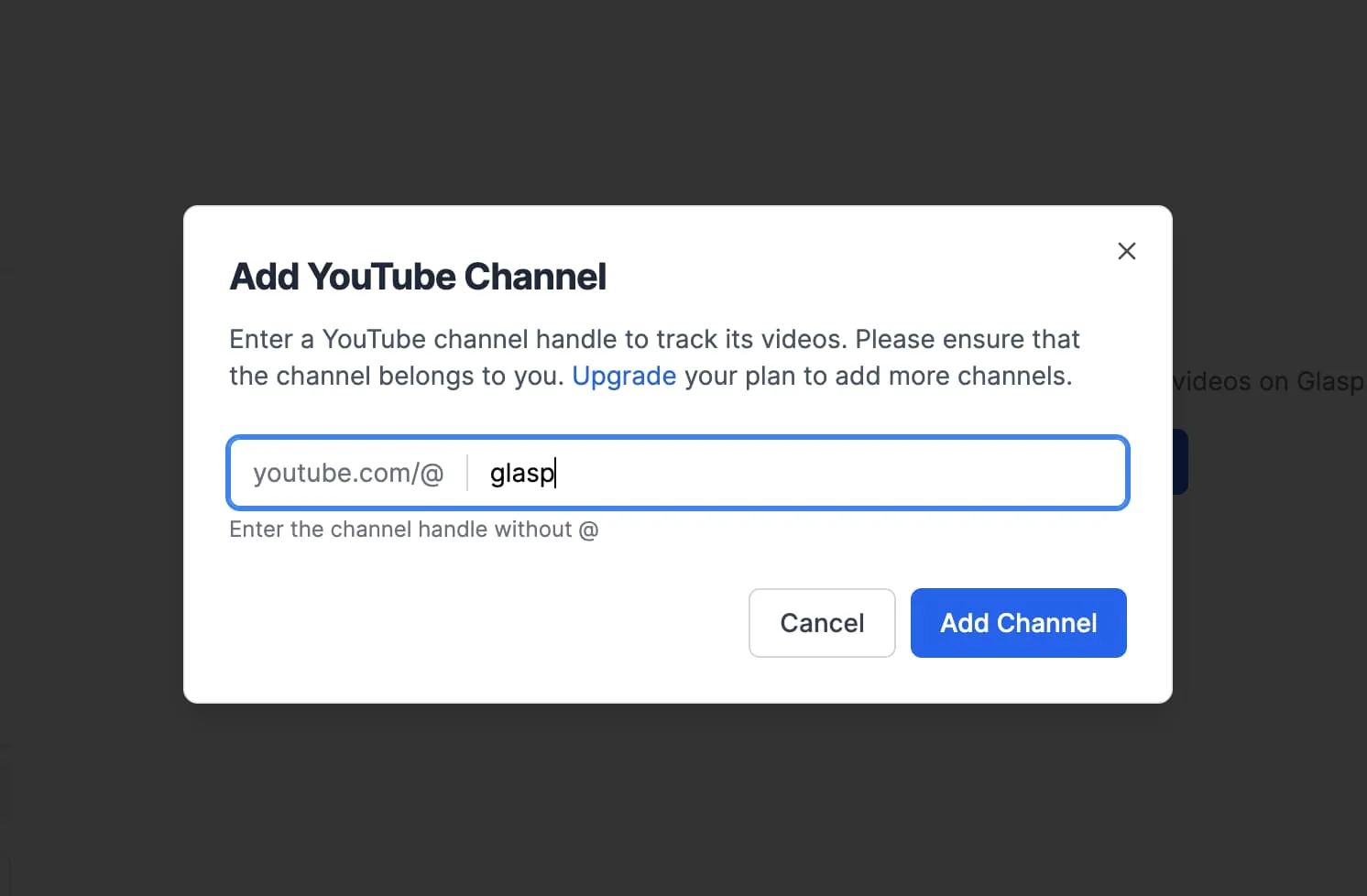
After you click Add Channel, Glasp connects your channel and starts syncing all your public videos.
Step 3: View your channel
Once your channel is added, it appears in your list, complete with your channel name, handle, and video count.
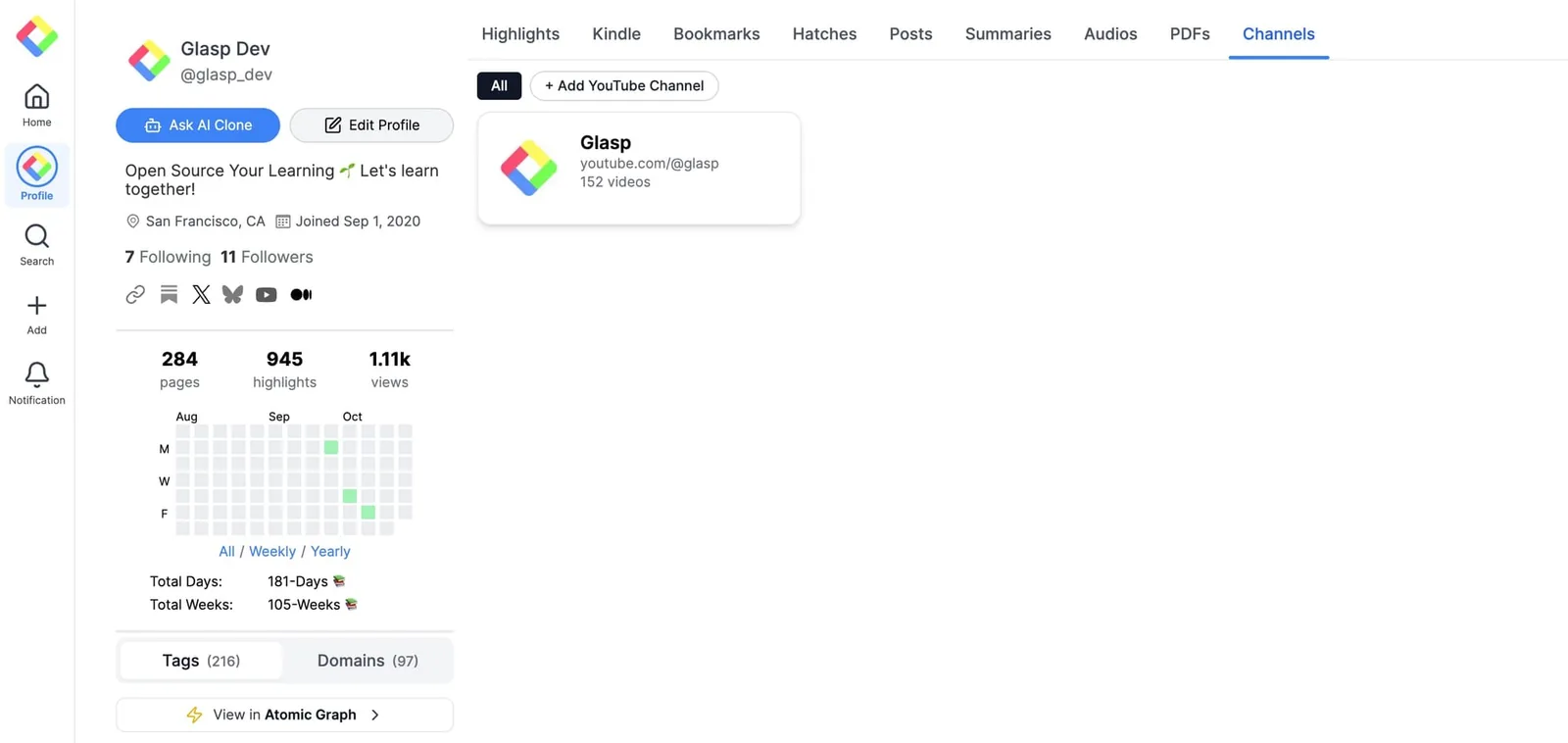
Click on the channel to open a detailed view of your videos.
Step 4: Browse your videos
You'll see a list of all your uploaded videos, including their titles, descriptions, and publication dates.
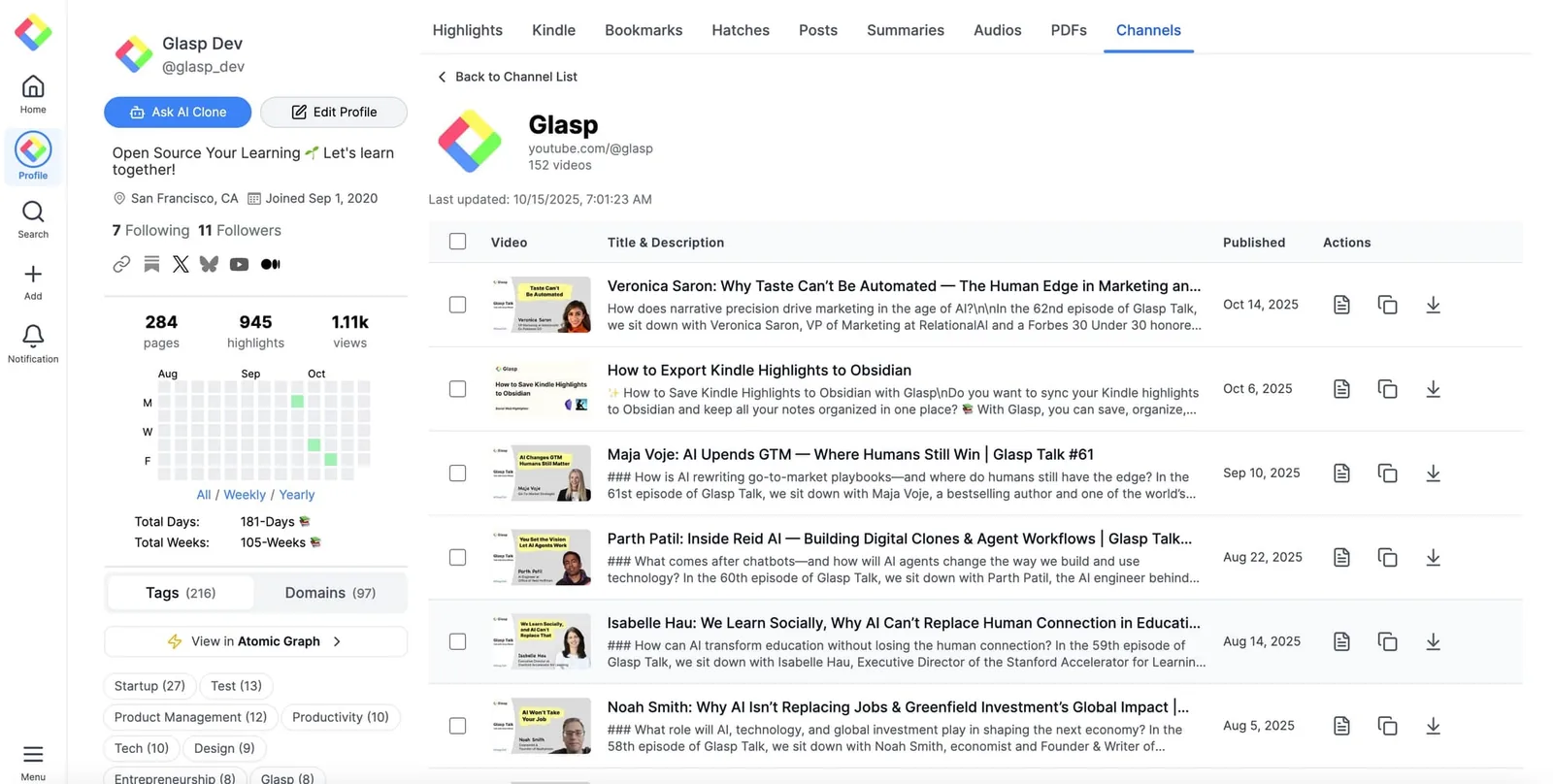
Each video comes with actions to:
Copy link
View transcript
Download data
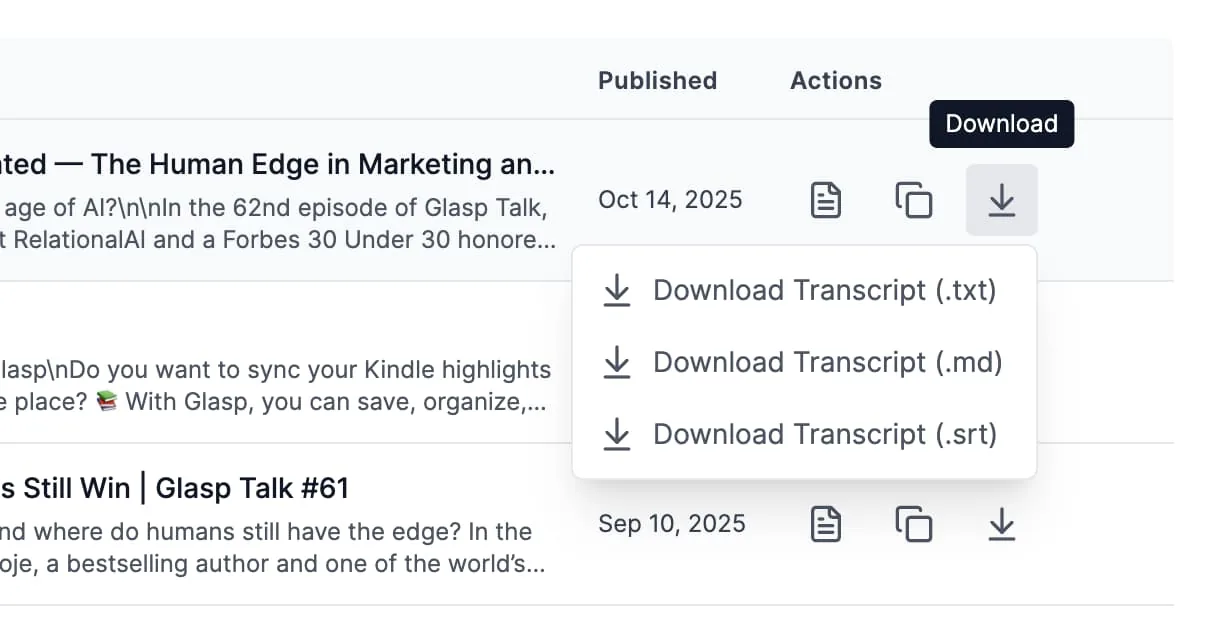
Step 5: Download or export your data
You can select multiple videos and download their information in various formats, such as .txt, .md, .csv, .json, or .srt.
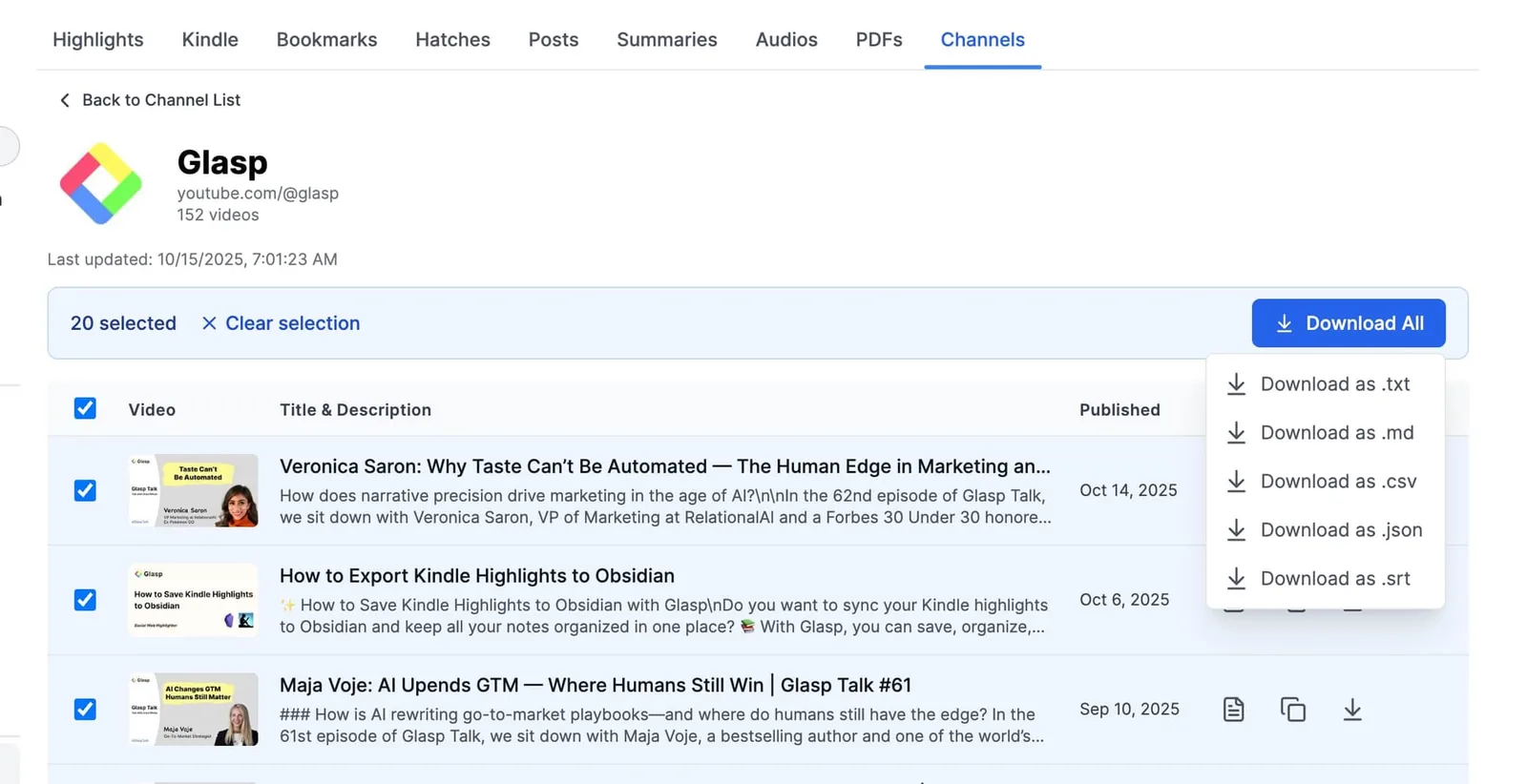
Want just one video's transcript? No problem. You can also download an individual transcript in your preferred format.
Pro tips
Use the
.mdexport option to integrate your YouTube transcripts directly with note-taking apps like Notion or Obsidian.Export
.csvor.jsonto analyze your content strategy over time.
FAQs
What information does Glasp track from my channel?
The titles, descriptions, publish dates, and transcripts of your channel's public videos, all collected in one dashboard.
Which formats can I export?
.txt, .md, .csv, .json, and .srt. You can export multiple videos at once or download a single video's transcript.
Do I need a Glasp account?
Yes. Log in to Glasp, open your profile, and click the Channels tab to add your channel.
Can I use the transcripts in Notion or Obsidian?
Yes. Export in .md and paste or import the transcripts into your note-taking app.
Can I get transcripts of videos that are not on my channel?
Yes, with the Glasp extension. See: How to Get Transcripts of the YouTube Video
Can Claude or ChatGPT read my Glasp highlights?
Yes. With the Glasp MCP Connector, AI assistants such as Claude, ChatGPT, and Claude Code can search and read your own highlights, notes, Kindle highlights, and AI summaries, including your YouTube summaries. The connection is read-only and private to you. See How to Connect Glasp to Claude, ChatGPT, and Claude Code (MCP Connector).
Where are my YouTube summaries saved?
When you are signed in, the YouTube summaries you create are saved to your Glasp profile under the Summaries tab, so you can review all of them later. You can also get them through the Glasp API, and AI assistants such as Claude and ChatGPT can read them through the Glasp MCP Connector.
Can I use Glasp on my phone?
Yes. Glasp has native apps for iPhone, iPad, and Android, and the Glasp Safari extension for iPhone and iPad comes with the iOS app. Your highlights sync between the apps, the web, and the desktop extension. See How to Use the Glasp Mobile App on iOS, iPad, and Android.
Want to do more with YouTube videos?
👉 How to Get Transcripts of the YouTube Video
👉 How to See a Summary of a YouTube Video with Glasp
Before you leave
Thanks for reading. With YouTube Channel Tracking, your learning and teaching on YouTube becomes part of your digital knowledge legacy.
See you next time,
Glasp team