How to See a Summary of a YouTube Video with Glasp

Sep 11, 2025
7 min read
1038 views

Last updated: August 2026
You can see an AI-generated summary of any YouTube video using Glasp. There are two ways to use the YouTube summary feature, depending on what you want out of it:
Install the Glasp extension and create a Glasp account, so you can also highlight and save what matters.
Install the Glasp extension without creating an account, and just read summaries.
If you want to keep highlighted lines from videos and revisit them later, we recommend option #1. Steps 1 to 5 are the same either way, and the highlighting steps at the end are optional.
Step 1: Access the YouTube Summary page on Glasp
You can reach the YouTube Summary page from the link below.
👉 YouTube Summary with ChatGPT
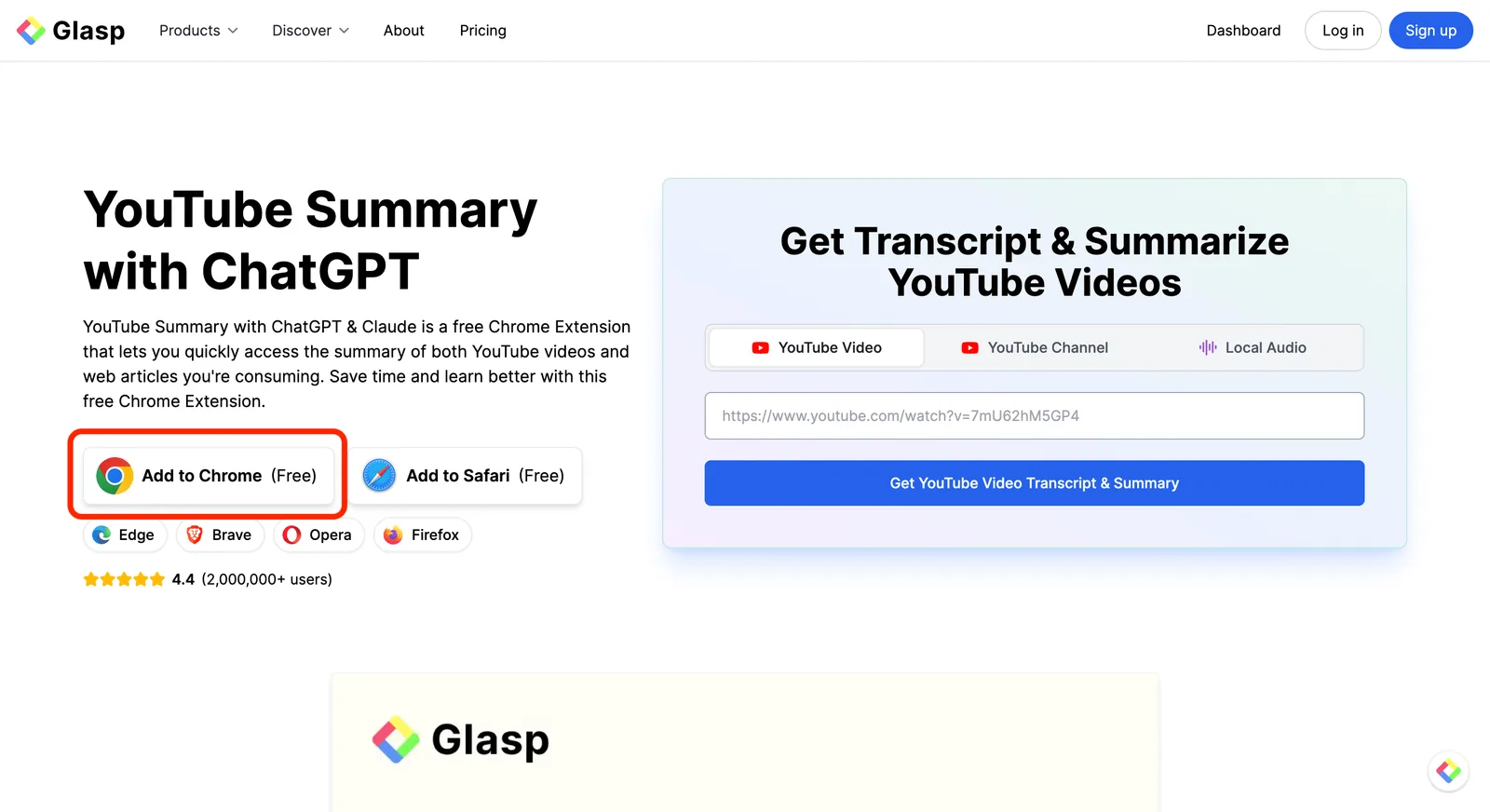
The extension is free and works on Chrome, Safari, Edge, Brave, Opera, and Firefox. On the same page, you can also paste a video URL to get a transcript and summary without installing anything.
Step 2: Install the Glasp extension
Click Add to Chrome (or the button for your browser), then confirm the installation.
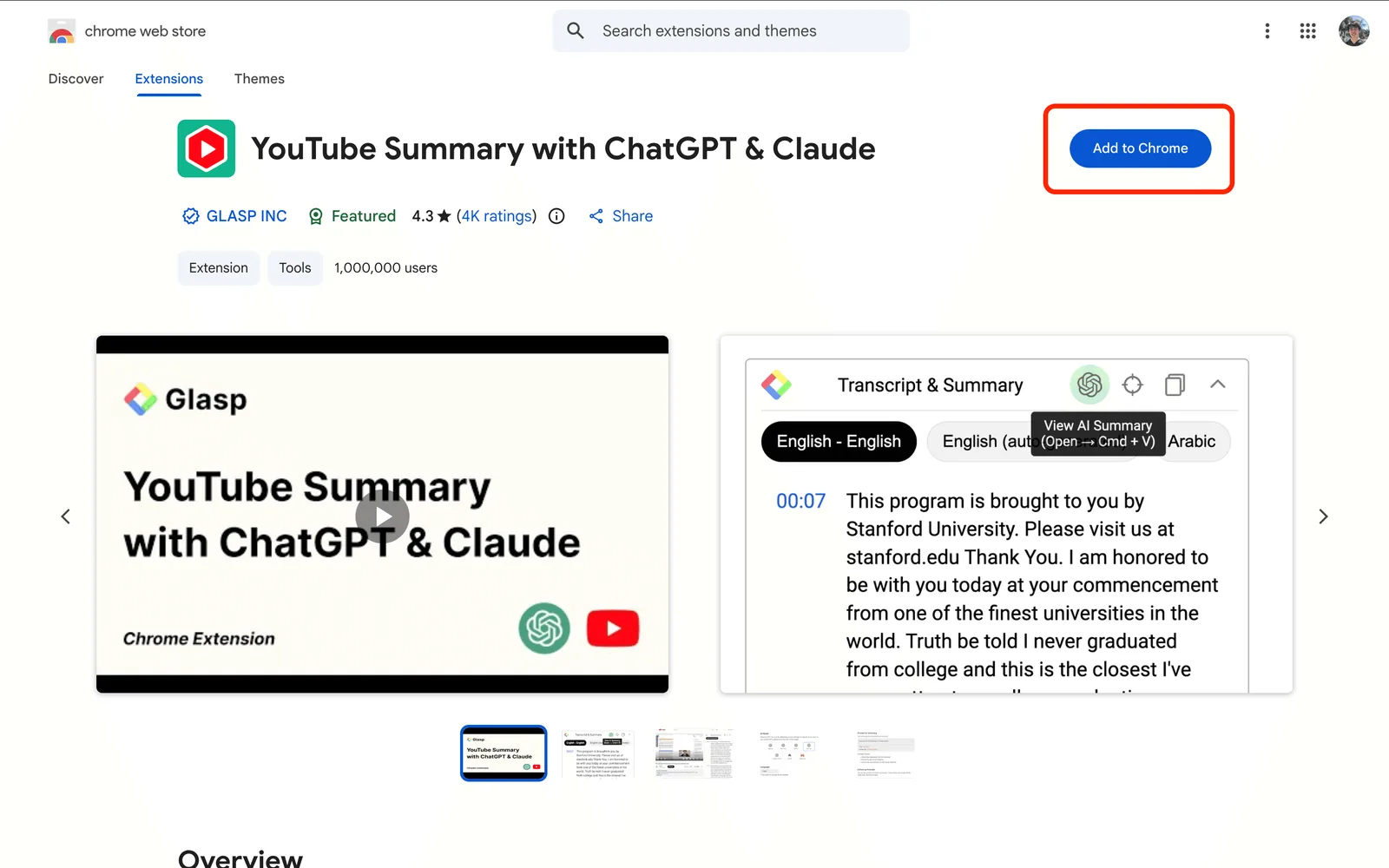
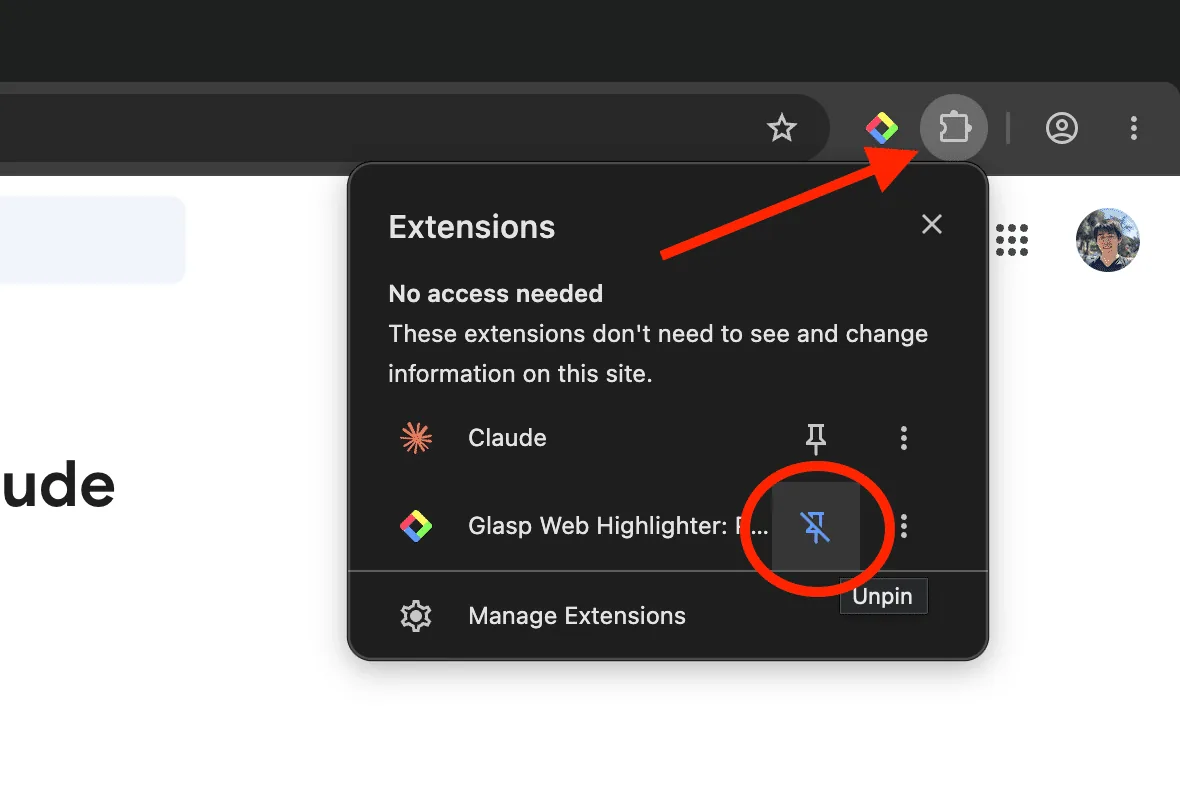
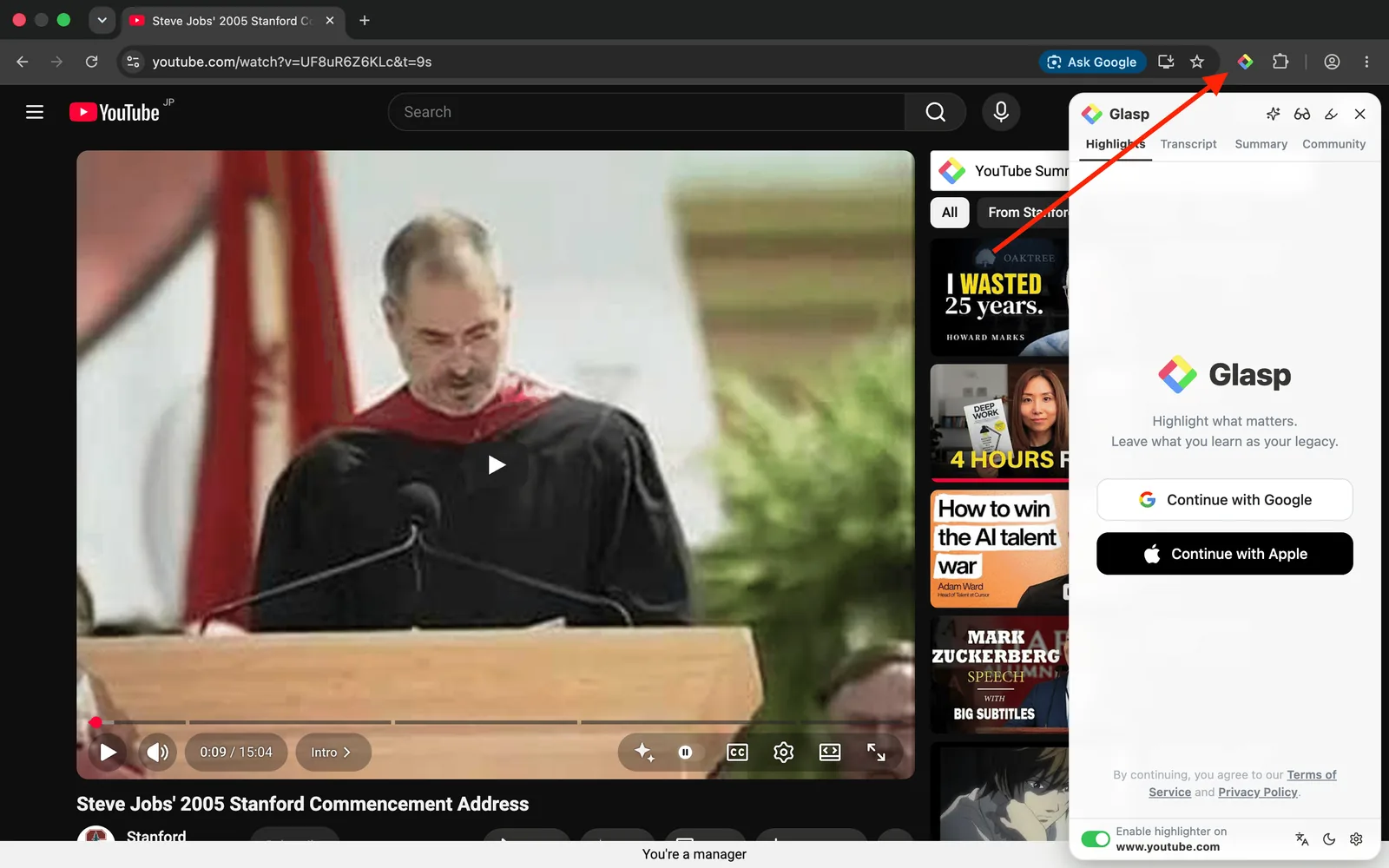
After installing, it helps to pin the Glasp extension to your toolbar so it is always one click away.
Step 3: Open a YouTube video
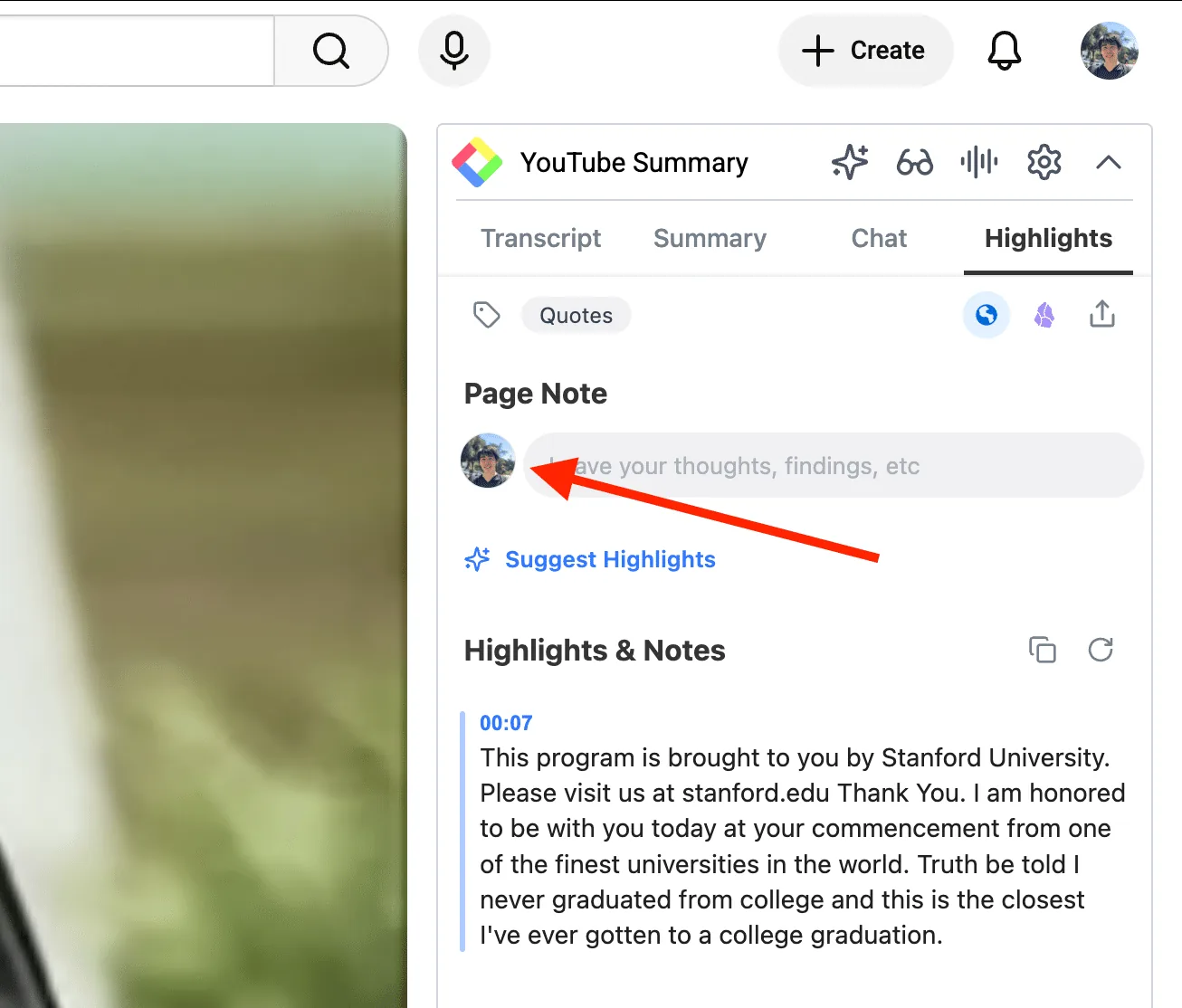
Open the video you want to summarize. A YouTube Summary panel appears on the right side of the page, with four tabs: Transcript, Summary, Chat, and Highlights.
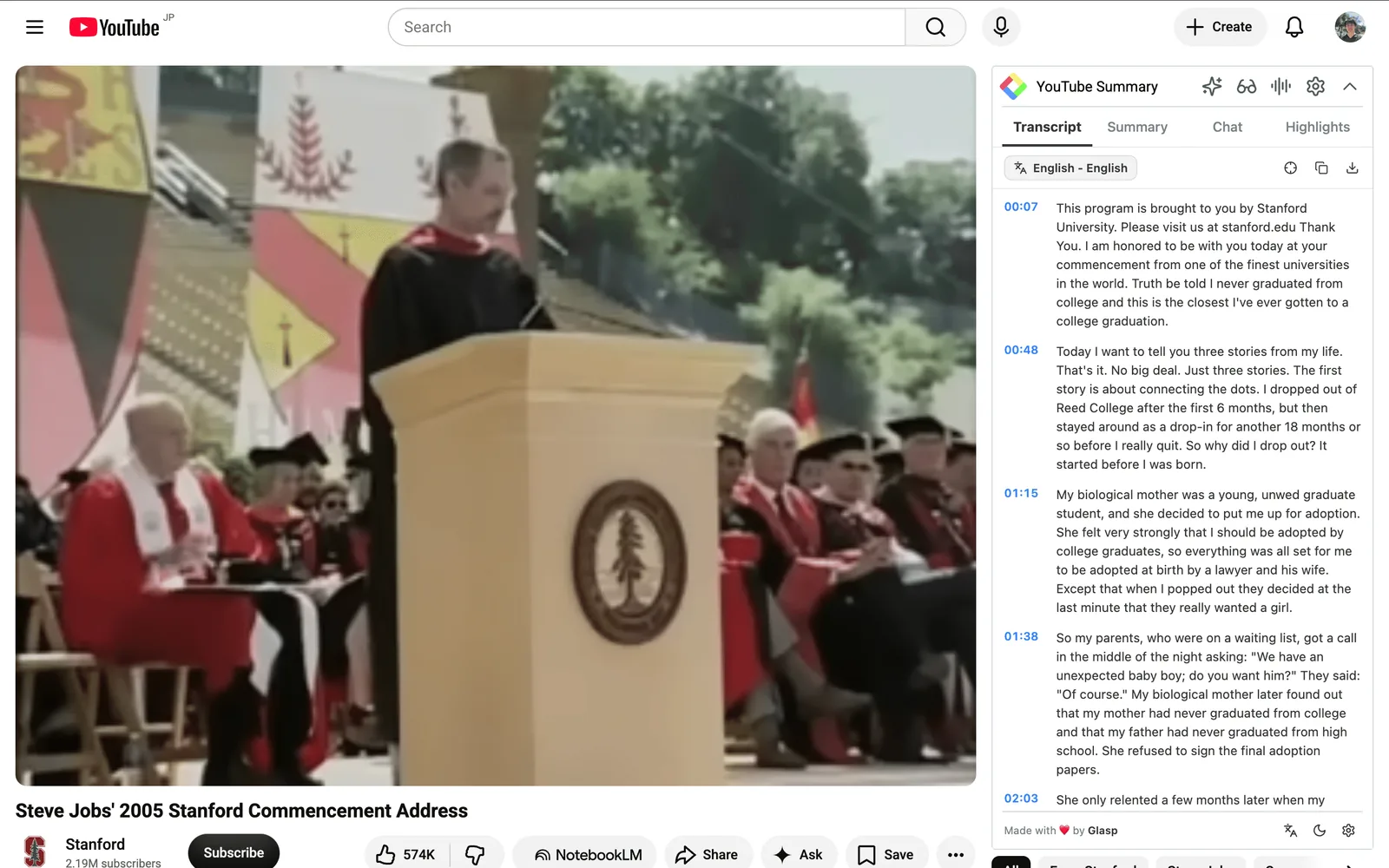
The Transcript tab shows the full transcript with timestamps. Click any timestamp to jump the video to that moment.
Note: some videos have no transcript on YouTube, for example a video published moments ago or one without captions. In that case Glasp can transcribe the audio itself. Click the audio icon in the panel header to run Audio Transcription on the video you are watching. It is included on the free plan up to 30 minutes per month, 300 minutes on Pro, and 1,500 minutes on Unlimited.
Step 4: Read the summary in the Summary tab
Open the Summary tab and the AI summary is generated right there. You do not need to open a new tab or log in to another service.
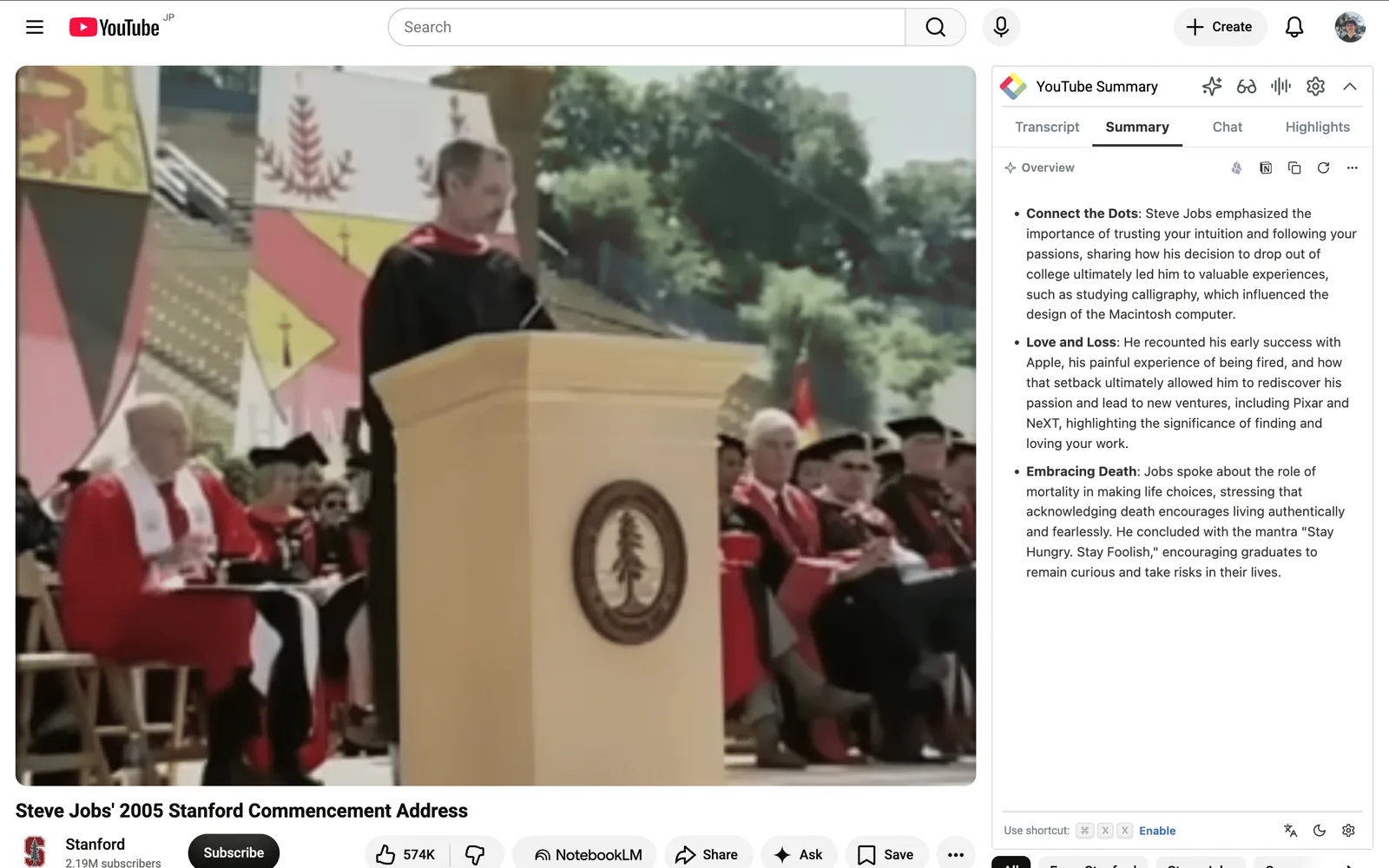
The summary comes with timestamps, so you can jump straight to the part of the video a point came from.
You can change which AI model writes the summary from the settings icon in the panel header. ChatGPT, Claude, Gemini, Grok, Mistral AI, and others are available, and you can also set the summary language and edit the prompt.
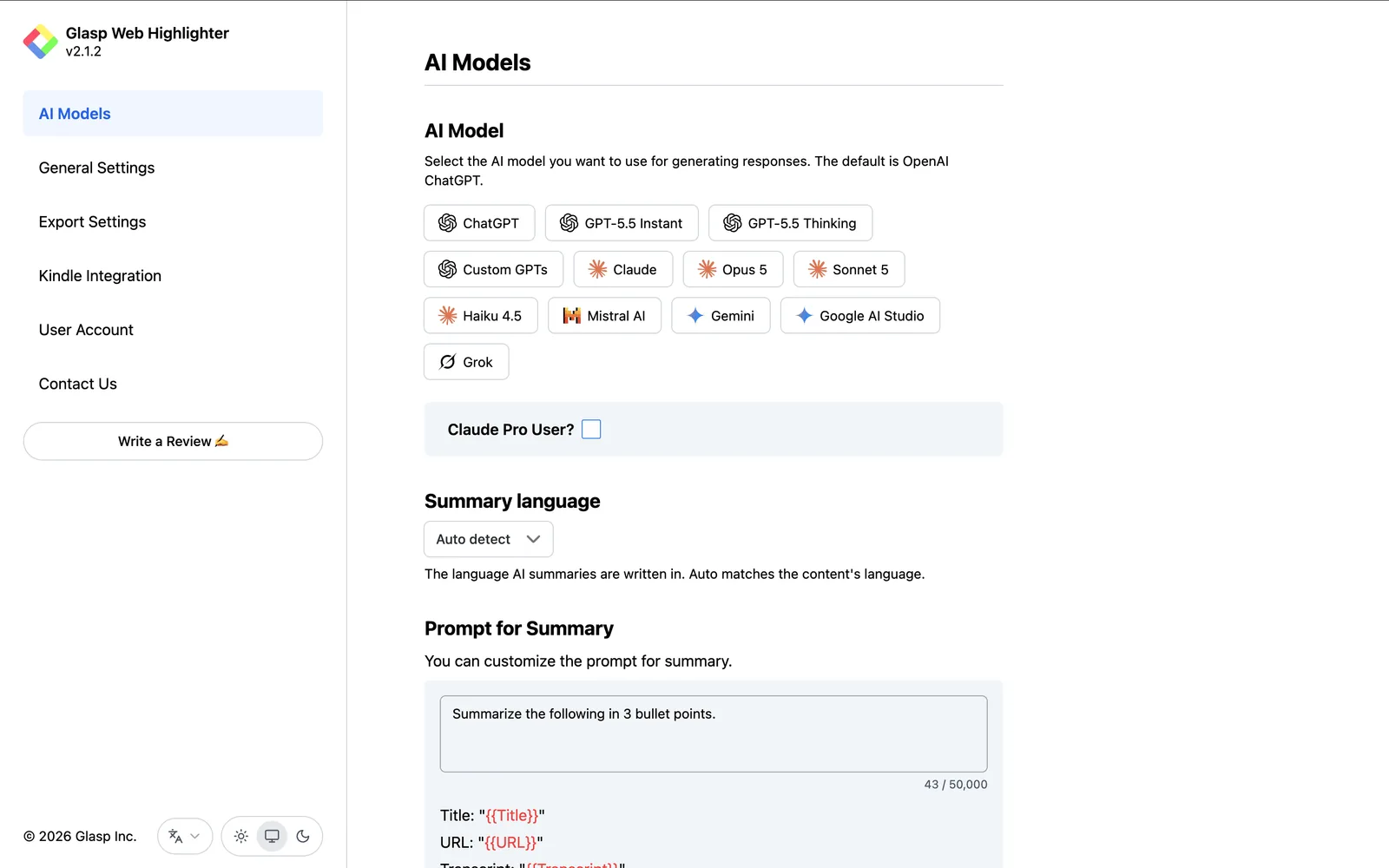
Today's models handle long videos well, so a talk of a few hours is rarely a problem. On the free plan you get 3 summaries per day. Pro and Unlimited raise that to 1,000 summaries per month and 5,000 per 30 days.
Ask questions about the video
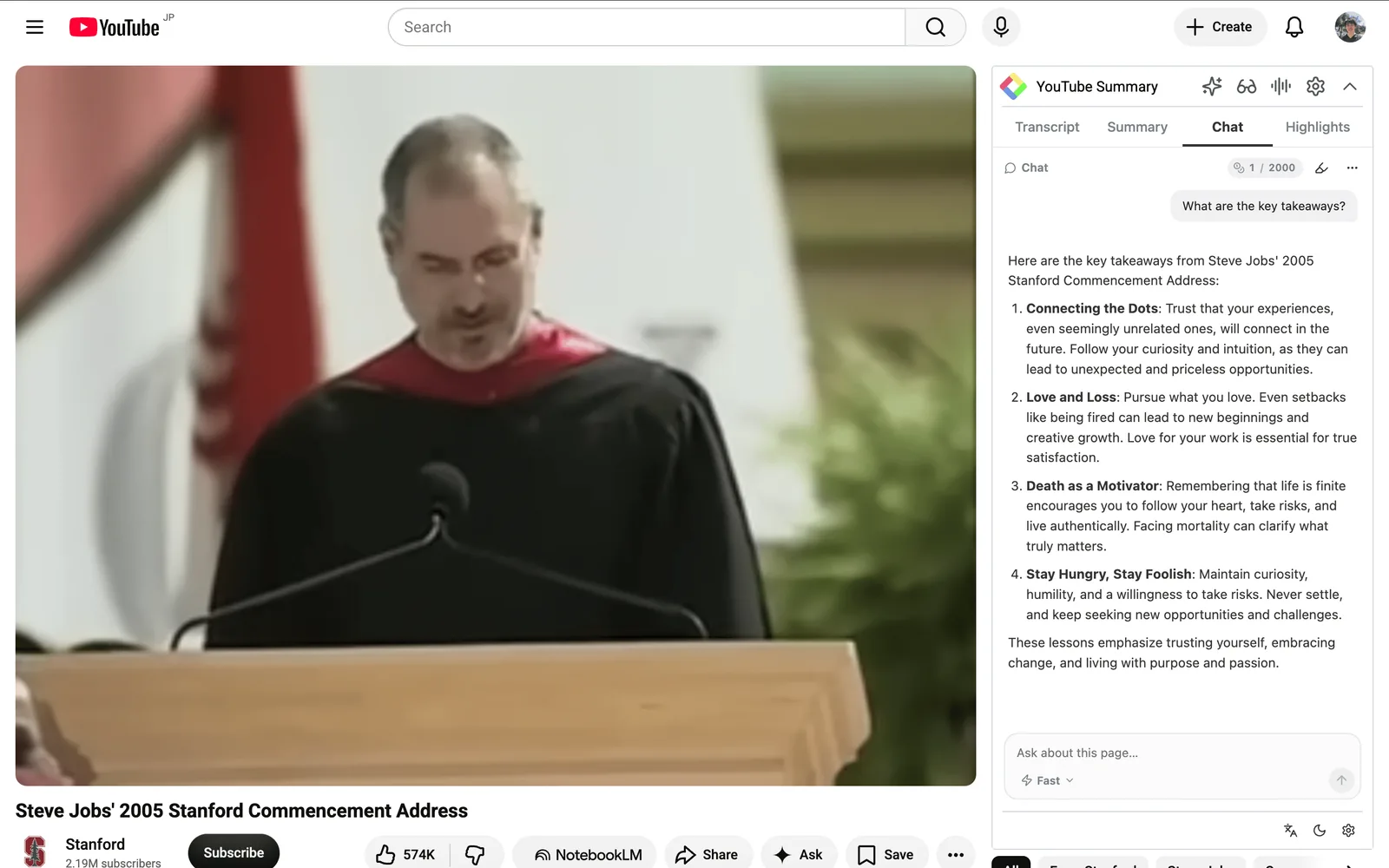
The Chat tab lets you ask the AI about the video itself. It is useful when you want to dig into one point, or find where in the video a topic is discussed.
Or summarize in ChatGPT instead
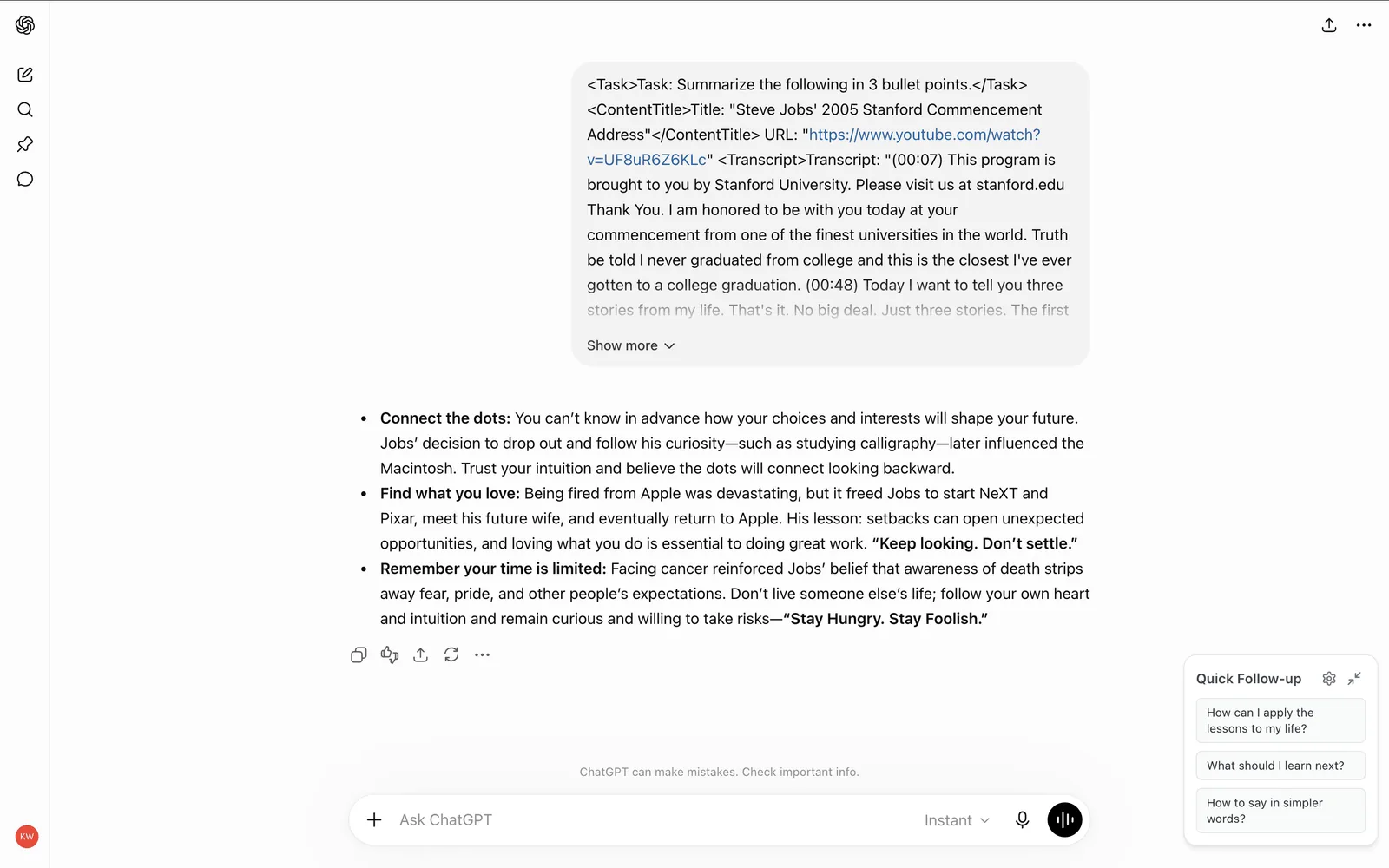
If you would rather read the summary inside ChatGPT, click the summary icon in the panel header.
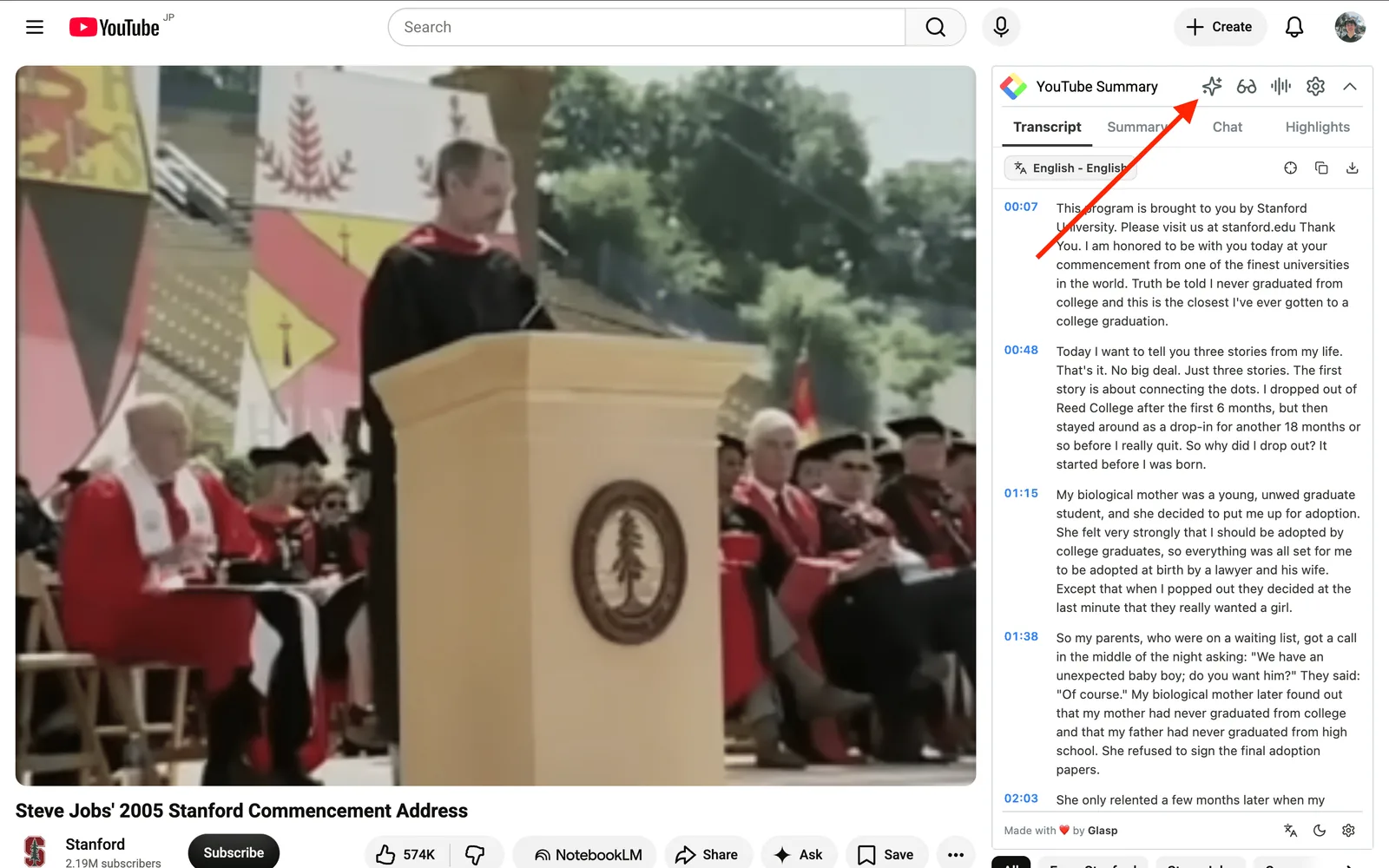
It opens ChatGPT in a new tab with the transcript already pasted, and the summary starts generating. There is nothing to copy or paste by hand.
Step 5: Summarize YouTube videos on your phone
Glasp also has iOS and Android apps. Share a video link to the app and you get a summary with timestamps in seconds, which is handy while you are commuting or away from your desk. The free plan gives you the same 3 summaries per day as the desktop extension.
👉 Glasp mobile app for iOS and Android
Step 6: Save the transcript (Optional)
The Transcript tab shows the full text with timestamps, and the button on the left switches the transcript language.
The download icon saves the transcript in three formats:
.txtfor plain text.srtfor subtitles.mdfor Markdown, which pastes cleanly into Notion or Obsidian
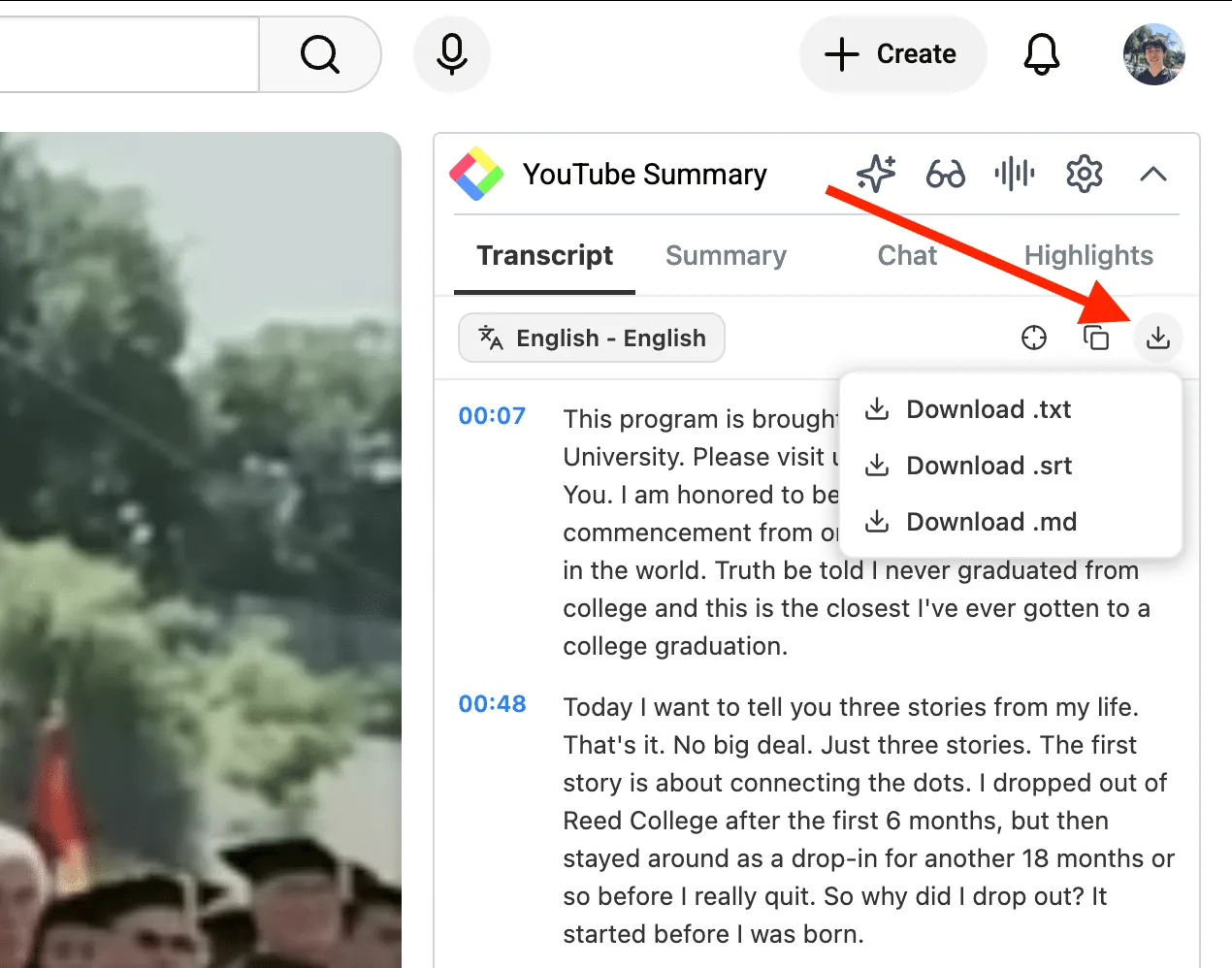
The copy icon next to it copies the whole transcript to your clipboard.
Step 7: Highlight the transcript (Optional)
Highlighting the lines that matter lets you find them later and share them. This step needs a Glasp account, which is free.
Click the Glasp icon in your toolbar, then Log in / Sign up in the sidebar that appears. You can sign up with Google or Apple.
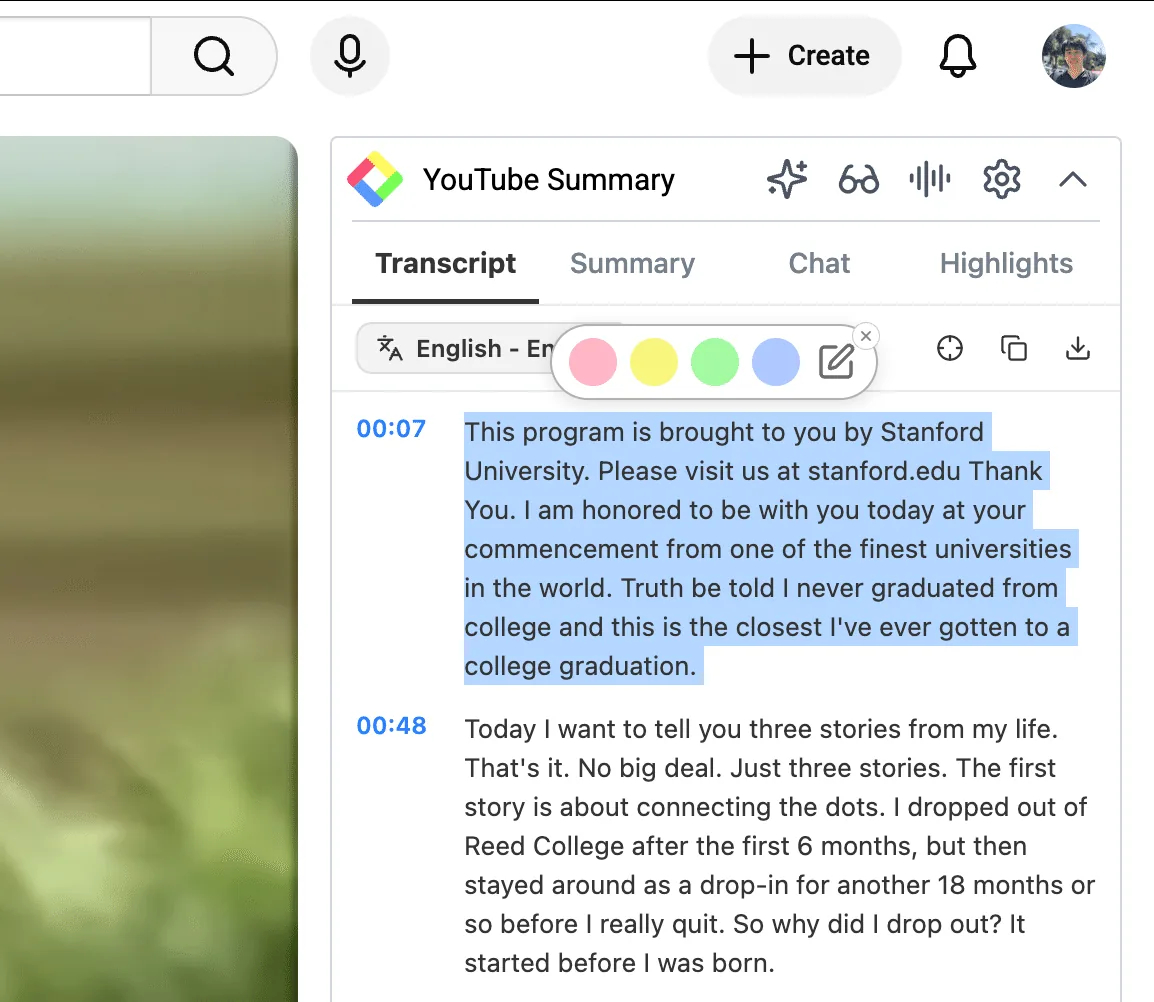
Once you are logged in, select any text in the transcript. A color popup appears, and clicking a color saves the highlight. If nothing happens, refresh the page and try again.
Your highlights collect in the Highlights tab with their timestamps, so clicking one plays the video from that moment. In the same tab you can add a Page Note about the whole video, ask the AI to Suggest Highlights, and tag the video to organize it.
Step 8: See all your highlights (Optional)
The Highlights tab shows the highlights for the video you are watching. To see everything you have saved, open your profile page by clicking your profile icon.
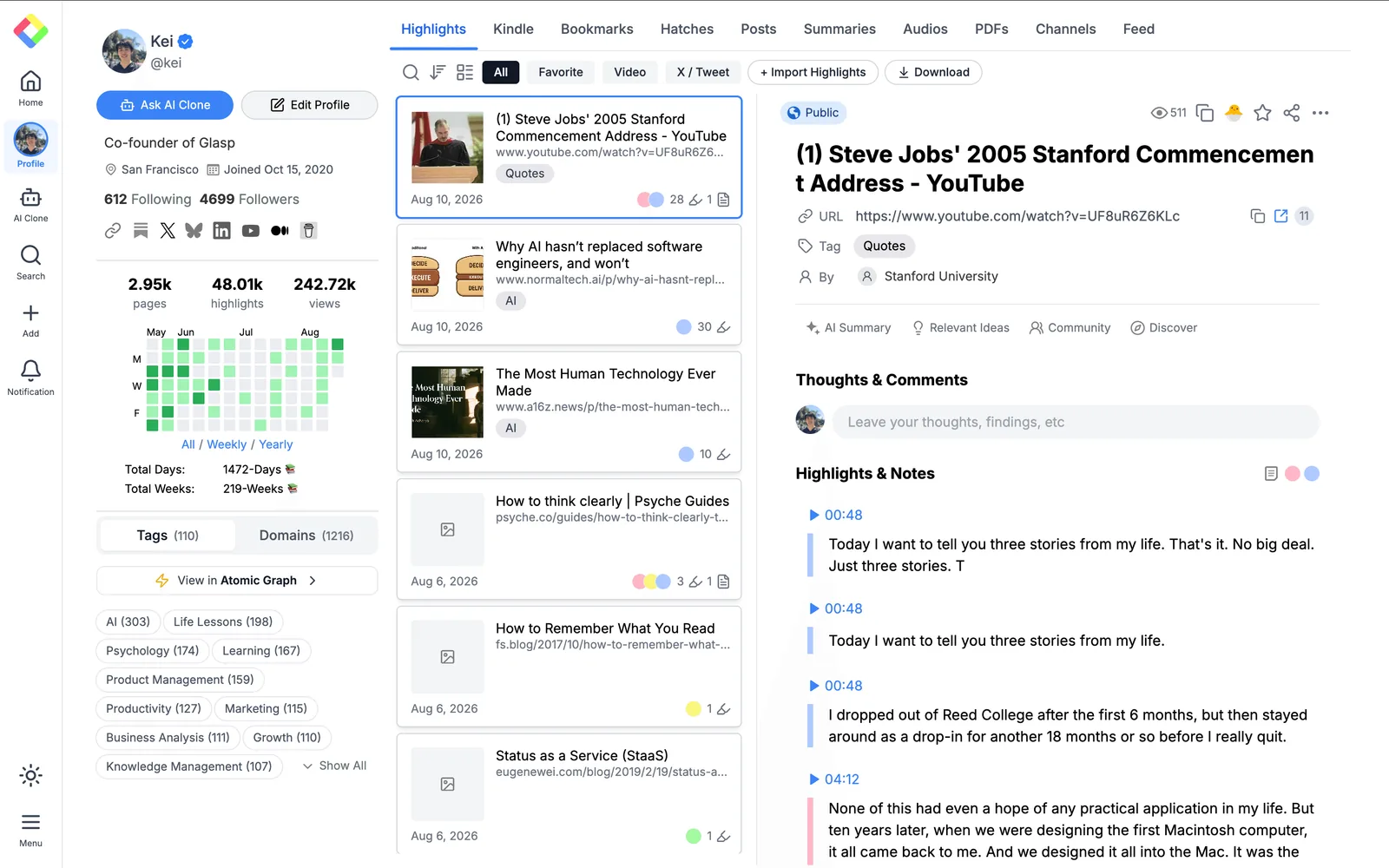
Your profile gathers highlights and notes from YouTube, web pages, PDFs, and Kindle in one place. Clicking a timestamp opens the video and starts playing from that moment. For example, clicking 00:48 starts Steve Jobs's speech at 48 seconds.
To share your highlights, copy the link to this page. Anyone who opens it can read what you highlighted.
If you would like a video walkthrough, watch the one below.
👉 YouTube Summary with ChatGPT (video tutorial)
FAQs
Q. Do I need a Glasp account to use the YouTube summary feature?
No. Summaries, transcripts, and chat work without an account. You only need a free account if you want to highlight transcripts and revisit them later.
Q. How much can I use for free?
The free plan includes 3 summaries per day, on both the extension and the mobile apps. Pro gives you 1,000 summaries per month and Unlimited gives you 5,000 per 30 days.
Q. Can I summarize long videos?
Yes. Today's AI models handle long videos, so a talk of a few hours is rarely a problem.
Q. Can I use it on my phone?
Yes. The Glasp apps for iOS and Android generate summaries and transcripts with timestamps in seconds.
Q. Can I summarize a video that has no subtitles?
Yes. When YouTube provides no transcript, click the audio icon in the panel header and Glasp's Audio Transcription creates one from the video's audio. It is included up to 30 minutes per month on the free plan, 300 minutes on Pro, and 1,500 minutes on Unlimited. The same tool also transcribes audio files you upload, in mp3, mp4, m4a, wav, and similar formats.
Q. Can I download the transcript?
Yes. The download icon in the Transcript tab saves it as .txt, .srt, or .md, and the copy icon copies the full text to your clipboard.
Q. Can I highlight specific parts of a YouTube transcript?
Yes. Once you create a Glasp account, you can highlight the transcript directly in your browser. Highlights are saved to your profile and can be shared. Please see this tutorial: How to Highlight YouTube Transcript
Q. Which browsers support the YouTube Summary feature?
Chrome, Microsoft Edge, Brave, Opera, and other Chromium-based browsers, plus Safari and Firefox.
Q. Can I export my YouTube highlights into apps like Notion or Obsidian?
Yes. After saving highlights on Glasp, you can export them into note-taking apps such as Notion, Obsidian, Logseq, and Roam Research for free.
Q. Can Claude or ChatGPT read my Glasp highlights?
Yes. With the Glasp MCP Connector, AI assistants such as Claude, ChatGPT, and Claude Code can search and read your own highlights, notes, Kindle highlights, and AI summaries, including your YouTube summaries. The connection is private to you and read-only, apart from one permission you can approve: saving a page to your Glasp bookmarks, which are public on your profile. See How to Connect Glasp to Claude, ChatGPT, and Claude Code (MCP Connector).
Q. Where are my YouTube summaries saved?
When you are signed in, the YouTube summaries you create are saved to your Glasp profile under the Summaries tab, so you can review all of them later. You can also get them through the Glasp API, and AI assistants such as Claude and ChatGPT can read them through the Glasp MCP Connector.
Before you leave
Thanks for reading. We hope this tutorial helps you quickly understand YouTube videos using Glasp summaries.
👉 FAQs
👉 X
See you next time,
Glasp team