How to Summarize YouTube Videos on iPhone and Android (Free App)

Aug 28, 2025
5 min read
481 views
Want to summarize a YouTube video on your iPhone or Android phone without watching the whole thing? A 30-minute talk often carries one insight, and on a phone it is even harder to skim. This tutorial shows the fastest way to get a timestamped summary of any YouTube video on mobile, using a free app.
The app we use here is Glasp, a free iOS and Android app that summarizes YouTube videos in one place. You can open a video inside the app, or send one over from the YouTube app through the share sheet, and get the summary in seconds.
Once you're set up, you can:
Summarize any video: get the key points in seconds, on iPhone, iPad, or Android
Jump with timestamps: every summary is timestamped, so you can skip to the moments that matter
Read the full transcript: switch to the Transcript tab anytime
Copy or save: keep the summary or transcript wherever you need it
Below, we walk through the whole flow, start to finish, and answer the questions people ask most, including how it compares to other YouTube summary apps for mobile.
Step 1: Download and Install the Glasp App
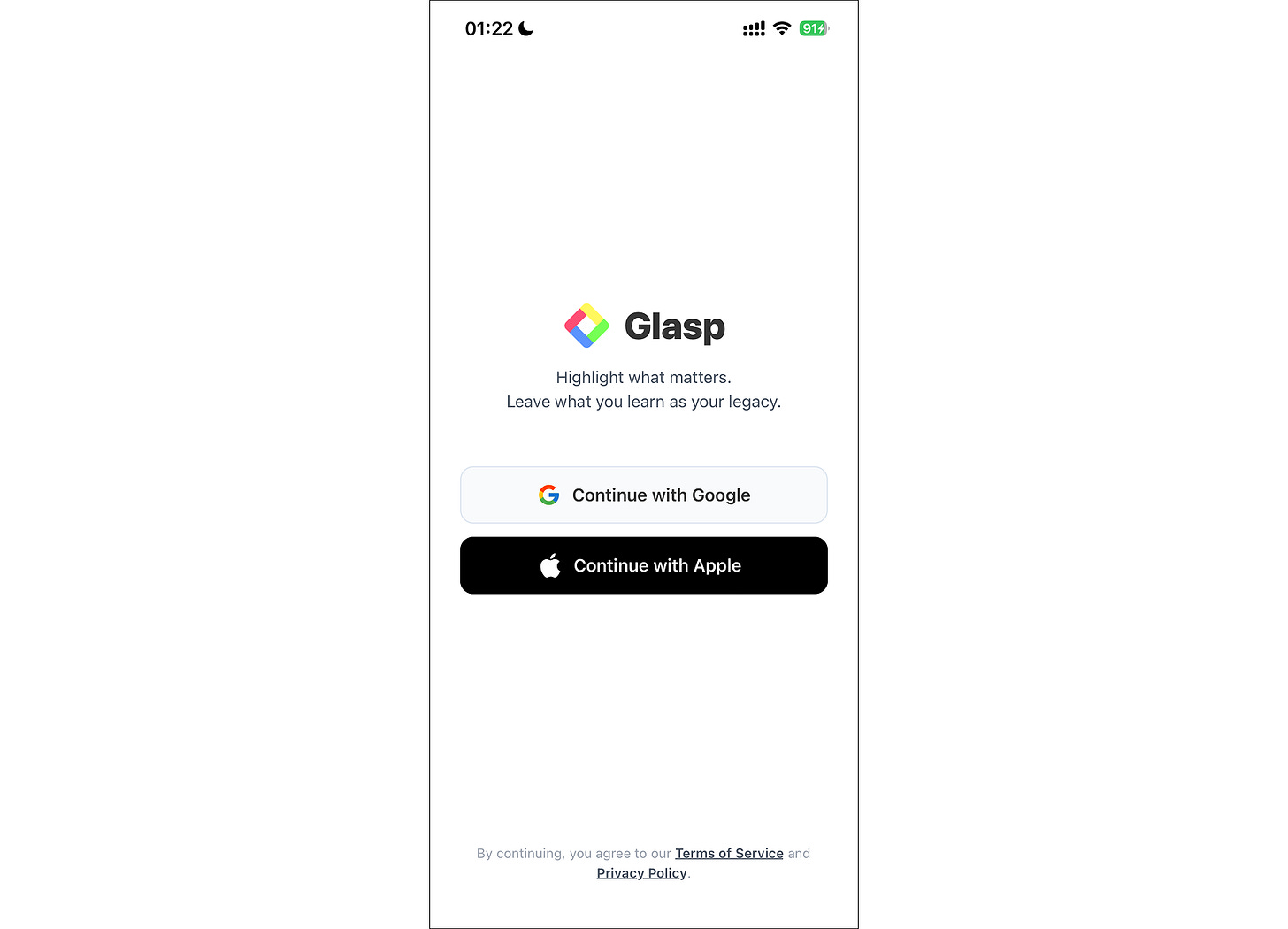
If you haven't already, download the Glasp app from the App Store (for iOS) or Google Play Store (for Android). Once installed, log in to your Glasp account or sign up if you're a new user.
Step 2: Open a YouTube Video (in the App or from the Share Sheet)
Tap "Feed" in the bottom navigation bar. If you've just signed up, your Feed will be empty.
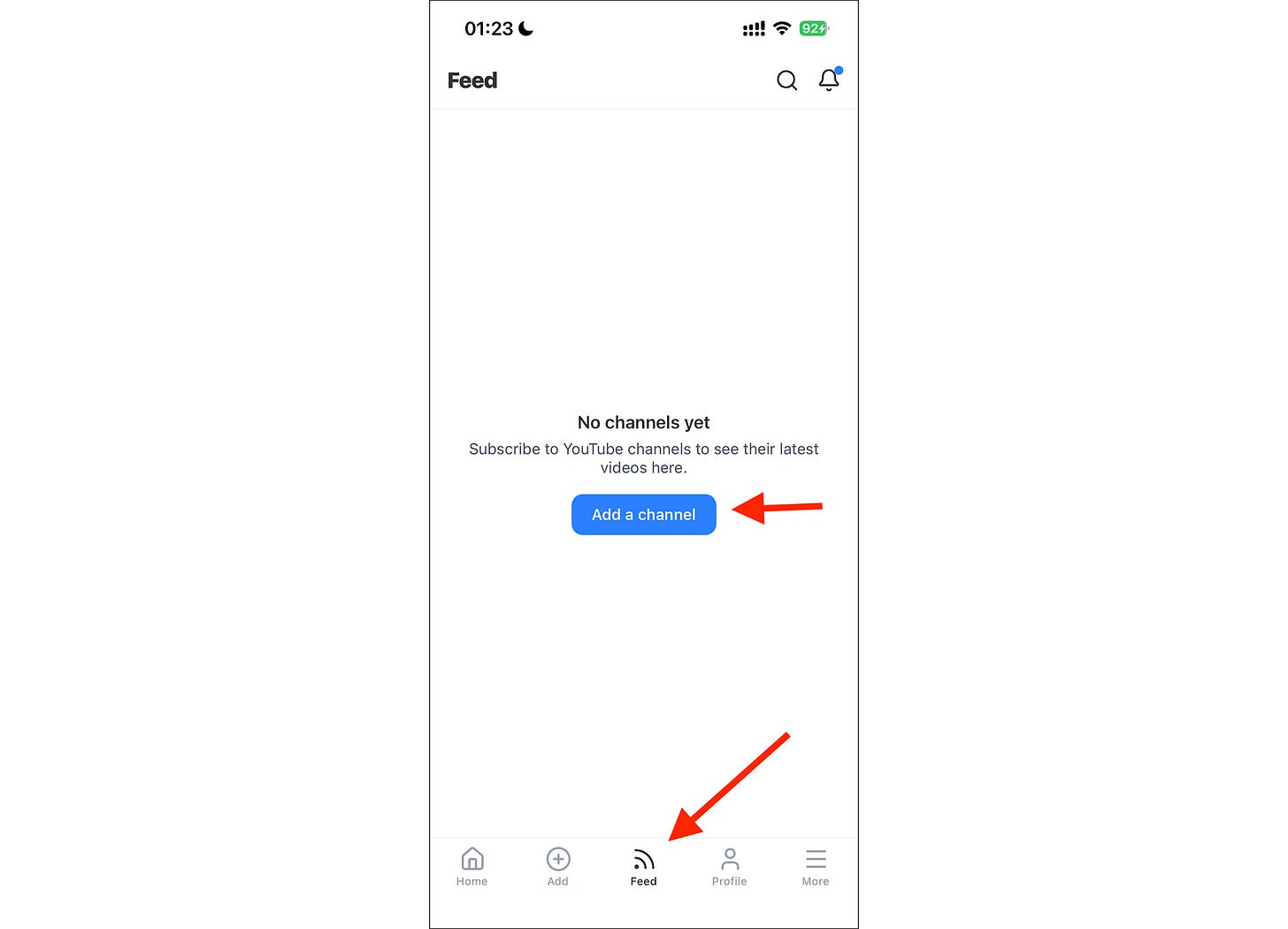
Tap "Add a Channel" and add the YouTube channel you want to follow.
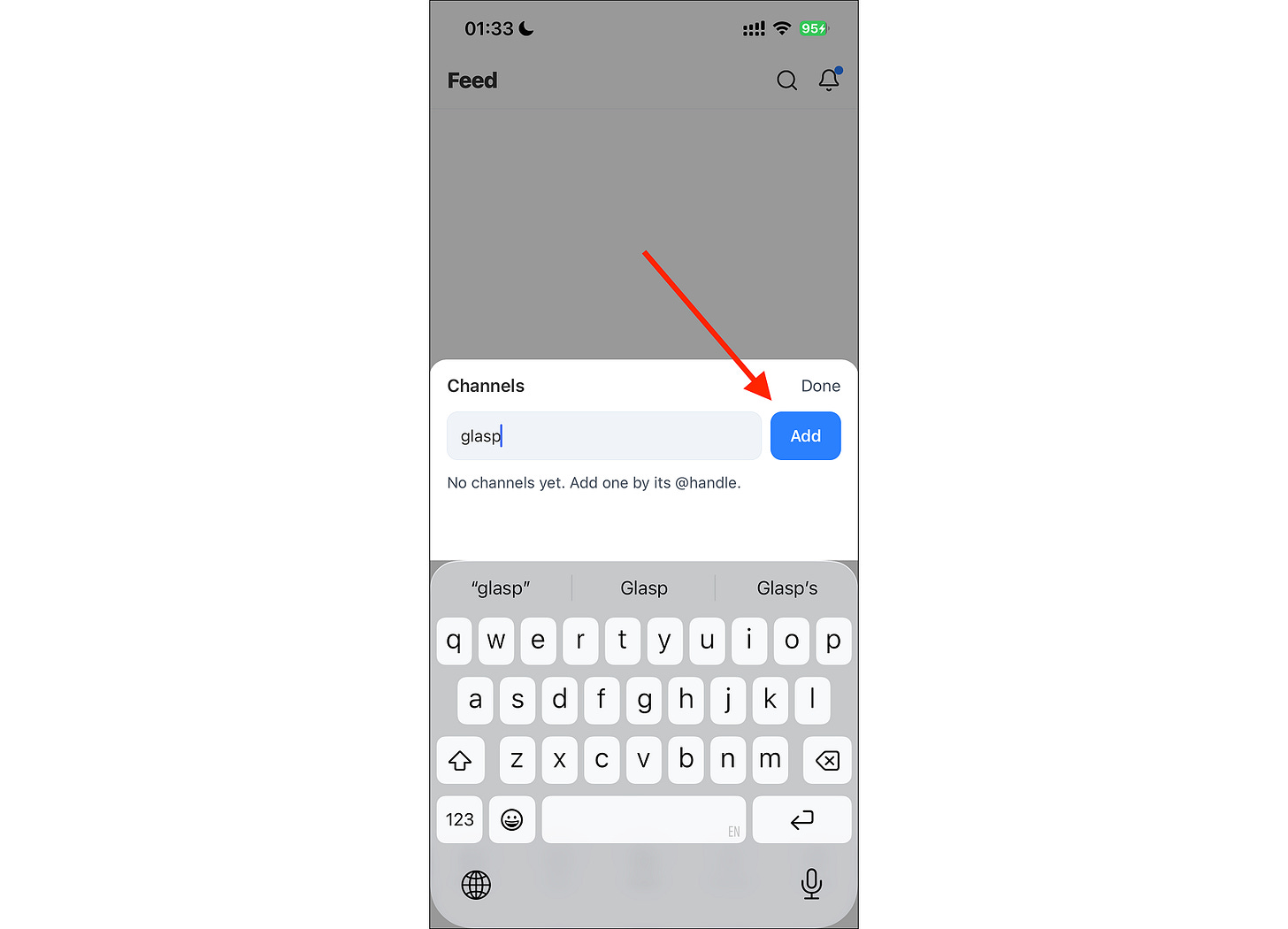
Tap "Add" after you've typed the channel's handle.
Prefer to browse in the YouTube app? You can send a video over instead. On iPhone, tap Share under the video and choose Glasp in the share sheet. On Android, tap Share and pick Glasp. The video opens in Glasp, ready to summarize. You can also paste a video link inside the app.
Step 3: Open a Video and Tap "Summary"
Once you've added a channel, its videos appear in your Feed. Tap any video you want to summarize.
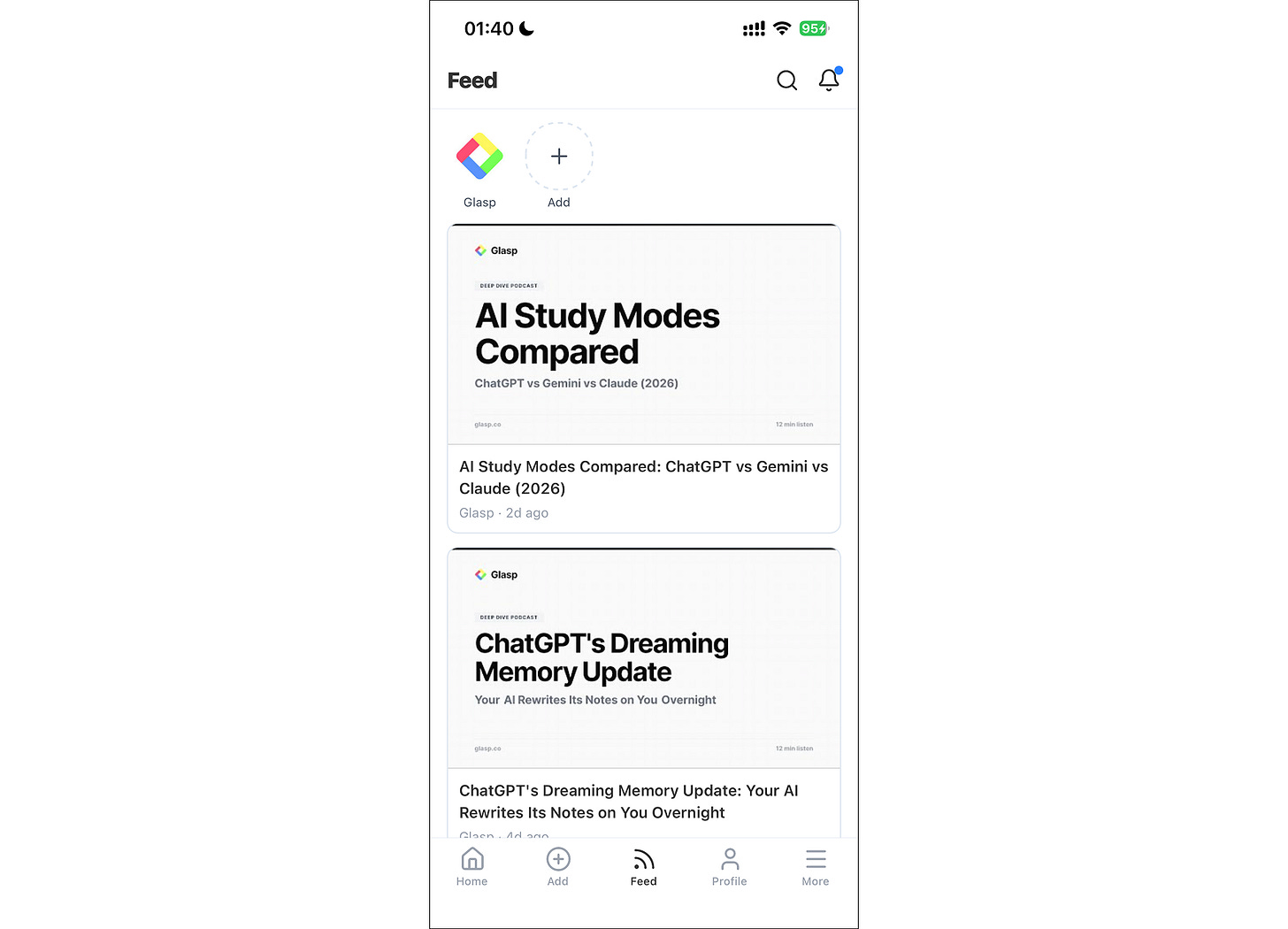
With the video open, tap "Summary" in the bottom toolbar. Within seconds, Glasp generates a concise, AI-generated summary with timestamps, so you can jump straight to the moments that matter.
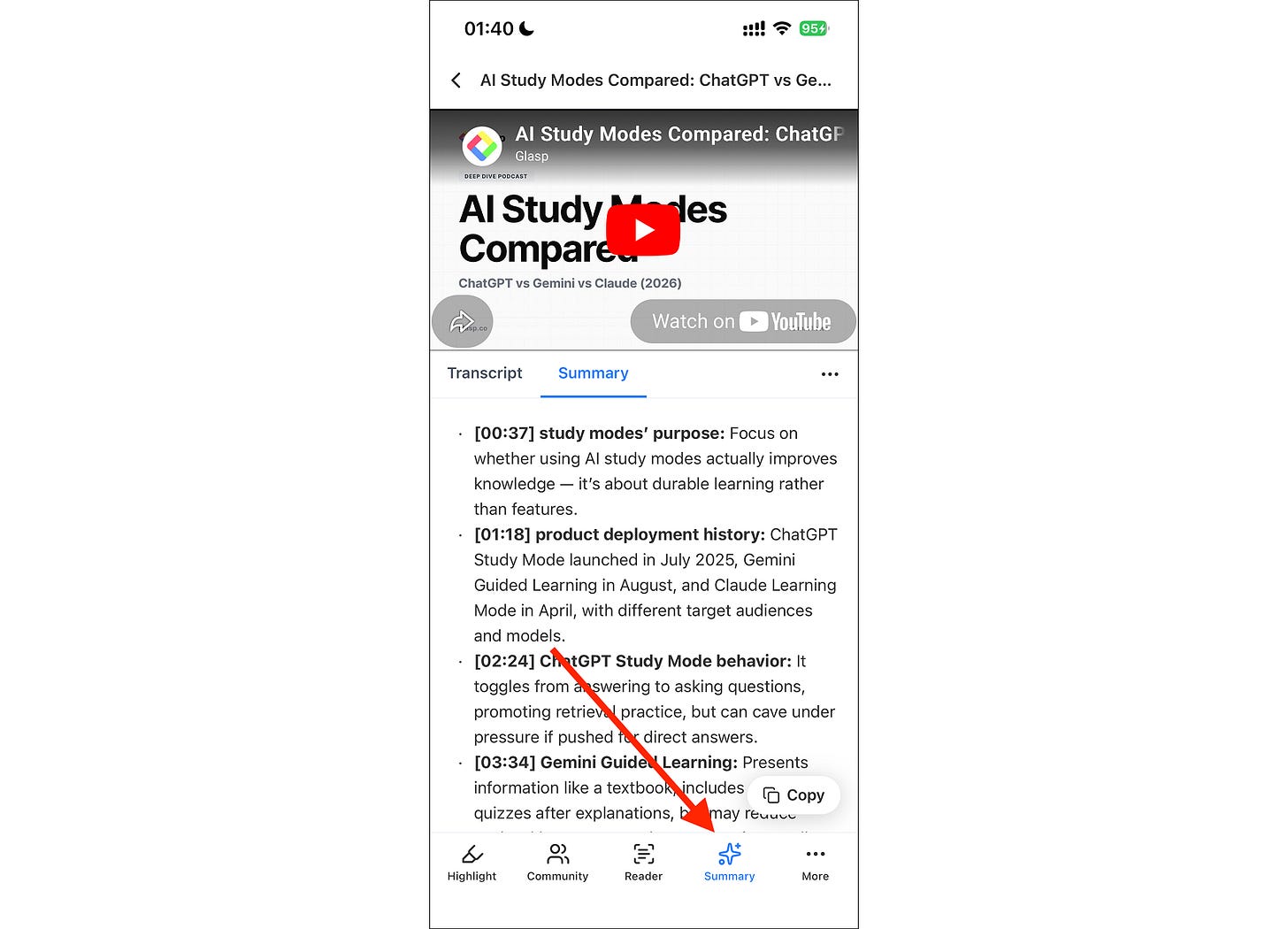
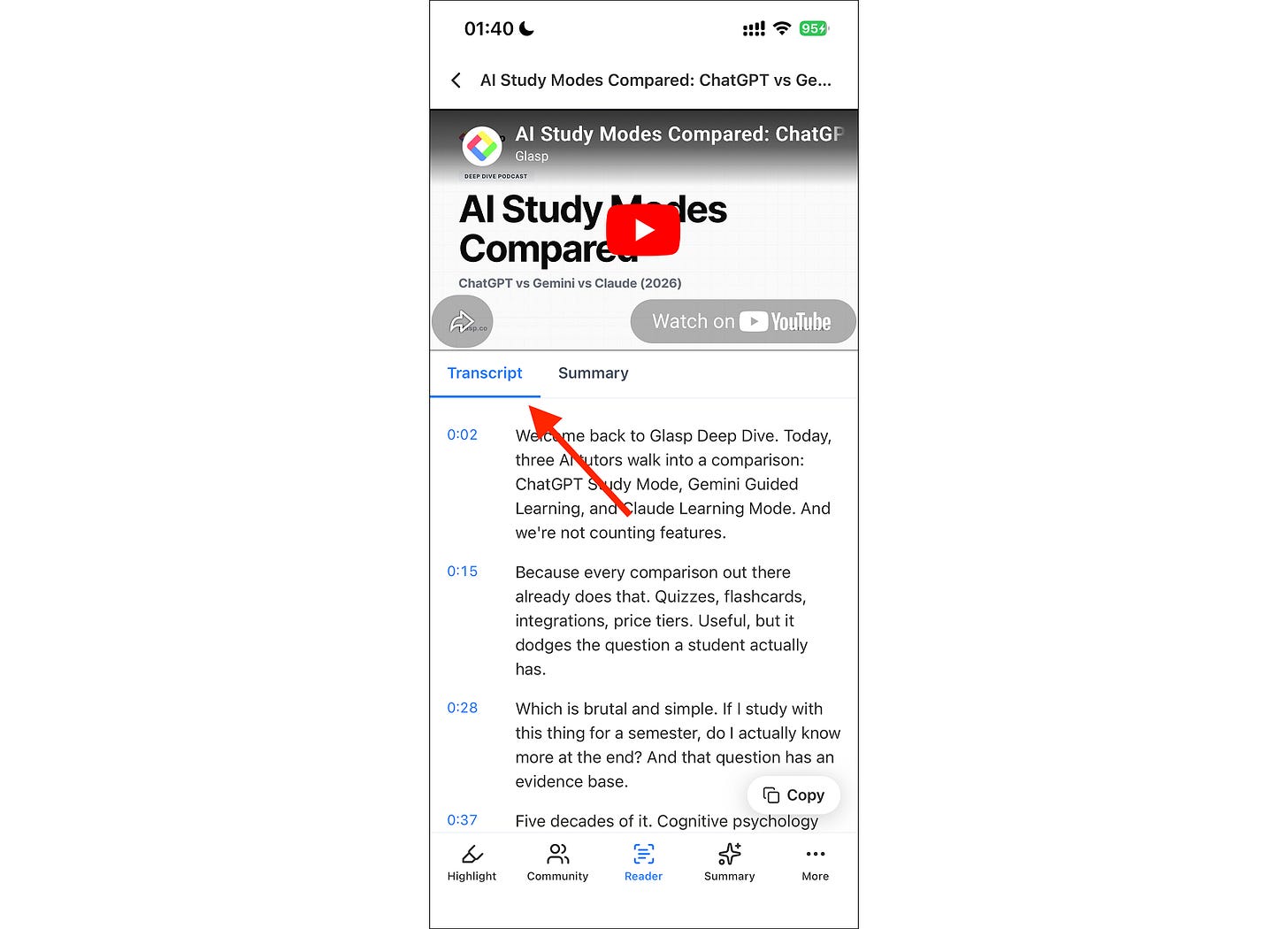
Tap Copy to save the summary anywhere, or switch to the Transcript tab to read or copy the full transcript.
NOTE: You can summarize and copy a few videos for free. For unlimited summaries, upgrade to a Pro plan on the pricing page.
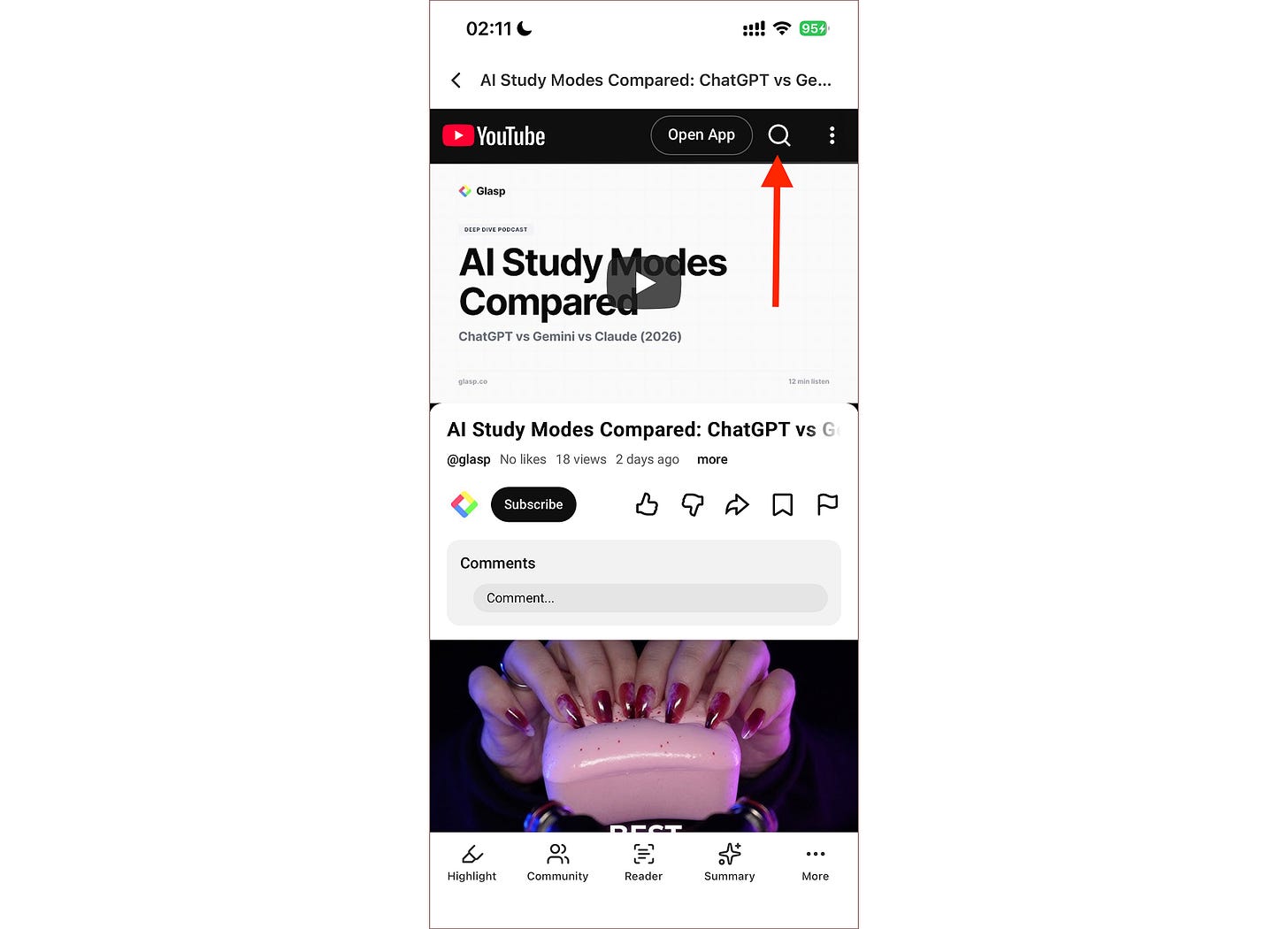
Tip: Don't know a channel's @handle? Just add any channel to start (for example, @glasp), open one of its videos from your Feed, and use the YouTube search bar at the top to find any other video on YouTube.
(Optional) Step 4: Reformat the Summary with AI
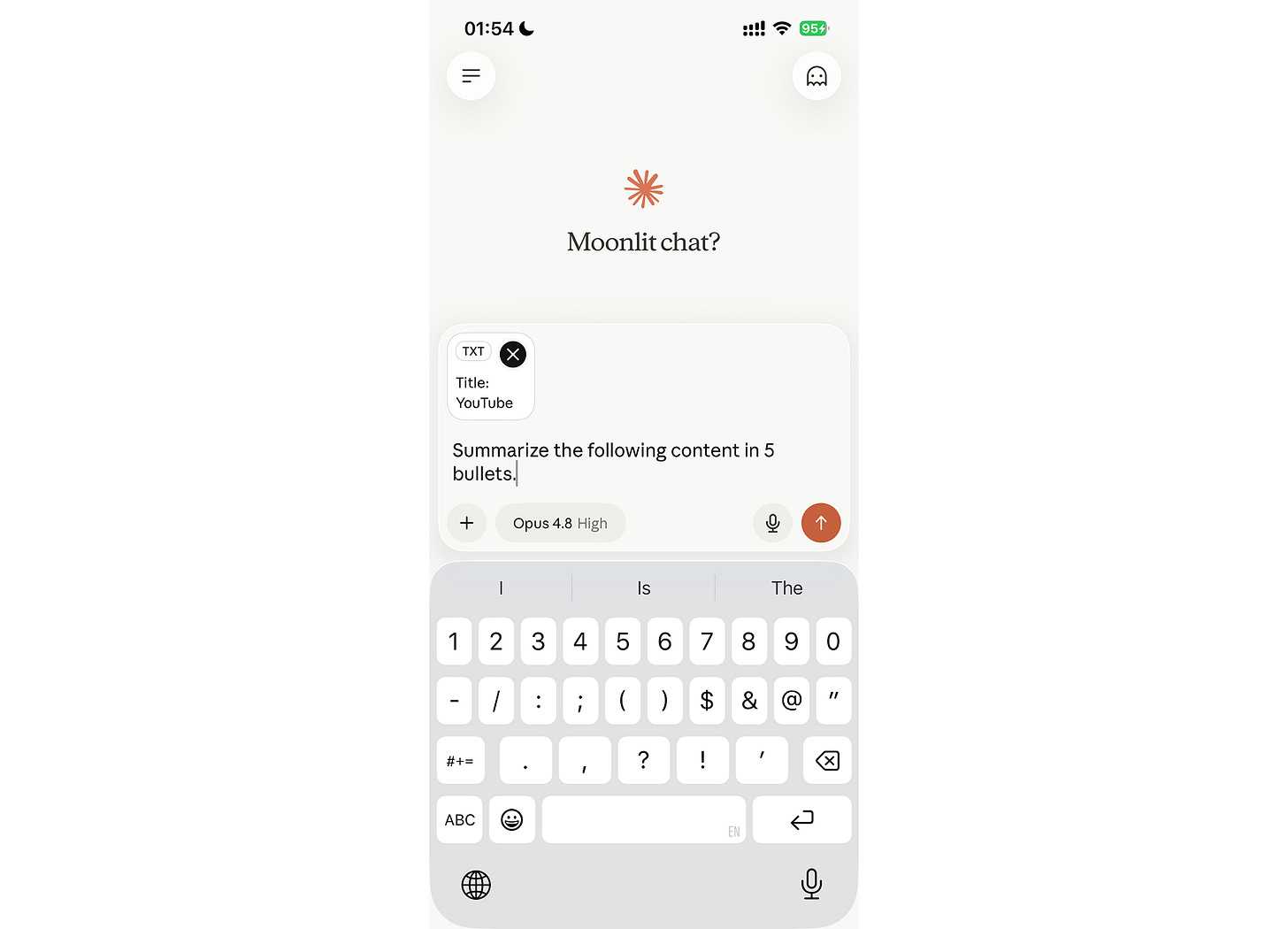
Want the summary in a different format? Tap Copy, then paste the summary or transcript into your favorite AI chat tool and ask for exactly what you need, like "Summarize this in 5 bullets" or "List the key takeaways."
(Optional) Step 5: Find Your Summaries Anytime
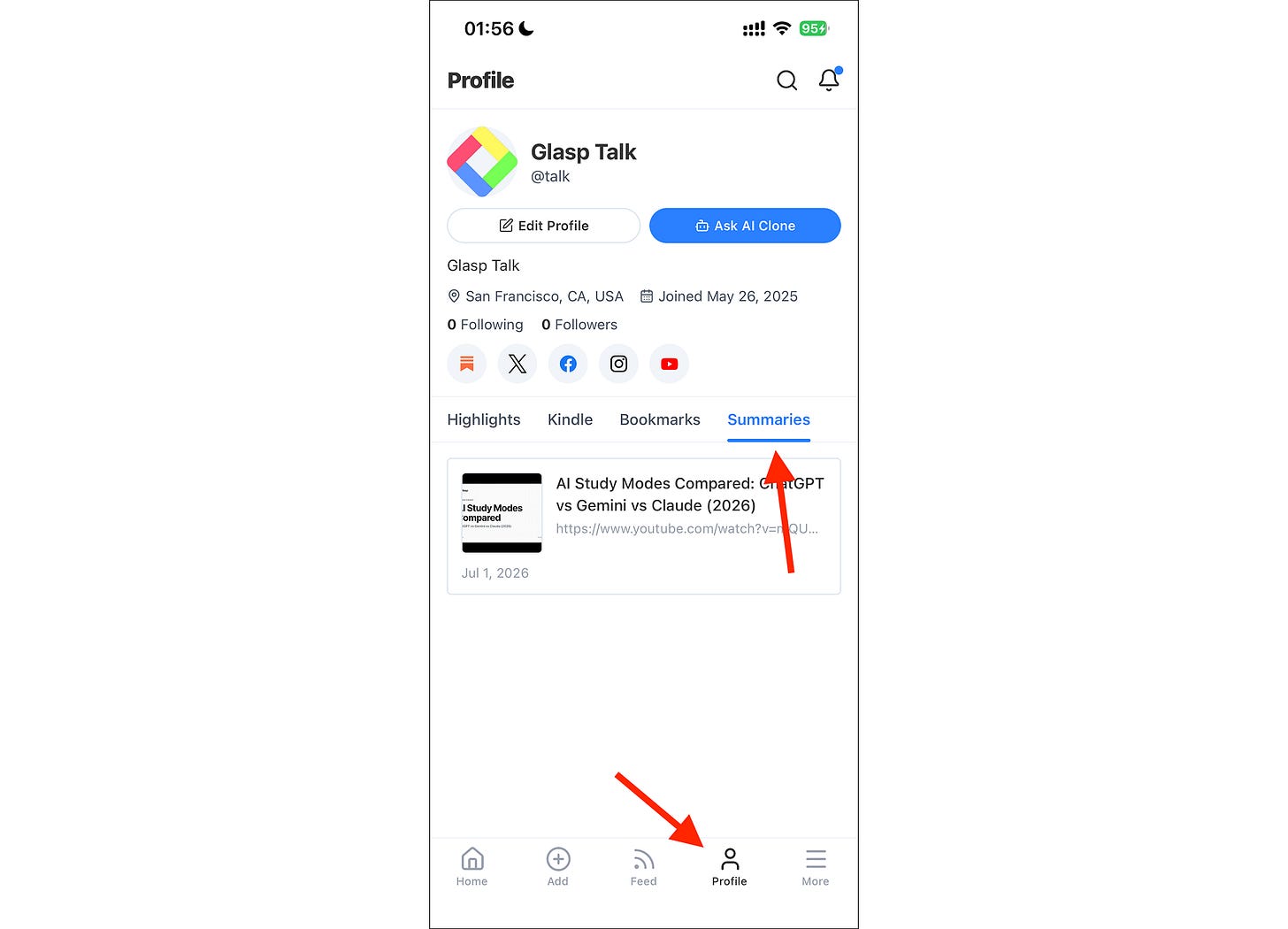
Every video you summarize is saved to your profile. Tap "Profile" in the bottom navigation bar, then open the "Summaries" tab to revisit everything you've summarized, all in one place.
Great videos shouldn't stay stuck in your watch-later queue.
With Glasp on mobile, you can summarize any YouTube video, pull out the key moments, and keep what's useful, all from your phone, in one app.
If you haven't already, sign up for Glasp and start learning faster from everything you watch.
📱 New to the Glasp mobile app?
👉 How to Use the Glasp iOS Mobile/Tablet App
👉 How to Use the Glasp Android Mobile/Tablet App
FAQs
Q. Do I need a Glasp account to summarize YouTube videos?
Yes. You'll need to sign up (free) or log in with your existing Glasp account in the app.
Q. Is summarizing YouTube videos free?
You can summarize and copy a few videos for free. For unlimited summaries, you'll need a Pro plan. See the pricing page.
Q. Do summaries include timestamps?
Yes. Every summary is timestamped, so you can jump straight to the moments that matter in the video.
Q. Can I see the full transcript?
Yes. Switch to the Transcript tab on the video page to read or copy the full transcript.
Q. How do I summarize a video that isn't in my Feed?
Share it from the YouTube app (tap Share, then Glasp), or paste the link inside the app. You can also add any channel to start (for example, @glasp), open one of its videos from your Feed, and use the YouTube search bar at the top to find any other video on YouTube.
Q. Can I summarize a video from the YouTube app on iPhone?
Yes. Open the video in the YouTube app, tap Share, and choose Glasp from the share sheet. The same works on Android.
Q. Where can I find my past summaries?
Tap "Profile" in the bottom navigation bar and open the "Summaries" tab. Every video you've summarized is saved there.
Q. Does the feature work on both iOS and Android?
Yes. Summarizing works on iPhone, iPad, and Android, with the same steps and features.
Q. How does this compare to other YouTube summary apps?
We compared the options in Best YouTube summary apps for mobile, including Eightify, Summarify, and Recall, and where each one fits.
Q. Can Claude or ChatGPT read my Glasp highlights?
Yes. With the Glasp MCP Connector, AI assistants such as Claude, ChatGPT, and Claude Code can search and read your own highlights, notes, Kindle highlights, and AI summaries, including your YouTube summaries. The connection is read-only and private to you. See How to Connect Glasp to Claude, ChatGPT, and Claude Code (MCP Connector).
Q. Where are my YouTube summaries saved?
When you are signed in, the YouTube summaries you create are saved to your Glasp profile under the Summaries tab, so you can review all of them later. You can also get them through the Glasp API, and AI assistants such as Claude and ChatGPT can read them through the Glasp MCP Connector.
📱 Want to do more with the Glasp app?
👉 How to Use the Glasp Mobile App on iOS, iPad, and Android
The overview page covers the Reader, the Feed, your Kindle highlights, the home screen widget, and the Safari extension.
👉 Best YouTube summary apps for mobile
Before you leave
If you have any questions, please refer to the FAQ or contact us.
👉 FAQs
👉 X
See you next time,
Glasp team