What Are the 5 Steps to Edit Videos Like a Pro?
TL;DR
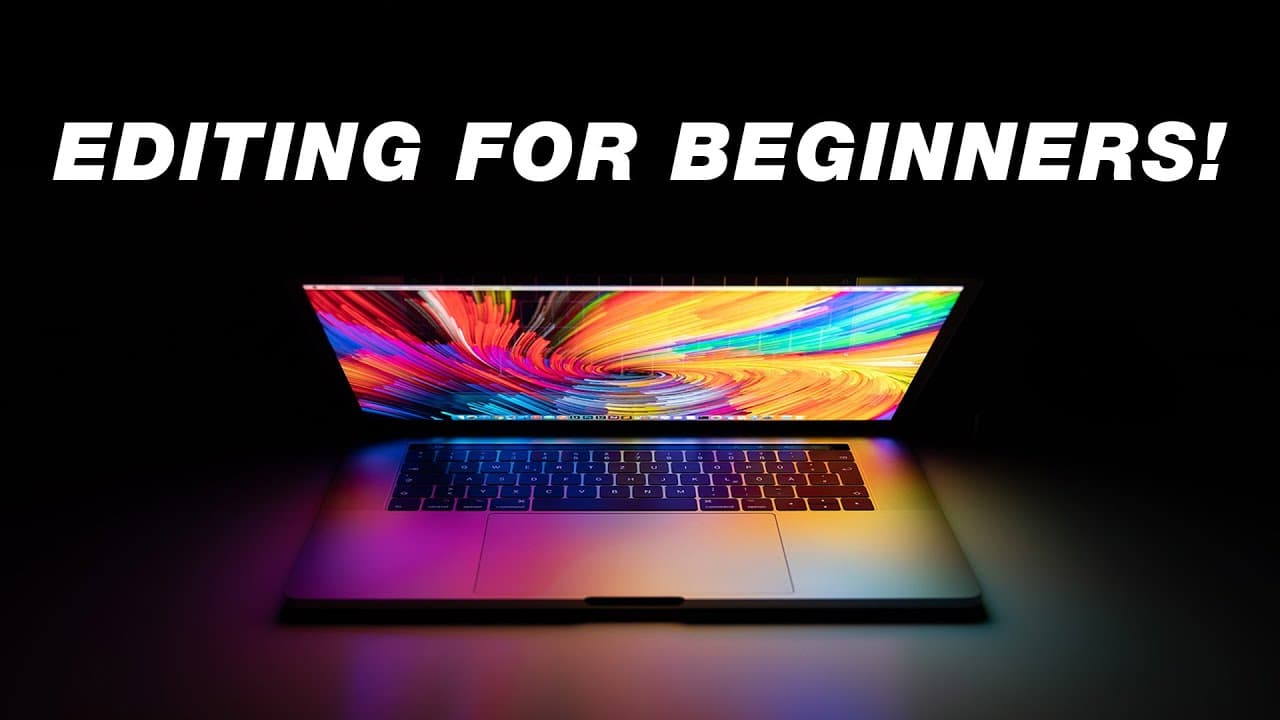
To edit videos effectively, start by organizing your project with separate folders for A-roll and B-roll. Next, trim unwanted footage, add B-roll to enhance the visuals, incorporate engaging text, and review the edit for mistakes before rendering and uploading it to YouTube.
Transcript
- If you're new to editing video, I can understand how that could be very frustrating and just a daunting task every time you make a video. But what if I could tell you that that doesn't have to be the case? Because I believe, like with anything in life, when you get the foundations right, that you can actually grow and succeed in whatever it is. S... Read More
Key Insights
- 🚎 Effective video editing requires organization before starting the edit, including creating specific folders for A-roll and B-roll footage.
- 🥳 Trimming down unnecessary parts of the video using the splice tool can significantly improve the overall quality and flow of the edit.
- 🚎 Using B-roll footage, whether shot by yourself or sourced from stock footage, enhances the visual appeal and engagement of the video.
- 🫵 Adding text to your videos can break up the visuals and highlight important information, improving the viewer's experience.
- 🎮 Watching the edited video through for mistakes and errors allows for corrections before rendering and uploading the final video.
- 👋 Consistent settings throughout the editing process, including rendering, ensure the best possible video quality.
- 👤 Camtasia is a recommended editing software for beginners, as it offers user-friendly features such as a screen recorder and easy integration with YouTube.
Install to Summarize YouTube Videos and Get Transcripts
Explore YouTube Video Summarizer or Get YouTube Transcript Extractor
Questions & Answers
Q: Why is it important to get organized before starting video editing?
Getting organized before editing helps you stay focused and easily locate your footage, saving you time and frustration. It also ensures that all your files are in one place for easy access in the future.
Q: How can the splice tool and editing backward improve the editing process?
The splice tool allows you to easily trim down unnecessary parts of your video, such as mistakes or pauses. Editing backward helps you find the best takes by starting from the end, ensuring you don't miss the optimal footage.
Q: What is B-roll, and why is it important in video editing?
B-roll refers to additional footage that enhances your A-roll or talking head footage. It adds visual interest, illustrates your points, and keeps the viewer engaged. It can be shot by yourself or sourced from stock footage.
Q: How can adding text to your videos improve the viewer's experience?
Adding text to your videos can break up the visuals, make key information stand out, and encourage viewers to read along with the content. It adds a different visual element and helps convey your message effectively.
Summary & Key Takeaways
-
Before opening your editing software, get organized by creating a folder for your video project and separate folders for A-roll (talking head) and B-roll (additional footage).
-
Import your footage into your chosen editing software and use the splice tool to trim down unnecessary parts, starting from the end for better results.
-
Enhance your video with B-roll footage, either by shooting your own or using stock footage, to add visual interest and illustrate your points.
-
Add text to break up the video and make key information stand out, and consider saving presets for consistent text style in future edits.
-
Watch your edit through for mistakes or errors, then render your video using consistent settings before uploading it to YouTube.
Read in Other Languages (beta)
Share This Summary 📚
Summarize YouTube Videos and Get Video Transcripts with 1-Click
Try YouTube Summary with ChatGPT & Claude or YouTube Transcript Generator
Explore More Summaries from Think Media 📚
Summarize YouTube Videos and Get Video Transcripts with 1-Click
Try YouTube Summary with ChatGPT & Claude or YouTube Transcript Generator