How to Find Broken Links Fast with Check My Links
TL;DR
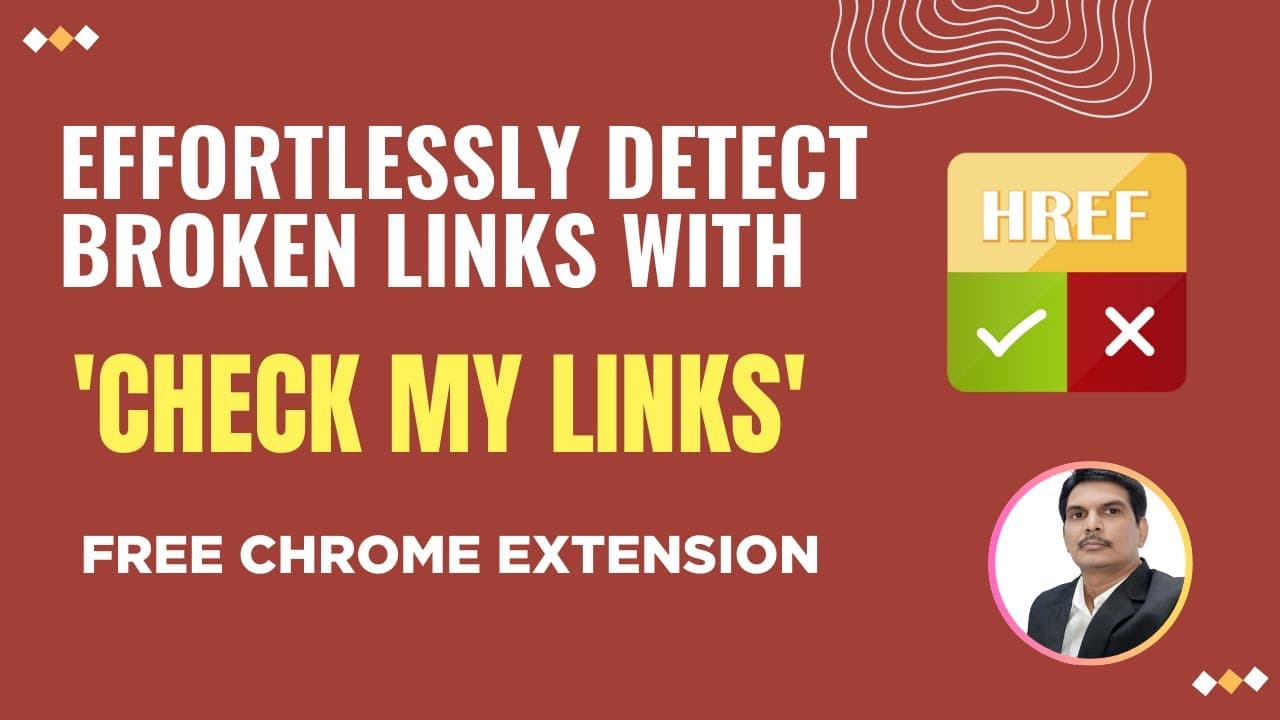
Check My Links from SelectorsHub is a free Chrome extension that automatically scans an entire web page and reports every link as valid, valid redirect, warning, or invalid with its status code. It replaces the tedious manual work of opening each link, and results export to CSV so you can filter and review broken links quickly.
Transcript
hey everyone welcome you all so in the today's video I'm going to show you how we can use check my links which is one of the browser extension from selector hub and especially when you testing links on the web pages which will be very very helpful so this is one of the tedious task when you do manual testing so if you have n number of lin... Read More
Key Insights
- Check My Links is a free Chrome extension from SelectorsHub that automatically fetches and scans every link on a web page, then reports which are valid, redirected, warnings, or broken so testers avoid checking links one by one.
- Manual link verification is tedious because you must open each link, confirm the target page, and check its status code, then repeat for every link on the page, which the extension eliminates by scanning the whole page at once.
- Automating link checks in code is lengthy because you must capture each href URL, hit the server for a status code, and add conditions such as status code greater than or equal to 400 to flag broken links.
- The extension sends a GET request internally for each link and displays counts by category, such as 55 valid links, 19 valid redirect links, 0 warnings, and 2 invalid links out of 76 total in the demo page.
- The Queue number shows links still loading; while the page loads it displays a count, and once all links finish loading it becomes zero and the total link count is shown.
- Export All downloads all scanned links as a CSV file containing the status code, complete URL, and the label associated with each link, giving one combined report of the whole page.
- The View All report lets you copy individual URLs, open a target page with a View button, and filter links by status code such as 200 for valid, 404 for invalid, and 300 for redirects.
- Each link category offers four options: download that category alone, view it, change its highlight color, and hide the color, plus a Reset All to return colors to default and a Refresh to rescan.
Install to Summarize YouTube Videos and Get Transcripts
Explore YouTube Video Summarizer or Get YouTube Transcript Extractor
Questions & Answers
Q: What is Check My Links and what does it do?
Check My Links is a free Chrome extension from SelectorsHub designed to help web developers, content editors, and SEO professionals quickly scan web pages for broken links, active links, warning links, and valid redirect links. Once installed, it automatically fetches all links from a page, scans the entire page, and presents a clear report showing which links are valid, invalid, or broken along with their status codes and labels.
Q: How do you install the Check My Links extension?
Go to selectorhub.com and click the Check My Links link, then click Install, which takes you to the extension's page. Click Add to Chrome and it is added directly to your Chrome browser. After adding, if you cannot see the extension, pin it so the Check My Links icon appears. Opening it displays the UI with options such as links, queue, and catching method. The extension also supports Chrome, IE, Opera, Firefox, Safari, and many more browsers.
Q: Why is checking links manually so tedious?
Manual link testing is tedious because if a web page has many links, you must open each link individually, verify the target page is correct, and confirm the status code is right, then repeat the entire process for every link on the page. Even with automation you must write lengthy code to capture the href attribute URL from each link, hit the server to get the status code, and add a condition such as status code greater than or equal to 400 to confirm whether a link is broken.
Q: What does the Queue number in the extension mean?
The Queue value shows how many links are still loading on the page. When you refresh a page and open the extension at the beginning, it queues the number of links present, meaning those links are still loading. Once all links have finished loading on the page, the queue becomes zero, and the extension then shows the total number of links and sends a GET request internally to determine each link's status.
Q: How do you export the link results to a file?
Click Export All in the extension and it downloads all the links in the form of a CSV file. Opening the CSV shows the status code, the complete URL, and the label associated with each link. This gives a single combined report containing all links captured or scanned from the web page, so you can see which links are broken and which are valid. You can also download links for an individual category, such as only valid or only invalid links.
Q: What is the difference between Export All and View All?
Export All downloads all scanned links as a CSV file with status codes, URLs, and labels. View All instead displays the report directly inside the extension without downloading, showing the different URLs, status codes, and labels. In View All you can copy a specific URL with a copy button, open a target page with a View button, navigate through pages using the navigation bar, and filter links by status code such as 200, 404, or 300.
Q: How do you filter links by status code?
In the View All report you can filter links based on their status code. If you want to see only valid links you filter by status code 200, for invalid links you filter by 404, and 300 codes are also valid redirects you can filter. After filtering, you can copy the results into a CSV file, paste them into another file or Excel format, download them, or print them, since multiple options are provided within the same report.
Q: What customization options does each link category offer?
Each link category provides four options: download that category's links alone, view them, change the highlight color, and hide the color. Changing the color is useful when two similar colors, such as two greens, are hard to tell apart; you click the circle and pick a new color, and links on the page highlight in that same chosen color. Unchecking hide stops highlighting those links, and Reset All returns all colors to their defaults.
Summary & Key Takeaways
-
Verifying links manually is a tedious task because each link must be opened individually to confirm the target page and status code, and writing automation code to do this is lengthy, requiring you to capture href URLs, hit the server, and check status codes against conditions like greater than or equal to 400.
-
Check My Links is a free Chrome extension from SelectorsHub that solves this by automatically scanning the entire web page, fetching all links, and presenting a clear report of valid, valid redirect, warning, and invalid links along with their status codes and labels.
-
The extension offers Export All and View All for combined CSV reports, per-category downloads, status-code filtering, color customization and hiding for highlighted links, a refresh option, and a movable window so hidden links behind the panel can be revealed; it supports Chrome, IE, Opera, Firefox, Safari, and more.
Read in Other Languages (beta)
Share This Summary 📚
Summarize YouTube Videos and Get Video Transcripts with 1-Click
Try YouTube Summary with ChatGPT & Claude or YouTube Transcript Generator
Explore More Summaries from SDET- QA 📚





Summarize YouTube Videos and Get Video Transcripts with 1-Click
Try YouTube Summary with ChatGPT & Claude or YouTube Transcript Generator