How to Connect Claude to TradingView for Live Analysis
TL;DR
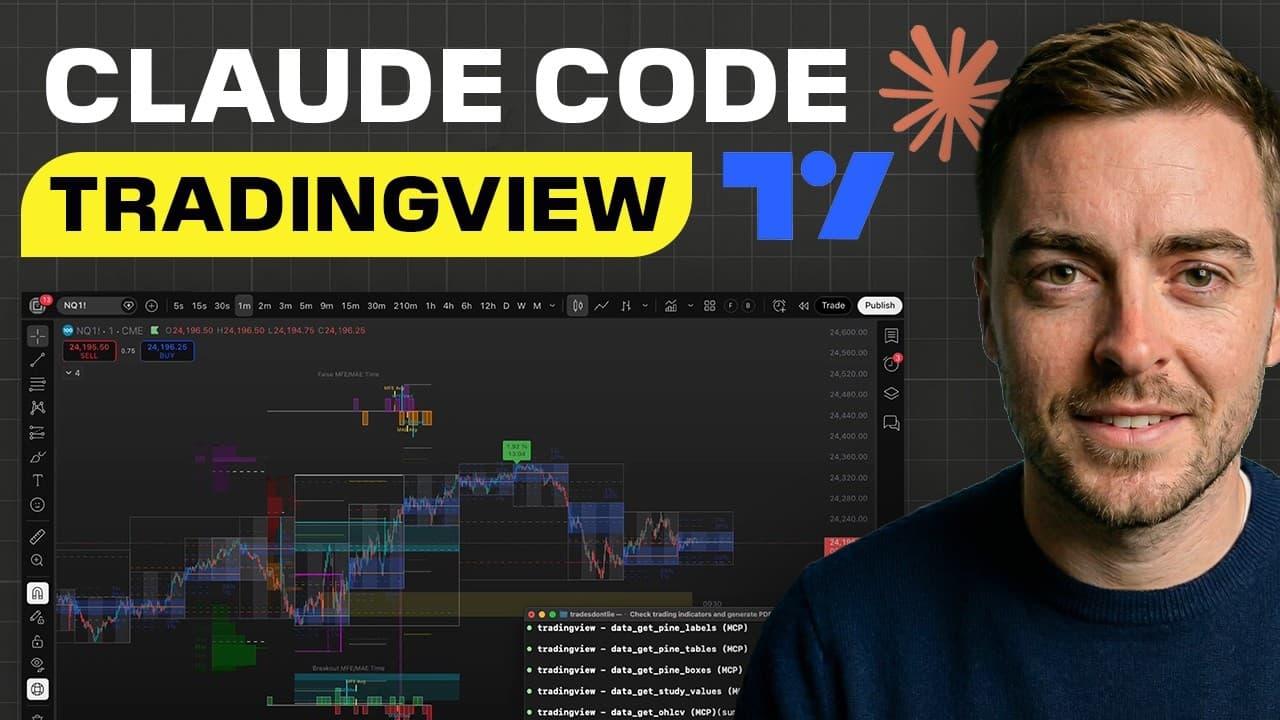
Connect Claude to TradingView with Trading View MCP and a one-shot setup prompt pasted into Claude Code. Unlike screenshot-based analysis, the tool lets Claude read live chart code and values, including candle pricing and wicks, while you communicate through natural-language terminal commands. Read on to understand how the connection works, why it stays current, and how the simplified setup avoids the manual GitHub process.
Transcript
Yesterday on X, somebody figured out how to connect Claude, the AI, to Trading View. It engages with Trading View Live. It creates indicators out of thin air. It does all kinds of things directly into Trading View live, and all of it's done simply from within your terminal. It currently has 3/4 of a million traders going crazy about it online. Now,... Read More
Key Insights
- Claude AI connects directly to TradingView, reading live code-level data for real-time analysis.
- Traditional AI tools rely on screenshots, leading to outdated and less accurate trading insights.
- The new tool allows for precise, live updates of trading data, enhancing decision-making.
- The setup process has been simplified with a one-shot prompt, making it accessible for all users.
- This integration enables the creation of custom indicators through natural language commands.
- The tool is freely available, with improvements made to the original version by Trades Don't Lie.
- Claude AI interprets dynamic code rather than static images, providing a more reliable analysis.
- Users can automate daily trading routines and receive comprehensive market briefs with Claude.
Install to Summarize YouTube Videos and Get Transcripts
Explore YouTube Video Summarizer or Get YouTube Transcript Extractor
Questions & Answers
Q: How do you connect Claude to TradingView for live analysis?
Use Trading View MCP, which allows Claude to interact directly with TradingView on what the speaker describes as an almost code-to-code basis. Copy the one-shot setup prompt and paste it into Claude Code instead of completing the manual GitHub steps.
Q: What is Trading View MCP?
Trading View MCP is the tool used to connect Claude directly to TradingView. It lets Claude read the live code and values displayed on the screen rather than interpret a chart screenshot.
Q: Why is this different from screenshot-based AI chart analysis?
A screenshot is a static image that can already be outdated by the time it reaches the AI because the candles may have moved. Trading View MCP instead gives Claude access to the live, dynamic code and exact chart values.
Q: What TradingView data can Claude read through this connection?
Claude can read the precise pricing of each visible candle from top to bottom, including the wicks. The transcript says it also knows the candles' exact positioning at the code level and watches the chart live.
Q: Can Claude follow changes on a one-second TradingView chart?
Yes. The speaker says Claude can read changes every second even when TradingView is displaying a one-second chart.
Q: How do you control TradingView with Claude?
You talk to Claude from within the terminal using natural language. Claude interprets the request and connects it with the TradingView code in the back end.
Q: Can Claude create TradingView indicators with this tool?
Yes. The demonstration describes Claude creating indicators directly inside the live TradingView environment from terminal instructions.
Q: Why use the one-shot setup prompt instead of the manual installation?
The manual GitHub method requires repeatedly copying, pasting, and completing multiple details. The creator replaced that process with a one-shot setup prompt that can be copied into Claude Code and says the setup takes just a couple of minutes.
Q: What do I need to run TradingView MCP with Claude?
You need TradingView Desktop running with CDP enabled. The video shows downloading the desktop app, opening it, and launching it from the terminal using its exact application location.
Q: How do I check if Claude is connected to TradingView?
Open TradingView and run the connection-check command provided after setup. This verifies whether the MCP is connected properly and ready for the next stage.
Q: Which permission should I choose during the TradingView MCP one-shot setup?
Choose the second option if you want the more automated setup shown in the video. It allows Claude to edit on its own for that session, after which the installation continues.
Summary & Key Takeaways
-
Connecting Claude AI to TradingView transforms trading by providing live, code-level data analysis. Unlike traditional methods that rely on screenshots, this integration offers precise, real-time insights. The setup is simplified with a one-shot prompt, allowing users to automate trading strategies and gain a competitive edge in the market.
-
The tool leverages Claude AI's ability to read dynamic code from TradingView, enabling the creation of custom indicators through simple commands. This approach eliminates the inaccuracies of image-based analysis, ensuring traders have the most current data to inform their decisions.
-
Available for free, this tool offers a significant advantage by automating trading routines and delivering detailed market briefs. Users can easily integrate their trading strategies, benefiting from the real-time analysis and enhanced decision-making capabilities provided by Claude AI.
Read in Other Languages (beta)
Share This Summary 📚
Summarize YouTube Videos and Get Video Transcripts with 1-Click
Try YouTube Summary with ChatGPT & Claude or YouTube Transcript Generator
Explore More Summaries from Lewis Jackson 📚
Summarize YouTube Videos and Get Video Transcripts with 1-Click
Try YouTube Summary with ChatGPT & Claude or YouTube Transcript Generator