Products
Features
YouTube Video Summarizer
Summarize YouTube videos
Web & PDF Highlighter
Highlight web pages & PDFs
Chat with PDF
Ask any PDF questions with AI
Ask AI Clone
Chat with your highlights & memories
Audio Transcriber
Transcribe audio files to text
Glasp Reader
Read and highlight articles
Kindle Highlight Export
Export your Kindle highlights
Idea Hatch
Hatch ideas from your highlights
Integrations
Obsidian Plugin
Notion Integration
Pocket Integration
Instapaper Integration
Medium Integration
Readwise Integration
Snipd Integration
Hypothesis Integration
Apps & Extensions
Chrome Extension
Safari Extension
Edge Add-ons
Firefox Add-ons
iOS App
Android App
Discover
Discover
Ideas
Discover new ideas and insights
Articles
Curated articles and insights
Books
Book recommendations by great minds
Posts
Essays and notes from readers
Quotes
Inspiring quotes collection
Videos
Curated videos and summaries
Explore Glasp
Glasp Newsletter
Weekly insights and updates
Glasp Talk
Interview series with great minds
Glasp Blog
Latest news and articles
Glasp Use Cases
Learn how others use Glasp
Build & Support
Glasp API
Access Glasp's API for developers
MCP Connector
Connect Glasp to Claude & ChatGPT
Community
Glasp Reddit Community
Students
Student discount and benefits
FAQs
Frequently Asked Questions
AboutPricing
DashboardLog inSign up

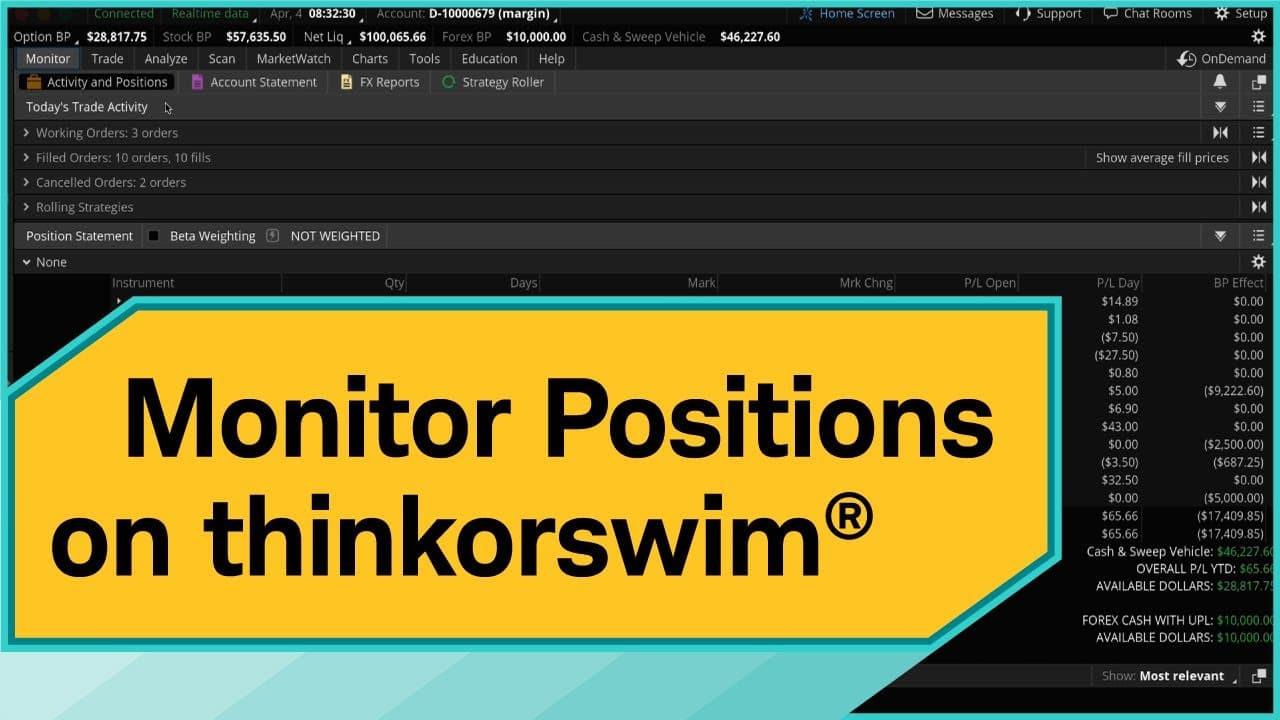
How to Monitor Positions on thinkorswim Desktop
November 4, 2023
by
Charles Schwab
YouTube video player
How to Monitor Positions on thinkorswim Desktop

TL;DR

To monitor your positions on thinkorswim, go to the Monitor tab and select the Activity and Positions subtab. You can customize the display by adding or removing columns, sort your positions, and recognize important icons indicating alerts. Closing a position involves right-clicking the symbol, selecting Create Closing Order, and choosing the appropriate order type.

Transcript

Hello, traders. I'm Jeremy Kuhlman  and today, I'm going to show you how   to monitor your positions using thinkorswim®.  Keep in mind I'm showing thinkorswim desktop,   so things will look different on thinkorswim  Web or Mobile. So, let's jump in. Now, to monitor your existing positions,  let's start by going to the Monitor tab.   Here you can se... Read More

Key Insights

  • 🧘 thinkorswim desktop offers robust tools for position monitoring and management.
  • 🧘 Customizing columns and sorting positions enhances efficiency in tracking investments.
  • 🩵 Understanding icons like blue light bulb and red phone aids in staying informed about earnings and news alerts.
  • 🪈 Closing positions in thinkorswim involves creating a closing order and selecting the desired order type.

Install to Summarize YouTube Videos and Get Transcripts

Explore YouTube Video Summarizer or Get YouTube Transcript Extractor

Questions & Answers

Q: How can you access the Monitor tab in thinkorswim?

To access the Monitor tab in thinkorswim, simply launch the platform and locate the tab at the top of the interface. Click on it to view the Activity and Positions subtab for position monitoring.

Q: What do the blue light bulb, red phone, and yellow symbol icons signify in thinkorswim?

The blue light bulb signifies an earnings announcement, the red phone represents an earnings call, and the yellow symbol indicates a news alert related to the company or position in thinkorswim.

Q: How can you customize columns in the position monitoring section of thinkorswim?

To customize columns in thinkorswim, click on the gear wheel icon and select or remove various items like trade price. You can also rearrange columns and choose from preset setups for ease of use.

Q: What is the process for closing a position in thinkorswim?

To close a position in thinkorswim, right-click on the symbol, select Create Closing Order, and then choose the Limit order option. Make any necessary edits, review, and send your order to close the position effectively.

Summary & Key Takeaways

  • Jeremy Kuhlman demonstrates how to monitor positions using thinkorswim desktop.

  • Navigate to the Monitor tab and focus on the Activity and Positions subtab.

  • Customize columns, sort positions, understand icons, and close positions efficiently on thinkorswim.


Read in Other Languages (beta)

English

Share This Summary 📚

Summarize YouTube Videos and Get Video Transcripts with 1-Click

Download browser extensions on:

Try YouTube Summary with ChatGPT & Claude or YouTube Transcript Generator

Explore More Summaries from Charles Schwab 📚

Jodi's Story: How Can You Prepare for a Career Change? thumbnail
Jodi's Story: How Can You Prepare for a Career Change?
Charles Schwab
Not by a Long Shot: With Guests Katia Jordan & Craig Fox thumbnail
Not by a Long Shot: With Guests Katia Jordan & Craig Fox
Charles Schwab
Stock Splits Explained thumbnail
Stock Splits Explained
Charles Schwab
How to Navigate Schwab.com and the Schwab Mobile App thumbnail
How to Navigate Schwab.com and the Schwab Mobile App
Charles Schwab
Not Just Another Statistic: With Guests Carol Quirke & Deborah Small thumbnail
Not Just Another Statistic: With Guests Carol Quirke & Deborah Small
Charles Schwab
Introducing Season 2 of Choiceology thumbnail
Introducing Season 2 of Choiceology
Charles Schwab

Summarize YouTube Videos and Get Video Transcripts with 1-Click

Download browser extensions on:

Try YouTube Summary with ChatGPT & Claude or YouTube Transcript Generator

Apps & Extensions

  • Chrome Extension
  • Safari Extension
  • Edge Add-ons
  • Firefox Add-ons
  • iOS App
  • Android App

Key Features

  • YouTube Video Summarizer
  • Web & PDF Summarizer
  • Web & PDF Highlighter
  • Chat with PDF
  • Ask AI Clone
  • Audio Transcriber
  • Glasp Reader
  • Kindle Highlight Export
  • Idea Hatch

Integrations

  • Obsidian Plugin
  • Notion Integration
  • Pocket Integration
  • Instapaper Integration
  • Medium Integration
  • Readwise Integration
  • Snipd Integration
  • Hypothesis Integration

More Features

  • APIs
  • MCP Connector
  • Blog & Post
  • Embed Links
  • Image Highlight
  • Personality Test
  • Quote Shots

Company

  • About us
  • Blog
  • Community
  • FAQs
  • Job Board
  • Newsletter
  • Pricing
Terms

•

Privacy

•

Guidelines

© 2026 Glasp Inc. All rights reserved.