How to Create Wavy Text Using Canva: Free & Pro Methods
TL;DR
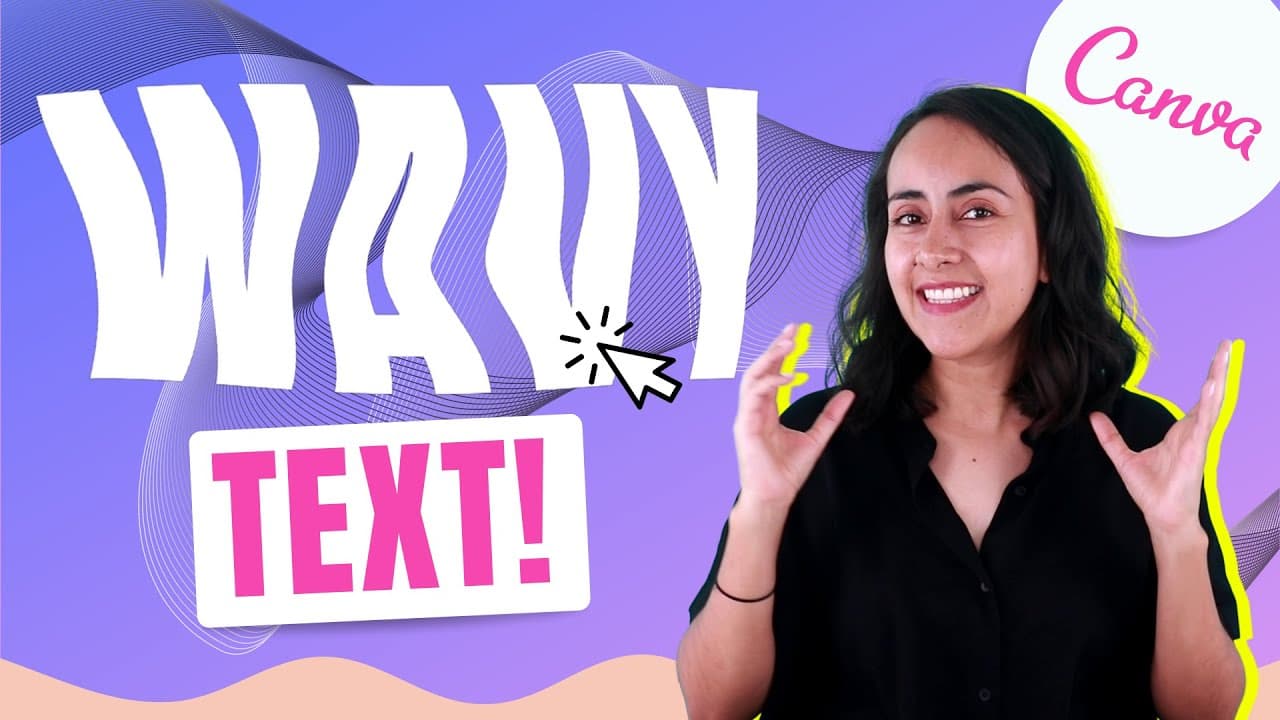
To create wavy text in Canva, use the free method by downloading text as an image and applying liquify effects, or choose the Pro method for more customization like transparent backgrounds. Both methods allow you to adjust colors and apply various distortion effects for personalized designs.
Transcript
hi and welcome to our channel the best place to learn how to use and master canva in today's tutorial i'll show you how to create this wavy or distorted text in canva i'll show you two different ways to do it the first is completely free to do and the second one which i believe give us more freedom or flexibility to design is for combat pro users b... Read More
Key Insights
- 🥶 Canva offers a free option for creating wavy text accessible to all users.
- 〰️ Canva Pro provides additional features like transparent backgrounds for wavy text.
- 👤 Users can adjust font size and color for personalized wavy text effects.
- 👻 Liquify effects in Canva allow for customized distortion in text design.
- 🎨 Canva Pro offers more design freedom and options for wavy text customization.
- 👤 Users can enhance readability by adjusting color contrasts in wavy text designs.
- 🧩 Canva tutorials on creating Instagram puzzles and adding music to designs are available.
Install to Summarize YouTube Videos and Get Transcripts
Explore YouTube Video Summarizer or Get YouTube Transcript Extractor
Questions & Answers
Q: How can you create wavy text in Canva?
You can create wavy text in Canva using the liquify effect, with options for both free and Canva Pro users.
Q: What is the advantage of using Canva Pro for wavy text?
Canva Pro offers more flexibility in design choices, such as transparent backgrounds and advanced editing options for wavy text.
Q: How can users personalize their wavy text in Canva?
Users can adjust settings like font size, color, and distortion effects to customize their wavy text in Canva.
Q: Are there any limitations to creating wavy text in Canva?
Canva Free users may have restrictions on background options and advanced editing features compared to Canva Pro users.
Summary & Key Takeaways
-
Tutorial on creating wavy text using Canva.
-
First method is free, accessible to all users.
-
Second method is for Canva Pro users, offering more customization options.
Read in Other Languages (beta)
Share This Summary 📚
Summarize YouTube Videos and Get Video Transcripts with 1-Click
Try YouTube Summary with ChatGPT & Claude or YouTube Transcript Generator
Explore More Summaries from Design with Canva 📚




Summarize YouTube Videos and Get Video Transcripts with 1-Click
Try YouTube Summary with ChatGPT & Claude or YouTube Transcript Generator