How to Add Drawings and Text to Photos Using Canva
TL;DR
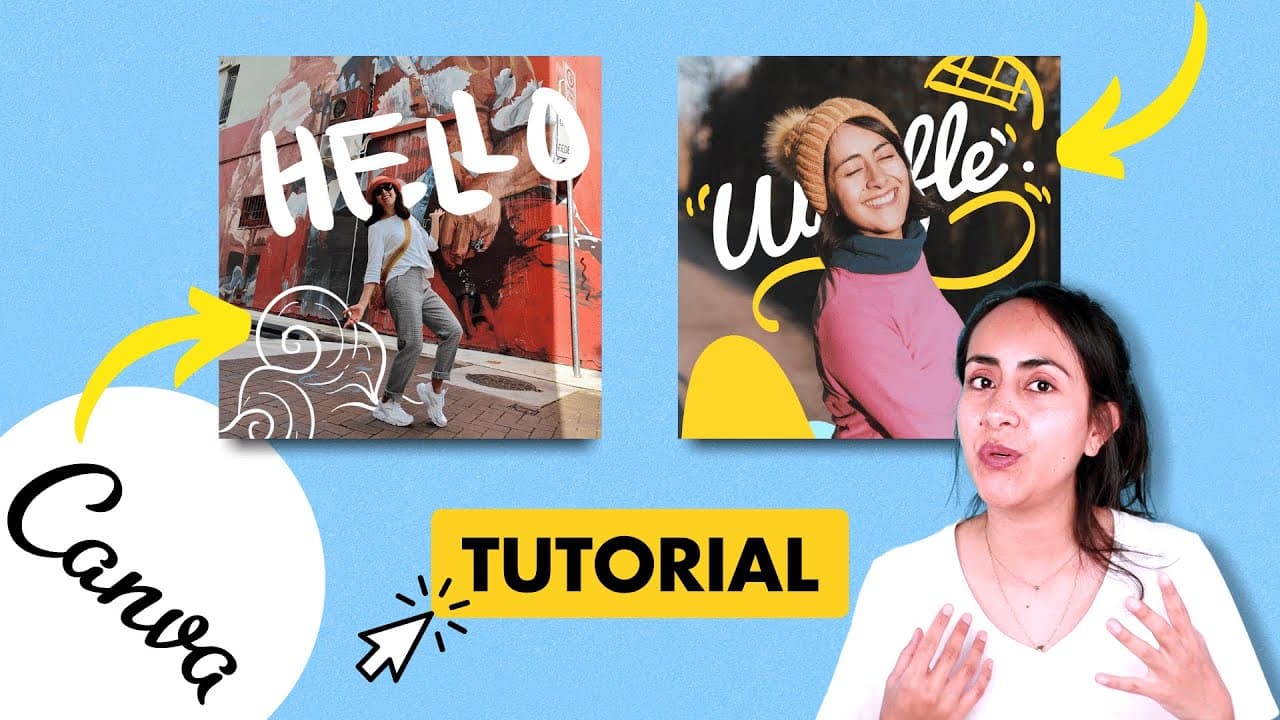
To add drawings and text to photos in Canva, duplicate the photo, use the background remover tool, and position elements creatively over your image. Start by cropping the top photo to reveal the background elements and enhance your design with contrasting colors for visual appeal.
Transcript
in this tutorial i'm going to show you a super creative trick i'm going to teach you how to integrate drawings or text in a photo and as you can see here the drawings will be between the person and the background of the photo for the trick that i'm going to show you today we are going to need canva pro although if you have a canva free account and ... Read More
Key Insights
- 📷 Canva Pro is essential for utilizing the background remover feature for creative photo effects.
- 🤩 Duplicating and positioning photos is key to integrating drawings/text effectively.
- 👋 Selecting and customizing elements like "hello" and "wave" enhances the visual appeal of the design.
- 🎨 Utilizing Canva's recommendations for similar elements can inspire creativity in design.
- 🧇 The tutorial showcases creating a waffle-themed photo effect, demonstrating personalization in design.
- 🧘 Crop and stretch tools are useful for positioning elements accurately in photos.
- 📷 Diana Munoz's tutorial offers step-by-step guidance for creating unique and creative photo effects.
Install to Summarize YouTube Videos and Get Transcripts
Explore YouTube Video Summarizer or Get YouTube Transcript Extractor
Questions & Answers
Q: What is the key tool required for the photo trick tutorial?
The key tool required for this tutorial is Canva Pro, which provides the background remover functionality essential for integrating drawings/text into photos effectively.
Q: How does the background remover feature enhance the photo trick?
The background remover feature in Canva Pro helps to remove the background from a photo, allowing for seamless integration of drawings or text between the person and the background for a creative effect.
Q: What are some tips for positioning elements creatively in the photo?
To position elements creatively, it is essential to crop, stretch, and layer photos effectively, ensuring that the elements blend seamlessly with the photo to achieve the desired visual impact.
Q: How can users access Canva Pro for free to try out this photo trick?
Users can access Canva Pro for free by using the affiliate link provided in the video description, allowing them to enjoy 30 days of Canva Pro to experiment with the creative photo trick.
Summary & Key Takeaways
-
Canva Pro tutorial by Diana Munoz for integrating drawings/text into photos.
-
Steps include duplicating photo, using background remover, positioning elements creatively.
-
Demonstrates creating two designs using Canva tools for unique photo effects.
Read in Other Languages (beta)
Share This Summary 📚
Summarize YouTube Videos and Get Video Transcripts with 1-Click
Try YouTube Summary with ChatGPT & Claude or YouTube Transcript Generator
Explore More Summaries from Design with Canva 📚




Summarize YouTube Videos and Get Video Transcripts with 1-Click
Try YouTube Summary with ChatGPT & Claude or YouTube Transcript Generator