How to use Claude Code Auto Mode for safer automation
TL;DR
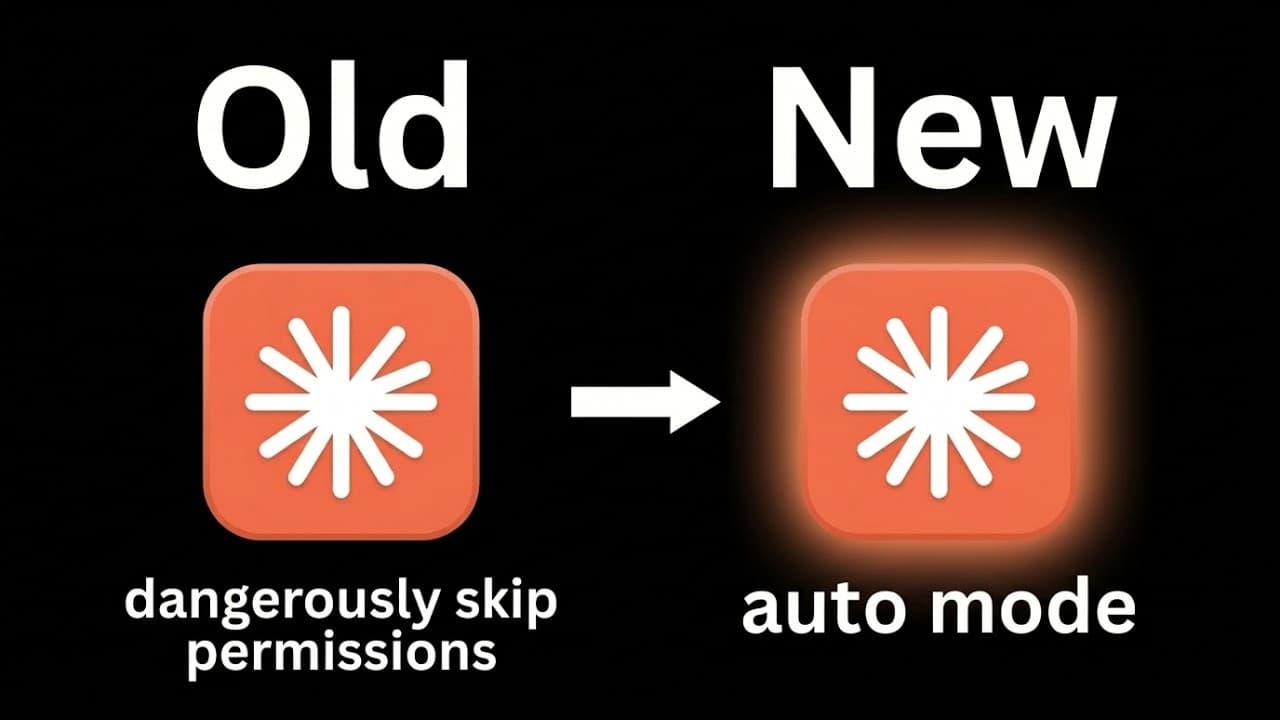
Auto mode automatically evaluates each action for risk before execution, allowing safe actions to run without prompts and blocking or flagging risky actions. It reduces workflow interruptions compared to bypass permissions and is designed for long running tasks. It is currently a team plan feature and can be enabled in VS Code or via the terminal.
Transcript
Well, I'm back with another Cloud Code update. Today we have auto mode. Auto mode provides a safer, longunning alternative to dangerously skip permissions. So, what that means is when you're in Cloud Code and you shoot off a message, you are in some sort of permission mode. In this case, we are in ask before edits. So, that means exactly what it so... Read More
Key Insights
- Auto mode sits between ask before every edit and bypass permissions, offering a middle path.
- A classifier reviews each tool call to check for potentially destructive actions.
- Safe actions are executed automatically under auto mode.
- Risky actions are blocked or require user confirmation, preserving control.
- Auto mode is ideal for long running tasks and continuous workflows.
- Sessions in auto mode are slightly more expensive due to the risk assessment.
- Currently available as a research preview for cloud team users.
- Activation can be done via VS Code or Claude enable auto mode command.
Install to Summarize YouTube Videos and Get Transcripts
Explore YouTube Video Summarizer or Get YouTube Transcript Extractor
Questions & Answers
Q: What is Claude Code auto mode and how does it differ from bypass permissions?
Claude Code auto mode is a permission setting that automatically handles actions after a risk assessment. Unlike bypass permissions which grant free rein, auto mode uses a classifier to check each action for risk before executing. This reduces the chance of dangerous commands running while still allowing longer tasks to proceed with fewer interruptions.
Q: How does auto mode affect safe actions versus risky actions?
In auto mode, safe actions are executed automatically without prompting, enabling smoother workflows. Risky actions are blocked or require user approval, ensuring you retain control over potentially destructive tasks. This balance aims to minimize interruptions while maintaining safety and oversight during automation.
Q: Who can access auto mode currently and where is it enabled?
Auto mode is currently available as a research preview for cloud team users. It can be enabled in VS Code or via a terminal command, such as Claude enable auto mode, and settings can be adjusted in organization or project configurations to suit team needs.
Q: What are the benefits of using auto mode for long running tasks?
Auto mode is ideal for long running tasks because it reduces frequent prompts, allowing tasks to proceed with fewer interruptions. The risk classifier helps ensure that only safe or non-destructive actions are executed automatically, which maintains progress while preserving security and control over the automation.
Q: What are the potential downsides of auto mode?
The potential downsides include slightly higher session costs due to continuous risk assessment and the possibility of misclassification where a safe action might be delayed or blocked. It is recommended to use auto mode in isolated environments to minimize risk and to monitor outcomes closely.
Q: How can a user enable and disable auto mode?
To enable auto mode, a user can run Claude enable auto mode in the terminal or enable it through the VS Code interface. To disable, a similar command or toggle in the same interfaces can be used. Organization settings may also allow enabling auto mode for all members of a team.
Q: What is the recommended use case for auto mode?
The recommended use case for auto mode is when you are performing long running tasks and want fewer interruptions while still maintaining risk checks. It is suggested to use auto mode in isolated environments to limit exposure if a misstep occurs and to take advantage of more efficient automation workflows.
Q: How does auto mode impact cost and performance?
Auto mode can make sessions slightly more expensive because it reviews each tool call for risk before acting. Performance may be affected by the added checks, but the overall workflow benefits from fewer prompts and smoother progress on long running tasks, especially when working with tools that require multiple steps.
Summary & Key Takeaways
-
Auto mode evaluates each action for risk before executing, providing a safer middle ground between ask before and bypass permissions.
-
Safe actions run automatically while risky actions are blocked or require confirmation, reducing interruptions during long tasks.
-
Activation is currently limited to team plans and can be done in VS Code or the Claude command line, offering flexible setup for ongoing projects.
Read in Other Languages (beta)
Share This Summary 📚
Summarize YouTube Videos and Get Video Transcripts with 1-Click
Try YouTube Summary with ChatGPT & Claude or YouTube Transcript Generator
Explore More Summaries from Nate Herk | AI Automation 📚





Summarize YouTube Videos and Get Video Transcripts with 1-Click
Try YouTube Summary with ChatGPT & Claude or YouTube Transcript Generator