How to Use the Account Statement on thinkorswim Desktop
TL;DR
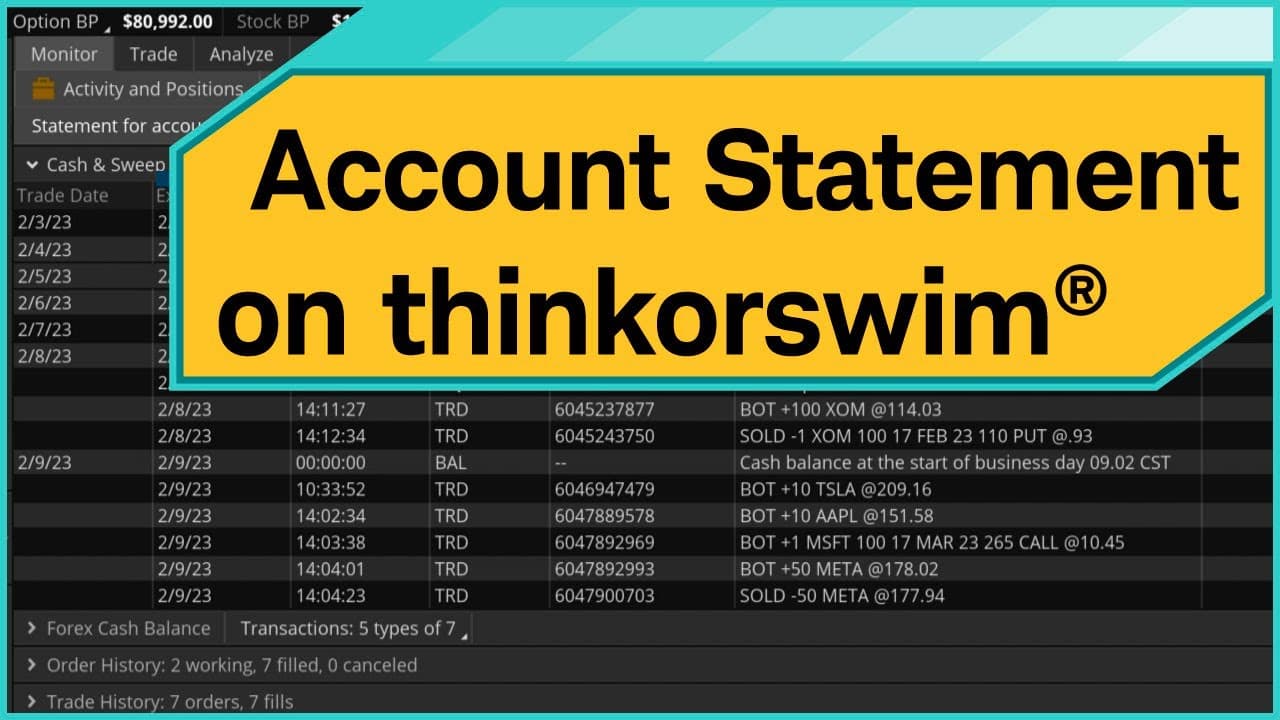
To effectively use the account statement on thinkorswim desktop, navigate to the Cash & Sweep Vehicle to monitor cash movements, and utilize the Order History and Trade History tabs for detailed insights into your transactions. Customizable time frames and filtering options enhance your analysis of trades and overall account performance.
Transcript
Hi, traders. I'm Sara Tyson. Keeping track of your cash, orders, and trade history is vital for every trader. The account statement in the thinkorswim® desktop platform will help you keep tabs on all that information and more. Keep in mind we're going to look at thinkorswim desktop, so it may look a little different on thinkorswim web or mobile. Le... Read More
Key Insights
- 👻 Customizable time frames and viewing options in the account statement allow for a detailed analysis of transactions.
- 📑 The Cash & Sweep Vehicle tab provides insights into cash movement within the account, including different transaction types.
- 🤬 Traders can filter specific information in the Order History tab by typing in symbols like Tesla.
- 🧑🤝🧑 The Net Profit and Loss tab helps traders analyze their overall account performance by sorting profits and losses year to date.
- ✊ The Account Summary tab offers figures on buying power, commissions, fees year to date, and other account-related data.
- 👤 Thinkorswim desktop provides a user-friendly interface for traders to track their cash, orders, and trade history.
- 👻 Customizable columns in Equities and Options tabs allow for a personalized setup for better analysis.
Install to Summarize YouTube Videos and Get Transcripts
Explore YouTube Video Summarizer or Get YouTube Transcript Extractor
Questions & Answers
Q: How can traders customize the time frame in the account statement on thinkorswim?
Traders can click on the time frame dropdown menu and select days ranging from one to thirty or input a specific number. The calendar feature also allows for selecting a specific date range for analysis.
Q: What information does the Cash & Sweep Vehicle tab provide in the account statement on thinkorswim?
The Cash & Sweep Vehicle tab displays cash movement within the account, sorted by trade date, with details on transactions like trades, deposits, withdrawals, transfers, dividends, and interest.
Q: How can traders filter specific information in the Order History tab on thinkorswim?
Traders can type in a symbol like Tesla to view trades related to that particular stock, and clearing the symbol box brings back all order details for analysis.
Q: What insights can traders gain from the Account Summary tab in thinkorswim's account statement?
The Account Summary tab offers figures on buying power, commissions, fees year to date, and other account-related data that can provide a comprehensive overview of an individual's trading account.
Summary & Key Takeaways
-
The account statement feature in thinkorswim desktop helps traders monitor cash movement, orders, and trade history.
-
Customizable time frames and viewing options allow for a detailed analysis of transactions.
-
Different tabs like Cash & Sweep Vehicle, Order History, Trade History, Equities and Options, Profit and Loss, and Account Summary provide comprehensive insights.
Read in Other Languages (beta)
Share This Summary 📚
Summarize YouTube Videos and Get Video Transcripts with 1-Click
Try YouTube Summary with ChatGPT & Claude or YouTube Transcript Generator
Explore More Summaries from Charles Schwab 📚






Summarize YouTube Videos and Get Video Transcripts with 1-Click
Try YouTube Summary with ChatGPT & Claude or YouTube Transcript Generator