How to use Claude Code context in prompts properly
TL;DR
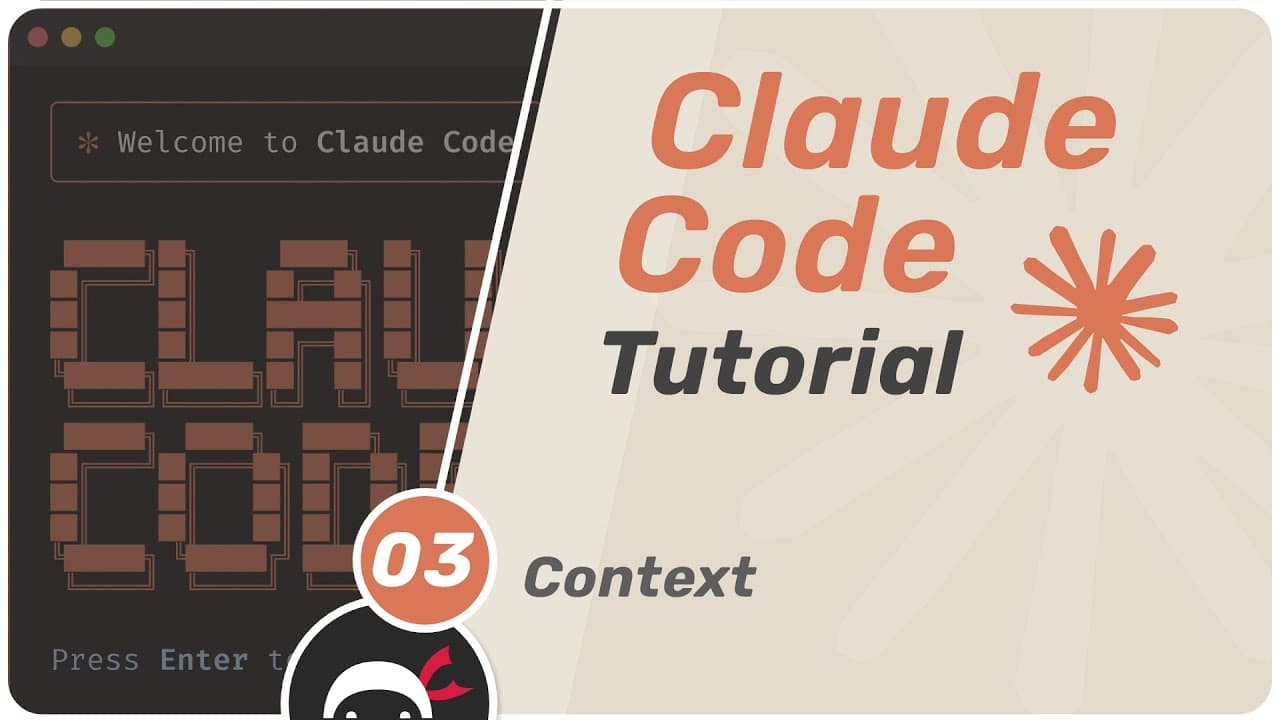
Context helps Claude Code respond more accurately by anchoring prompts to specific files or components. You add context with the at symbol and can open files to include them, then manage session context with clear, compact, or escape commands to stay focused on the current task.
Transcript
All right. So, in the last lesson, we talked about the claude ND files, otherwise known as memory, which Claude code uses when you're asking it to do something. Now, it's able to do this because the claw.md file, gets added automatically as context to any claw code session like this one we've got going on now. But what do we mean when we say contex... Read More
Key Insights
- Context is extra information that makes AI responses more accurate by grounding prompts in specific files or components.
- Files can be added to context by using the at symbol followed by a path, such as at source and then a subpath.
- Opening a file in the chat attaches that file to the current context and updates the chat with file-specific details.
- Only one file can be added at a time with the manual method, but multiple files can be added by using the at symbol several times.
- Images can be used as context by dragging and dropping them into the chat to influence design changes.
- Too much context from unrelated tasks can confuse Claude Code and lead to unwanted edits on other parts of the project.
- Three main methods to keep context clean are clear, compact, and escape, each serving a different workflow need.
- Compact creates a concise summary of the session history and context to reduce clutter while preserving useful information.
Install to Summarize YouTube Videos and Get Transcripts
Explore YouTube Video Summarizer or Get YouTube Transcript Extractor
Questions & Answers
Q: What is the role of context in Claude Code prompts?
Context acts like background information for Claude Code, guiding how it interprets prompts and what parts of the codebase or project to consider. By attaching files or referencing specific components, the AI can locate the relevant area quickly and produce more accurate edits or suggestions, especially when working across multiple files.
Q: How can you add a file as context in Claude Code?
You can add a file by using the at symbol followed by a file path, such as at source and then navigating to the desired component. This prompts Claude Code to incorporate that file into its current context, allowing it to reference code structures and variants directly from the file.
Q: What happens when you open a file in the chat for context?
Opening a file in the chat attaches it to the current context and displays the file name in the chat window. This makes the file content available to Claude Code for understanding prompts and applying edits within that file, improving alignment with the codebase.
Q: Can you add multiple files to context at once?
Yes, you can add multiple files to context by using the at symbol multiple times in the prompt. This enables Claude Code to consider several parts of the project simultaneously, which is useful for cross-file edits or when a task touches multiple components.
Q: How do images influence Claude Code context?
Images can be dragged into the chat to serve as visual references. Claude Code can then apply visual design cues from the image, such as a 3D button effect or color gradients, to the relevant components while preserving existing variants.
Q: Why is keeping context focused important in Claude Code sessions?
Maintaining focused context prevents the AI from being overwhelmed by unrelated files and conversations. When context bleeds across features, edits may apply to the wrong parts of the project, reducing accuracy and increasing the risk of unintended changes elsewhere.
Q: What are the three ways to manage session context described in the video?
The video describes three options: clear, which resets the session history except for the base context; compact, which collapses history into a short summary to reduce context while preserving essential details; and escape, which rewinds to a previous point by removing later chats and files from context.
Q: How does the compact command influence ongoing work?
Compact reduces the session history to a concise summary, keeping it in context while deleting the rest. This allows you to continue working on a feature with a shorter, more manageable context, preventing bloating while preserving the key decisions and changes made.
Summary & Key Takeaways
-
Context is information that guides AI responses by tying prompts to files or components within the session. It improves accuracy when relevant files are referenced, but irrelevant context can degrade results. The session history plus added files defines the current working context for Claude Code.
-
Adding context can be done by referencing a file with the at symbol and a path, or by opening a file in the chat to attach it. You can also drag and drop images to set design expectations. The system supports multiple methods to manage what Claude Code considers.
-
To keep context focused, you can clear the session history, compact it into a short summary, or rewind with escape. These tools help prevent cross-feature contamination when working on different parts of a project.
Read in Other Languages (beta)
Share This Summary 📚
Summarize YouTube Videos and Get Video Transcripts with 1-Click
Try YouTube Summary with ChatGPT & Claude or YouTube Transcript Generator
Explore More Summaries from Net Ninja 📚
Summarize YouTube Videos and Get Video Transcripts with 1-Click
Try YouTube Summary with ChatGPT & Claude or YouTube Transcript Generator