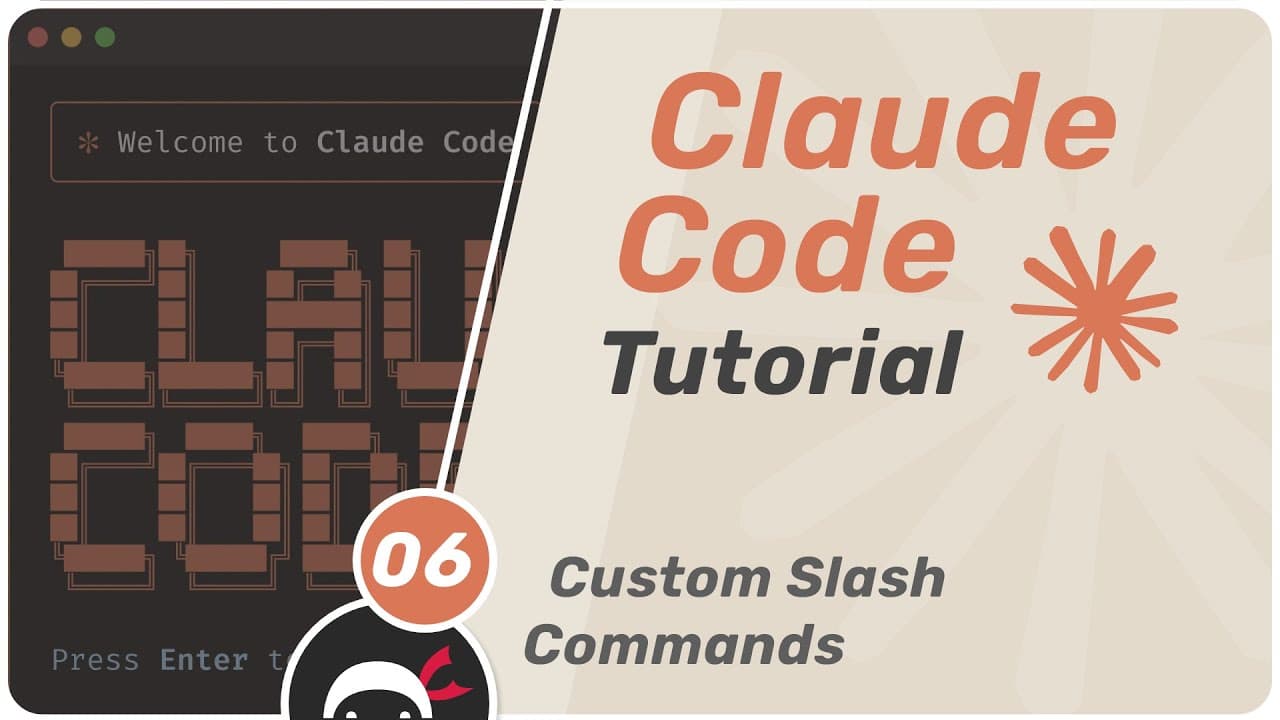
How to Create Custom Slash Commands in Claude Code
TL;DR
Custom slash commands in Claude Code are created by adding a markdown file inside a .claude/commands folder, where the file contents act as a reusable prompt. You can load other files as context with the @ sign and accept input using the $ARGUMENTS variable. Restart your Claude session after adding or editing a command so it gets picked up.
Transcript
Okay, then my friends, in this lesson, we're going to talk about something called slash commands, which I'm just going to call commands from here on out because it's much shorter. And we're also going to make a custom command as well. So then, we've already seen and used several built-in commands that Claude Code gives to us out of the box. And we'... Read More
Key Insights
- Slash commands in Claude Code are triggered by typing a forward slash followed by the command name, such as /clear to clear the context or a command to initialize a claude.md file. Typing slash alone lists all available commands, navigable with the up and down arrow keys.
- Built-in commands include add-dir, which gives Claude access to another working directory and enables multi-repository development from one location, useful for related projects like a separate backend and frontend that you want to work on together.
- The /model command lets you choose which model Claude Code uses, and the permissions command adds tool permissions to the project's local settings file automatically when configured that way, though the instructor normally adds them manually instead.
- A custom command is created by making a commands folder inside the .claude folder, then adding a markdown file named after the command, such as ui-component.md, containing whatever instructions you want Claude to follow.
- When a custom command runs, Claude Code pulls in the markdown file and uses its entire contents as a prompt, so the file can specify file locations, naming conventions, component variants, testing steps, and where to add the result.
- The @ sign inside a custom command loads another file as context, letting the command reference existing files such as a CSS file containing theme variables so generated components reuse the correct colors from the theme.
- You must exit and restart the Claude session after creating or editing a command file, because Claude Code only picks up new or changed commands when a fresh session starts.
- Command arguments are captured through the $ARGUMENTS variable, which holds everything passed after the command regardless of how many values are supplied, and front matter with description and argument-hint fields shows reminders in the chat interface.
Install to Summarize YouTube Videos and Get Transcripts
Explore YouTube Video Summarizer or Get YouTube Transcript Extractor
Questions & Answers
Q: How do you create a custom slash command in Claude Code?
First make a commands folder inside the .claude folder, creating the .claude folder too if it does not exist. Then inside the commands folder, create a new markdown file named after whatever you want the command to be called, for example ui-component.md. Put your instructions for Claude inside that file, then exit and restart your Claude session so it picks up the new command.
Q: What are slash commands in Claude Code?
Slash commands are commands you run by typing a forward slash followed by the command name. Claude Code provides several built-in ones out of the box, such as clear to clear the context or a command to initialize a claude.md file. If you type slash on its own, you see a list of all available commands and can use the up and down arrow keys to move through them.
Q: What does the $ARGUMENTS variable do in a custom command?
The $ARGUMENTS variable is how Claude Code captures whatever arguments you pass into a command when you call it. It does not matter whether you pass one, two, or five arguments, because they are all caught within this single arguments value. You then reference that value inside the command's instructions so the AI can use the passed-in details when generating its output.
Q: Why do you need to restart Claude Code after creating a command?
You need to exit the current Claude session and start it back up again because Claude Code only picks up a newly created or edited command when a fresh session begins. In the tutorial, after saving the ui-component.md file the instructor exits and restarts, and only then does the new UI component command appear in the list when pressing forward slash.
Q: How do you load another file as context inside a custom command?
You use the at sign to load in another file as context within the custom command. In the example, the instructions tell Claude to add variants and sizes for the component using the colors from the theme variables in the CSS file, and the at sign is used to pull that CSS file in so the generated component references the correct theme colors.
Q: What does the add-dir command do in Claude Code?
The add-dir command gives Claude access to another working directory. In essence it allows multiple repository development from one location, which could be useful if you have related projects like a backend and a frontend. This lets you work across those related codebases together from a single Claude Code session rather than switching between separate locations.
Q: How can you pass multiple arguments to a Claude Code command?
Although there is no official documented method, the instructor found that using square brackets works well. You create variables where the name of the variable is the text in the square brackets and the text on the right tells Claude Code what to store for it. This is actually the markdown reference-link syntax, but it works to split the single arguments value into multiple named values like a name and a summary.
Q: What is the front matter used for in a custom command file?
The front matter is a markdown feature at the top of the file that supplies metadata. In this case it holds two properties: description, which says what the command does, and an argument hint, which tells you what kind of arguments are expected when you run the command. Both of these show up in the chat interface when you use the command to remind you what it does and what it needs.
Summary & Key Takeaways
-
Claude Code ships with many built-in slash commands accessed by typing a forward slash, including clear, compact, model, permissions, and add-dir. Add-dir grants access to another working directory for multi-repo work, and typing slash alone shows the full navigable command list, which you exit with the escape key.
-
Custom commands are made by creating a commands folder inside the .claude folder and adding a markdown file named after the command. The file holds detailed instructions that act as a prompt, covering where files go, naming conventions, variants, testing until all tests pass, and adding the result only to a preview page.
-
Arguments are added using front matter (description and argument-hint) plus a context section referencing the $ARGUMENTS variable. Square-bracket reference-link syntax stores multiple values like name and summary, which are then used in the instructions. Restarting the session is required after creating or editing any command file.
Read in Other Languages (beta)
Share This Summary 📚
Summarize YouTube Videos and Get Video Transcripts with 1-Click
Try YouTube Summary with ChatGPT & Claude or YouTube Transcript Generator
Explore More Summaries from Net Ninja 📚

Summarize YouTube Videos and Get Video Transcripts with 1-Click
Try YouTube Summary with ChatGPT & Claude or YouTube Transcript Generator