How to Create 13 Unique Text Effects in Canva
TL;DR
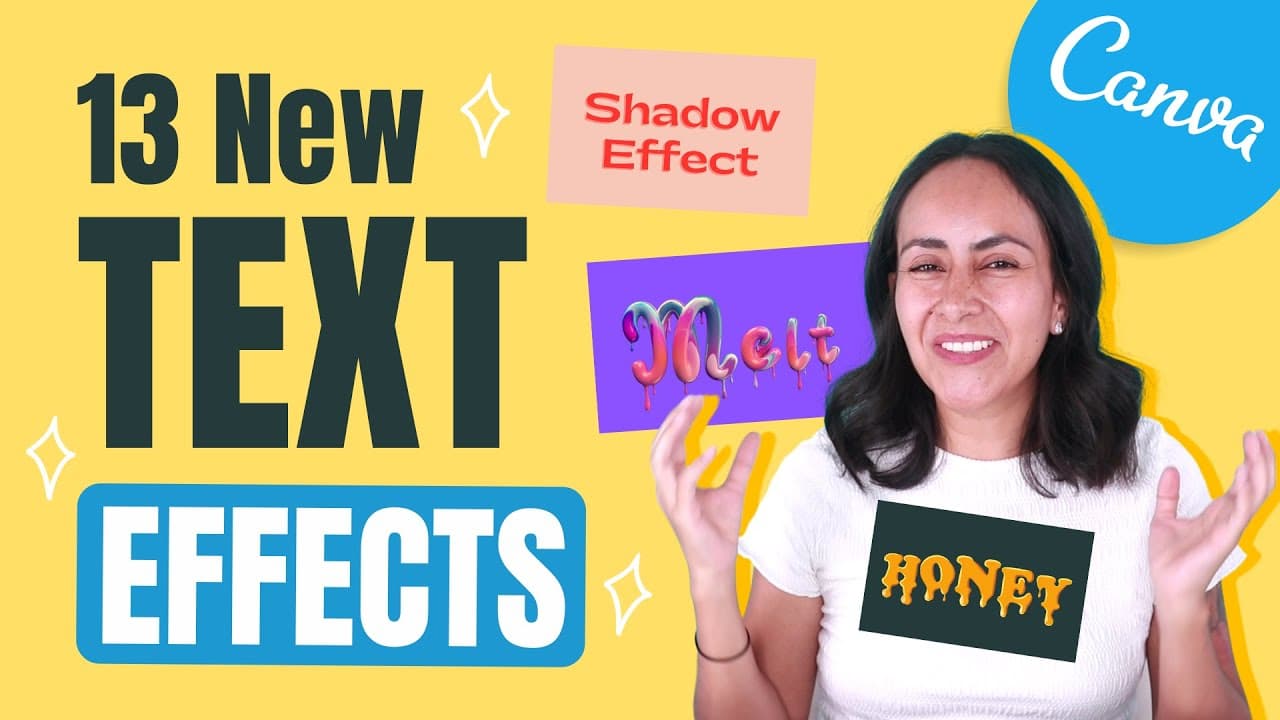
To create 13 unique text effects in Canva, such as neon and glitch, start by selecting the appropriate text box and applying the desired effect from the effects menu. Many effects are available for free, while premium options like floral and honey effects require a Canva Pro account.
Transcript
hi and welcome to our channel the best place to learn how to use and master canva in today's tutorial i'm going to show you how to create 13 different text effects that can be done directly from canva okay so i'm going to quickly show you the 13 different text effects that i'm going to show you in this video so you have an idea of what is coming up... Read More
Key Insights
- 🎨 Canva offers a variety of text effects, including neon and glitch, to enhance designs.
- 🫠 Users can utilize Canva Pro for advanced text effect options like floral, honey, and melt effects.
- 🎨 Personalizing text effects by selecting cohesive styles can improve the overall design coherence.
- 👻 The new shadow feature in Canva allows users to easily apply shadows to text.
- 💌 Canva has a range of animated elements, like sticker letters, for dynamic text effects.
- 🎨 Curved and wavy text effects add a unique touch to designs.
- 🧍 Applying outlined text can create visual interest and make text stand out.
Install to Summarize YouTube Videos and Get Transcripts
Explore YouTube Video Summarizer or Get YouTube Transcript Extractor
Questions & Answers
Q: How many text effects are covered in the tutorial?
The tutorial covers how to create 13 different text effects using Canva, ranging from dripping fonts to floral-filled letters.
Q: Are all the text effects shown in the video free to use?
The first 10 text effects demonstrated in the video are completely free to use, while the last 3 text effects (floral, honey, and melt) require Canva Pro.
Q: Can users personalize the text effects with different styles?
Yes, users can choose from various styles within the Canva elements library to personalize their text effects and create cohesive designs.
Q: How is the gradient moving effect achieved in the text effects?
The hollow text effect creates a unique style by showing the moving background gradient behind the text, enhancing the overall design impact.
Summary & Key Takeaways
-
Tutorial on creating 13 Canva text effects.
-
Includes free and Canva Pro options.
-
Step-by-step guidance on creating each effect.
Read in Other Languages (beta)
Share This Summary 📚
Summarize YouTube Videos and Get Video Transcripts with 1-Click
Try YouTube Summary with ChatGPT & Claude or YouTube Transcript Generator
Explore More Summaries from Design with Canva 📚




Summarize YouTube Videos and Get Video Transcripts with 1-Click
Try YouTube Summary with ChatGPT & Claude or YouTube Transcript Generator