How to Create a Systemd Auto-Mount Script for Raspberry Pi
TL;DR
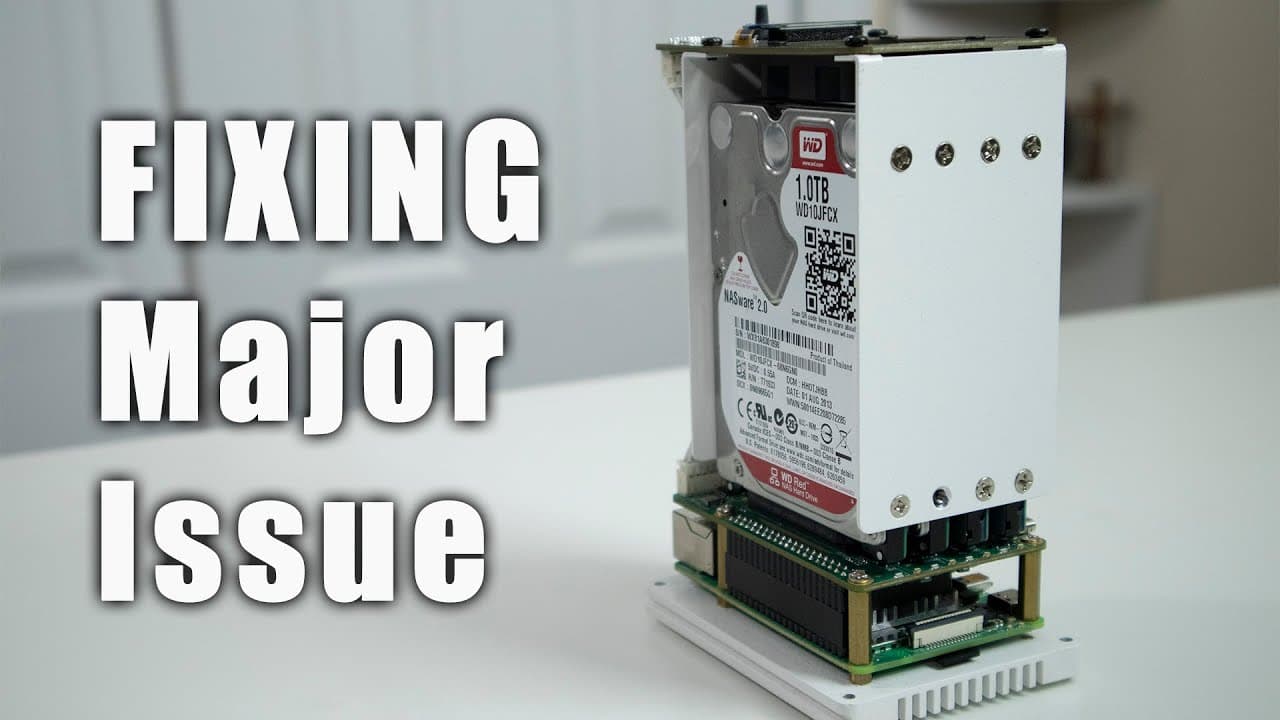
To create an auto-mount script for Raspberry Pi, use systemd to ensure hard drives are initialized after the Rock Pi SATA board is detected and before networking services start. This method improves drive readiness for services like Docker or Nextcloud and can be applied to any Linux system using systemd.
Transcript
hey guys what's going on it's don here from nova spirit tech and welcome back to our channel and today we are going to be solving a big problem that we have with this quad cedar nas for the raspberry pi so let's get started all right so you guys might have seen this before on my channel which is the quad cit and that's for the raspberry pi now the ... Read More
Key Insights
- 🚵 The tutorial highlights a common oversight in Raspberry Pi NAS setups where drives are not ready for mounting due to timing issues with the fstab process.
- 🚵 Creating a systemd auto-mount script addresses these issues by ensuring drives are initialized after hardware detection and before critical system services start.
- 🐎 Using RAID configurations can enhance data management, with options such as RAID 0 for speed or RAID 5 for added redundancy.
- 🚵 Other Linux distributions with systemd can adopt the proposed auto-mount script, enhancing its utility and reach beyond Raspberry Pi.
- 👤 The tutorial encourages careful consideration of drive mounting strategies based on individual use cases and requirements, promoting flexibility in a user's approach.
- 👤 Including clear step-by-step instructions helps users replicate the process and troubleshoot potential issues effectively.
- 👤 The presenter plans future updates and enhancements, indicating ongoing development and user engagement within the Raspberry Pi community.
Install to Summarize YouTube Videos and Get Transcripts
Explore YouTube Video Summarizer or Get YouTube Transcript Extractor
Questions & Answers
Q: What is the main issue with using fstab for mounting drives on Raspberry Pi NAS?
The primary problem with using fstab for mounting hard drives on Raspberry Pi NAS is that the drives may not be detected by the system before fstab executes. This timing issue prevents the system from mounting the drives properly, resulting in errors when attempting to access network shares or use data from those drives.
Q: How does the auto-mount script improve the mounting process?
The auto-mount script improves the mounting process by being executed after the Raspberry Pi SATA board is detected but before any networking services start. This ensures that the hard drives are initialized and ready for data transfer when required by applications like Docker or network shares, effectively solving the mounting issue present in the previous setup.
Q: What RAID levels can be set up using the discussed method?
The method discussed in the tutorial allows users to set up different RAID levels according to their needs. RAID 0 is suggested for speed and maximum storage space, while RAID 5 provides redundancy. However, the presenter mentions that RAID 1 might not be the best option, as using rsync for data backup could be a safer alternative than relying on RAID redundancy.
Q: Can the auto-mount script be used for systems other than Raspberry Pi?
Yes, the auto-mount script for systemd can be utilized for other Linux systems that use systemd for managing services. This makes the solution applicable not just to Raspberry Pi configurations but also to any Linux environment seeking to manage hard drive mounts effectively after boot processes.
Summary & Key Takeaways
-
The tutorial addresses a common issue with Raspberry Pi NAS setups, specifically mounting hard drives via fstab, which leads to challenges with network shares.
-
The solution involves creating an auto-mount script in systemd that initializes hard drives after the relevant board is detected and before networking services start.
-
The presenter also includes steps on how to use RAID configurations on the Raspberry Pi for more efficient data management and storage.
Read in Other Languages (beta)
Share This Summary 📚
Summarize YouTube Videos and Get Video Transcripts with 1-Click
Try YouTube Summary with ChatGPT & Claude or YouTube Transcript Generator
Explore More Summaries from Novaspirit Tech 📚


Summarize YouTube Videos and Get Video Transcripts with 1-Click
Try YouTube Summary with ChatGPT & Claude or YouTube Transcript Generator