How to Build AI Dashboards with Bolt and n8n
TL;DR
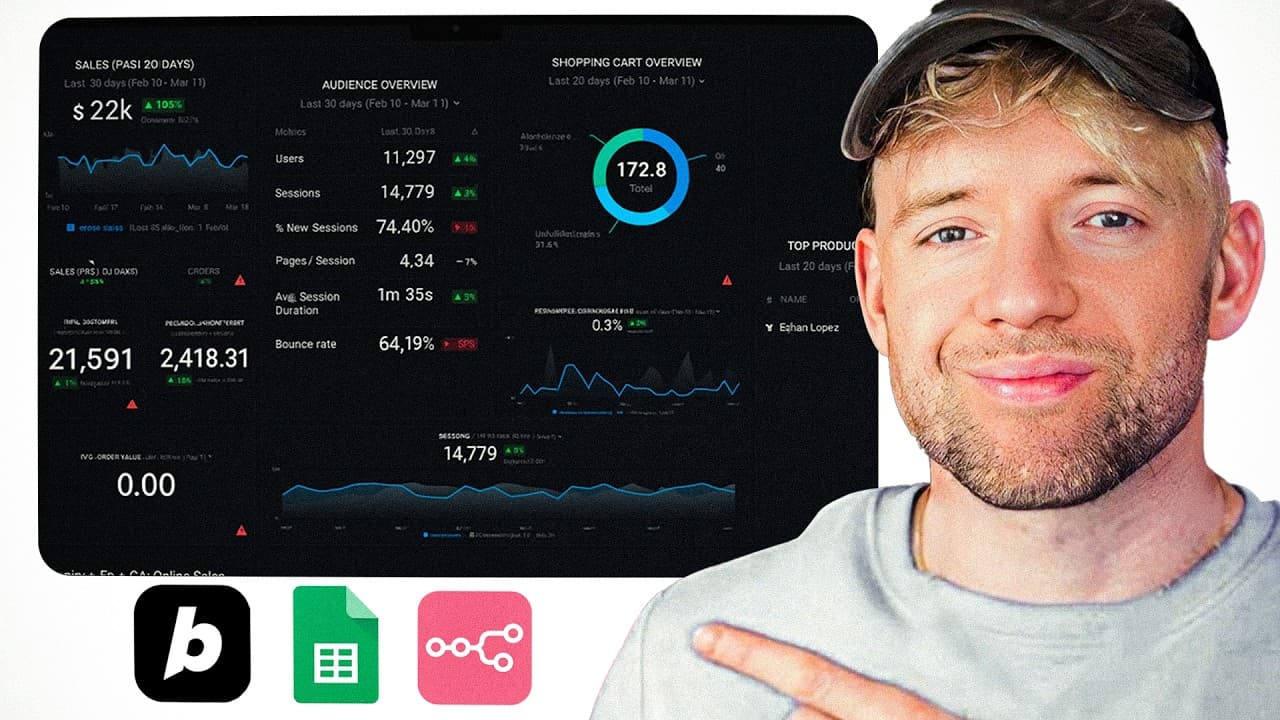
Build an AI dashboard by using Bolt for the interface, Google Sheets for accessible data storage, and n8n for AI-driven reading, updates, and actions. Start with a dashboard that reloads sheet data, add an AI agent that can retrieve and modify rows through chat, then connect the dashboard to n8n through a POST webhook.
Transcript
99% of people are still ignoring this profitable AI system. Or if you are using it, you're just not using it properly. Personally, it made me tens of thousands of dollars. And in this video, I'm going to show how to build profitable AI dashboards whilst everybody else gets left behind. I'm going to build this out step by step using bolt new, nat, a... Read More
Key Insights
- The proposed AI operating system consists of Bolt as the no-code application builder, Google Sheets as the accessible data source, and n8n as the no-code automation platform. These components can produce a visual dashboard, store operational information, and run automated workflows within one connected system.
- A basic Bolt dashboard can retrieve information from a Google Sheet whenever the application loads. The setup requires sharing the sheet with anyone who has the link, copying its URL and relevant headers, and placing those details inside a prompt that specifies the desired metrics and visual styling.
- Dynamic dashboard updates depend on Bolt reloading the current spreadsheet data. In the demonstration, Jack Roberts's budget changes from $2 million to $3 million in Google Sheets, and refreshing the application changes the displayed total budget to $3.31 million while updating the individual record.
- An n8n AI agent can manage spreadsheet data through conversational requests. The demonstrated workflow begins with an on-chat-message trigger, connects GPT-4.1 mini as the model, adds simple memory, and gives the agent separate tools for retrieving rows and appending or updating rows.
- The Google Sheets update tool can match records by the name column and let the AI decide which values to change. A system message defines the agent as a Google Sheets manager and instructs it to read messages, review sheet contents, analyze requests, update information, and confirm results.
- Simple memory allows the n8n agent to retain short-term conversational context. The workflow checks memory alongside the chat model and Google Sheets tools, enabling a user to ask about Jack Roberts's current budget and then request a change without rebuilding the entire context manually.
- A POST webhook connects the Bolt interface to an n8n workflow. Bolt can be prompted to add a WhatsApp-style chat terminal, send each user message to the supplied webhook, and render the returned AI response, bringing the automation controls directly into the visual dashboard.
- AI dashboards are presented as useful when decisions depend on data, when users must take actions such as sending emails, and when information is shown to clients. The approach combines visual presentation with conversational access to underlying records and the ability to initiate connected automations.
Install to Summarize YouTube Videos and Get Transcripts
Explore YouTube Video Summarizer or Get YouTube Transcript Extractor
Questions & Answers
Q: How do you build an AI dashboard with Bolt and Google Sheets?
Share the Google Sheet so anyone with the link can access it, copy the sheet link, and identify the headers and metrics that should appear. In Bolt, write a prompt requesting a visually engaging dashboard that retrieves information from that sheet whenever the application loads. Include the sheet link, selected headers, preferred colors, and design details, then let Bolt generate the interface.
Q: How does a Bolt dashboard update when Google Sheets data changes?
The Bolt application is instructed to pull information from the linked Google Sheet every time it loads. After a spreadsheet value changes, refresh the dashboard so it retrieves the current data. In the demonstration, changing Jack Roberts's budget from $2 million to $3 million causes the refreshed dashboard to show his updated budget and a total of $3.31 million.
Q: How do you connect an n8n AI agent to Google Sheets?
Create an n8n workflow with an on-chat-message trigger, then add an AI agent and connect a chat model. The demonstrated setup uses GPT-4.1 mini and simple memory. Add one Google Sheets tool configured to retrieve rows and a duplicate configured to append or update a row. Select the lead pipeline document, choose Sheet 1, and authorize the required Google connection.
Q: What instructions should an AI spreadsheet manager receive?
The system message should define the agent as a Google Sheets manager and specify its operating process. It should read the incoming message, review the spreadsheet, analyze the request, update the relevant information when necessary, and confirm the result. The prompt should also list the available reading and updating tools, plus guidelines and the expected response format.
Q: How can an n8n chatbot update a specific spreadsheet row?
Configure the Google Sheets update tool to append or update a row, then choose a stable matching column such as name. Allow the AI to decide the values required for the operation. When a user asks to change Jack Roberts's budget, the agent first retrieves the rows, checks the existing information, uses the model to interpret the request, and then runs the update tool.
Q: How do you add an n8n-powered chat interface to Bolt?
Add a webhook node to the n8n workflow, configure it to accept POST requests, and copy its URL. In Bolt, request a WhatsApp-style chat interface that sends user messages to that webhook and displays the returned response as an AI message. Paste the webhook URL into the prompt, generate the interface, execute the n8n workflow for testing, and submit a test message from Bolt.
Q: Why are AI dashboards useful for business decisions and actions?
AI dashboards organize business data into a visual interface that can support decisions based on current information. The demonstrated design also connects the displayed records to automation capabilities, so users can ask questions, modify spreadsheet values, and potentially initiate tasks such as sending emails. This combines data presentation, conversational interaction, and action within the same operating system.
Q: What are the three levels of the AI dashboard system?
Level one creates a visually engaging Bolt dashboard connected to Google Sheets and refreshed with current spreadsheet data. Level two adds an n8n AI agent that can retrieve and update sheet rows through chat. Level three places conversational functionality inside the Bolt dashboard and connects it to n8n through a POST webhook, allowing the interface to exchange messages with the automation workflow.
Summary & Key Takeaways
-
The first level connects Bolt directly to a shared Google Sheet. A detailed prompt tells Bolt which metrics and headers to display and requests a visually engaging dashboard. Because the application retrieves the sheet whenever it loads, changing a lead budget in Google Sheets updates the dashboard after a refresh.
-
The second level adds an n8n chat workflow with an AI agent, GPT-4.1 mini, simple memory, and two Google Sheets tools. One tool retrieves rows, while the other appends or updates a row matched by name. A system message directs the agent to review data, make requested changes, and confirm its work.
-
The third level brings conversational control into the Bolt dashboard through an n8n POST webhook. Bolt receives instructions to create a WhatsApp-style chat interface, send user messages to the webhook, and display AI responses. The resulting design combines visible business data with a path for asking questions and triggering data-based actions.
Read in Other Languages (beta)
Share This Summary 📚
Summarize YouTube Videos and Get Video Transcripts with 1-Click
Try YouTube Summary with ChatGPT & Claude or YouTube Transcript Generator
Explore More Summaries from Jack Roberts 📚



Summarize YouTube Videos and Get Video Transcripts with 1-Click
Try YouTube Summary with ChatGPT & Claude or YouTube Transcript Generator