How to Create a Pixelated Effect Using Canva
TL;DR
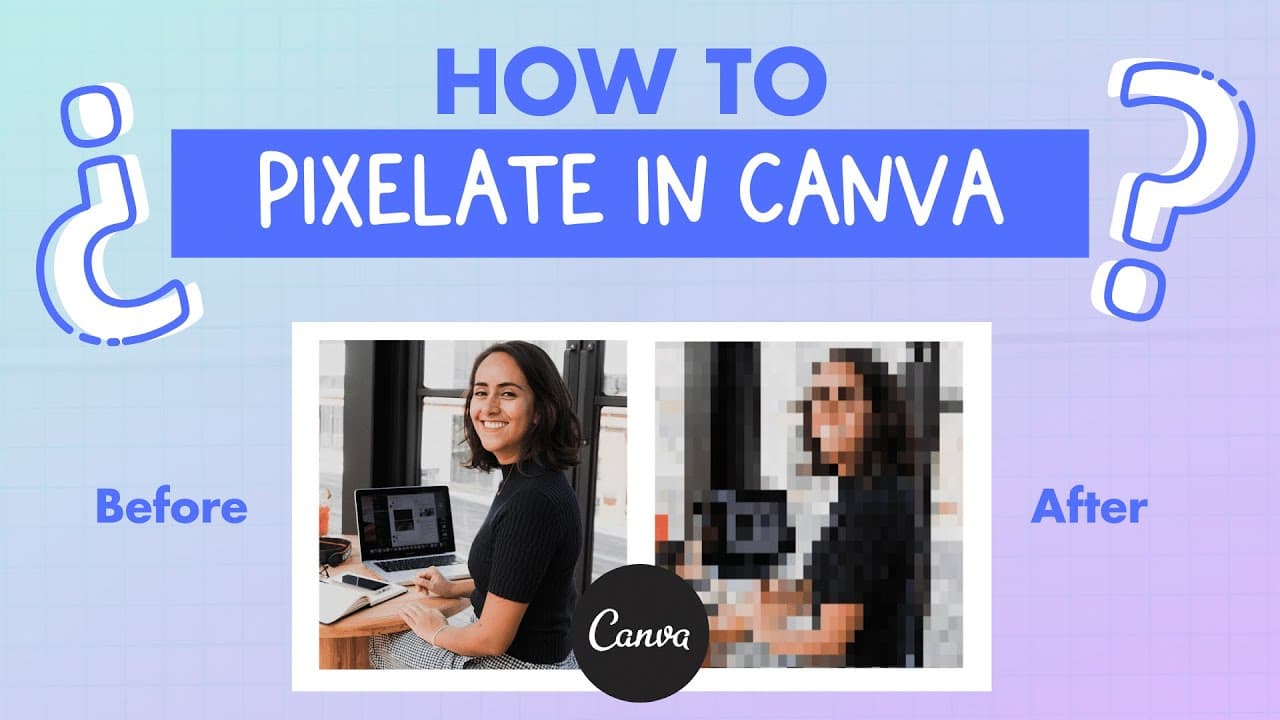
To create a pixelated effect in Canva, duplicate your original image, apply the pixelate effect from the new apps menu, and adjust the detail sliders as desired. Finally, crop the image to enhance the pixelated appearance. This process is simple and allows for creative experimentation with your images.
Transcript
hey guys this is Deanna and today we are going to learn this if you see in this image we have the screen of this form kind of blurry or pixelated and this is our original photo so how did I do this in canva how is this even possible okay so we are going to do the same effect with this photo and it's really really simple because canva just launched ... Read More
Key Insights
- 😀 Canva's new apps like duotone, color mix, and pixelate offer creative image editing options.
- 🛟 Duplicating images in Canva before applying effects preserves the original for experimentation.
- 😥 Anchor points should be utilized for precise cropping in Canva to maintain image proportions.
- 🎚️ Adjusting sliders in Canva enhances the level of detail in pixelated effects.
- 👤 Canva provides a user-friendly platform for creating unique visual effects seamlessly.
- ❓ The tutorial emphasizes the simplicity and effectiveness of achieving pixelated effects in Canva.
- 👻 Experimenting with different effects in Canva allows for personalized and creative image editing results.
Install to Summarize YouTube Videos and Get Transcripts
Explore YouTube Video Summarizer or Get YouTube Transcript Extractor
Questions & Answers
Q: How can Canva's new apps enhance image editing capabilities?
Canva's new apps like duotone, color mix, and pixelate offer users more creative options to enhance their images. These tools allow for unique effects like pixelation and color manipulation, elevating the editing experience.
Q: What is the significance of duplicating an image before applying effects in Canva?
Duplicating an image in Canva ensures that the original remains intact, providing a safety net for experimentation. This allows users to freely explore different effects without the risk of altering the original image irreversibly.
Q: Why is it important to pay attention to anchor points while cropping images in Canva?
Focusing on anchor points rather than corners while cropping in Canva helps maintain the image proportions and prevent distortion. Using anchors on the sides allows for more precise adjustments without compromising the image quality.
Q: How can adjusting sliders enhance the pixelated effect in Canva?
By adjusting sliders in Canva's pixelate effect feature, users can control the level of detail in the pixelated effect. Moving the sliders to the right adds more detail, allowing for customization of the pixelation effect to suit individual preferences.
Summary & Key Takeaways
-
Demonstrates the process of duplicating an image, applying pixelated effects, and cropping for a desired outcome in Canva.
-
Utilizes new Canva apps like duotone, color mix, and pixelate to achieve creative effects.
-
Provides step-by-step instructions on how to enhance images with pixelated effects using Canva's tools.
Read in Other Languages (beta)
Share This Summary 📚
Summarize YouTube Videos and Get Video Transcripts with 1-Click
Try YouTube Summary with ChatGPT & Claude or YouTube Transcript Generator
Explore More Summaries from Design with Canva 📚




Summarize YouTube Videos and Get Video Transcripts with 1-Click
Try YouTube Summary with ChatGPT & Claude or YouTube Transcript Generator