How to Install Raspberry Pi Imager Without a PC
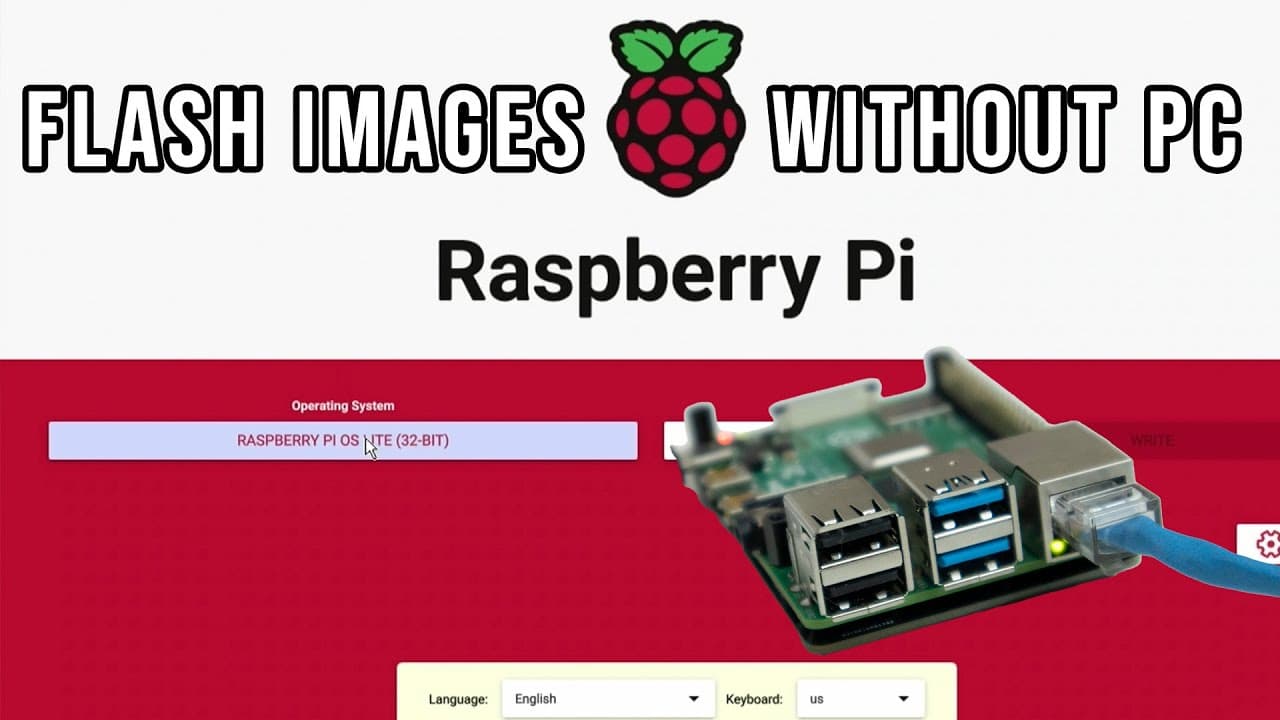
TL;DR
You can install the Raspberry Pi Imager directly on your Raspberry Pi using the new beta firmware, eliminating the need for a PC. Start by loading the initial firmware onto an SD card, and after setup, you can boot the device to download and install operating systems directly from USB or other media.
Transcript
hey guys what's going on it's don here from nova spare tech and welcome back to our channel and today i'm going to show you guys how to install the latest beta firmware for the raspberry pi so you no longer need to use a pc to image your raspberry pi so let's get started now what i love about the raspberry pi development team is that they're always... Read More
Key Insights
- 👻 The Raspberry Pi beta firmware allows for more efficient installations, directly enhancing user experience by reducing steps.
- ☠️ Users can now customize boot preferences (SD card first or USB first), enabling flexibility depending on their project needs.
- 👤 This method of installation promotes accessibility, targeting users who might be less familiar with traditional programming or flashing methods.
- 💝 The firmware updates automatically upon each boot, ensuring users always have access to the latest tools and images.
- 💦 With reduced dependence on PCs, this firmware is particularly useful for developers and testers working with Raspberry Pi frequently.
- 😚 The process will foster the Raspberry Pi community by making OS installations easier and less tedious, encouraging experimentation.
- 🥺 Initial firmware installation does require a computer, but all subsequent operations can be carried out directly on the Raspberry Pi, leading to greater independence.
Install to Summarize YouTube Videos and Get Transcripts
Explore YouTube Video Summarizer or Get YouTube Transcript Extractor
Questions & Answers
Q: What are the steps to install the new beta firmware on Raspberry Pi?
To install the beta firmware on your Raspberry Pi, first load the Raspberry Pi Imager onto an SD card using a PC. Then, boot the Raspberry Pi with the SD card inserted. Once booted, follow prompts to choose the boot options and operating systems you want, allowing the Raspberry Pi to download and flash images directly.
Q: What advantages does the beta firmware offer over the traditional method of installing Raspberry Pi OS?
The beta firmware significantly enhances user convenience as it eliminates the need for a PC in the OS installation process. Users can download and install operating systems directly from the Raspberry Pi, streamlining their workflow, especially for frequent tasks like testing and firmware changes.
Q: Can I revert to the original firmware if I encounter issues with the beta firmware?
Yes, users can revert back to the standard firmware using the regular bootloader options provided by the beta firmware. This ensures that if any problems arise, restoration to the previous setup is simple and accessible, maintaining flexibility in firmware management.
Q: Which models of Raspberry Pi are compatible with this beta firmware?
The beta firmware is confirmed to be compatible with Raspberry Pi 3 and 4 models. The compatibility with Raspberry Pi 2 and Pi Zero 2 wasn’t thoroughly verified in the content. Users should check the official documentation for updates on compatibility with other models.
Q: Does the installation process require any additional hardware?
Besides the Raspberry Pi and an SD card for the initial firmware load, users may need a keyboard (for prompts) and optionally a monitor with HDMI connection to visualize the process. No additional hardware is required for subsequent installs after the initial setup.
Summary & Key Takeaways
-
The latest beta firmware for Raspberry Pi enables a new boot process allowing users to install operating systems directly from the board without a PC, enhancing usability.
-
Users require a Raspberry Pi and an SD card to load the initial firmware, and can choose from various boot options, making the process customizable.
-
After installation, the Raspberry Pi can download the Raspberry Pi Imager directly, enabling users to easily install operating systems from USB or other media.
Read in Other Languages (beta)
Share This Summary 📚
Summarize YouTube Videos and Get Video Transcripts with 1-Click
Try YouTube Summary with ChatGPT & Claude or YouTube Transcript Generator
Explore More Summaries from Novaspirit Tech 📚






Summarize YouTube Videos and Get Video Transcripts with 1-Click
Try YouTube Summary with ChatGPT & Claude or YouTube Transcript Generator