You're Doing It Wrong! Steam Deck FSR
TL;DR
Learn how to properly enable and use FSR on the Steam Deck for improved performance.
Transcript
hey guys what's going on it's Don here from Nova Spirit Tech and welcome back to the channel and today I'm here to tell you that you're using FSR wrong on the stee deck so let's get started so not too long ago I had a couple of friends reach out to me about the steam deck not performing the way they wanted to so naturally I just told them hey enabl... Read More
Key Insights
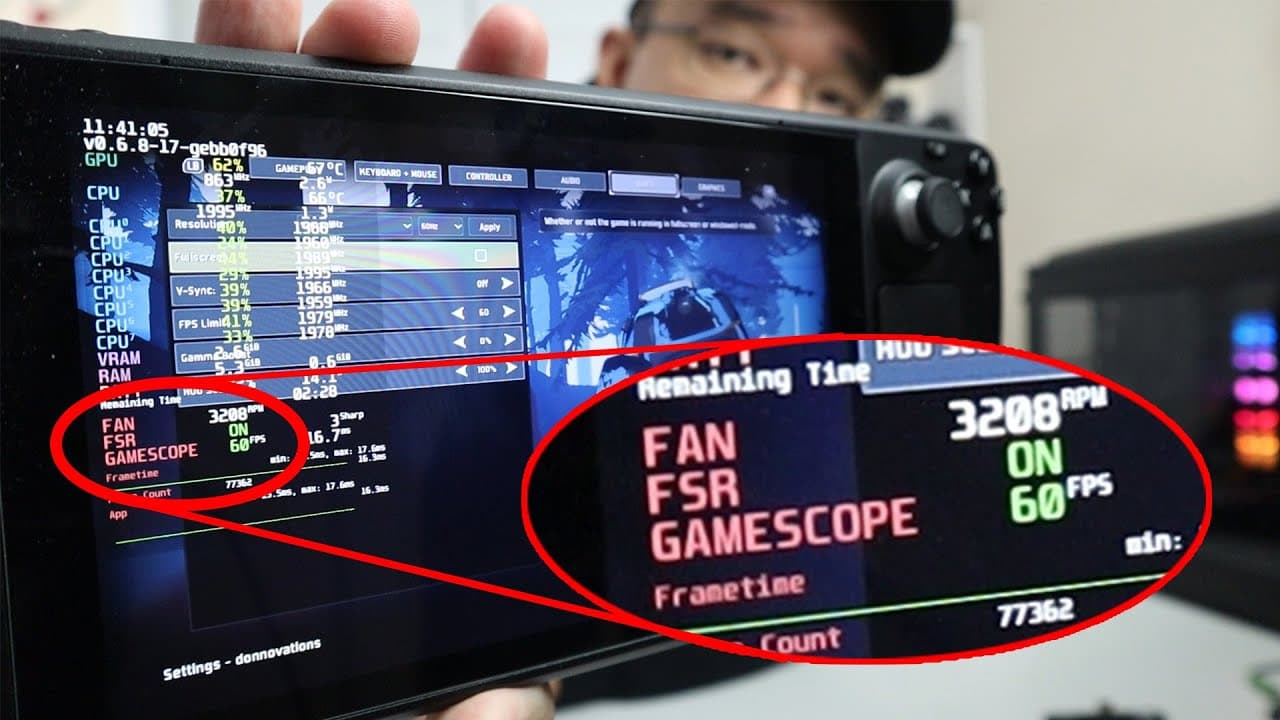
- 👤 Enabling FSR on the Steam Deck requires adjusting settings beyond just turning it on; users must switch to window mode for optimal results.
- 🎮 The video demonstrates practical examples with gameplay footage, showing side-by-side comparisons of different resolutions and FSR effects.
- 😘 FSR can significantly enhance visual clarity at lower resolutions, making games more enjoyable while maintaining decent frame rates.
- 👤 Users are advised to experiment with TDP settings (10W vs. 15W) for better battery life and noise reduction while optimizing performance.
- 🥺 Understanding the importance of resolution is essential; simply enabling features without adjusting resolutions leads to suboptimal performance.
- 👻 Super resolution technology like FSR allows for a more enjoyable gaming experience, especially on portable devices like the Steam Deck.
- 🌚 The content is geared toward both new and experienced Steam Deck users facing graphical issues in gaming.
Install to Summarize YouTube Videos and Get Transcripts
Explore YouTube Video Summarizer or Get YouTube Transcript Extractor
Questions & Answers
Q: What is FSR, and how does it work on the Steam Deck?
FSR, or FidelityFX Super Resolution, is AMD's technology designed to upscale lower resolution images in real-time, enhancing frame rates and visual clarity. On the Steam Deck, FSR requires users to adjust the resolution to see significant improvements in performance and clarity, often leading to a notable increase in usable frame rates even at lowered settings.
Q: Why didn't FSR work for my friends initially on the Steam Deck?
Many users mistakenly enable FSR without adjusting the resolution or game settings adequately. Simply turning on the option does not automatically activate FSR unless users switch to a lower resolution and change from fullscreen to window mode, which allows FSR to rescale and enhance the image quality effectively.
Q: What resolutions should I use when enabling FSR?
While the exact resolution can vary based on personal preference and the specific game, a common lower resolution recommended is 928 x 580. This setting provides a balance between reduced blur from lower resolutions and enhanced frame rates, improving gameplay performance without excessively sacrificing visual quality thanks to FSR's upscaling capabilities.
Q: What challenges might I face using FSR on the Steam Deck?
One key challenge is that some games might restrict users from selecting their preferred aspect ratios when switching to window mode. This could limit the resolution options available, which might necessitate trial and error until the best balance of clarity and frame rates is achieved in different gaming scenarios.
Summary & Key Takeaways
-
The video focuses on common issues users face when trying to enable FSR (FidelityFX Super Resolution) on the Steam Deck, particularly the need to adjust the resolution and game settings.
-
Demonstrating with two games, "Risk of Rain" and "Armored Core 6," the creator explains how to switch from fullscreen to window mode to activate FSR for clearer graphics and better frame rates.
-
Viewers are encouraged to comment for more Steam Deck content and subscribe for future updates and tips.
Read in Other Languages (beta)
Share This Summary 📚
Summarize YouTube Videos and Get Video Transcripts with 1-Click
Try YouTube Summary with ChatGPT & Claude or YouTube Transcript Generator
Explore More Summaries from Novaspirit Tech 📚





Summarize YouTube Videos and Get Video Transcripts with 1-Click
Try YouTube Summary with ChatGPT & Claude or YouTube Transcript Generator