How to Build an Outlook Inbox Manager in n8n No Code
TL;DR
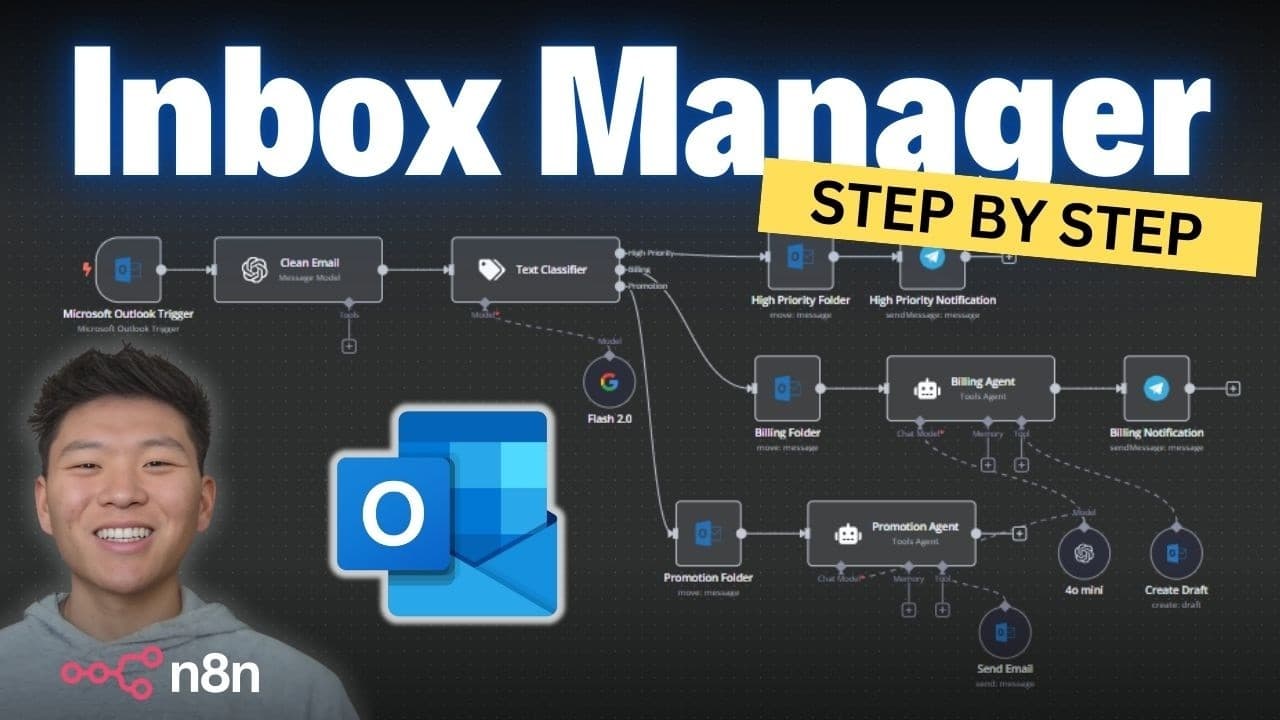
Build an automated Outlook inbox manager in n8n using a routing agent architecture: an Outlook trigger fires on each new email, a text classifier sorts messages into categories like high priority, billing, and promotion, then each path runs custom logic such as notifying you, drafting, or replying. No coding is required, and detailed category descriptions make classification more accurate.
Transcript
today we're going to be walking through step- by-step how to build an inbox manager for Outlook yep you heard me right not Google today we're looking at Outlook by the end of this video you'll have an inbox manager up and running in your own nadn instance and I think you'll be surprised how quick and easy it is to set up so let's not waste any time... Read More
Key Insights
- A routing agent architecture uses one upfront agent that reads incoming emails and routes each one down a different logic path based on its type, such as high priority, billing, or promotion, letting you customize the response per category.
- The workflow trigger is an Outlook 'on message received' node that fires every time a new email arrives once your Outlook account is connected, with a poll time set to check the inbox every minute by default.
- Choosing 'Raw' output instead of 'Simplified' matters because Simplified cuts off the email body preview, while Raw returns the full body content, receive time, attachments, importance, email ID, and conversation ID needed for later steps.
- The email ID field returned by the trigger is important for later actions in the workflow, alongside metadata like the subject, conversation ID, and sender information.
- An OpenAI model node (using 4o mini) cleans up messy HTML tagging in the raw email body before classification, though the agent can actually read the raw HTML on its own; cleaning is done here only to make the tutorial clearer.
- System messages define the node's role like backend coding, while user messages carry the dynamic per-email content, mirroring how the system prompt versus the chat text bar work in ChatGPT.
- The text classifier node reads the cleaned email via an expression referencing json.message.content and sorts it into one of the defined categories, creating a separate output path for each category so different logic can branch off.
- Classification accuracy improves when each category has a detailed description plus common words, phrases, and real example emails; if an email is mislabeled during testing, adding more examples to that category's prompt fixes it.
Install to Summarize YouTube Videos and Get Transcripts
Explore YouTube Video Summarizer or Get YouTube Transcript Extractor
Questions & Answers
Q: What is a routing agent architecture in n8n?
A routing agent architecture places one agent up front that takes emails from your inbox and routes each one down a different logic path based on what type of email it is, such as high priority, customer support, promotion, finance, or billing. In this tutorial three paths are set up, but the design is fully customizable so you can add branches and decide what happens for each type, whether that is sending yourself a message, responding, or creating a draft.
Q: How do you set up the Outlook trigger for the workflow?
Click Add First Step, type Outlook, and grab the Outlook trigger set to 'on message received.' Once you connect your Outlook credential by clicking connect my account, signing in, and allowing n8n to read and write your inbox, the workflow fires every time a new email arrives. Inside the trigger you can set the poll time, which defaults to checking the inbox every minute, choose the operation, and select the output format.
Q: Why should you choose Raw output instead of Simplified in the Outlook trigger?
The Simplified output only returns a body preview that gets cut off, which is not ideal for a routing agent because the agent needs to read the whole message to interpret which path to send it down. Switching to Raw and hitting fetch test event pulls the same email but with far more information, including the full body content, receive time, sent time, attachments, importance, parent folder, and the email ID that becomes important later.
Q: Why is an OpenAI node used to clean the email before classification?
The raw email body content comes with messy HTML tagging, so an OpenAI message model node using 4o mini is added to clean it into more readable text. The system message instructs the node to remove the HTML tagging without removing any email content so nothing gets changed. Importantly, the presenter notes you do not have to do this because the agent can read and understand the HTML on its own; the cleaning is only done to make the tutorial easier to follow.
Q: What is the difference between a system message and a user message?
The system message is like the coding that goes on behind the scenes in ChatGPT, telling the node its role, similar to instructing an intern on what to do with the emails. The user message is what you type in the chat bar every time you talk to ChatGPT, which here is the dynamically changing incoming email content. So the system message sets the standing instructions while the user message carries the per-email input that changes each run.
Q: How does the text classifier node decide which path an email goes down?
The text classifier reads the cleaned email content, referenced through an expression pointing to json.message.content dragged in from the clean email node, so it looks at a different email each time. You define categories, three in this example being high priority, billing, and promotion, and the node creates a separate output path for each. Once it classifies an email it sends it down the matching path, where you can build different logic for each email type.
Q: How do you make email classification more accurate and consistent?
Give each category a detailed description of what belongs in it, for example high priority being emails that require immediate action involving urgent issues, escalations, system failures, or critical business matters. Adding common words or phrases found in that email type helps too. If testing shows an email mislabeled, go back into that category's prompt and add more examples of the emails you typically get; the more detailed the description and examples, the more accurate and consistent the results.
Q: What can you do with an email once it is routed to a path?
Once the routing agent sends an email down one of the category paths, you can customize what happens for that type of email. Options mentioned include having the agent send you a message, having the agent respond to the message, or having the agent create a draft. Because each of the three paths leaves the text classifier as a separate branch, you can drag out different logic for each one and tailor the automated action to that email category.
Summary & Key Takeaways
-
The tutorial builds an Outlook inbox manager in n8n using a routing agent architecture, where one front agent takes emails from the inbox and routes them down separate logic paths based on email type. The example sets up three paths but is fully customizable for high priority, customer support, promotion, finance, and billing branches.
-
Setup starts with an Outlook 'on message received' trigger that fires on each new email after connecting the account. The trigger polls every minute, and the output is switched from Simplified to Raw so the agent receives the complete email body and metadata like email ID, subject, and conversation ID rather than a cut-off preview.
-
An OpenAI 4o mini node cleans the raw HTML email into readable text using a system prompt, then a text classifier node reads that content and sorts it into high priority, billing, and promotion categories. Each category gets a detailed description with example phrases, and each output path can trigger custom actions like notifications, drafts, or replies.
Read in Other Languages (beta)
Share This Summary 📚
Summarize YouTube Videos and Get Video Transcripts with 1-Click
Try YouTube Summary with ChatGPT & Claude or YouTube Transcript Generator
Explore More Summaries from Nate Herk | AI Automation 📚

Summarize YouTube Videos and Get Video Transcripts with 1-Click
Try YouTube Summary with ChatGPT & Claude or YouTube Transcript Generator