How to Edit App Designs with Lovable Visual Edit
TL;DR
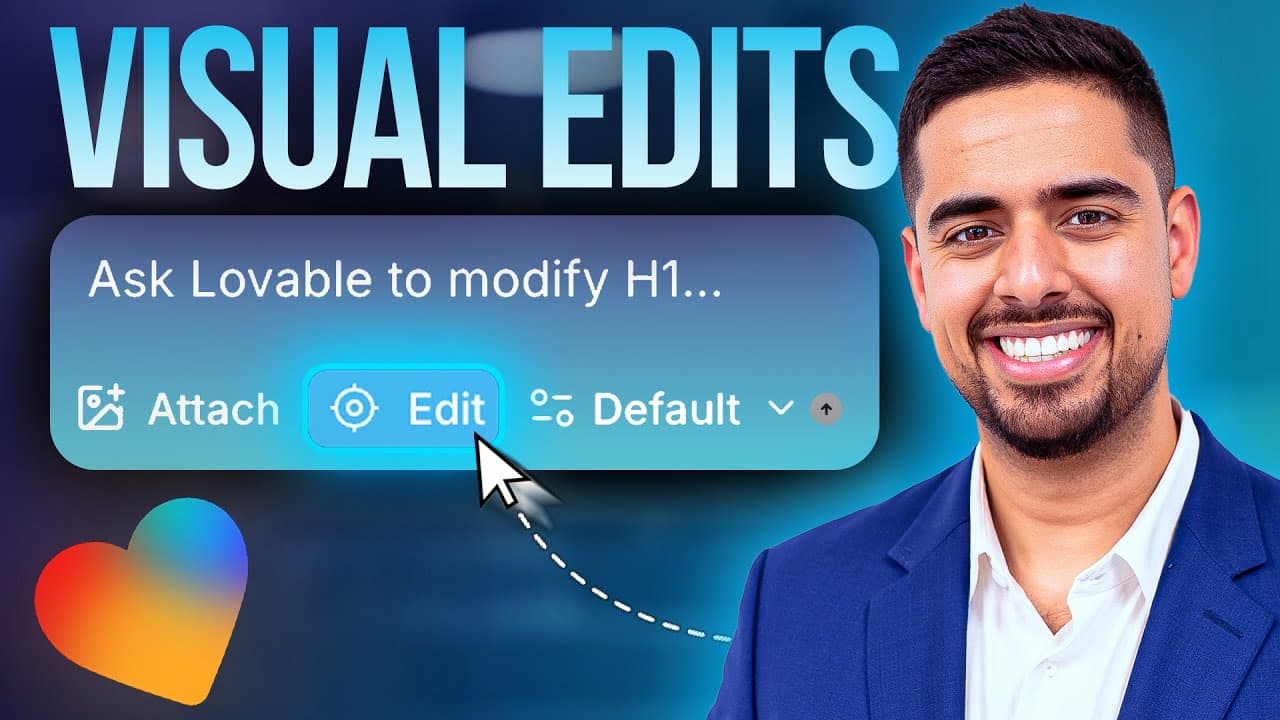
Lovable’s Visual Edit lets you select on-screen elements and directly change properties such as color, font size, height, padding, borders, and transparency without writing repeated prompts. It is most useful for precise design adjustments, while chat mode remains better for planning functional changes, reviewing API integration steps, and confirming implementation details before modifying the application.
Transcript
lovable just made editing your apps design way easier with their new visual edits feature you can now directly modify any element you see on screen which means you don't have to send five to 10 prompts just to change a font color or just to add a little bit of padding anymore I'm going to first show you how to use this feature and then we'll build ... Read More
Key Insights
- Lovable’s Visual Edit is a direct manipulation feature that allows users to select visible interface elements and modify their styles without sending repeated natural-language prompts for every small design adjustment.
- Visual Edit can change properties such as colors, font sizes, component height, padding, borders, and transparency through on-screen controls, giving users specific control over how selected components appear.
- Saving a visual edit applies the selected changes without requiring a written prompt. In the demonstrated color and size adjustment, Lovable recorded the visual edit and showed that the update took 28 seconds.
- Visual Edit is suited to appearance changes, while turning off the edit control returns the user to workflows for changing application functionality. This distinction separates quick styling work from broader behavioral implementation.
- Custom colors can be entered with hex codes, and the presenter uses Coolors.com to explore combinations before pasting a chosen value into Lovable’s color control and saving it.
- The demonstration app turns a user-entered process into sections covering a process summary, automation opportunities, prioritization, and an implementation plan, with a modern dark interface and responsive search experience.
- Chat-only mode is used to establish requirements before implementation. The presenter asks Lovable to follow supplied Gro API code verbatim, request an API key, and repeat its understanding as an implementation roadmap.
- Reviewing Lovable’s proposed plan can expose incorrect assumptions before code changes begin. The playback revealed that Lovable intended to use a Mixtral model instead of the requested Llama 3.3 model, allowing the instruction to be corrected first.
Install to Summarize YouTube Videos and Get Transcripts
Explore YouTube Video Summarizer or Get YouTube Transcript Extractor
Questions & Answers
Q: How do you use Visual Edit in Lovable?
Send an initial request so Lovable generates the application, then select the edit button that appears in the interface. Hover over the page to identify the specific component or div you want to modify, select it, and adjust available properties such as its color, font size, or height. Choose Save to send and apply the visual changes without writing a separate prompt.
Q: What design properties can Lovable Visual Edit change?
Lovable Visual Edit can modify visible style attributes on a selected interface element. The demonstration changes an input background color, component height, button font size, header font size, and header color. The description also identifies padding, borders, transparency, and direct text editing as supported adjustments. Custom hex values can be pasted into the color control when a precise color is needed.
Q: Why use Visual Edit instead of prompting Lovable?
Visual Edit avoids the repeated prompting that may otherwise be needed for a small interface change. Instead of describing a component, correcting the model’s interpretation, and exchanging five to 10 prompts for details such as font color or padding, users can select the exact element and adjust it directly. This improves precision, reduces token usage, and streamlines design iteration.
Q: How do you apply and stop visual edits in Lovable?
After selecting an element and changing its visual properties, click Save to apply the edits. Lovable then processes the visual edit and updates the interface. To leave the visual editing workflow, return to the edit control and unselect it. The application then returns to the normal interaction mode, where prompts can be used for functional changes rather than direct styling adjustments.
Q: How can custom colors be added in Lovable Visual Edit?
Select the interface element whose color you want to change, open its color control, and either choose an available shade or paste a custom hex code. The presenter uses Coolors.com to explore palettes, copies a hex value, and pastes it into Visual Edit. Clicking Save applies that exact color to the selected component without requiring a natural-language description of the desired shade.
Q: When should chat-only mode be used in Lovable?
Chat-only mode should be used when you want to clarify a functional implementation before Lovable changes the application. In the demonstration, it establishes how a Gro API function should work, tells Lovable to follow supplied code verbatim, and requests a playback of the understood requirements. This planning step exposes an incorrect model choice before the implementation plan is approved.
Q: How is the Gro API connected to the Lovable app?
The presenter first prepares boilerplate code for sending a request to the Gro API and extracting the content portion of its response. A connected Supabase instance named Automation Buddy provides edge functions that act as the bridge for the integration. Lovable is given the API key, the supplied script, a sample output, and instructions to implement the specified approach rather than substitute its own remembered implementation.
Q: What problems appeared during the Gro API implementation?
Lovable initially proposed using a Mixtral model even though the requested implementation used Llama 3.3. Asking it to play back the plan made this mismatch visible before implementation, so the presenter corrected the instruction and requested verbatim use of the supplied script. After implementation, the Gro content call succeeded according to the edge function history, but errors remained in parsing the returned response.
Summary & Key Takeaways
-
Lovable’s Visual Edit adds an edit button after the initial app request. Activating it lets users hover over and select specific interface components, then adjust visible design properties directly. Saving applies the changes without requiring a written prompt, reducing the back-and-forth normally involved in identifying elements and describing small styling updates.
-
The demonstration builds a responsive workflow-analysis app with a search bar and generated sections for process summaries, automation opportunities, prioritization, and implementation planning. Visual Edit is then used to change the input background, component height, button text size, header size, and colors, including a custom hex value selected from Coolors.com.
-
Functional integration is handled separately through chat mode. The presenter connects a Supabase instance, plans an edge function, supplies Gro API boilerplate code, requests verbatim implementation, and asks Lovable to repeat its understanding as a roadmap. This review catches an unwanted Mixtral model choice before implementation, although response parsing still produces errors afterward.
Read in Other Languages (beta)
Share This Summary 📚
Summarize YouTube Videos and Get Video Transcripts with 1-Click
Try YouTube Summary with ChatGPT & Claude or YouTube Transcript Generator
Explore More Summaries from Mark Kashef 📚





Summarize YouTube Videos and Get Video Transcripts with 1-Click
Try YouTube Summary with ChatGPT & Claude or YouTube Transcript Generator