How to Learn Python by Building Five Projects
TL;DR
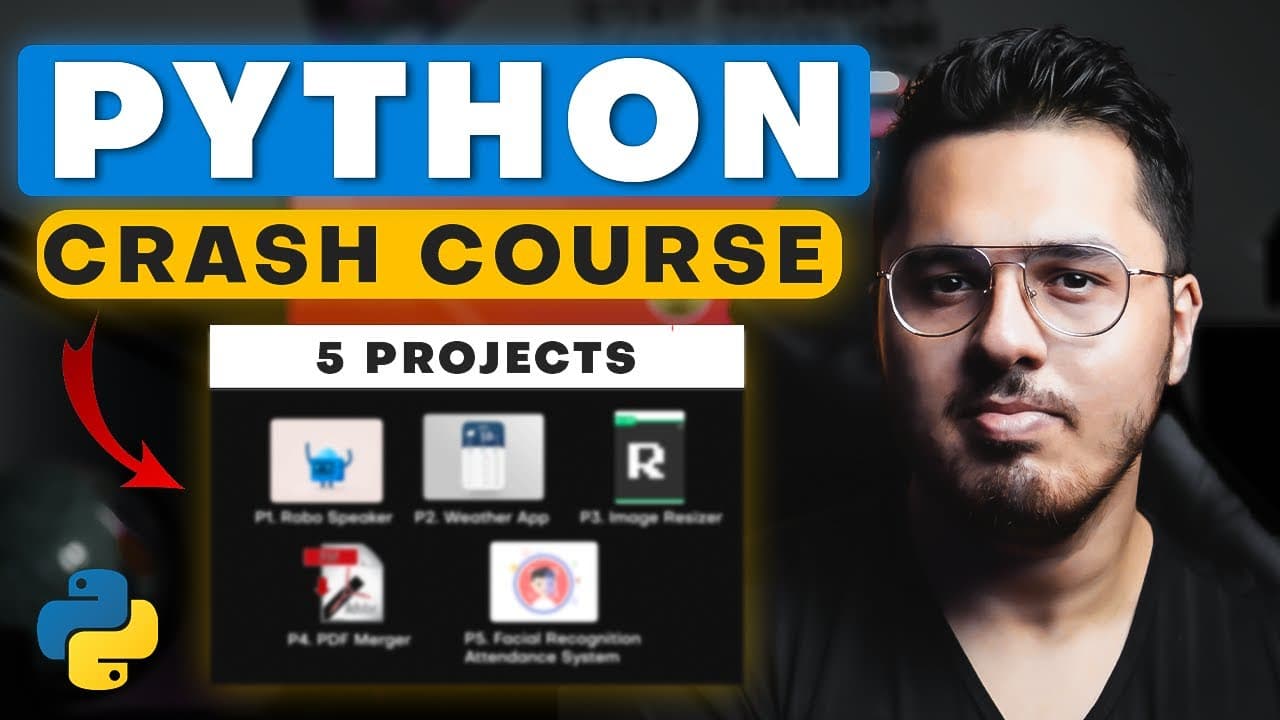
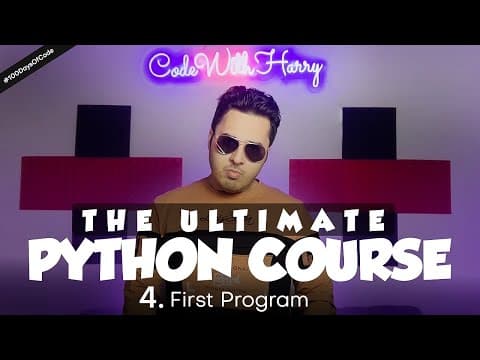
Install Python from python.org, configure PyCharm with a system interpreter, and begin by running a simple print statement. Progress through variables, collections, control flow, functions, exception handling, file operations, and object-oriented programming, then reinforce those concepts through five projects, including a Robo Speaker, Weather App, and Image Resizer.
Transcript
I can give you a guarantee that after watching this python video and after making this 5 projects you will grasp python very quickly Using Python i have created many freelancing projects and from that projects, earned nice money and i strongly believe that you can do it too and in today's video i'll tell you about latest version python from startin... Read More
Key Insights
- Python is a dynamically typed, object-oriented programming language created by Guido van Rossum in 1991 for general-purpose scripting. Its name was inspired by the program Monty Python's Flying Circus, and the course presents Python from installation through practical project development.
- Python and PyCharm serve different roles: Python is the interpreter that executes written code, while PyCharm is an integrated development environment that sends code to the interpreter and displays its output. PyCharm also provides suggestions, navigation, Git support, version control, and refactoring features.
- A Python development setup starts by downloading Python from python.org and installing PyCharm Community Edition. The demonstrated project configuration uses a previously configured interpreter, adds a local interpreter, selects the system interpreter, and then creates the new project.
- Python programs normally execute statements from top to bottom. Changing the order of print statements changes the order of their displayed output, which demonstrates that source-code sequence directly controls execution unless later language features alter the flow.
- A single-line Python comment starts with the # symbol, causing the remaining text on that line to be ignored. The lesson also demonstrates triple single quotes for multiline text treated as a comment and PyCharm shortcuts for commenting several selected lines.
- PyCharm improves the demonstrated coding workflow through direct execution, automatic suggestions, interpreter selection, line duplication, line movement, commenting shortcuts, and adjustable editor text size. These features support writing, navigating, running, and reviewing Python programs within one development environment.
- The course structure progresses from syntax and data handling to program control and organization. Its listed subjects include variables, typecasting, operators, modules, pip, strings, user input, lists, tuples, sets, dictionaries, conditional statements, loops, functions, exceptions, files, and object-oriented programming.
- Project-based learning is used to reinforce the course's Python instruction through five applications. The provided schedule specifically identifies a Robo Speaker, Weather App, and Image Resizer, placing these practical exercises after the lessons on exception handling, file input and output, and object-oriented programming.
Install to Summarize YouTube Videos and Get Transcripts
Explore YouTube Video Summarizer or Get YouTube Transcript Extractor
Questions & Answers
Q: How do you install Python and PyCharm for this course?
Download Python from the official python.org download page, which detects the operating system and offers an appropriate installer. After installing Python, download PyCharm Community Edition and complete its normal installation process. The course also mentions that students can claim a free professional PyCharm license through the provided JetBrains link, while professionals can continue using the Community Edition.
Q: How do you create and configure a Python project in PyCharm?
Open PyCharm, select the option to create a new project, and choose a previously configured interpreter instead of creating a new virtual environment in the demonstrated setup. Add a local interpreter, select the system interpreter, confirm the choice, review the proposed project location, and click Create. PyCharm then creates the project using the installed Python interpreter.
Q: What is the difference between Python and PyCharm?
Python is the programming language and interpreter responsible for processing and executing Python code. PyCharm is an integrated development environment that makes development easier by sending code to the selected Python interpreter and showing the resulting output. It also supplies conveniences such as automatic suggestions, file navigation, multiple interpreter support, Git integration, version control, and refactoring tools.
Q: How do you write and run a first Python program?
Create or open a Python file in the configured PyCharm project and write a print statement containing the text Hello World. Use PyCharm's Run control to execute the file. PyCharm passes the code to the installed Python interpreter, the interpreter runs the statement, and PyCharm displays Hello World in its output area as the program's result.
Q: How do comments work in Python?
Place the # symbol before text that Python should ignore for the remainder of a line. Comments can preserve notes, reminders, or temporarily unused code without executing that content. The lesson also demonstrates placing multiple lines between triple single quotes as a multiline comment and using PyCharm's commenting shortcut after selecting several lines that should be ignored.
Q: Why does statement order matter in a Python program?
Python processes the demonstrated statements from the top of the file downward. If a print statement for one message appears before another print statement, its output appears first. Moving that line below the other statement reverses the output order. This simple example shows that rearranging source lines can directly change the sequence of a program's visible behavior.
Q: What Python topics are covered before the projects?
The listed lessons cover installation, project setup, a first program, comments, variables, typecasting, operators, modules, pip, strings, user input, lists, tuples, sets, and dictionaries. The course then addresses if-else statements, match case, for loops, while loops, functions, exception handling, file input and output, and object-oriented programming before moving into project work.
Q: What projects are built in the Python course?
The course title and description state that learners build five Python projects. The supplied timestamps specifically name Project 1 as a Robo Speaker, Project 2 as a Weather App, and Project 3 as an Image Resizer. The names and details of the remaining two projects are not included in the provided transcript and description excerpt.
Summary & Key Takeaways
-
The course begins with installing Python and PyCharm, creating a project, selecting a previously configured system interpreter, and running a first Hello World program. It distinguishes Python, which interprets and executes code, from PyCharm, which provides conveniences such as code suggestions, execution controls, file navigation, Git integration, and refactoring tools.
-
The curriculum moves from comments, variables, typecasting, and operators to modules, pip, strings, user input, and common collection types. It then introduces conditional statements, match case, for and while loops, functions, exception handling, file input and output, and object-oriented programming, building the foundation required for practical Python development.
-
Project-based practice follows the core lessons, with five projects promised across the complete course. The available timestamps identify a Robo Speaker, Weather App, and Image Resizer among them. These applications are presented as a way to reinforce programming concepts through practical construction after learners understand Python syntax, execution, data structures, and program flow.
Read in Other Languages (beta)
Share This Summary 📚
Summarize YouTube Videos and Get Video Transcripts with 1-Click
Try YouTube Summary with ChatGPT & Claude or YouTube Transcript Generator
Explore More Summaries from CodeWithHarry 📚

Summarize YouTube Videos and Get Video Transcripts with 1-Click
Try YouTube Summary with ChatGPT & Claude or YouTube Transcript Generator