How to Build n8n Workflows With Claude Code and n8n-mcp
TL;DR
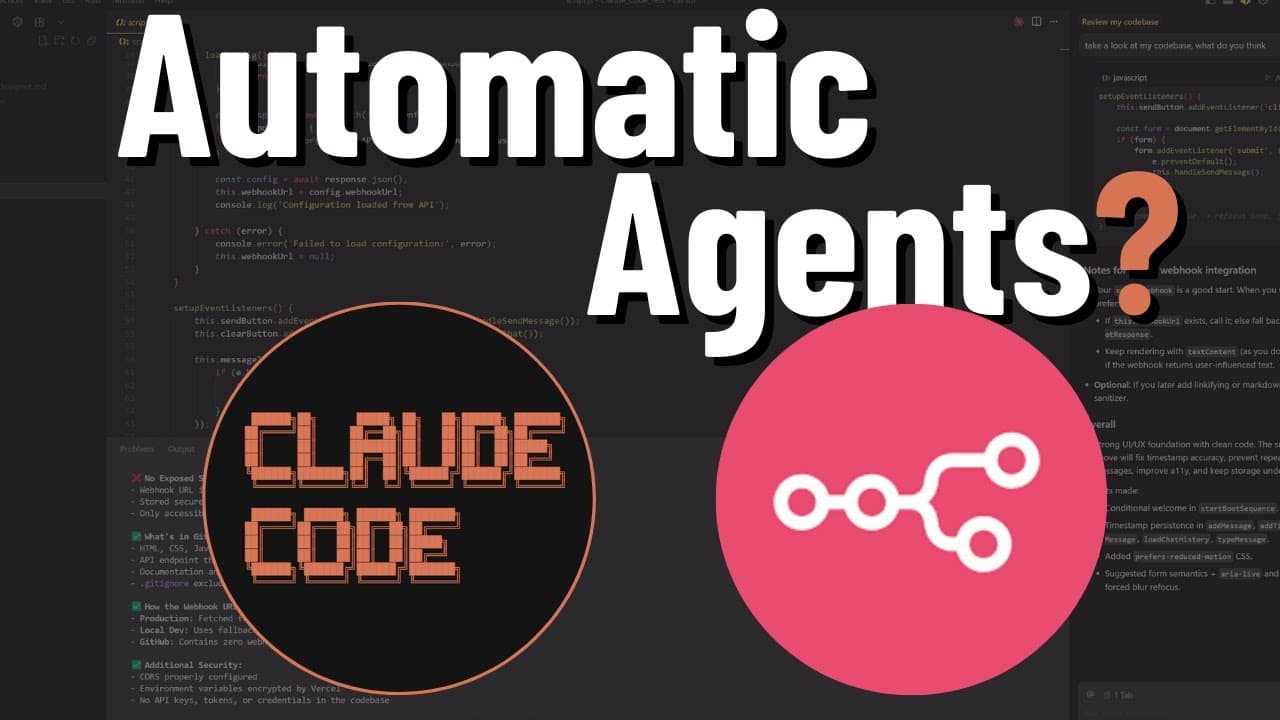
The n8n-mcp server lets Claude Code build workflows directly on your n8n instance instead of just returning JSON. It works because the MCP queries n8n itself for the current node list, node documentation, and over 3,000 templates, and management tools use your API key and instance URL to deploy the finished workflow. Tested on simple, medium, and hard tasks, it is not perfect but better than expected.
Transcript
What if we could create NAD agents and automations with a simple prompt and not just get the JSON code back, but have it built on our NAND instance for us? Well, that's exactly what this NAD MCP server does when we combine it with the power of Cloud Code. And in this video, I'm going to show you exactly how to get it up and running. And I'm going t... Read More
Key Insights
- The n8n-mcp server is an MCP server that connects Claude Code to n8n, exposing tools such as list nodes, tool documentation, and list templates so the model works from live n8n data rather than from a static system prompt written months earlier.
- Grounding in the live instance is what separates this approach from custom GPTs and custom Claude projects. Those are given long system prompts and examples but often fail in practice, while the MCP goes to n8n directly for the current node list and documentation.
- Template access covers over 3,000 templates on n8n itself, so the server knows what is possible and combines that catalog with the user's prompt when deciding how to construct a workflow.
- The n8n management tools are what turn output into a deployed workflow. Give the MCP your n8n API key and instance URL and it builds the workflow on your instance directly, removing the copy the JSON and paste it into n8n step.
- Configuration lives in a .mcp.json file inside a project folder, populated from the "full configuration with n8n management tools" block on the n8n-mcp GitHub page, then filled in with your instance URL minus its trailing slash and an API key created under Settings, n8n API.
- Windows requires a different invocation than Mac: change npx to command and set args to /c followed by npx and the MCP package name. Mac users can leave the copied configuration as is.
- The CLAUDE.md file carries the usage instructions for the server. The GitHub repo's "Claude project setup" section is pasted into CLAUDE.md after running /init, and this only has to be done once per project directory.
- Plan mode is the recommended workflow for any request with complexity. Opus reviews the plan first and asks what it needs, which prevents an incomplete prompt from producing a weak workflow, and the plan can be approved before any building starts.
- The medium difficulty newsletter build was assessed as roughly an 80% solution: the skeleton was correct and set up properly, though the merge node used only two inputs for three RSS feeds and more feeds could be added by hand.
- The tool was built by a creator with around 4,000 subscribers who also published a video on getting it started, and the repository is linked from the video description.
Install to Summarize YouTube Videos and Get Transcripts
Explore YouTube Video Summarizer or Get YouTube Transcript Extractor
Questions & Answers
Q: What is the n8n-mcp server and how does it work with Claude Code?
The n8n-mcp server is an MCP server that acts as the backbone connecting Claude Code to an n8n instance. Rather than relying on a static system prompt, it calls on n8n itself for information through tools such as list nodes, tool documentation, and list templates. It sees which nodes are available, retrieves up to date documentation for them, and can browse over 3,000 templates on n8n. It also includes n8n management tools, so when supplied with an API key and instance URL it builds the workflow on your instance rather than only returning JSON code.
Q: How do I set up the n8n-mcp server with Claude Code?
Go to the n8n-mcp GitHub page and scroll to the section labeled "full configuration with n8n management tools", then click to copy it. In Claude Code, create a new folder and inside it a file named .mcp.json, and paste in the copied configuration. Next, open your n8n instance to collect two values: the instance URL from the address bar, with the trailing slash removed, and an API key created by going to Settings, then n8n API, then creating a key with whatever scopes, expiration, and name you want. Paste both into the configuration and save.
Q: What do I need to change in the configuration if I am on Windows?
Mac users can save the copied configuration as is and it will work. On Windows, two edits are required. Change npx to command, and for args use /c followed by npx and the MCP package name. The result should read command, then args of /c, npx, and n8n-mcp. After saving the file, start Claude Code and you should see a message reporting that a new MCP server was found, named n8n-mcp.
Q: Why do I need to paste instructions into CLAUDE.md?
After starting Claude Code with the MCP server connected, run /init to generate the CLAUDE.md file. Then return to the n8n-mcp GitHub page and scroll to the section labeled "Claude project setup", which is a set of instructions for how Claude Code should use this MCP server. Copy that section into CLAUDE.md, save, and prompt Claude to read the file. This only needs to be done the first time. Every later session started inside the same project directory already knows how to use the server.
Q: Why is n8n-mcp better than a custom GPT or custom Claude project for building n8n workflows?
Custom GPTs and custom Claude projects are typically given a very long system prompt plus a bunch of examples, and they frequently fail to produce working results when you actually try them. The n8n-mcp server takes a different approach: it queries n8n itself. It pulls the live list of available nodes, retrieves the current documentation for those nodes, and can look at the templates hosted on n8n, more than 3,000 of them. That live grounding means it knows what it can work with and what is actually possible, and it combines that knowledge with your prompt.
Q: How well did n8n-mcp handle a simple workflow request?
The simple test was a prompt for a basic chatbot using OpenAI as the LLM, a simple memory node, and the Wikipedia node. Running in plan mode, Claude proposed using tool documentation to understand what it could use, checking templates, and doing node discovery. After approval it returned the JSON along with a detailed chatbot agent workflow guide covering architecture, files created, and key features, and it built the workflow on the n8n server. The result matched the request: an OpenAI chat model on 4o mini, a simple memory node, and the Wikipedia tool. It did not add a system prompt, but none was specified.
Q: What did the newsletter automation test produce in n8n?
The request was for an automation that runs every morning, grabs the latest AI news from multiple sources chosen using Claude Code's web search tool, parses and summarizes them with a large language model, and sends the newsletter by Gmail. The plan proposed 10 to 15 stories per day and listed the news sites it would draw from. The built workflow contained three RSS feeds, a merge step, an article processing step, an AI summarization node with both a system prompt and a user prompt, an email formatting step, and a send step. It was assessed as about an 80% solution, with the merge node wired for only two inputs.
Q: What was the hard test automation meant to do?
The hard test was a job hunting automation designed to help people land jobs by scraping LinkedIn job boards and finding contact information for the hiring managers behind those roles. The flow starts with a form where the user specifies the job they want, for example a software engineer role in San Francisco that is hybrid and pays 200k a year. Based on those inputs, an Apify scraper runs against LinkedIn jobs to find postings matching the criteria. The matching jobs are then presented back to the user so they can select which ones to pursue.
Q: When should I use plan mode in Claude Code for building n8n workflows?
Plan mode is worth using for anything with any degree of complexity, even though a very simple chatbot could be one-shot without it. In plan mode, Opus reviews your request and comes back with questions about how you want to approach the pieces it is unsure of, which lets you steer before anything is built. The reasoning is that most first-draft prompts are incomplete, and garbage in produces garbage out. Adding a closing line such as "what do you need from me?" prompts the model to surface the missing details, so the final workflow is built from a complete picture.
Summary & Key Takeaways
-
The n8n-mcp server differs from custom GPTs or Claude projects loaded with long system prompts and examples because it calls on n8n itself for information. Its tools include list nodes, tool documentation, and list templates, so it sees the nodes actually available, pulls their up to date documentation, and can look at the 3,000 plus templates on n8n.
-
Setup starts on the n8n-mcp GitHub page: scroll to "full configuration with n8n management tools" and copy it. In Claude Code, create a new folder and a file named .mcp.json, paste the config, then add your n8n instance URL (with the trailing slash removed) and an API key created under Settings, n8n API. Windows users change npx to command and set args to /c npx.
-
After saving, Claude Code shows a message that a new MCP server was found. Run /init to create the CLAUDE.md file, then copy the "Claude project setup" instructions from the same GitHub page into CLAUDE.md and prompt Claude to read it. That step is only needed once; later sessions in the same project directory already know how to use the server.
-
The simple test asked for a chatbot with OpenAI as the LLM, a memory node, and the Wikipedia node. Run in plan mode, Claude said it would use tool documentation, check templates, and do node discovery. It returned JSON plus a detailed workflow guide covering architecture, files created, and key features, and built the workflow on the n8n server itself.
-
The medium test asked for a newsletter automation that runs every morning, pulls the latest AI news from multiple sources found via Claude Code's web search tool, summarizes with an LLM, and emails via Gmail. The plan promised 10 to 15 stories a day. The built workflow had three RSS feeds, a merge node, article processing, AI summarization with system and user prompts, email formatting, and sending.
-
The hard test was a job hunting automation: a form where the user states the job they want, such as software engineer in San Francisco, hybrid, at 200k a year, then an Apify scraper against LinkedIn job boards to find matching roles, then surfacing those jobs back to the user for selection, with hiring manager information for each job.
-
Plan mode is the recommended default for anything beyond trivial complexity. It lets Opus review the request and come back with clarifying questions before building. Adding a closing line such as "what do you need from me?" pulls out the missing details, since garbage in produces garbage out and most first-draft prompts are incomplete.
Read in Other Languages (beta)
Share This Summary 📚
Summarize YouTube Videos and Get Video Transcripts with 1-Click
Try YouTube Summary with ChatGPT & Claude or YouTube Transcript Generator
Explore More Summaries from Chase AI 📚


Summarize YouTube Videos and Get Video Transcripts with 1-Click
Try YouTube Summary with ChatGPT & Claude or YouTube Transcript Generator