How to Create and Customize Lines in Canva
TL;DR
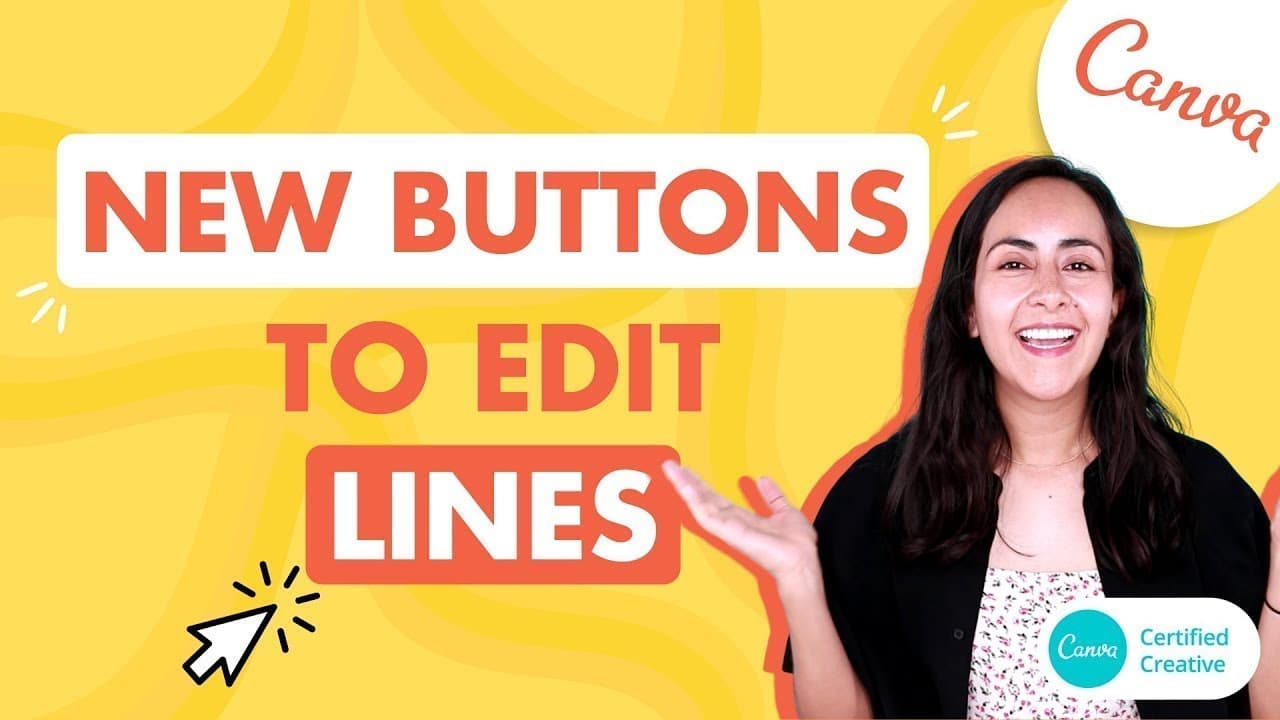
To create and customize lines in Canva, you can use keyboard shortcuts or select from the elements menu. Adjust the line's weight, style, and endings effortlessly using the new features, allowing for a variety of designs such as dotted or rounded ends. Experimenting with different settings can enhance your design's visual appeal.
Transcript
hello guys how are you my name is jenna munoz and welcome to this tutorial in today's video we are going to learn how to create lines in canva and also how to make them thin how to make them thicker or how to change the body of the line how to make it dotted or how to make it continuous and also how to change the edges of the lines so i'm really ex... Read More
Key Insights
- 🫥 Canva allows users to create lines quickly using shortcuts or element options.
- 🫥 Changing line weight and style in Canva is now easier with dedicated features.
- 🫥 Customizing line endings in Canva offers additional design possibilities.
- 🫥 Experimenting with various line designs can lead to creative and unique outcomes.
- 🫥 Canva's new line customization feature simplifies the process of creating visually appealing designs.
- 🫥 Different line styles in Canva, such as continuous, dotted, and with endings, add variety to designs.
- 🫥 Creating intricate designs using lines in Canva is made effortless with the new features.
Install to Summarize YouTube Videos and Get Transcripts
Explore YouTube Video Summarizer or Get YouTube Transcript Extractor
Questions & Answers
Q: What are the two ways to create a line in Canva?
You can either type "L" on your keyboard or select a line from the elements category to create a line in Canva.
Q: What options are available to customize the weight of lines in Canva?
Canva now allows you to easily adjust the weight of lines, making them thinner or thicker with just one click.
Q: How can you change the style of the lines in Canva?
In Canva, you can choose from different line styles including continuous, dotted, and with customized beginnings and endings to enhance your designs.
Q: What suggestions are given for experimenting with line designs in Canva?
The tutorial encourages users to play around with different line styles, weights, and endings to create unique and stylish designs.
Summary & Key Takeaways
-
Tutorial on creating lines in Canva, including shortcuts and element options.
-
Demonstration of changing line weight, style, and endings for different looks.
-
Encouragement to experiment with various line designs in Canva.
Read in Other Languages (beta)
Share This Summary 📚
Summarize YouTube Videos and Get Video Transcripts with 1-Click
Try YouTube Summary with ChatGPT & Claude or YouTube Transcript Generator
Explore More Summaries from Design with Canva 📚



Summarize YouTube Videos and Get Video Transcripts with 1-Click
Try YouTube Summary with ChatGPT & Claude or YouTube Transcript Generator