How to Turn Sources into Outputs with NotebookLM
TL;DR
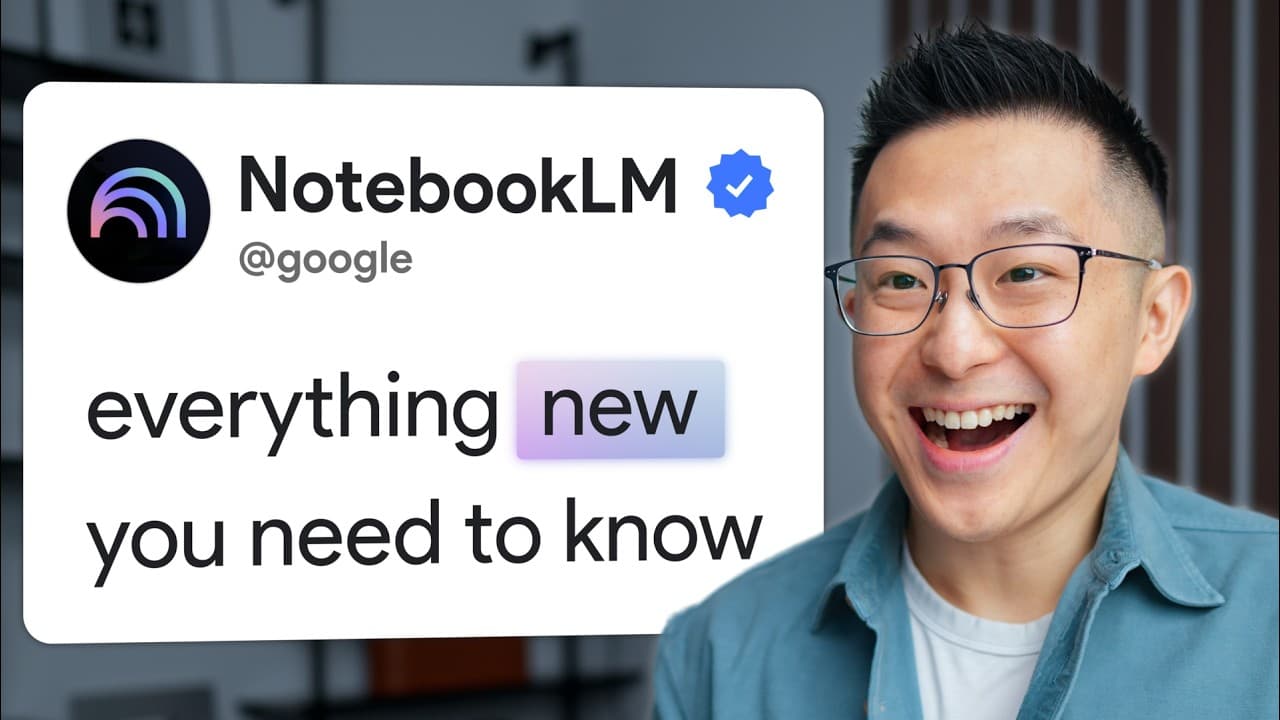
NotebookLM works best when the answers already exist across trusted files and you need grounded synthesis without manually reviewing every format. Add and verify sources in the left panel, investigate them through goal-specific chat instructions in the middle, then use Studio tools on the right to generate practical deliverables such as reports, slide decks, infographics, and data tables.
Transcript
Notebook LM after receiving a massive amount of updates recently is now more popular than even Gemini in terms of usage and interest, which is pretty wild. So, if you're still using Notebook LM like you were a few weeks ago, you're missing out on some incredible capabilities. In this video, I cover what Notebook LM is still the best at, then go thr... Read More
Key Insights
- NotebookLM is most useful when the relevant answers already exist in documents or media, especially when no single source provides the complete picture. It can synthesize PDFs, spreadsheets, slides, text, audio, and video while grounding its response in the supplied material.
- The interface is organized as a three-stage workflow: sources on the left, chat in the middle, and Studio outputs on the right. Users first collect evidence, then uncover insights through questions, and finally turn those findings into reports, presentations, or other deliverables.
- Fast research is a source-discovery tool that returns materials for the user to inspect and select. Limiting additions to three carefully reviewed sources can function as a quality filter because it encourages direct evaluation instead of indiscriminately importing every result.
- Deep research is different from fast research because it reads discovered materials and produces a synthesized report alongside its source list. The presenter prefers using domain expertise to filter sources and recommends performing deeper research in Gemini, ChatGPT, or Claude before importing the results.
- Google Docs, Slides, and Sheets are living sources that can be synchronized after their contents change. PDFs are static uploads, so updated information requires different handling. This distinction matters when a notebook depends on documents that colleagues continue to revise.
- Custom chat instructions are especially important for high-stakes work because they frame each response around the notebook's intended outcome. The presenter creates these instructions from an explicit end goal and leaves response length at its default, requesting expansion only when necessary.
- Chat history can influence later conversations, so deleting it before beginning an unrelated discussion creates a cleaner context. Valuable findings should first be saved as notes, and especially important notes can be converted into sources that inform future Studio outputs.
- The Studio panel turns source material directly into usable artifacts instead of requiring users to copy chat answers into separate documents. Reports can use source-aware suggested formats or custom instructions, while slide decks, infographics, mind maps, tables, overviews, quizzes, and flashcards serve different needs.
- More videos from this channel:
- More from this channel: Jeff Su
Install to Summarize YouTube Videos and Get Transcripts
Explore YouTube Video Summarizer or Get YouTube Transcript Extractor
Questions & Answers
Q: When should you use NotebookLM instead of a general chatbot?
Use NotebookLM when you already know which files contain the needed information, the evidence is spread across several formats or media, and factual grounding is important. A suitable task might combine a PDF brochure, a spreadsheet, and a video walkthrough, then ask for a comparison that must remain tied to those supplied sources.
Q: How does the three-column NotebookLM workflow work?
Start in the Sources panel on the left by adding the documents, recordings, websites, or other materials that contain the evidence. Move to the central Chat panel to ask questions, request summaries, and identify details. Finish in the Studio panel on the right by transforming the resulting insights into practical deliverables such as reports or slide decks.
Q: What is the difference between fast research and deep research in NotebookLM?
Fast research discovers and returns a list of sources that the user can inspect and choose manually. Deep research goes further by reading the discovered sources, synthesizing their contents into a report, and providing the underlying source list. The presenter favors manual filtering when domain expertise can identify weak materials more reliably.
Q: How can you improve the quality of sources discovered by NotebookLM?
Review discovered materials before adding them and keep the selection focused. The presenter's rule of thumb is to select no more than three sources, which forces closer inspection and creates a practical quality filter. Sources written in another language can still be useful because NotebookLM can extract relevant information and answer questions in English.
Q: How are Google files and PDFs handled differently in NotebookLM?
Google Docs, Slides, and Sheets function as living sources. When those files change, users can synchronize them so later notebook queries use the latest version. PDFs are static uploads and do not receive the same update treatment. Users should account for this distinction when relying on collaborative files that are revised over time.
Q: How should custom chat instructions be used for high-stakes tasks?
Define the notebook's end goal and add a custom instruction that frames every response around that objective. In the example, the goal is developing a business proposal to increase Gemini's monthly active users. The presenter generates a tailored instruction in Gemini, pastes it into NotebookLM, and keeps response length at the default setting.
Q: Why should you clear NotebookLM chat history between projects?
Previous exchanges can influence a new conversation, so clearing chat history helps create a cleaner context when the topic changes completely. Before deleting anything, review the conversation for reusable evidence. Save a useful data point as a note, or convert a particularly important insight into a source so it informs future Studio-generated outputs.
Q: How can NotebookLM create reports from uploaded sources?
Open Reports in the Studio panel after assembling and analyzing the relevant sources. NotebookLM can suggest dynamic report formats based on the notebook's contents and generate tailored instructions for those formats. If none fits the objective, choose a custom report and provide instructions describing its purpose and intended audience before generating the finished document.
Summary & Key Takeaways
-
NotebookLM is designed for questions whose answers are distributed across known materials, including PDFs, spreadsheets, slides, websites, audio, and video. Its main advantage is grounded synthesis: users can compare information across formats while directing the system to rely on the provided sources rather than inventing unsupported details.
-
The interface supports a left-to-right workflow. Users collect existing and discovered sources in the Sources panel, analyze them through the Chat panel, and create deliverables in the Studio panel. Custom chat instructions align responses with a specific objective, while saved notes and converted sources preserve valuable findings for later outputs.
-
Source quality and output selection require human judgment. Fast research helps users identify web or Drive materials for manual review, whereas deep research also synthesizes a report. Reports can follow dynamically suggested or custom formats, while slide decks and other Studio tools offer situational ways to transform evidence into usable artifacts.
Read in Other Languages (beta)
Share This Summary 📚
Summarize YouTube Videos and Get Video Transcripts with 1-Click
Try YouTube Summary with ChatGPT & Claude or YouTube Transcript Generator
Explore More Summaries from Jeff Su 📚
Summarize YouTube Videos and Get Video Transcripts with 1-Click
Try YouTube Summary with ChatGPT & Claude or YouTube Transcript Generator