How to Display and Annotate RAW Data from LabChart on Mac
TL;DR
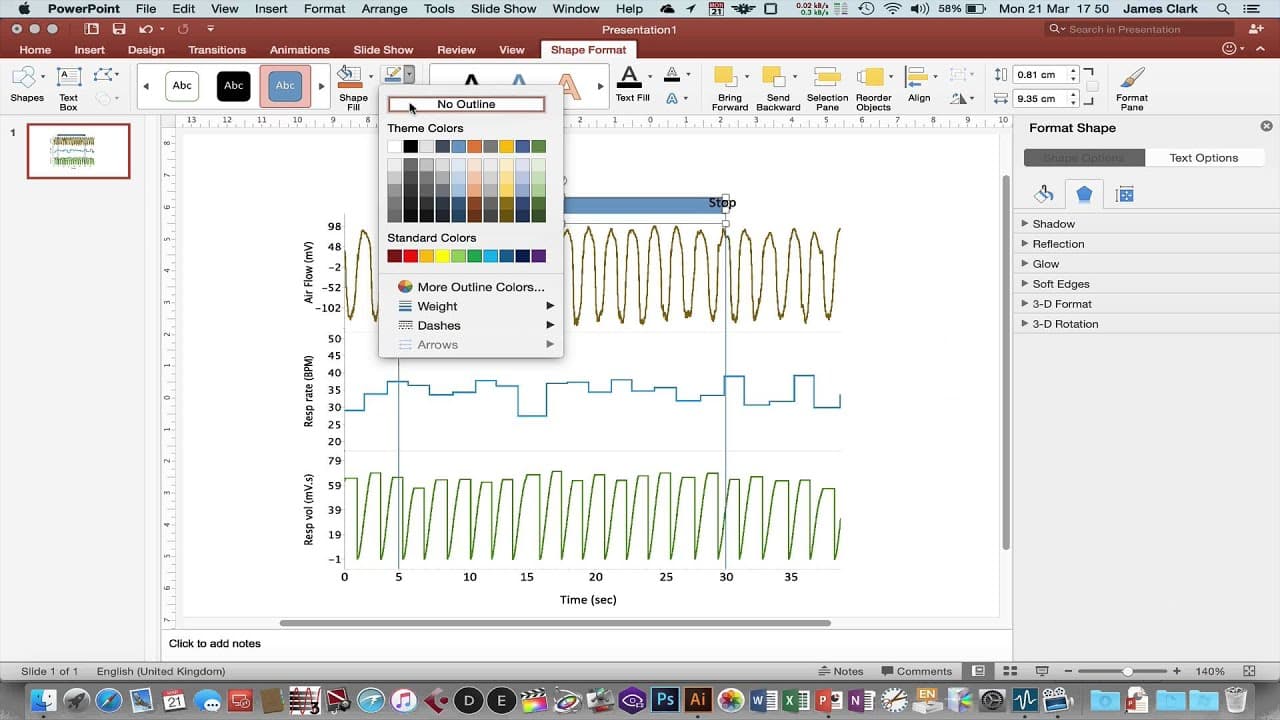
To display and annotate RAW data from LabChart Reader on a Mac, select the desired channels, zoom in, and then use PowerPoint or Adobe Illustrator for editing. Rescale the data for clarity and export images as high-quality vector graphics. If looking for free alternatives, consider using software like Graphic, which provides similar editing features to Illustrator.
Transcript
hello this is a tutorial to go through how to get raw data from the Apple Mac version of lab chart reader into a format that can be used in a written report published paper article or similar this is a file loaded up into lab chart reader on my macbook you can see I have two selected three channels that I want to zoom in on and use for an annotated... Read More
Key Insights
- 👻 Lab Chart Reader on a Mac allows users to select and zoom in on specific channels of data for analysis.
- ❓ The scaling of the data can be adjusted to improve visualization and appearance.
- ⛔ PowerPoint can be used for basic editing and annotation of the data on a Mac, although editing capabilities may be limited compared to the Windows version.
- 🇲🇰 Adobe Illustrator and other software like Graphic provide more advanced editing capabilities for vector drawings on a Mac.
Install to Summarize YouTube Videos and Get Transcripts
Explore YouTube Video Summarizer or Get YouTube Transcript Extractor
Questions & Answers
Q: How can I select specific channels of data in Lab Chart Reader on a Mac?
To select specific channels, highlight the data using the shift key. This can be done for multiple channels by maintaining the shift button while highlighting each channel.
Q: How can I adjust the scaling of the data in Lab Chart Reader on a Mac?
To adjust the scaling, go to the zoom view and rescale the data to your preference. This can be done by expanding or contracting the scales.
Q: Can I edit and annotate the data in PowerPoint as a Mac user?
Yes, you can edit and annotate the data in PowerPoint. To do this, resize the zoom window to fit a slide, adjust display settings, copy the zoom view, and paste it into PowerPoint. However, certain editing capabilities may be limited compared to the Windows version.
Q: Are there alternative software options for editing vector drawings on a Mac?
Yes, Adobe Illustrator is a powerful software option for editing vector drawings on a Mac. Another alternative is Graphic by India ink, which is a more affordable option with similar features.
Summary & Key Takeaways
-
The tutorial shows how to select and zoom in on specific channels of data in Lab Chart Reader on a Mac.
-
The tutorial explains how to adjust the scaling of the data to make it visually appealing.
-
The tutorial demonstrates different methods of editing and annotating the data using PowerPoint, Adobe Illustrator, and Graphic software.
Read in Other Languages (beta)
Share This Summary 📚
Summarize YouTube Videos and Get Video Transcripts with 1-Click
Try YouTube Summary with ChatGPT & Claude or YouTube Transcript Generator
Explore More Summaries from Dory Video 📚



Summarize YouTube Videos and Get Video Transcripts with 1-Click
Try YouTube Summary with ChatGPT & Claude or YouTube Transcript Generator