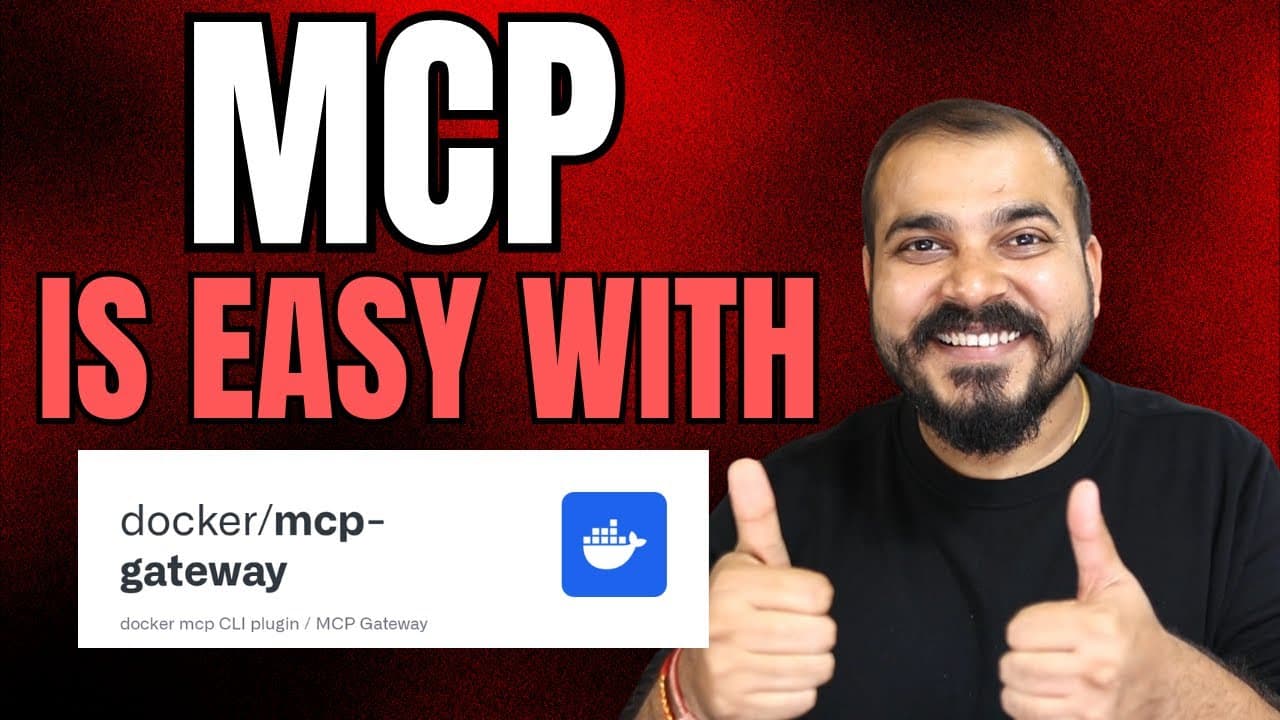
How to Run MCP Servers With Docker MCP Toolkit
TL;DR
Install Docker Desktop, open the beta MCP Toolkit, add servers from the catalog, and connect them to a supported client such as Claude Desktop or Cursor. After restarting the client, the added servers and their tools become available for tasks such as retrieving YouTube transcripts, automating browser actions, searching information, and accessing AWS documentation.
Transcript
Hello all, my name is Krishna and welcome to my YouTube channel. So guys, today in this particular video, we are going to talk about this interesting topic that is called as Docker MCP catalog and toolkit and uh this has been recently introduced by Docker and with the help of this toolkit now you will be able to run MCP server in a very easy way ir... Read More
Key Insights
- Docker MCP Toolkit is a beta feature within Docker Desktop that makes MCP servers easier to add, run, and connect to supported clients. The workflow begins by installing the appropriate Docker Desktop version for the user’s Windows or Mac configuration and opening the MCP Toolkit.
- The MCP Toolkit interface is organized into My Servers, Catalog, Clients, and OAuth sections. My Servers shows the MCP servers currently running, while Catalog lists available servers that users can select according to their requirements and add to their local Docker Desktop environment.
- The client catalog includes common coding and research clients such as Claude Code, Claude Desktop, Codex, Cursor, Gemini, Goose, LM Studio, OpenCode, and VS Code. A server can be connected to a selected client from Docker Desktop, although VS Code uses separate setup instructions.
- The YouTube Transcript MCP server provides three demonstrated tools: get transcript, get timestamped transcript, and get video information. After it is added and connected to a client, users can provide a YouTube URL and request either a complete transcript or a version containing timing information.
- The Playwright MCP server exposes browser-oriented tools for actions such as clicking, closing the browser, reading console messages, dragging, and navigating to a URL. Adding it through the catalog makes these listed capabilities available to a connected client alongside tools from other enabled MCP servers.
- The DuckDuckGo MCP server provides two described capabilities: searching for information and fetching content. The demonstration identifies recent AI news as an example search request and notes that catalog entries can include a GitHub link associated with the server published through Docker Hub.
- The AWS Documentation MCP server provides tools to read, fetch, search, and recommend documentation. It can fetch AWS documentation and convert it into Markdown format, search documentation for relevant information, and return content recommendations related to AWS topics supplied by the user.
- Claude Desktop requires a restart after it is connected through Docker MCP Toolkit. Once reopened, MCP Docker and the selected servers appear inside the client, and tool use can require explicit permission before the requested server retrieves information and returns the result.
Install to Summarize YouTube Videos and Get Transcripts
Explore YouTube Video Summarizer or Get YouTube Transcript Extractor
Questions & Answers
Q: How do you run an MCP server with Docker MCP Toolkit?
Install Docker Desktop for the configuration of the Windows or Mac computer, open Docker Desktop, and select the beta MCP Toolkit. Browse the Catalog, choose an MCP server, inspect its available tools, and click Add. The server then appears under My Servers. Open Clients, connect the desired supported client, and restart that client when required so the added tools become available.
Q: What sections are available in Docker MCP Toolkit?
Docker MCP Toolkit presents four main sections: My Servers, Catalog, Clients, and OAuth. My Servers lists MCP servers currently running on the system. Catalog contains the MCP servers users can select based on their needs. Clients provides connection options for supported applications, while OAuth is presented as another toolkit section for authentication-related configuration.
Q: Which clients can connect to Docker MCP servers?
The client list shown in Docker MCP Toolkit includes Claude Code, Claude Desktop, Codex, Cursor, Gemini, Goose, LM Studio, OpenCode, and VS Code. The demonstration connects Claude Desktop and Cursor, while also noting that VS Code uses separate instructions for adding an MCP server. Users select a client and click Connect to establish the integration.
Q: How do you connect Docker MCP Toolkit to Claude Desktop?
Open the Clients section of Docker MCP Toolkit, find Claude Desktop, and click Connect. After making the connection, exit and restart Claude Desktop. The MCP Docker integration should then appear inside the client, along with the tools supplied by the MCP servers previously added through the catalog. Tool calls may ask for permission before they run.
Q: What can the YouTube Transcript MCP server do?
The YouTube Transcript MCP server can retrieve a transcript for a supplied YouTube video URL, return a timestamped transcript, and provide video information. Its three demonstrated tools are get transcript, get timestamped transcript, and get video information. Once connected to a client, these functions can be requested conversationally and their returned transcript can be summarized according to the user’s needs.
Q: What tools does the Playwright MCP server provide?
The Playwright MCP server provides tools for browser operations. The demonstrated catalog entry includes capabilities associated with browser clicking, closing, console messages, dragging, and navigation to a URL, among other listed browser actions. After the server is added and connected, its available tools appear in the client together with the tools exposed by the other selected MCP servers.
Q: What can the DuckDuckGo and AWS Documentation MCP servers do?
The DuckDuckGo MCP server provides one tool for fetching content and another for searching information, with recent AI news given as an example query. The AWS Documentation server can read, fetch, search, and recommend AWS documentation. It can also fetch AWS documentation, convert it to Markdown format, and provide content recommendations for an AWS-related request.
Q: How do you retrieve a YouTube transcript in Claude Desktop?
First add the YouTube Transcript server from the Docker MCP catalog and connect Docker MCP Toolkit to Claude Desktop. Restart Claude Desktop, provide the desired YouTube video URL, and ask for its transcript. Claude Desktop identifies the relevant MCP tool and requests permission. Select the one-time allowance, then the server retrieves and displays the transcript. A timestamped transcript can be requested similarly.
Summary & Key Takeaways
-
Docker Desktop includes a beta MCP Toolkit designed to simplify running MCP servers and connecting them to clients. Its interface separates server management, the MCP catalog, client connections, and OAuth. Users can choose catalog entries according to their requirements, add them locally, and inspect the tools exposed by each server.
-
The demonstration adds several catalog servers, including YouTube Transcript, Playwright, DuckDuckGo, and AWS Documentation. Their tools support transcript retrieval, timestamped transcripts, video information, browser interactions, content fetching, information searches, documentation searches, documentation retrieval, recommendations, and conversion of AWS documentation into Markdown content.
-
Client integration is demonstrated with Claude Desktop and Cursor, while VS Code requires separate instructions. Connecting Claude Desktop adds MCP Docker and the selected server tools to the client. After restarting Claude Desktop, a user can submit a YouTube URL, approve the requested tool call, retrieve its transcript, and request timestamped output.
Read in Other Languages (beta)
Share This Summary 📚
Summarize YouTube Videos and Get Video Transcripts with 1-Click
Try YouTube Summary with ChatGPT & Claude or YouTube Transcript Generator
Explore More Summaries from Krish Naik 📚

Summarize YouTube Videos and Get Video Transcripts with 1-Click
Try YouTube Summary with ChatGPT & Claude or YouTube Transcript Generator