How to Create a White Silhouette in Canva
TL;DR
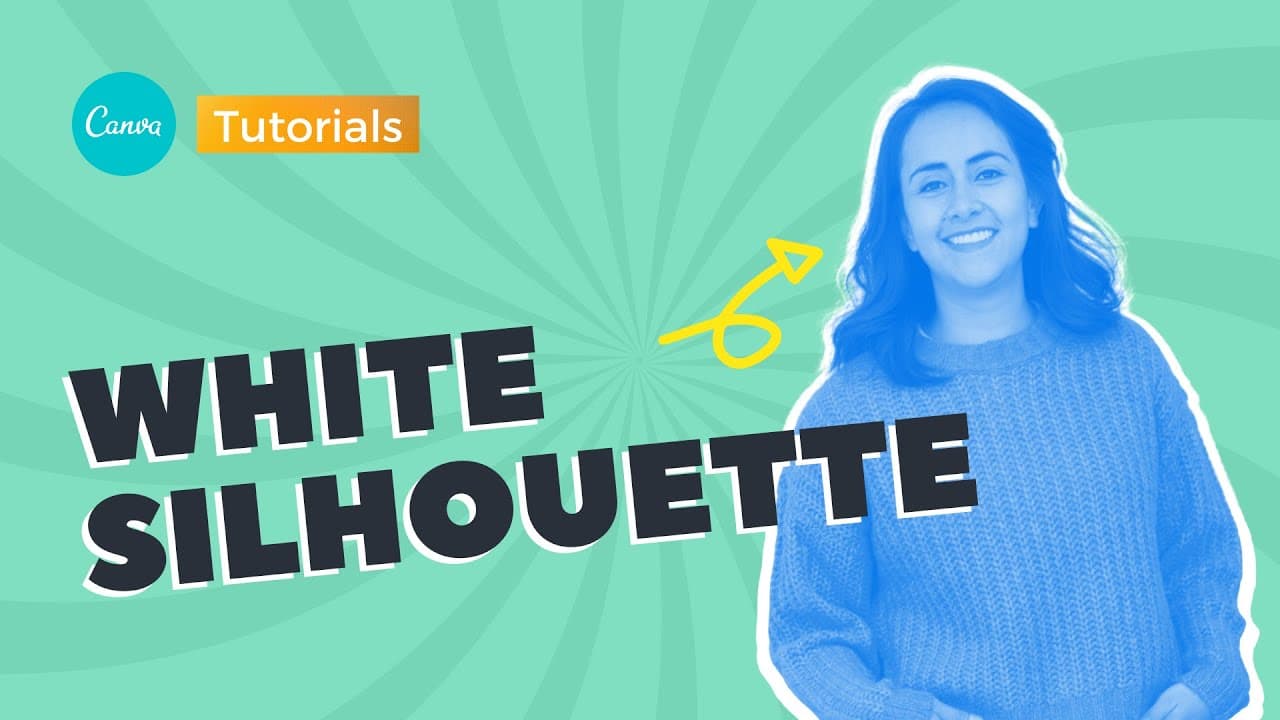
To create a white silhouette around a photo in Canva, duplicate the photo, use duotone effects to set both highlights and shadows to white, and resize the original image while holding the shift key to maintain proportions. Attention to detail and patience are key for achieving an even and professional look.
Transcript
hey guys this is Deanna and today I'm going to teach you how to create a white silhouette or white stroke around our photos so as you can see here I already have my photo I actually included or added this foil into a grid so it doesn't go to the background by accident and okay so let's start I'm going to duplicate this photo and I'm going to move i... Read More
Key Insights
- 🤍 Utilize duotone effects for creating white highlights and shadows in photo editing.
- 🤩 Resize the image proportionally using the shift key for optimal results.
- 🤍 Attention to detail and patience are essential for achieving a professional-looking white silhouette effect.
- 🤍 Experiment with different sizes and alignments to enhance the impact of the white silhouette.
- 🤍 Proper positioning of the photo is crucial for a clean and seamless white silhouette finish.
- 🆘 Subscribing to Deanna's channel for more tutorials can help improve editing skills.
- 🥺 Continuing to practice and refine the technique will lead to better results.
Install to Summarize YouTube Videos and Get Transcripts
Explore YouTube Video Summarizer or Get YouTube Transcript Extractor
Questions & Answers
Q: What are the key steps in creating a white silhouette effect in photos?
To create a white silhouette effect, duplicate the photo, apply duotone effects for white highlights and shadows, resize the image, and carefully position it for alignment.
Q: Why is it important to use the shift key when resizing the background photo?
Using the shift key ensures that the photo is resized proportionally, maintaining the correct aspect ratio and preventing distortion when creating the white silhouette effect.
Q: How can one ensure the white silhouette looks even and professional?
Paying attention to the details, including resizing, alignment, and color settings for highlights and shadows, is crucial to achieving an even and professional-looking white silhouette effect.
Q: What should one do to enhance the white silhouette effect further?
Experiment with resizing the silhouette to make it bigger and align it with the original photo to create a visually appealing and impactful white silhouette effect.
Summary & Key Takeaways
-
Deanna demonstrates how to duplicate a photo, apply duotone effects for white highlights and shadows, resize the image for a clean silhouette effect.
-
She emphasizes using the shift key for proper resizing and alignment with the original photo.
-
Patience and attention to detail are crucial for achieving an even white silhouette effect.
Read in Other Languages (beta)
Share This Summary 📚
Summarize YouTube Videos and Get Video Transcripts with 1-Click
Try YouTube Summary with ChatGPT & Claude or YouTube Transcript Generator
Explore More Summaries from Design with Canva 📚





Summarize YouTube Videos and Get Video Transcripts with 1-Click
Try YouTube Summary with ChatGPT & Claude or YouTube Transcript Generator