How to Edit Faster With DaVinci Resolve 20 AI
TL;DR
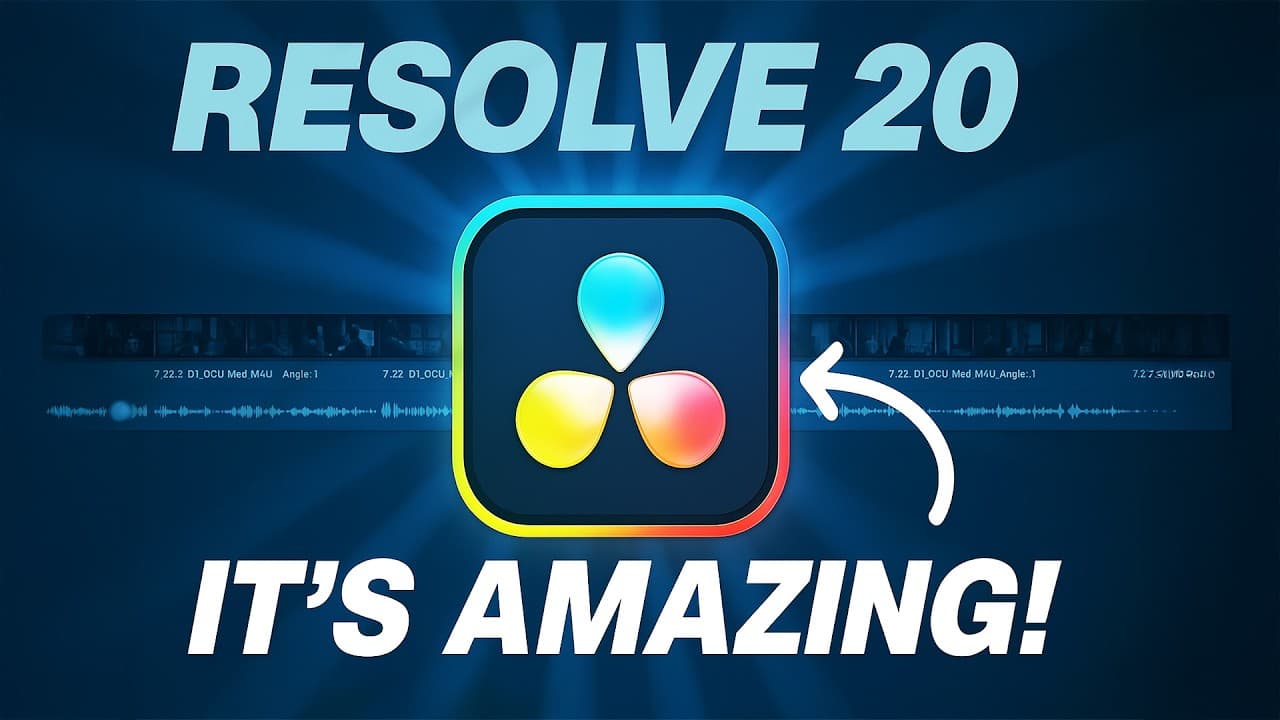
DaVinci Resolve 20 can reduce repetitive editing through multicam smart switching, automatic subtitles with animated word highlighting, and Audio Assistant mixing. These tools analyze speakers, generate and style captions, and balance dialogue against music and effects, giving editors a useful first pass that they can refine creatively instead of building every decision manually.
Transcript
I'm with Sean with Blackmagic and he's going to kind of walk us through some of the new AI tools that is in Da Vinci Resolve. We have a lot to cover how these will affect content creators, improve their workflow so they can make better and faster videos. So the first one I want to ask you about is multicam smart switching. This is kind of like you ... Read More
Key Insights
- Multicam Smart Switch is an automated first-pass editing tool that identifies who is speaking and selects the corresponding camera angle. It uses visible lip movement and other signals, so its decisions are not limited to interpreting audio waveforms from a podcast recording.
- The multicam workflow begins by selecting synchronized recordings and creating a multicam clip. After placing that clip in the timeline, editors can still use traditional multicam controls or apply Smart Switch to generate angle changes automatically across the conversation.
- Smart Switch settings are editorial guardrails that influence automated decisions. Minimum edit duration limits how short selected shots can become, while edit change delay controls the timing between angle changes and can help the resulting sequence resemble a natural live-switched production.
- Wide-angle controls are built into Smart Switch for common production patterns. Resolve can detect wide shots, set their frequency, use them during introductions and conclusions, or cut to them during silence, giving editors more control than simply switching to each active speaker.
- AI-generated subtitles can be created directly from dialogue recognized in the timeline or from previously transcribed source clips. Resolve also supports exporting transcription as subtitle data or a text document, which makes the recognized dialogue usable beyond the current edit.
- Animated subtitle templates can style an entire subtitle track while preserving controls for individual caption overrides. The Word Highlight treatment follows spoken words visually, and editors can modify its fill color, fonts, strokes, transforms, and other attributes in the Inspector.
- Fusion is the underlying toolset connected to Resolve's animated title templates. A production artist can customize a template, export it, and add it to presets, allowing an editor to recall approved branded elements without rebuilding their appearance for every project.
- Audio Assistant is designed to create a more usable mix from dialogue, natural sounds, sound effects, and music. It helps prevent loud supporting elements from overwhelming speech, but the workflow still treats automation as an assistant that prepares material for an editor's final polish.
Install to Summarize YouTube Videos and Get Transcripts
Explore YouTube Video Summarizer or Get YouTube Transcript Extractor
Questions & Answers
Q: How does DaVinci Resolve 20 switch podcast cameras automatically?
DaVinci Resolve 20 uses Multicam Smart Switch after synchronized recordings have been combined into a multicam clip and placed on the timeline. The feature identifies active speakers, including by observing lip movement, and selects their camera angles for the duration of their speech. It creates an editable first pass, allowing the human editor to review timing, correct choices, and add creative polish.
Q: How do you set up Multicam Smart Switch in DaVinci Resolve 20?
Select the separate camera recordings in the media pool, right-click them, and create a new multicam clip. Place that multicam clip in the timeline, then open Multicam Smart Switch and configure its available controls. These include minimum edit duration, edit change delay, wide-angle detection and frequency, wide shots for intros, outros, or silence, video-only or video-and-audio handling, and the quality slider.
Q: What do minimum edit duration and edit change delay control?
Minimum edit duration determines the shortest camera segment that Smart Switch should create, helping prevent unwanted rapid cuts. Edit change delay adjusts how quickly Resolve changes to another angle after detecting a reason to switch. Lower settings can produce faster edits, while additional delay can make the sequence feel more like a deliberately timed live camera switch.
Q: Why does Multicam Smart Switch analyze lip movement?
Lip movement gives Resolve a visual signal for identifying the person who is speaking. This is particularly useful when a podcast has mixed audio or recordings that are less clean and professionally isolated. Because the system is not relying only on waveforms, it can still associate speech with an on-camera participant and choose the relevant angle for an initial edit.
Q: How do you create and export AI subtitles in DaVinci Resolve 20?
Resolve can recognize dialogue and generate captions using a selected caption preset. Source clips may also be transcribed before subtitle creation, and the transcription window can export the recognized content directly to a subtitle format or to a text document. Extended language recognition is available through an additional package that Resolve can prompt the editor to download, although it is described as beta functionality.
Q: How do you animate subtitles and highlight spoken words?
After generating subtitles, select the subtitle track and adjust its attributes in the Inspector. Applying the animated Word Highlight title to the subtitle track changes its style so each word is visually called out as it is spoken. The editor can enable the highlight fill, select its color, and modify fonts, strokes, transforms, or individual caption overrides for branding.
Q: Can custom subtitle animations be reused in DaVinci Resolve 20?
Custom subtitle treatments can be reused because the animated titles are connected to Resolve's Fusion toolset. Editors or production artists can open the macro behind a title, customize the template, export it from Fusion, and add it to available presets. That workflow lets an editor recall established visual elements and maintain consistent colors, fonts, and animation choices across later projects.
Q: What does Audio Assistant do in DaVinci Resolve 20?
Audio Assistant helps prepare a rough mix containing dialogue, natural sound, sound effects, and music. Its purpose is to keep dialogue understandable when other timeline elements are too loud or have not yet been polished. The demonstration begins by duplicating the timeline, preserving the existing edit before applying assistance, and presents the feature as a starting point for further human refinement.
Summary & Key Takeaways
-
Multicam Smart Switch creates an initial podcast edit by identifying active speakers and changing among synchronized camera angles. Editors can guide its choices through minimum edit duration, edit change delay, wide-angle frequency, silence handling, and quality settings. The resulting timeline remains available for review and creative polishing rather than serving as an unquestionable final cut.
-
DaVinci Resolve 20 can generate subtitles from recognized dialogue and apply animated title treatments across the subtitle track. Word Highlight visually marks words as they are spoken, while Inspector controls adjust fonts, colors, strokes, transforms, and individual captions. Fusion connections also allow teams to customize, export, save, and reuse branded title templates.
-
Audio Assistant addresses rough timelines containing dialogue, natural sound, effects, and music that have not yet been polished. Its purpose is to establish a more usable mix in which dialogue remains audible against other elements. The demonstration also recommends duplicating the timeline first, allowing the editor to preserve and recreate the original arrangement.
Read in Other Languages (beta)
Share This Summary 📚
Summarize YouTube Videos and Get Video Transcripts with 1-Click
Try YouTube Summary with ChatGPT & Claude or YouTube Transcript Generator
Explore More Summaries from Think Media 📚
Summarize YouTube Videos and Get Video Transcripts with 1-Click
Try YouTube Summary with ChatGPT & Claude or YouTube Transcript Generator