How to Enable USB Boot on Raspberry Pi 4
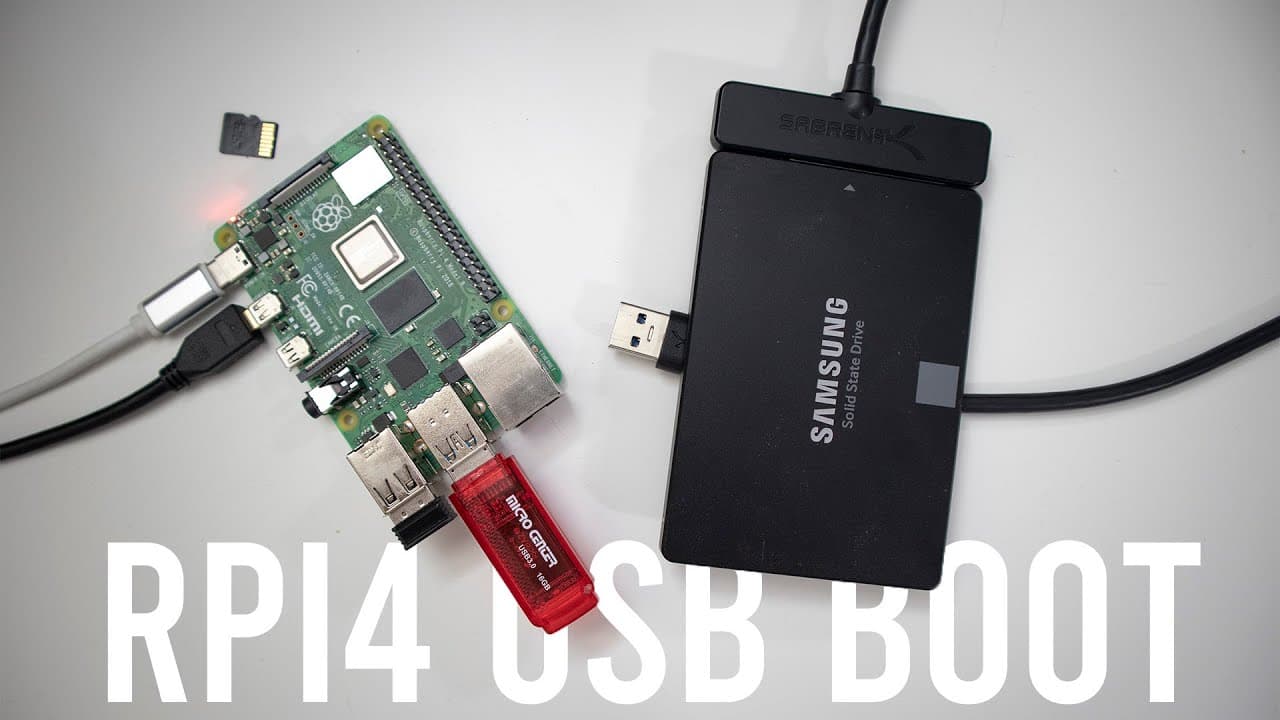
TL;DR
To enable USB boot on the Raspberry Pi 4, update the bootloader using the command sudo rpi-eeprom-update to the latest version that supports USB booting. Then, use the SD Card Copier to transfer your operating system files from the SD card to a USB drive. USB booting improves performance and reliability compared to SD cards.
Transcript
hey guys what's going on it's down here from Nova spirit second welcome back to channel and today we are gonna be performing the USB boot method on the Raspberry Pi force alright let's get started so before we begin I do want to thank marker Center for sending me over the Raspberry Pi for eight gigabytes so we could do all this cool stuff to it any... Read More
Key Insights
- 💝 Updating the bootloader is essential for enabling USB boot on the Raspberry Pi 4, and users must ensure they are on the latest version.
- ☠️ Transferring data from an SD card to a USB drive involves using the SD Card Copier tool available on Raspberry Pi OS.
- 🥺 Booting from a USB drive can lead to improved performance and reliability, especially for projects requiring constant access to data.
- ✊ Users should prepare for potential power issues when using SSDs, as they may not function properly without adequate power supply.
- ☠️ Testing various drives can provide insights into the performance difference, with USB 3.0 showing significant advantages over traditional SD cards.
- 💨 The Raspberry Pi 4 can function effectively with 8 GB of RAM when paired with fast storage solutions for more demanding applications.
- 👤 The simplicity of the boot process highlights the accessibility of the Raspberry Pi for both experienced users and novices interested in technology.
Install to Summarize YouTube Videos and Get Transcripts
Explore YouTube Video Summarizer or Get YouTube Transcript Extractor
Questions & Answers
Q: What are the benefits of using USB boot instead of an SD card on Raspberry Pi 4?
Using USB boot offers several advantages, including faster boot times and improved read/write speeds due to USB 3.0 technology. It also enhances reliability, as USB drives are less prone to corruption compared to SD cards, making them suitable for long-term use in applications like servers.
Q: How do I update the Raspberry Pi 4 bootloader to enable USB boot?
To update the bootloader, you'll need to access the terminal and execute specific commands. This includes running sudo apt update and sudo rpi-eeprom-update -d -f <latest_version> to install the latest EEPROM version that supports USB boot.
Q: What should I do if my SSD doesn't power up properly when attempting USB boot?
If your SSD isn't powering correctly, it may be due to insufficient power from the Raspberry Pi. To resolve this, use an external power source for the SSD or switch to a standard USB thumb drive, which generally requires less power.
Q: What speed comparisons were made between booting from an SSD and an SD card?
The performance tests indicated that the USB thumb drive achieved around 100 megabytes per second, significantly outperforming the SD card's maximum of around 50 megabytes per second. This makes USB solutions preferable for tasks requiring quicker data access.
Summary & Key Takeaways
-
The tutorial shows step-by-step instructions for updating the Raspberry Pi 4 bootloader to enable USB booting, which improves performance and reliability compared to using an SD card.
-
It details the process of copying the operating system files from the SD card to a USB drive, highlighting potential challenges such as power issues when using SSDs.
-
The video concludes with performance comparisons between booting from an SD card and USB, demonstrating the superior speed and reliability of USB 3.0 devices.
Read in Other Languages (beta)
Share This Summary 📚
Summarize YouTube Videos and Get Video Transcripts with 1-Click
Try YouTube Summary with ChatGPT & Claude or YouTube Transcript Generator
Explore More Summaries from Novaspirit Tech 📚






Summarize YouTube Videos and Get Video Transcripts with 1-Click
Try YouTube Summary with ChatGPT & Claude or YouTube Transcript Generator