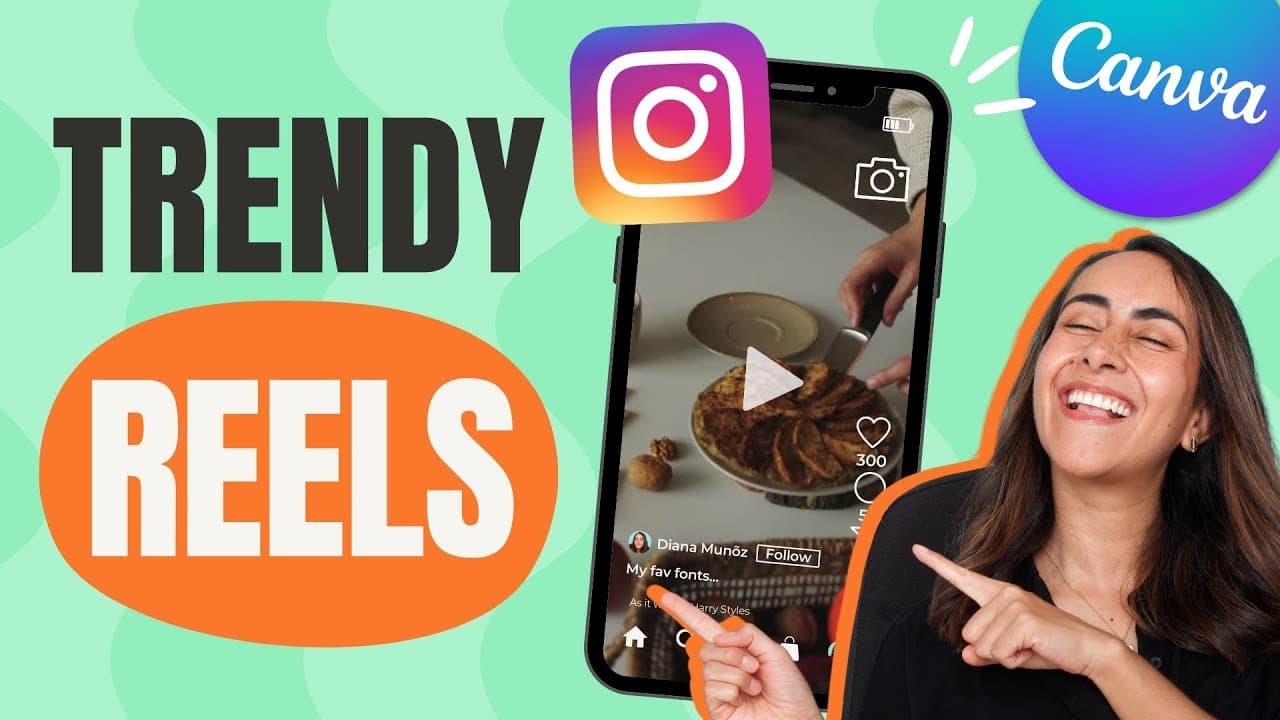
How to create a REEL with Canva on your PHONE
TL;DR
Learn how to create an Instagram Reel step by step using Canva on your phone with free tools and footage.
Transcript
today i'm going to show you step by step how i created this instagram reel using canva on my phone so if you guys are interested in this tutorial let's go to my phone we're going to start by opening the canva app and we're gonna go to the video section from here we're going to select mobile video and let's select blank while canva opens the editor ... Read More
Key Insights
- 😀 Canva's mobile app enables users to create Instagram Reels efficiently.
- 🥶 Utilize Canva's free footage library to enhance your video content.
- 🆘 Customizing text fonts and colors can help make your Instagram Reels visually appealing.
- 👀 Adding animations to text in Canva can elevate the overall look of your videos.
- 📼 Setting durations for video sections can maintain consistency across your Instagram Reel.
- 🫵 Deleting unwanted sections in Canva is easy with the grid view feature.
- ❓ Experimenting with different fonts and styles can make your Instagram Reel unique and engaging.
Install to Summarize YouTube Videos and Get Transcripts
Explore YouTube Video Summarizer or Get YouTube Transcript Extractor
Questions & Answers
Q: What tools are needed to create an Instagram Reel using Canva?
You only need a smartphone with the Canva app installed to start creating engaging Instagram Reels.
Q: How can you trim a section of a video in Canva?
You can easily trim a section of a video by selecting the thumbnail and dragging the arrows to adjust the beginning or end of the video.
Q: Can you customize text fonts and colors in Canva for Instagram Reels?
Yes, you can choose from a variety of free fonts, change text colors, and apply effects like shadows to enhance the text on your videos.
Q: How can you add animations to text in Canva for Instagram Reels?
By selecting a text box and using the "animate" feature, you can add animations like pan to make your text more dynamic and engaging.
Summary & Key Takeaways
-
Demonstration of creating an Instagram Reel using Canva on a phone.
-
Utilizing Canva's free features and footage from the library.
-
Adding text, customizing fonts, and applying animations to enhance the video.
Read in Other Languages (beta)
Share This Summary 📚
Summarize YouTube Videos and Get Video Transcripts with 1-Click
Try YouTube Summary with ChatGPT & Claude or YouTube Transcript Generator
Explore More Summaries from Design with Canva 📚




Summarize YouTube Videos and Get Video Transcripts with 1-Click
Try YouTube Summary with ChatGPT & Claude or YouTube Transcript Generator