Products
Features
YouTube Video Summarizer
Summarize YouTube videos
Web & PDF Highlighter
Highlight web pages & PDFs
Chat with PDF
Ask any PDF questions with AI
Ask AI Clone
Chat with your highlights & memories
Audio Transcriber
Transcribe audio files to text
Glasp Reader
Read and highlight articles
Kindle Highlight Export
Export your Kindle highlights
Idea Hatch
Hatch ideas from your highlights
Integrations
Obsidian Plugin
Notion Integration
Pocket Integration
Instapaper Integration
Medium Integration
Readwise Integration
Snipd Integration
Hypothesis Integration
Apps & Extensions
Chrome Extension
Safari Extension
Edge Add-ons
Firefox Add-ons
iOS App
Android App
Discover
Discover
Ideas
Discover new ideas and insights
Articles
Curated articles and insights
Books
Book recommendations by great minds
Posts
Essays and notes from readers
Quotes
Inspiring quotes collection
Videos
Curated videos and summaries
Explore Glasp
Glasp Story
How we grew from 0 to 3 million users
Glasp Newsletter
Weekly insights and updates
Glasp Talk
Interview series with great minds
Glasp Blog
Latest news and articles
Glasp Use Cases
Learn how others use Glasp
Build & Support
Glasp API
Access Glasp's API for developers
MCP Connector
Connect Glasp to Claude & ChatGPT
Community
Glasp Reddit Community
Students
Student discount and benefits
FAQs
Frequently Asked Questions
AboutPricing
DashboardLog inSign up

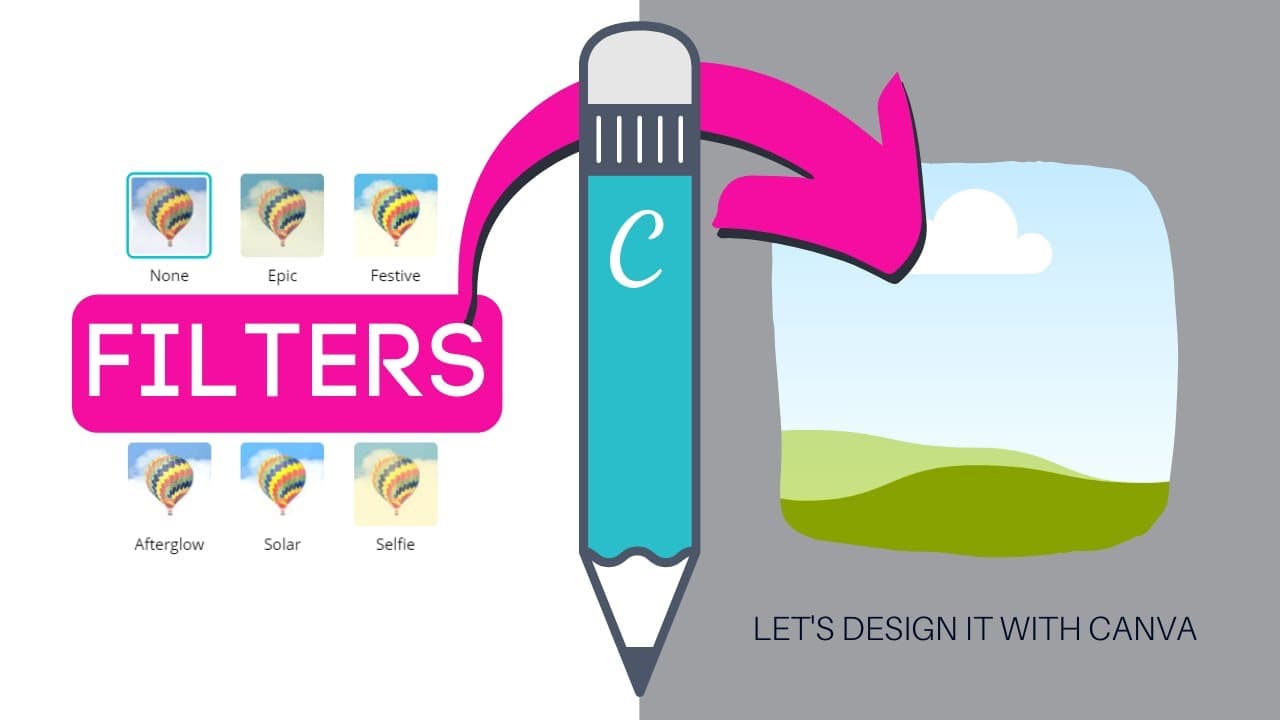
Canva: Using Filters on Images inside Frames

8.2K views
•
March 2, 2020
by
Design with Canva
YouTube video player
Canva: Using Filters on Images inside Frames

TL;DR

Learn how to add filters to photos inside frames on Canva for a cohesive look.

Transcript

what's up guys run here today I'm going to show you in this new tutorial how to add a filter to your frames in canva so this is called frame filtering because in the past it was not possible to add an effect or to add a filter once you have positioned a photo in a frame so let's rewind a little bit this is the final outcome let me show you you can ... Read More

Key Insights

  • 👻 Canva now allows users to apply filters to photos inside frames for a cohesive design.
  • 👀 Users can adjust and position photos within frames for a polished look.
  • 🖼️ Frame filtering in Canva is beneficial for maintaining brand consistency.
  • 🖼️ Adding filters to framed photos enhances visual appeal and aesthetics.
  • 🖼️ Frame filtering can be useful for social media content creation.
  • 👤 Canva's frame filtering feature enables users to create professional and branded designs.
  • 🖼️ Applying filters within frames on Canva is simple and effective for enhancing photos.

Install to Summarize YouTube Videos and Get Transcripts

Explore YouTube Video Summarizer or Get YouTube Transcript Extractor

Questions & Answers

Q: How does frame filtering in Canva impact brand consistency?

Frame filtering allows users to maintain a consistent aesthetic by applying filters to photos within frames, ensuring a cohesive look across all designs.

Q: Can you customize the positioning of photos within frames on Canva?

Yes, users can adjust and stretch photos within frames to ensure they fit perfectly for a professional and polished appearance.

Q: What are the benefits of adding filters to framed photos on Canva?

Adding filters to framed photos can enhance the visual appeal, create a cohesive look, and maintain consistency in branding across various designs.

Q: How can frame filtering in Canva be useful for social media content?

Frame filtering allows for easy application of filters to framed photos, ensuring a consistent and visually appealing feed on platforms like Instagram.

Summary & Key Takeaways

  • Tutorial on adding filters to photos within frames on Canva.

  • Demonstrates adjusting and positioning photos for a seamless look.

  • Explains the process of applying filters to framed photos for brand consistency.


Read in Other Languages (beta)

English

Share This Summary 📚

Summarize YouTube Videos and Get Video Transcripts with 1-Click

Download browser extensions on:

Try YouTube Summary with ChatGPT & Claude or YouTube Transcript Generator

Explore More Summaries from Design with Canva 📚

Collaborative video editing - How to make a group video in Canva - New feature - Canva tutorial thumbnail
Collaborative video editing - How to make a group video in Canva - New feature - Canva tutorial
Design with Canva
How Does Canva Magic Design Create Custom Visuals? thumbnail
How Does Canva Magic Design Create Custom Visuals?
Design with Canva
How to Make an Animated LOWER THIRD - Easy  & Quick Canva Tutorial thumbnail
How to Make an Animated LOWER THIRD - Easy & Quick Canva Tutorial
Design with Canva
How to BLUR OUT Portions of a Video | Free in Canva thumbnail
How to BLUR OUT Portions of a Video | Free in Canva
Design with Canva
OFFEO - First Impressions & first animated video thumbnail
OFFEO - First Impressions & first animated video
Design with Canva
How to Make a Logo and Download it with Transparent Background | FREE Canva Tutorial for Beginners thumbnail
How to Make a Logo and Download it with Transparent Background | FREE Canva Tutorial for Beginners
Design with Canva

Summarize YouTube Videos and Get Video Transcripts with 1-Click

Download browser extensions on:

Try YouTube Summary with ChatGPT & Claude or YouTube Transcript Generator

Apps & Extensions

  • Chrome Extension
  • Safari Extension
  • Edge Add-ons
  • Firefox Add-ons
  • iOS App
  • Android App

Key Features

  • YouTube Video Summarizer
  • Web & PDF Summarizer
  • Web & PDF Highlighter
  • Chat with PDF
  • Ask AI Clone
  • Audio Transcriber
  • Glasp Reader
  • Kindle Highlight Export
  • Idea Hatch

Integrations

  • Obsidian Plugin
  • Notion Integration
  • Pocket Integration
  • Instapaper Integration
  • Medium Integration
  • Readwise Integration
  • Snipd Integration
  • Hypothesis Integration

More Features

  • APIs
  • MCP Connector
  • Blog & Post
  • Embed Links
  • Image Highlight
  • Personality Test
  • Quote Shots

Company

  • About us
  • Our Story
  • Blog
  • Community
  • FAQs
  • Job Board
  • Newsletter
  • Pricing
Terms

•

Privacy

•

Guidelines

© 2026 Glasp Inc. All rights reserved.