How to Display Float and Int Numbers on Arduino Display
TL;DR
To display integers and floating-point numbers on an Arduino-connected display, configure the display settings correctly, use a keypad for user input, and ensure proper baud rates for serial communication. For floating-point values, pay attention to data types and byte order to maintain accuracy during transmission.
Transcript
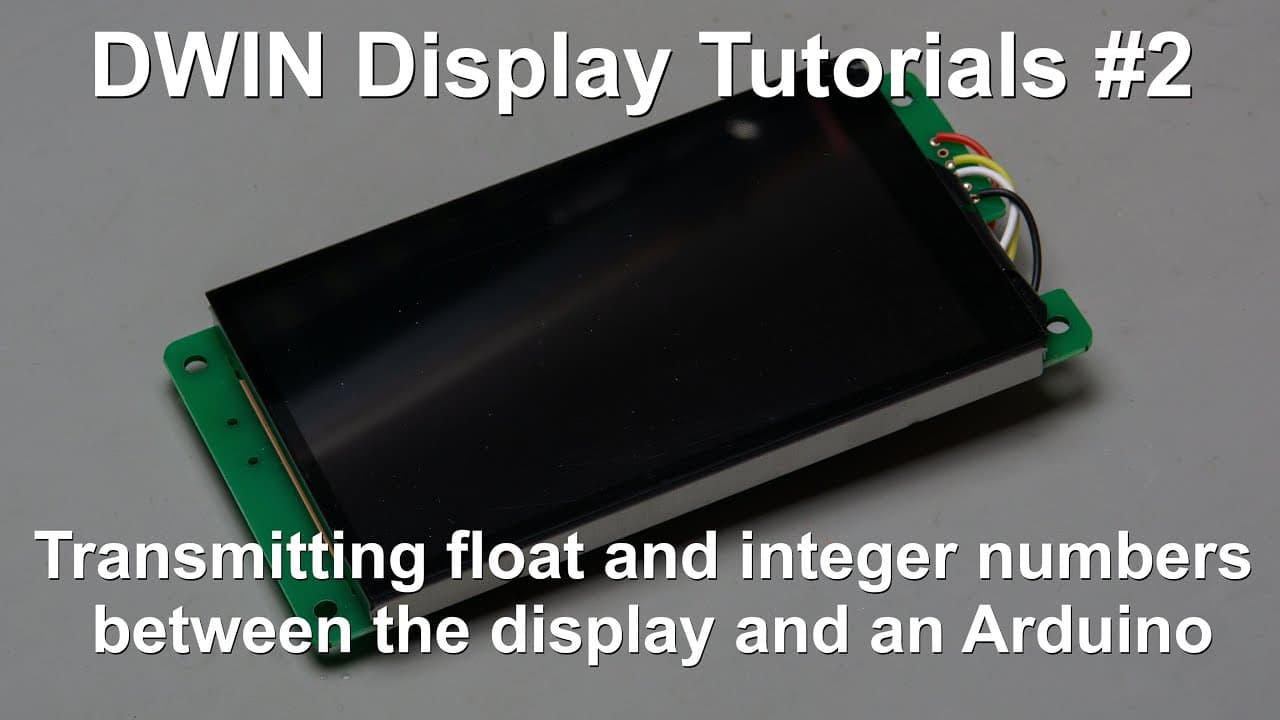
welcome everyone in this video I'm going to show you how to display different kind of numbers on a viewing display and this will include integer numbers and floating Point numbers which are received by the display and I will also show you how to create a number on your display using a keypad and then send it to the serial port and I will use an Ard... Read More
Key Insights
- ❓ Configuration of display settings is essential to ensure compatibility and functionality with Arduino.
- ☠️ Selecting the correct baud rate can prevent communication issues and improve data accuracy.
- 👤 Using a keypad for input enhances user interaction and enables real-time data adjustments.
- 🍵 Handling floats in Arduino requires careful consideration of data types and byte ordering for accurate transmission.
- 👨💻 Non-blocking code practices are recommended for responsive designs, avoiding delays in readings.
- ❓ The display can showcase both integers and floats, demonstrating versatility in data representation.
- 🫵 Having a well-structured tutorial can aid viewers in grasping complex concepts effectively.
Install to Summarize YouTube Videos and Get Transcripts
Explore YouTube Video Summarizer or Get YouTube Transcript Extractor
Questions & Answers
Q: What components are required to display numbers using Arduino?
To display numbers using Arduino, you will need an Arduino board, a compatible display module (like an LCD or TFT), a keypad for user input, and connections for power and serial communication. Additionally, you should have the necessary software tools for coding and uploading your program to the Arduino.
Q: How do you configure the display settings for the Arduino?
Configuring the display settings involves selecting the font type, adjusting the image resolution to match your display, setting the baud rate for serial data transmission, and creating necessary configuration files. It's crucial to ensure that the parameters are correctly set so that the display communicates effectively with Arduino.
Q: Can you explain how to handle floating-point numbers with Arduino?
Handling floating-point numbers involves converting integers into float values, managing data size for transmission, and ensuring the float values are accurately displayed. One must also consider the format for bytes and the correct order of the data when sending it to the display, as this impacts how accurately the float is represented.
Q: What was discussed about using a keypad for data input?
The video explains how to set up a keypad for entering numerical values. It covers configuring the keypad button for triggering input submissions and making sure that inputted values are uploaded to the display. The tutorial also ensures that the controls are configured correctly to facilitate user interaction.
Q: How does the serial communication work in this setup?
Serial communication allows the Arduino to send data to the display and receive input from the user. The video highlights adjusting baud rates to avoid data corruption and employing a software serial approach for efficient data transmission between the display and Arduino. Ensuring proper communication protocols is crucial for the integrity of the transmitted data.
Summary & Key Takeaways
-
The video showcases how to set up a display with Arduino, focusing on displaying both integers and floating-point numbers.
-
It explains the configuration process for displaying numbers, covering font and picture settings, as well as adjusting baud rates for serial communication.
-
The tutorial includes using a keypad for user input of numbers and demonstrates the practical implementation of these concepts in real-time.
Read in Other Languages (beta)
Share This Summary 📚
Summarize YouTube Videos and Get Video Transcripts with 1-Click
Try YouTube Summary with ChatGPT & Claude or YouTube Transcript Generator
Explore More Summaries from Curious Scientist 📚



Summarize YouTube Videos and Get Video Transcripts with 1-Click
Try YouTube Summary with ChatGPT & Claude or YouTube Transcript Generator