How to Build AI Agents in n8n with Simple Tools
TL;DR
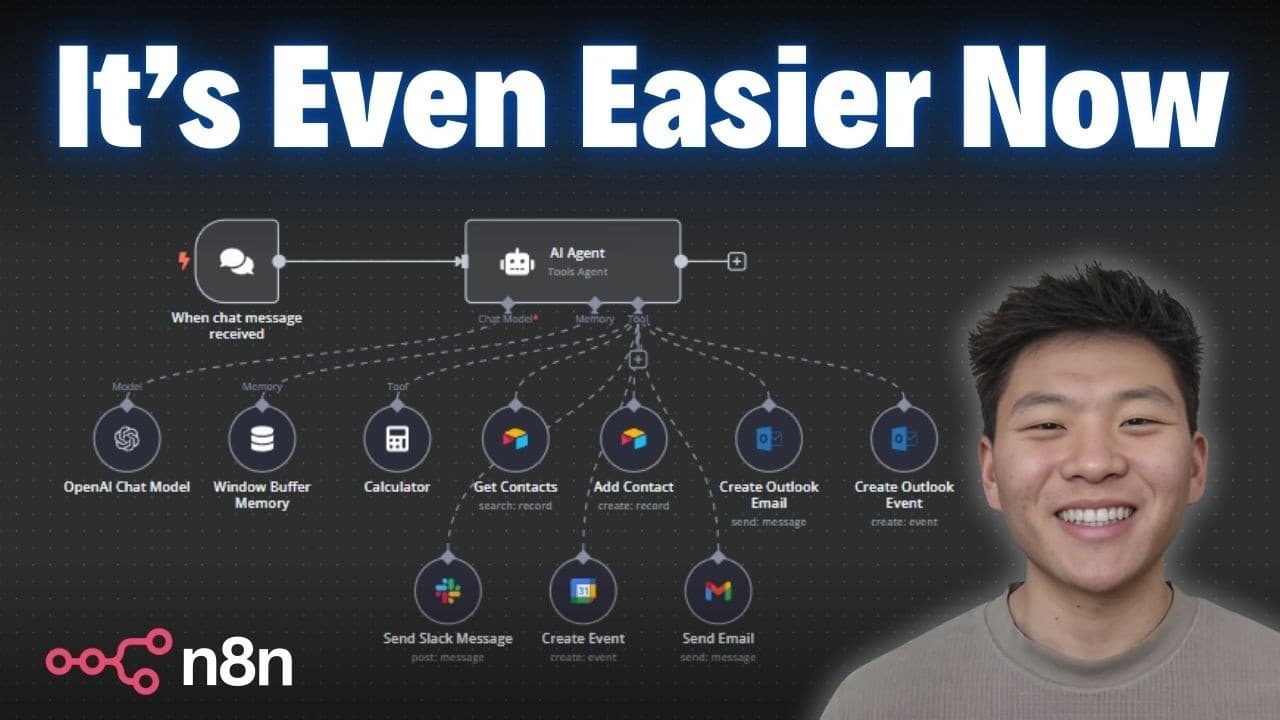
Build an AI agent in n8n by connecting a chat trigger, adding an OpenAI chat model, and attaching action tools such as Gmail and Google Calendar. The model can define tool parameters from natural-language requests, while field descriptions, clear node names, and a system message containing the current date and time improve how emails and calendar events are created.
Transcript
nnn has done it again they've somehow found a way to make building AI agents even easier so whether you've been building agents for a while now or this is going to be your first time taking a stab at it what we're going to look at today is how you can get one spun up in minutes and completely understand what's going on and start to add more tools a... Read More
Key Insights
- An n8n AI agent can be assembled from a chat trigger, an AI Agent node, and a connected chat model. The chat trigger supplies each user message as the prompt, while the model generates responses and decides when attached tools should be used.
- GPT-4o mini serves as the agent’s brain in the demonstrated workflow. With credentials already connected, the model responds to chat messages immediately and interprets requests that contain the information required by email and calendar tools.
- The model-defined parameter option replaces the demonstrated manual from-AI expression process. Clicking this option for each required field allows the language model to infer values such as an email recipient, subject, message body, event time, attendees, and title.
- The Gmail tool requires a recipient, subject, and message body to send an email. In the example, the model extracts these details from a request about inviting Nate to a baseball game, then generates and sends a complete message without a custom system instruction.
- Field descriptions are instructions that guide how the model generates individual parameter values. Adding a description to the email message field makes the tool sign messages as Nate from ABC Corp instead of using a generic placeholder such as your name.
- The n8n attribution can be removed through the Gmail tool’s options. Disabling the append n8n attribution setting prevents the automatic n8n notice from appearing at the bottom of subsequently generated emails.
- Relative dates require the agent to know the current date and time. Adding the current date-time expression to the system message gives the calendar tool enough context to interpret tomorrow and construct the appropriate start and end timestamps.
- Clear tool names help the agent understand available actions. Renaming nodes to send email and create event makes their purposes explicit, while execution records reveal the generated inputs and show separate tool runs when multiple emails are sent.
Install to Summarize YouTube Videos and Get Transcripts
Explore YouTube Video Summarizer or Get YouTube Transcript Extractor
Questions & Answers
Q: How do you build a basic AI agent in n8n?
Start by adding an AI Agent node to an n8n workflow. The demonstrated setup includes a chat trigger because the user communicates with the agent through n8n’s chat window. Next, connect an OpenAI chat model as the agent’s brain. With GPT-4o mini selected and credentials connected, the agent can already receive a prompt and return a conversational response.
Q: How do you add Gmail as a tool for an n8n AI agent?
Add a tool beneath the AI Agent node, search for Gmail, set the resource to message, and select the send-message operation. Change the email type from HTML to text if desired. Then allow the model to define the recipient, subject, and message fields. The agent can extract those values from a natural-language request and use them to send the email.
Q: What does letting the model define a parameter do in n8n?
Letting the model define a parameter allows the connected language model to generate that field’s value from the user’s request. For an email, it can determine the recipient, subject, and body. For a calendar event, it can determine the start time, end time, attendees, and summary. This avoids manually creating the demonstrated from-AI expressions for every field.
Q: How can you control the email signature generated by an n8n agent?
Add a specific description to the Gmail tool’s message field that tells the language model how to finish the email. In the demonstration, the description says to sign off emails as Nate from ABC Corp. Reposting the same request then produces that signature instead of the earlier placeholder, which ended the message with best, your name.
Q: How do you remove the automatic n8n attribution from emails?
Open the Gmail tool, add the append n8n attribution option, and switch that setting off. The next execution sends the generated email without the automatic notice stating that the message was sent by n8n. This setting is separate from the model-generated message instructions, so the signature can still be controlled through the message field’s description.
Q: How do you create Google Calendar events with an n8n AI agent?
Attach a Google Calendar tool to the agent, select the create-event operation, and choose the calendar that should receive the event. Let the model define the start and end times, then add attendees and summary properties and let the model define those too. Rename the node create event so the agent can clearly recognize the action it performs.
Q: Why should an n8n AI agent receive the current date and time?
The current date and time allow the agent to interpret relative scheduling language such as tomorrow. In the demonstrated workflow, the system message is converted to an expression and includes the current date-time value using the now expression. With that context, the agent can turn a request for an hour-long meeting tomorrow into specific calendar start and end times.
Q: How can you inspect what an n8n AI agent did with its tools?
Open the executed tool node to inspect the inputs the model generated and the output returned by the action. The Gmail execution shows the selected address, generated subject, and message body. The calendar execution shows the start time, end time, attendees, and summary. When the email tool runs twice, n8n displays separate execution runs for reviewing each message.
Summary & Key Takeaways
-
An n8n AI agent starts with a chat trigger and a connected chat model. The demonstration uses GPT-4o mini as the agent’s brain, allowing it to receive prompts from n8n’s chat window and return responses. Once this basic workflow runs, action tools can be attached directly to the agent.
-
The Gmail tool can send messages by letting the model define the recipient, subject, and body from a natural-language request. A field description can require a specific email signature, while the n8n attribution option can be disabled. Execution details show exactly which parameter values the model generated for each message.
-
The Google Calendar tool follows the same pattern, with the model defining start time, end time, attendees, and event summary. Because relative phrases such as tomorrow require date context, the current date and time are inserted into the system message through an expression. The completed workflow can create events and send related emails.
Read in Other Languages (beta)
Share This Summary 📚
Summarize YouTube Videos and Get Video Transcripts with 1-Click
Try YouTube Summary with ChatGPT & Claude or YouTube Transcript Generator
Explore More Summaries from Nate Herk | AI Automation 📚

Summarize YouTube Videos and Get Video Transcripts with 1-Click
Try YouTube Summary with ChatGPT & Claude or YouTube Transcript Generator